
How to Optimize Windows Paging File for Low-RAM PCs
You can optimize windows paging file by manually adjusting virtual memory settings in Windows, setting a custom paging file size based on your RAM, and ensuring it runs on a fast drive like an SSD for better performance.
To improve performance on low-RAM systems, proper configuration helps Windows use storage as temporary memory when physical RAM is full. This reduces lag, freezes, and unexpected application crashes while multitasking on Windows 10 and Windows 11.
Many systems with 4GB–8GB RAM struggle under heavy workloads because available memory gets exhausted quickly. When this happens, Windows relies heavily on virtual memory, making correct setup important for stability and responsiveness.
Why the Windows Paging File Matters
The paging file acts as overflow memory when RAM reaches its limit. Instead of forcing applications to crash, Windows temporarily shifts inactive data to the storage drive.
When configured properly, virtual memory improves stability and multitasking performance. When misconfigured, it can cause slow boot times or reduced system responsiveness, especially on low-storage devices.
Low-RAM systems benefit most from properly tuned virtual memory settings compared to default configurations.
How to Adjust Paging File Settings
- Follow these easy steps:
- Open Advanced System Settings by pressing Windows + S, searching Advanced system settings, and opening it Under Performance, click Settings, then go to the Advanced tab Access Virtual Memory by clicking Change under Paging File (Virtual Memory) Uncheck Automatically manage paging file size for all drives Select your main Windows drive (usually C:) Prefer using an SSD for better paging performance Set a Custom size for the paging file:
- Initial size: 1.5× your RAM
- Maximum size: 3× your RAM
- Example (4GB RAM):
- Initial: 6144 MB
- Maximum: 12288 MB
- Click Set, then OK, and restart your PC to apply changes
Click Set, then OK, and restart your PC to apply changes
Additional Performance Tips
Keep at least 15–20% free disk space for smoother paging performance
Use an SSD instead of an HDD for significantly faster paging speed
Avoid setting excessively large paging file values, as they may slow disk activity instead of improving performance
Combine optimization with cleanup tools by removing junk files and unused applications to improve overall system efficiency
Using Fortect for System Stability
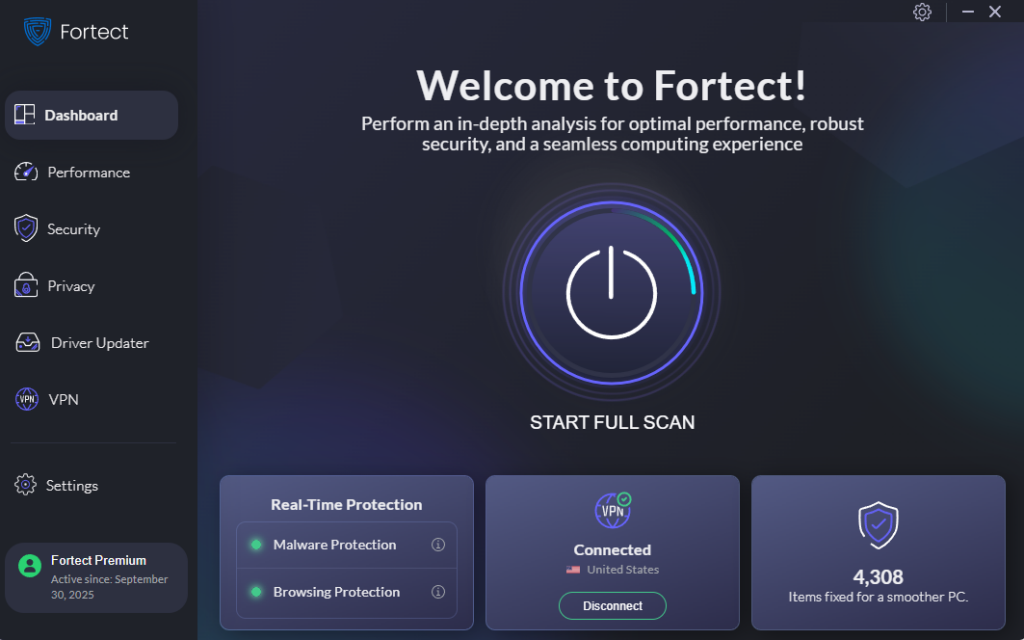
Even after you optimize windows paging file, other system issues like corrupted files, outdated drivers, and background errors can still affect performance.
Fortect helps repair system files, remove junk data, and update outdated drivers to reduce conflicts and improve stability over time. This is especially useful for low-RAM PCs that rely heavily on virtual memory.

Fortect’s Driver Updater automatically scans for outdated and corrupted drivers and updates them from a secure, verified source to keep your PC stable, smooth, and performing at its best. Alongside this, its real-time protection helps detect and repair threats that can damage system files or corrupt drivers, reducing issues like paging file errors and performance drops often linked to junk file buildup on low-RAM systems. By combining system repair, malware defense, and driver optimization, it helps restore overall Windows performance without manual troubleshooting.
Download and install Fortect today.
Conclusion
You can optimize windows paging file by properly configuring virtual memory, choosing the right drive, and setting a balanced custom size based on your installed RAM. This improves performance, reduces lag, and helps prevent crashes on low-RAM Windows systems.
When combined with regular maintenance, this setup creates a more stable and responsive computing experience without needing hardware upgrades.




