
How to Optimize Windows 11 for AI Tasks Without Upgrading Hardware
You can optimize Windows 11 for AI tasks without upgrading your hardware by adjusting system settings, reducing background load, and improving resource allocation to boost performance. Many users assume that running AI tools, such as local chatbots, image generators, or productivity models, requires expensive upgrades.
Still, in most cases, the real issue is an inefficient Windows setup rather than weak hardware. When the system is cluttered with startup apps, unnecessary visual effects, and outdated drivers, AI workloads suffer even on capable machines. By fine-tuning Windows 11, you can unlock noticeably faster and more stable AI performance without spending on new components.
How to Optimize Windows 11 Performance for AI Tasks
- Disable Startup Programs That Slow Boot and Background Performance
Press Ctrl + Shift + Esc to open Task Manager, then click the Startup Apps tab. Disable anything that doesn’t need to launch at boot, streaming apps, update helpers, and manufacturer utilities are common offenders. This frees up RAM and CPU cycles before an AI task even begins.
- Set the Power Plan to High Performance
Windows 11 defaults to a Balanced power plan, which throttles the CPU to save energy. For AI workloads, that’s a bottleneck. Search “Power Plan” in the Start menu, open Power & Sleep Settings, and switch to High Performance or Ultimate Performance if available. This ensures the processor runs at full capacity when it’s needed most.
- Adjust Visual Effects for Best Performance
Search “Adjust the appearance and performance of Windows” in the Start menu. In the Performance Options window, select Adjust for best performance. This disables animations and visual effects that consume GPU and RAM, resources better spent on Windows 11 AI optimization tasks.
- Update or Roll Back GPU and CPU Drivers
Outdated or corrupted drivers are one of the most overlooked causes of poor AI performance on Windows. Open Device Manager (right-click the Start button), expand Display Adapters, and update the GPU driver. Do the same for the processor under the Processors section. If a recent update caused instability, use “Roll Back Driver” to revert.
- Free Up Disk Space and Clear Temporary Files
AI tools often create large temporary files, and a nearly full drive can cause serious slowdowns. Open Settings > System > Storage and run Storage Sense to automatically delete temp files, old downloads, and cached data. Aim to keep at least 15–20% of the drive free at all times to optimize Windows 11 performance.
- Increase Virtual Memory (Page File Size)
If the PC has limited RAM, Windows uses a portion of the hard drive as virtual memory. Search “Adjust the appearance and performance of Windows,” go to the Advanced tab, and click Change under Virtual Memory. Uncheck automatic management, set a custom size (recommended: 1.5x the total RAM), and apply. This gives AI applications extra headroom without adding physical memory.
- Disable Background Apps and Notifications
Go to Settings > Apps > Installed Apps, and for apps that don’t need to run in the background, turn off background activity permissions. Also, visit Settings > System > Notifications and disable alerts during AI sessions. Constant notification checks interrupt processing and chip away at available system resources.
Keep Your System in Peak Shape with Fortect
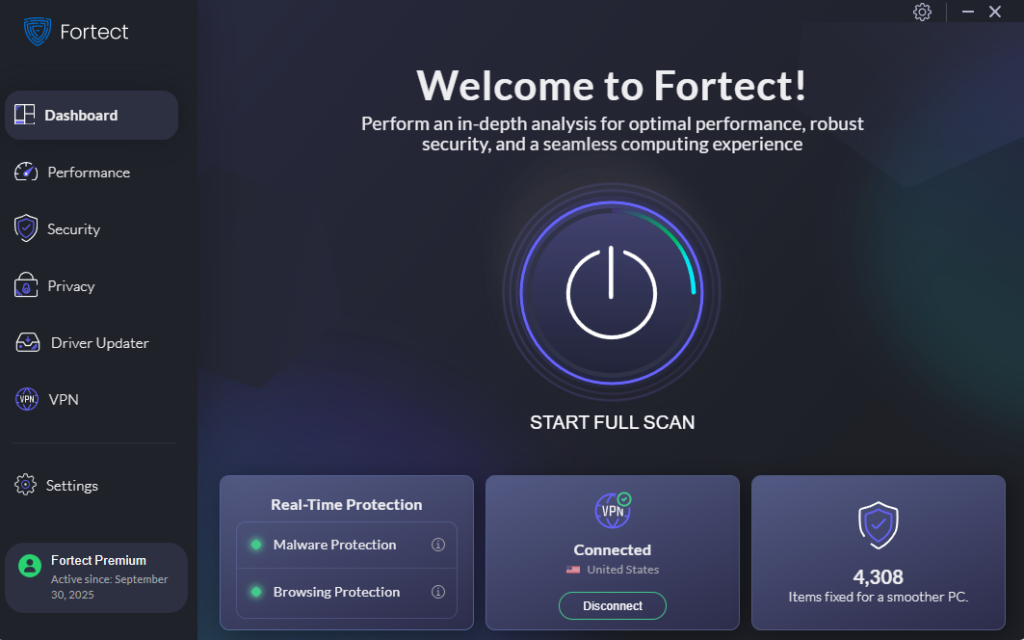
Manual tweaks go a long way, but maintaining those gains over time is where many users fall short. Fortect is a trusted Windows optimization tool that actively monitors the system in real time, detecting performance threats related to optimizing Windows 11 for AI tasks, removing them, and automatically restoring damaged system files before they can cause slowdowns or crashes.
Beyond protection, Fortect performs a deep performance cleanup that clears out junk files, crashed program remnants, and registry clutter, the kind of buildup that gradually degrades a PC over months of use. The result is a noticeably faster, more responsive system without the manual effort.
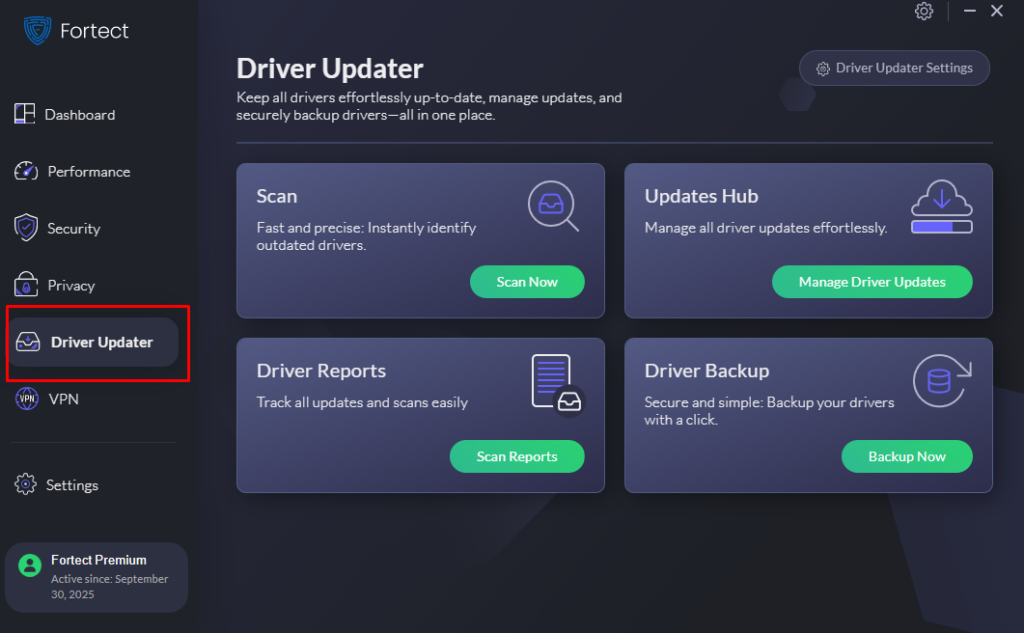
Fortect also includes a built-in Driver Updater that identifies outdated or corrupted drivers and replaces them with verified, certified versions. Since bad drivers are one of the most common ways attackers exploit Windows systems, and one of the quietest causes of AI performance issues, keeping drivers current is a step too important to skip.
For anyone serious about getting the most out of their current hardware, Fortect is worth a look. Run a free scan and see exactly what’s holding the system back.
Download and install Fortect now.
More Power Without More Spending
The steps above show that to optimize Windows 11 for AI tasks, better hardware isn’t always the answer. A properly tuned system, free of junk files, running updated drivers, and configured for performance, can handle demanding AI workloads far more reliably than a bloated machine with twice the specs.
Start with the manual steps, keep drivers current, and consider a tool like Fortect to automate the ongoing maintenance. The difference in speed and stability will be noticeable from the first session.





