
How to Fix Windows Thumbnail Cache for Better Performance
Clearing and rebuilding the Windows Thumbnail Cache is the fastest way to fix slow, broken, or missing image previews in File Explorer. When that cache becomes corrupted or bloated, previews stop loading, folders open slowly, or images show as blank icons.
What Is the Windows Thumbnail Cache?
Every time a folder containing photos, videos, or documents is opened, Windows generates small preview images and saves them to a hidden database file called thumbcache.db.
This thumbnail database grows quietly in the background. After months of use, especially if files are frequently moved, renamed, or deleted, the cache fills with outdated or broken entries.
The result is sluggish folder browsing, missing image previews, and wasted disk space. Resetting the cache forces Windows to rebuild it cleanly from scratch.
Signs the Thumbnail Cache Needs Fixing
A corrupted or oversized thumbnail cache shows up in a few recognizable ways. Image previews may appear as generic icons instead of actual photo thumbnails. Folders may take several seconds to fully load their contents.
File Explorer may freeze or refresh unexpectedly when scrolling through large image folders. In some cases, deleted files still appear as ghost thumbnails even after being removed.
Any of these symptoms points directly at the thumbnail database, and clearing it is the first fix to try.
How to Fix the Windows Thumbnail Cache
There are two reliable methods. Method 1 uses the built-in Disk Cleanup tool; no extra software is needed. Method 2 uses Disk Cleanup through a manual folder path for users who want direct control.
1 — Use Disk Cleanup (Easiest)
- Press the Windows key, type Disk Cleanup, and open the app.
- Select the C: drive (or whichever drive Windows is installed on) and click OK.
- Wait for the scan to complete. A list of file categories will appear.
- Scroll down and check the box next to Thumbnails.
- Click OK, then Delete Files to confirm. Windows will clear the thumbnail cache automatically.
After the cleanup completes, open any image-heavy folder. Windows will rebuild fresh thumbnails on the spot; loading may take a moment the first time, but performance will improve immediately.
2 — Delete Cache Files Manually
- Press Windows + R to open the Run dialog.
- Type %LocalAppData%\Microsoft\Windows\Explorer and press Enter.
- Close File Explorer before proceeding — this is required to release the cache files.
- Open Task Manager (Ctrl + Shift + Esc), find Windows Explorer in the list, right-click it, and choose End Task.
- Go back to the Explorer folder, select all files named thumbcache_*.db, and delete them.
- Restart the computer. Windows Explorer will relaunch normally and begin rebuilding the cache automatically.
Want a Faster, Cleaner PC Without the Manual Work?
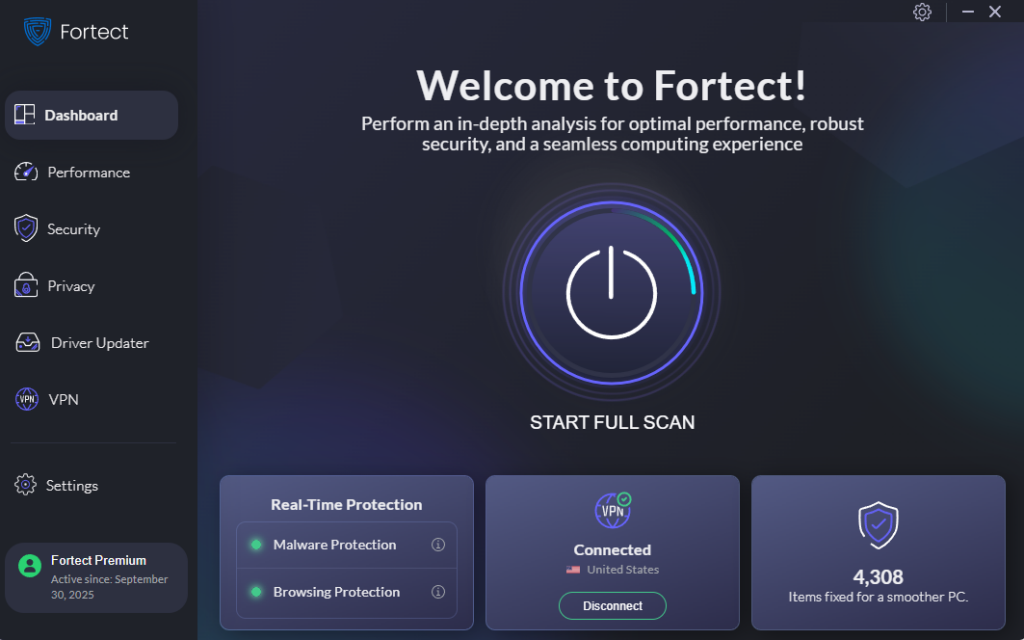
For users who want ongoing protection rather than one-time manual fixes, Fortect is worth a look. It runs in the background and actively monitors system health, detecting issues like a corrupted Windows Thumbnail Cache before they slow things down, removing the problem, and restoring any damaged system files to their original state.
Beyond cache cleanup, Fortect scans for junk files, crashed program remnants, and clutter that quietly chip away at PC speed over time. The result is a noticeably snappier computer without having to dig through system folders.
Fortect also includes a built-in Driver Updater that replaces outdated or broken drivers with verified versions, closing the security gaps that malware and ransomware commonly exploit. It’s one of the simplest ways to keep a Windows PC both secure and running well.
Give Fortect a try, a free scan takes only a few minutes and shows exactly what’s weighing the PC down.
Download Fortect now.
Keep Windows Running Smoothly
A bloated or corrupted Windows Thumbnail Cache is one of the most overlooked causes of sluggish File Explorer performance, and one of the easiest to fix. Making this a regular maintenance habit, every few months, keeps the thumbnail database lean and File Explorer responsive. Small cleanup steps like this add up to a faster, more reliable PC over time.




