How to Fix Windows Startup Delays from Legacy Drivers in 2026
Windows startup delays from legacy drivers in 2026 are fixed by removing hidden or unused drivers, updating outdated ones, and cleaning up startup entries that load unnecessary or conflicting system processes.
These delays happen when Windows is forced to load old, incompatible, or leftover “ghost” drivers during boot, which slows down initialization and can even trigger errors or freezes. Over time, hardware changes and software removals leave behind driver remnants that continue running in the background without serving any real function, dragging boot performance down.
Why Legacy Drivers Slow Down Windows Boot Performance
Every piece of hardware in your PC, your graphics card, printer, USB ports, and audio chip, needs a driver to communicate with Windows. Drivers written for older versions of Windows often aren’t optimized for current builds, so Windows wastes time trying to load them at startup.
Over time, uninstalled programs and replaced hardware leave ghost drivers behind. These “orphan” drivers still run during boot, consuming resources while doing nothing useful. The result is a slow Windows boot that gets worse the longer the system runs without maintenance.
How to Fix Startup Delays from Legacy Drivers
Follow these steps to identify and remove the legacy driver issues slowing down your Windows startup.
1: Check Your Boot Time Baseline
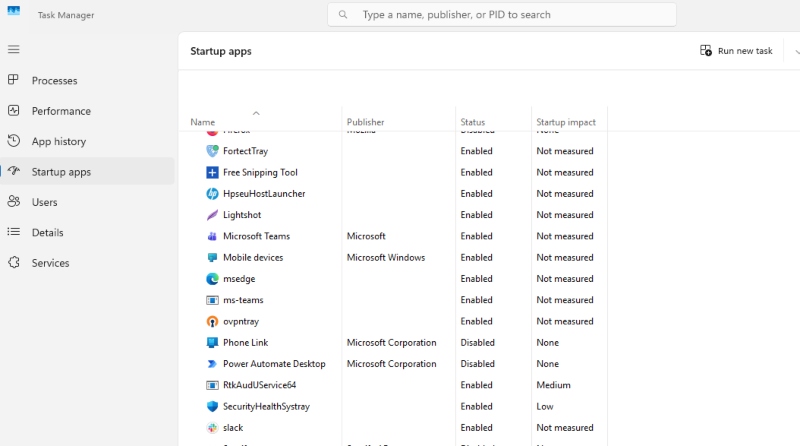
- Press Ctrl + Shift + Esc to open Task Manager. Click the “Startup” tab to see which programs and drivers load at boot. Look for anything with “High” startup impact that you don’t recognize.
2: Open Device Manager and Show Hidden Devices
- Right-click the Start button and choose Device Manager. Click the View menu at the top and select “Show hidden devices.” This reveals ghost drivers left behind by hardware you no longer use.
3: Uninstall Grayed-Out or Outdated Drivers
- Look through the device categories for entries that appear faded or grayed out; these are inactive legacy drivers still loading at startup. Right-click them and choose “Uninstall device.” Only remove ones you don’t recognize or no longer need.
4: Update Active Drivers That Are Out of Date
- For drivers that are active but outdated, right-click the device in Device Manager and choose “Update driver.” Select “Search automatically for drivers” and let Windows find the latest version. Do this for graphics, audio, and network adapters first; these are the biggest contributors to slow Windows boot times.
5: Restart and Measure the Difference
- Restart your PC and time how long it takes to reach the desktop. Most users see a noticeable improvement in Windows boot performance after clearing legacy drivers. If the problem persists, there may be deeper driver conflicts or corrupted system files involved.
Let Fortect Handle the Heavy Lifting
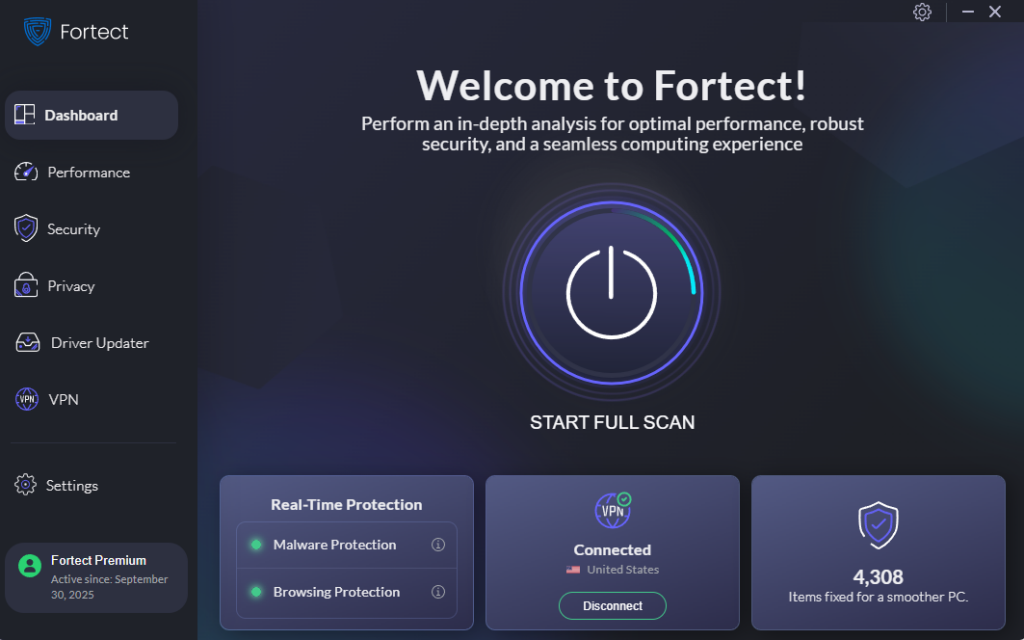
If manually digging through Device Manager feels like more trouble than it’s worth, Fortect is worth a look. Its real-time protection actively scans for threats like startup delays from legacy driver issues, removes them automatically, and restores any damaged system files to their original state, no technical knowledge required.
Beyond drivers, Fortect cleans out junk files and terminates crashed background programs that drag down PC performance over time. The result is a noticeably faster, more responsive machine from the moment Windows loads.
Fortect’s built-in Driver Updater goes a step further by replacing outdated or corrupted drivers with verified, tested versions, closing the exact security gaps that attackers use to exploit aging software. It’s the kind of maintenance most users never think about until something goes wrong.
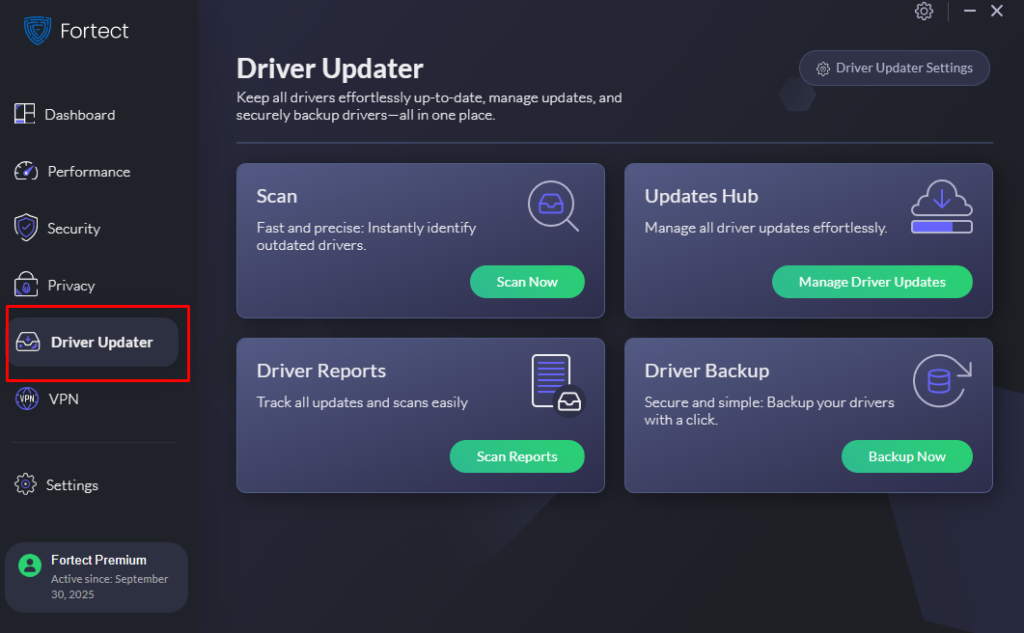
Download and install Fortect now.
Stop Letting Old Drivers Slow Down Your PC
Startup delays from legacy drivers are a silent performance killer, easy to miss, but simple to fix once identified. Clearing out outdated drivers, removing ghost devices, and keeping active ones updated can restore the fast boot Windows is supposed to deliver.
Whether tackling it manually or using a tool like Fortect, the key is not to ignore it. A cleaner driver environment means faster boot times, fewer errors, and a more secure system, which is worth every minute spent on the fix.