
Firmware Integrity: Why Antivirus Isn’t Enough Anymore
Antivirus isn’t enough anymore because it can’t see your firmware, and that’s exactly where modern attackers are hiding. Firmware is the low-level software embedded in your hardware, your motherboard, hard drive, and network card- and it runs before Windows ever loads. That puts it completely outside the reach of any antivirus program.
When firmware is compromised, an attacker gains control so deep that even a full Windows reinstall won’t remove the threat. Real-world attacks like LoJax and MoonBounce have already proven this isn’t theoretical.
What Is Firmware Integrity and Why Does It Matter?
Firmware is the low-level software embedded in your hardware, your motherboard, hard drive, network card, and even your keyboard. It runs before Windows ever loads, which makes it virtually invisible to traditional antivirus tools.
Firmware integrity refers to ensuring that this embedded software hasn’t been tampered with, corrupted, or replaced by malicious code. When firmware is compromised, an attacker gains control at a level so deep that even a full Windows reinstall won’t remove the threat.
The Difference Between Firmware and Software Threats
| Threat Type | Where It Lives | Antivirus Can Detect? |
| Virus / Malware | Operating system | Yes |
| Rootkit (OS-level) | Windows kernel | Sometimes |
| Firmware implant | BIOS/UEFI chip | Rarely or never |
Software-based threats live inside Windows. Firmware-based threats live beneath Windows, in the BIOS or UEFI chip on your motherboard. This distinction is critical because it defines the entire protection boundary.
Why Antivirus Cannot Protect Your Firmware
Traditional antivirus programs operate inside the operating system. They scan files, monitor processes, and block suspicious behavior, but only within Windows. Firmware loads before Windows starts, which means:
- Antivirus has no visibility into the firmware layer
- Malicious firmware code can disable or manipulate security tools after boot
- A factory reset or OS reinstall does nothing to remove firmware-level threats
Attacks like LoJax (the first known UEFI rootkit used in the wild) and MoonBounce have demonstrated that nation-state attackers are actively exploiting this blind spot. These are no longer theoretical risks.
Common Firmware Vulnerabilities Windows Users Face
UEFI/BIOS Attacks
UEFI (Unified Extensible Firmware Interface) replaced the older BIOS standard and is present on virtually every modern Windows PC. A UEFI implant can:
- Survive hard drive replacements
- Reinstall malware automatically every time the PC boots
- Disable Secure Boot and other protections silently
Supply Chain Firmware Tampering
Some devices arrive compromised before they’re even unboxed. Attackers with access to manufacturing or shipping channels have been known to inject malicious firmware into devices prior to sale. This is called a supply chain attack and is particularly difficult to detect.
Driver-Level Exploits
Firmware-adjacent threats also include malicious or outdated drivers, software that bridges your hardware and Windows. Attackers exploit signed but vulnerable drivers to gain deep system access. This technique, known as Bring Your Own Vulnerable Driver (BYOVD), has been used by ransomware groups to disable security software entirely.
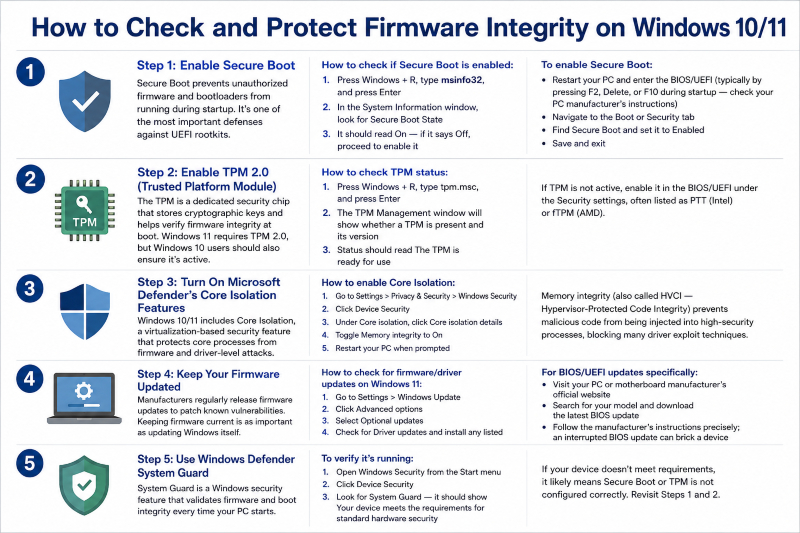
Windows 10 and Windows 11 include several built-in tools designed to address firmware-level threats. Here’s how to use them.
Step 1: Enable Secure Boot
Secure Boot prevents unauthorized firmware and bootloaders from running during startup. It’s one of the most important defenses against UEFI rootkits.
How to check if Secure Boot is enabled:
- Press Windows + R, type msinfo32, and press Enter
- In the System Information window, look for Secure Boot State
- It should read On — if it says Off, proceed to enable it
To enable Secure Boot:
- Restart your PC and enter the BIOS/UEFI (typically by pressing F2, Delete, or F10 during startup — check your PC manufacturer’s instructions)
- Navigate to the Boot or Security tab
- Find Secure Boot and set it to Enabled
- Save and exit
Step 2: Enable TPM 2.0 (Trusted Platform Module)
The TPM is a dedicated security chip that stores cryptographic keys and helps verify firmware integrity at boot. Windows 11 requires TPM 2.0, but Windows 10 users should also ensure it’s active.
How to check TPM status:
- Press Windows + R, type tpm.msc, and press Enter
- The TPM Management window will show whether a TPM is present and its version
- Status should read The TPM is ready for use
If TPM is not active, enable it in the BIOS/UEFI under the Security settings, often listed as PTT (Intel) or fTPM (AMD).
Step 3: Turn On Microsoft Defender’s Core Isolation Features
Windows 10/11 includes Core Isolation, a virtualization-based security feature that protects core processes from firmware and driver-level attacks.
How to enable Core Isolation:
- Go to Settings > Privacy & Security > Windows Security
- Click Device Security
- Under Core isolation, click Core isolation details
- Toggle Memory integrity to On
- Restart your PC when prompted
Memory integrity (also called HVCI — Hypervisor-Protected Code Integrity) prevents malicious code from being injected into high-security processes, blocking many driver exploit techniques.
Step 4: Keep Your Firmware Updated
Manufacturers regularly release firmware updates to patch known vulnerabilities. Keeping firmware current is as important as updating Windows itself.
How to check for firmware/driver updates on Windows 11:
- Go to Settings > Windows Update
- Click Advanced options
- Select Optional updates
- Check for Driver updates and install any listed
For BIOS/UEFI updates specifically:
- Visit your PC or motherboard manufacturer’s official website
- Search for your model and download the latest BIOS update
- Follow the manufacturer’s instructions precisely; an interrupted BIOS update can brick a device
Step 5: Use Windows Defender System Guard
System Guard is a Windows security feature that validates firmware and boot integrity every time your PC starts.
To verify it’s running:
- Open Windows Security from the Start menu
- Click Device Security
- Look for System Guard — it should show Your device meets the requirements for standard hardware security
If your device doe’t meet requirements, it likely means Secure Boot or TPM is not configured correctly. Revisit Steps 1 and 2.
Fortect: A Stronger Layer of Protection for Windows Users
Built-in Windows tools go a long way, but they work best when paired with dedicated security software. Fortect is a trusted Windows optimization and protection tool that actively scans for both conventional malware and more serious threats that put firmware integrity at risk. When it detects compromised or damaged system files, whether caused by a virus, a failed update, or a boot-level intrusion, it repairs them automatically without requiring a full reinstall.
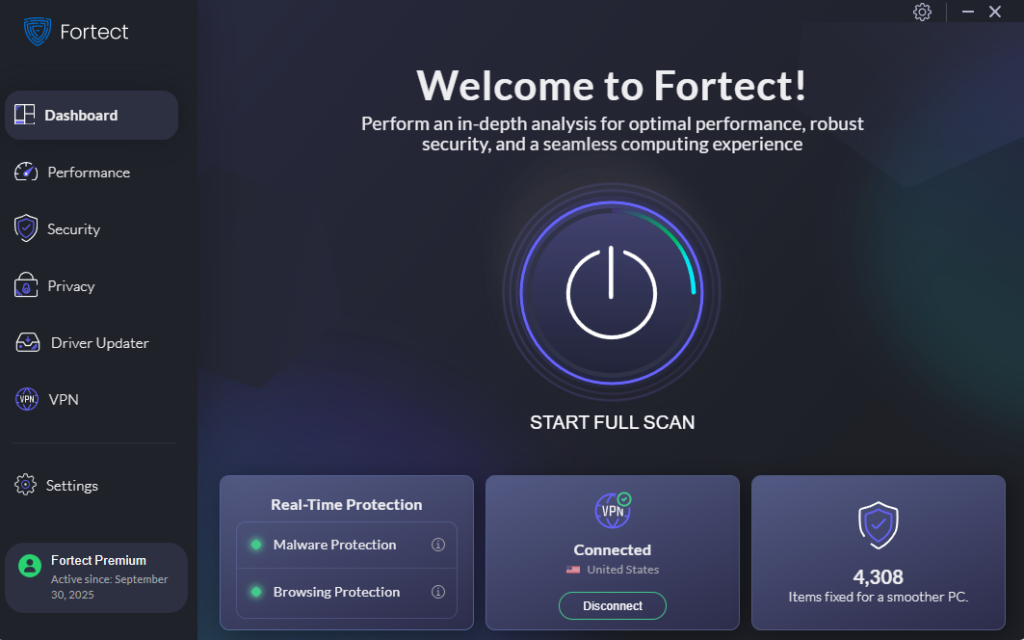
Fortect also keeps a close watch on suspicious processes and unauthorized changes, alerting users before any real damage can occur. For Windows users who want peace of mind beyond what Defender alone provides, it’s a practical and reliable addition to any security setup.
Download and install Fortect today.
Additional Best Practices for Firmware Security
Only Buy From Reputable Manufacturers
Choose devices from vendors with strong security track records and a history of releasing firmware patches. Check whether the manufacturer participates in programs like Microsoft’s Secured-core PC initiative, which enforces hardware-level security standards.
Avoid Unofficial Firmware or BIOS Mods
Flashing unofficial or third-party BIOS firmware voids protections and opens major security holes. Only install firmware from the official manufacturer’s website.
Monitor for Unusual Boot Behavior
Signs that firmware may be compromised include:
- Windows is taking significantly longer to boot without explanation
- Security software is being disabled at startup
- Unexpected network activity before Windows fully loads
If these symptoms appear, consult a professional; do not attempt to fix suspected firmware malware without guidance.
The Bottom Line: Layered Security Starts at the Firmware Level
Antivirus software remains an essential tool, but it was never designed to protect the firmware layer. As attackers increasingly target UEFI, BIOS, and hardware drivers, firmware integrity becomes a foundational security concern for every Windows user, not just enterprises.
By enabling Secure Boot, activating TPM 2.0, turning on Memory Integrity, and keeping firmware updated, Windows 10 and 11 users can close one of the most dangerous and overlooked gaps in personal cybersecurity. Antivirus alone is no longer enough.




