Boost Windows Performance Without Upgrading Hardware
Many Windows users assume that the only way to speed up a slow PC is by upgrading hardware. The truth is, there are numerous ways to boost Windows performance without spending a dime on new components. By optimizing system settings, removing unnecessary programs, and using built-in tools, you can significantly improve speed, responsiveness, and overall efficiency on Windows 10 and 11.
Common Reasons Windows Slows Down

Too Many Startup Programs
Programs that launch automatically with Windows consume memory and CPU resources, making your PC sluggish from the moment it boots.
Fragmented Storage and Full Drives
Traditional hard drives or cluttered storage can slow read/write speeds, while nearly full drives limit the system’s ability to manage temporary files efficiently.
Outdated System Software
Running an outdated Windows version or missing security patches can impact performance, cause system instability, and leave vulnerabilities that slow down your device.
Background Processes and Malware
Excessive background apps, unnecessary services, and malware can drain system resources without you noticing, directly affecting speed and responsiveness.
How to Boost Windows Performance
Update Windows and Drivers
Keeping your system updated ensures optimal performance and security.
Steps for Windows 10/11: 1. Press Windows + I to open Settings 2. Go to Update & Security 3. Click Windows Update and select Check for updates 4. Install any available updates and restart your PC 5. Update drivers via Device Manager by right-clicking devices and selecting Update driver
Manage Startup Programs
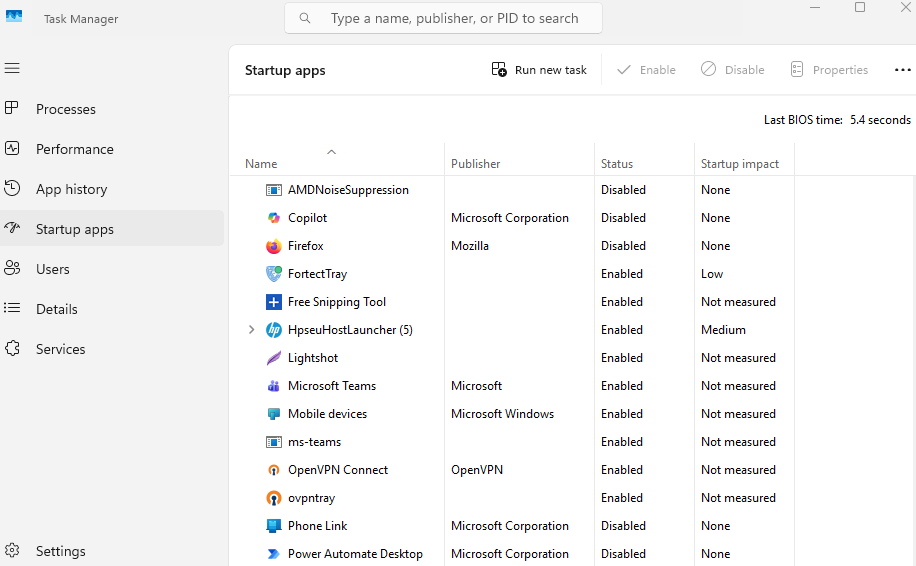
Disabling unnecessary startup programs frees memory and speeds up boot times.
Steps: 1. Press Ctrl + Shift + Esc to open Task Manager 2. Click the Startup tab 3. Right-click programs you don’t need on boot and select Disable
Optimize Storage and Disk Performance
Freeing space and defragmenting drives improves data access speed.
Steps: 1. Press Windows + E to open File Explorer 2. Right-click your main drive (usually C:) and select Properties 3. Under the General tab, click Disk Cleanup and remove temporary files 4. Go to the Tools tab and select Optimize to defragment traditional HDDs
Adjust Visual Effects
Reducing graphical effects can free up system resources and improve responsiveness.
Steps: 1. Press Windows + S, type Performance, and select Adjust the appearance and performance of Windows 2. Choose Adjust for best performance or manually disable unnecessary effects
Monitor and Restrict Background Apps
Some apps run constantly in the background, consuming CPU, memory, and network resources.
Steps: 1. Open Settings > Privacy > Background apps 2. Toggle off apps you don’t need running in the background
Use Built-In Security Tools
Malware can drastically slow down your PC. Running regular scans ensures your system is clean.
Steps: 1. Open Settings > Privacy & Security > Windows Security 2. Click Virus & threat protection 3. Run a Quick scan or Full scan to detect and remove threats
Fortect: Boost Windows Performance Automatically
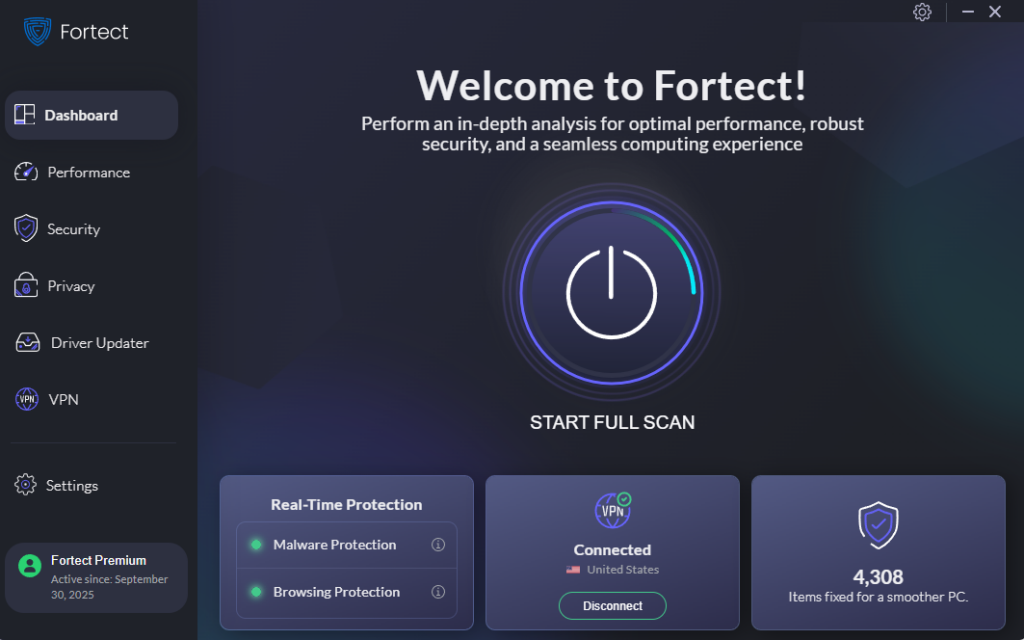
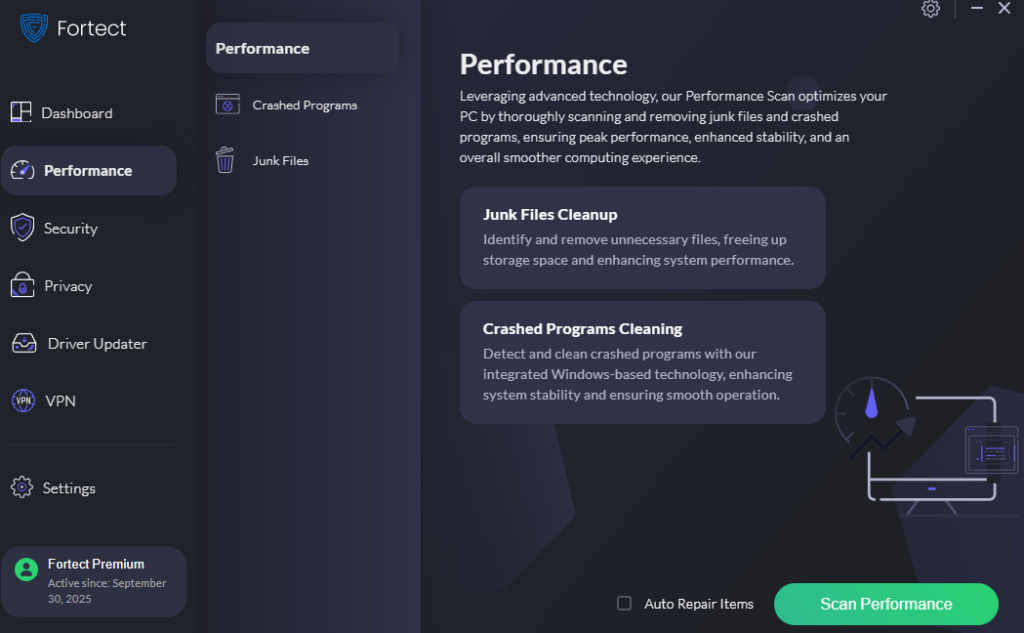
Fortect is a robust antivirus software with real-time malware protection. It also comes with a built-in performance scanner that optimizes your PC by scanning and removing junk files and crashed programs, ensuring peak performance, enhanced stability, and a smoother computing experience. Fortect Premium includes a Driver Updater that identifies and replaces outdated or corrupted drivers with verified versions from trusted sources. Keeping drivers updated helps close security gaps, strengthens defenses, and ensures a cleaner, faster, and more reliable system overall, helping Windows users fully boost Windows performance without hardware upgrades.
Download and install Fortect on your Windows systems today.
Conclusion
You don’t need to spend money on new hardware to improve PC performance. By updating Windows and drivers, managing startup programs, optimizing storage, adjusting visual effects, and monitoring background apps, you can boost Windows performance significantly. Combined with tools like Fortect, these steps help your PC run faster, smoother, and more efficiently, keeping it responsive for everyday tasks and demanding applications alike.