Best Practices for Managing Windows Drivers
Managing Windows drivers is one of the most overlooked aspects of keeping your PC running smoothly. A poorly managed driver can cause system crashes, hardware failures, and frustrating performance issues. Whether you’re using Windows 10 or Windows 11, following the right practices for driver management can save you hours of troubleshooting.
What Are Windows Drivers and Why Do They Matter?
A device driver is a small software program that allows your operating system to communicate with hardware, such as your GPU, network adapter, printer, keyboard, and more. Without the correct drivers, Windows cannot properly recognize or use these devices.
Outdated, corrupt, or incompatible drivers are among the top causes of:
- Blue Screen of Death (BSOD) errors
- Poor gaming or graphics performance
- Wi-Fi connectivity issues
- Peripheral devices are not being recognized
Keeping your drivers up to date and properly managed is essential for system stability, security, and performance.
How to Update Drivers in Windows 10 and 11
Using Windows Update (Recommended for Most Users)
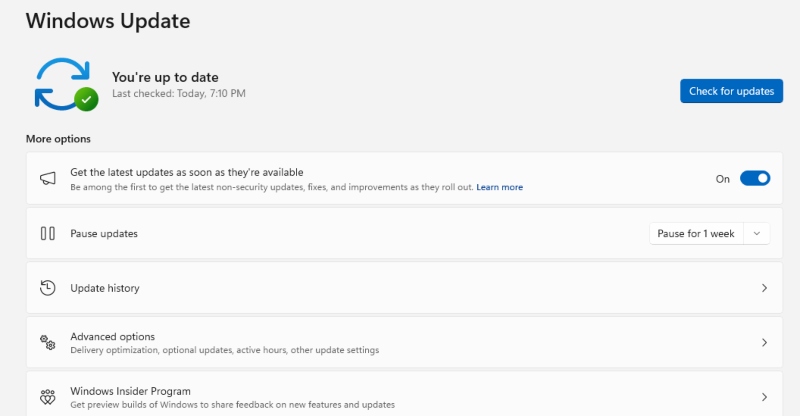
Windows Update automatically downloads and installs verified driver updates. Here’s how to check:
Steps:
- Press Windows + I to open Settings.
- Go to Windows Update (Windows 11) or Update & Security > Windows Update (Windows 10).
- Click Check for updates.
- On Windows 11, also click Advanced options > Optional updates to see available driver updates.
- Select any driver updates listed and click Download & Install.
Tip: Microsoft-verified drivers through Windows Update are tested for compatibility, making this the safest update method for most users.
Using Device Manager to Update a Specific Driver
If a specific device is having issues, you can update its driver directly.
Steps:
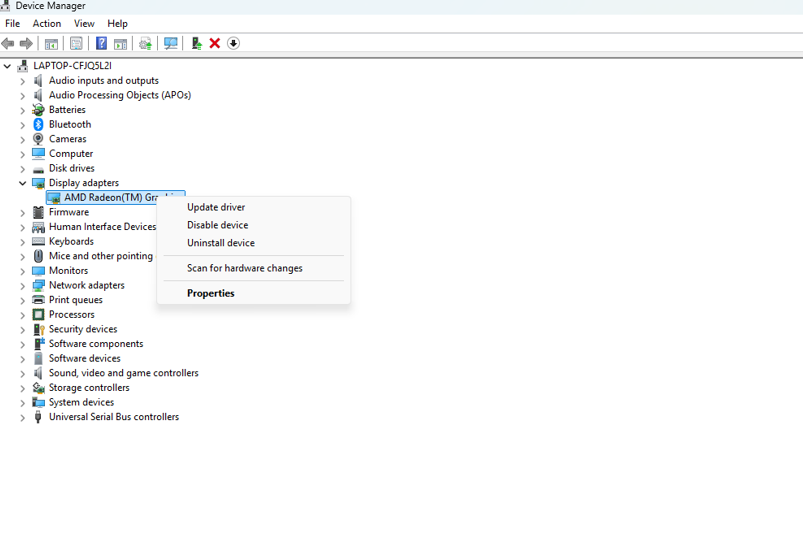
- Right-click the Start button and select Device Manager.
- Expand the category for the device you want to update (e.g., Display adapters, Network adapters).
- Right-click the device and choose Update driver.
- Select Search automatically for drivers to let Windows find the best available version.
- Follow the prompts and restart your PC if prompted.
Downloading Drivers from the Manufacturer’s Website
For critical components like GPUs, Wi-Fi cards, or motherboards, downloading directly from the manufacturer often gives you the latest version before it appears in Windows Update.
Common driver sources:
- NVIDIA / AMD / Intel – for graphics card drivers
- Intel / AMD – for chipset and CPU drivers
- Your PC or laptop brand (Dell, HP, Lenovo, ASUS) – for bundled hardware drivers
Steps:
- Identify your hardware model (use Device Manager or search your PC’s model number).
- Visit the manufacturer’s official support or downloads page.
- Search for your device model and operating system (Windows 10 or 11, 64-bit).
- Download the latest driver package and run the installer.
- Restart your PC after installation.
How to Roll Back a Driver (If an Update Causes Problems)
If your PC starts crashing or behaving abnormally after a driver update, rolling back to the previous version is a quick fix.
Steps:
- Open Device Manager (right-click Start > Device Manager).
- Find the device with the problematic driver and double-click it.
- Go to the Driver tab.
- Click Roll Back Driver (if the button is greyed out, no previous version is stored).
- Choose a reason for rolling back and click Yes.
- Restart your PC.
How to Uninstall a Problematic Driver
Sometimes rolling back isn’t enough; you may need to completely remove a driver and reinstall it fresh.
Steps:
- Open Device Manager.
- Right-click the device and select Uninstall device.
- Check the box “Delete the driver software for this device” if available.
- Click Uninstall and restart your PC.
- Windows will often reinstall a basic driver automatically on reboot. You can then install the correct version manually.
How to Prevent Windows from Automatically Installing Unwanted Drivers
Windows 10 and 11 can automatically update drivers, which occasionally installs a version that causes issues. Here’s how to take control.
Disable Automatic Driver Updates via Settings
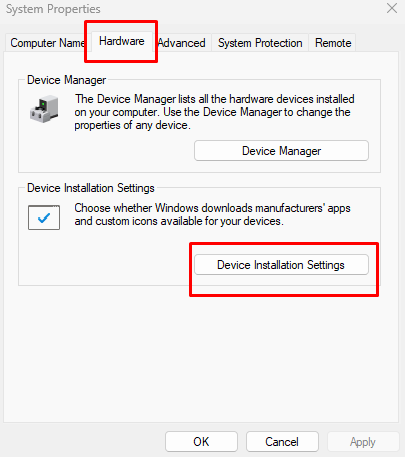
Steps (Windows 10/11):
- Press Windows + R, type sysdm.cpl, and press Enter.
- Click the Hardware tab, then Device Installation Settings.
- Select No (your device might not work as expected) to prevent automatic driver downloads.
- Click Save Changes.
Note: This stops Windows from downloading manufacturer-specific drivers automatically, but critical security updates through Windows Update may still apply.
How to Back Up Your Current Drivers
Before making any driver changes, backing up your existing drivers protects you if something goes wrong.
Steps using DISM (built-in Windows tool):
- Open Command Prompt as Administrator (search “cmd”, right-click, select Run as administrator).
Type the following command and press Enter:
DISM /Online /Export-Driver /Destination:C:\DriversBackup
- Windows will export all currently installed drivers to the folder C:\DriversBackup.
You can restore these drivers later using Device Manager’s “Have Disk” option if needed.
Strengthen Your PC Security with Fortect
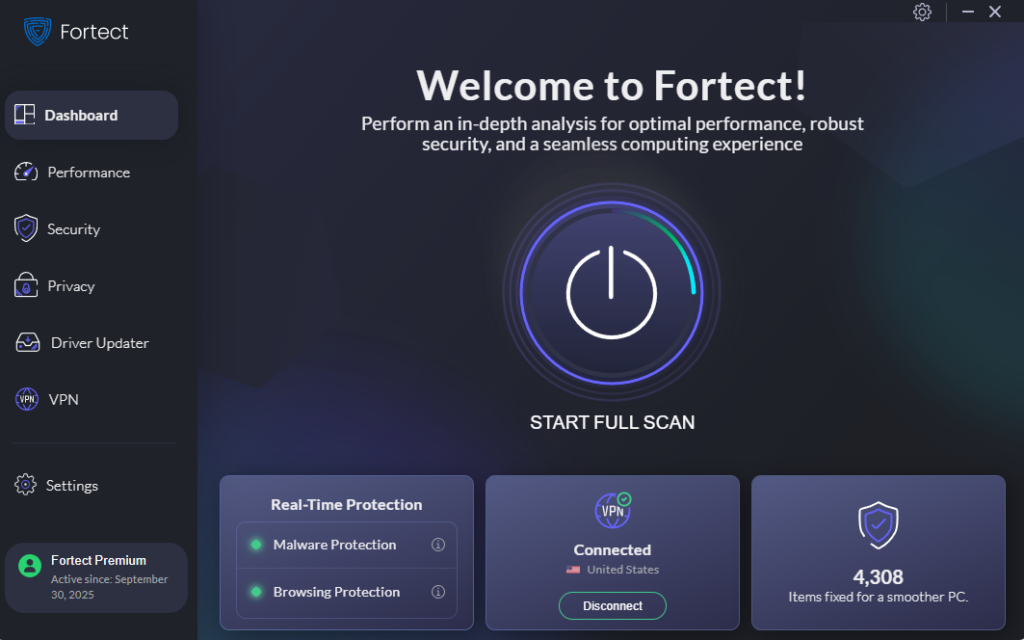
While managing Windows drivers manually gives you full control, it can be time-consuming, and a single missed or corrupted driver can leave your system vulnerable. That’s where Fortect comes in.
Fortect delivers advanced real-time malware protection for Windows users, going beyond standard security to actively safeguard your system while you work. It’s built-in performance scanner optimizes your PC by detecting and removing junk files and crashed programs, ensuring peak performance, enhanced stability, and an overall smoother computing experience.
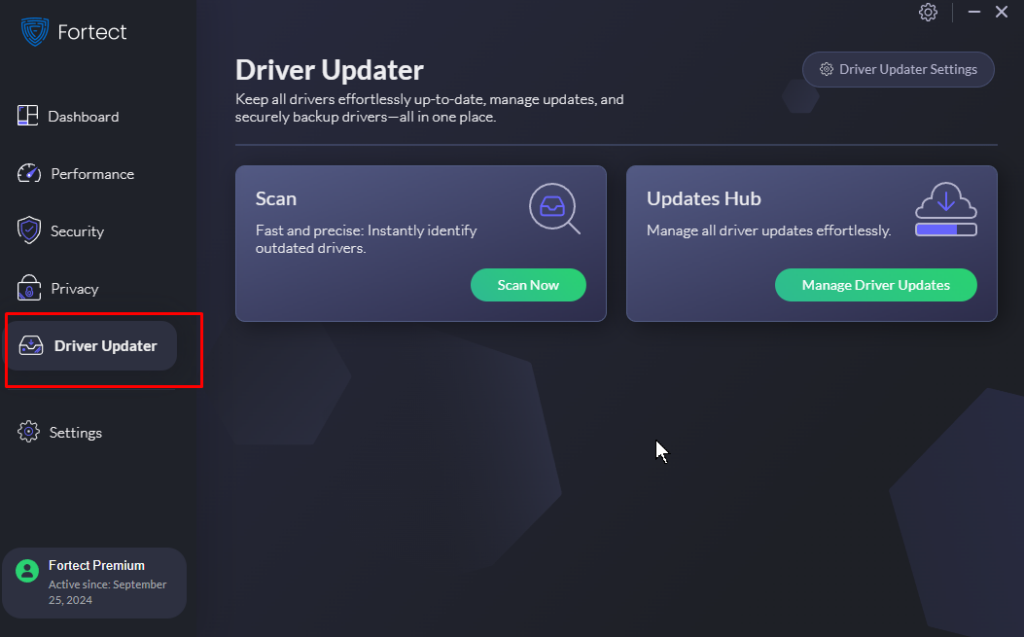
For users who want a smarter approach to managing Windows drivers, Fortect Premium includes a built-in Driver Updater that automatically identifies outdated or corrupted drivers and replaces them with secure, verified versions sourced from trusted publishers. This matters because outdated or compromised drivers don’t just cause performance issues; they can open serious security gaps that expose your PC to cyberattacks. By keeping all drivers updated and stable, Fortect closes those vulnerabilities, strengthens your PC’s defenses, and ensures a cleaner, faster, and more reliable system overall.
Download and install Fortect now.
Best Practices Summary for Managing Windows Drivers
Keeping your drivers well-managed doesn’t require technical expertise, just consistency. Follow these habits to keep your system stable:
- Update drivers regularly, especially for GPU, network, and audio hardware.
- Use manufacturer sites for graphics and critical hardware drivers instead of relying solely on Windows Update.
- Always back up drivers before performing major updates or OS upgrades.
- Roll back or uninstall any driver that causes instability immediately.
- Avoid third-party driver updater tools — many are unnecessary, and some contain adware. Windows’ built-in tools are sufficient for most users.
- Check Device Manager periodically for yellow warning icons, which indicate driver conflicts or missing drivers.
- Restart your PC after installing every driver to ensure the changes take full effect.
Conclusion
Proper driver management in Windows 10 and 11 is a straightforward process once you know where to look. By keeping drivers updated, knowing how to roll back changes, and backing up before updates, you can avoid most hardware-related headaches. The built-in tools Windows provides, Device Manager, Windows Update, and DISM, are more than capable of handling your driver needs without any third-party software.
Stay proactive, and your hardware will thank you.
Important/Related Reads:
GPU Driver Issues Causing Stutter or FPS Drops
GPU Vulnerabilities: Risks and Fixes