Bad USB: Definition and Prevention
USB drives are everywhere; we use them to transfer files, charge devices, and connect peripherals. But what happens when a seemingly innocent USB device becomes a weapon? BadUSB attacks represent one of the most dangerous cyber threats facing Windows users today, capable of hijacking your computer within seconds of being plugged in.
What is a BadUSB?
BadUSB is a type of cyberattack where a USB device’s firmware has been maliciously reprogrammed to execute harmful commands on your computer. Unlike traditional USB malware that stores infected files, BadUSB attacks exploit the fundamental way USB devices communicate with your system.
When you plug in a compromised USB drive, it can impersonate a keyboard and automatically type commands, install malware, steal data, or create backdoors for hackers, all without your knowledge or consent. The attack happens at the firmware level, making it virtually undetectable by standard antivirus software.
How BadUSB Attacks Work

This exploits the trust relationship between your computer and USB devices. Your Windows system automatically recognizes and accepts commands from USB keyboards and other peripherals. A BadUSB device leverages this trust by:
- Registers itself as a human interface device (HID), like a keyboard or mouse
- Executing pre-programmed keystrokes at lightning speed
- Running malicious scripts through Command Prompt or PowerShell
- Downloading and installing malware from remote servers
- Modifying system settings to disable security features
The entire attack can occur in under 10 seconds, often before you realize anything is wrong.
Common BadUSB Threats
- Keystroke Injection: The device types commands faster than humanly possible, executing scripts that compromise your system.
- Data Exfiltration: Stolen credentials, documents, and personal information are sent to attackers’ servers.
- Ransomware Deployment: Your files become encrypted and held hostage for payment.
- Backdoor Installation: Persistent remote access allows hackers to control your computer long after the USB is removed.
How to Protect Yourself from These Attacks
Never Use Unknown USB Devices
The simplest defense is avoiding USB drives from untrusted sources. Found a USB stick in a parking lot? Leave it there. Received an unexpected promotional USB drive in the mail? Don’t plug it in. Attackers deliberately leave infected devices in public places, counting on human curiosity.
Disable USB Ports When Not in Use (Windows 10/11)

Physically disabling USB functionality prevents unauthorized devices from connecting:
-Press Windows + X and select “Device Manager”
-Expand the “Universal Serial Bus controllers” section
-Right-click each USB Root Hub entry and select “Disable device”
-Confirm the action when prompted
-To re-enable, repeat the process and select “Enable device”
Note: This will disable all USB ports, including your mouse and keyboard if they’re USB-connected. Use this method when stepping away from your computer.
Restrict USB Device Installation Through Group Policy
Prevent Windows from automatically installing new USB devices:
-Press Windows + R, type gpedit.msc, and press Enter (Note: Group Policy Editor is only available in Windows 10/11 Pro, Enterprise, and Education editions)
-Navigate to Computer Configuration > Administrative Templates > System > Device Installation > Device Installation Restrictions
-Double-click “Prevent installation of devices not described by other policy settings”
-Select “Enabled” and click “Apply,” then “OK”
-Restart your computer for the changes to take effect
This setting blocks unknown USB devices while still allowing previously authorized devices to function.
Keep Windows Updated
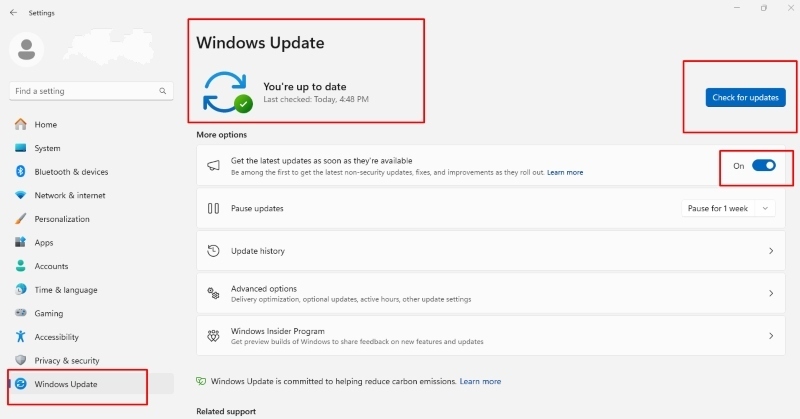
Microsoft regularly patches vulnerabilities that BadUSB attacks exploit:
-Press Windows + I to open Settings
-Choose “Update & Security” (Windows 10) or “Windows Update” (Windows 11)
-Click “Check for updates”
-Install all available updates
-Enable automatic updates by ensuring “Automatically download updates” is toggled on
-Regular updates strengthen your defenses against emerging USB-based threats.
Use USB Data Blockers
USB data blockers are physical adapters that allow power transfer while blocking data connections. These inexpensive devices protect you when charging your phone at public USB ports or using untrusted charging stations, scenarios where juice jacking attacks occur.
Enable Windows Defender and Firewall

While traditional antivirus software can’t detect USB firmware exploits, Windows Defender provides behavioral monitoring that can catch suspicious command execution:
-Open Settings and navigate to “Privacy & Security” > “Windows Security”
-Click “Virus & threat protection”
-Ensure “Real-time protection” is turned on
-Proceed clicking “Firewall & network protection” and verify your firewall is active
Use Fortect for Complete Protection

BadUSB attacks are difficult to detect because they often mimic trusted devices and execute malicious commands without visible signs. Security insights from CISA (cisa.gov), USB-based threats can deliver payloads that steal data, install malware, or take remote control of a system, even if the device appears harmless. This makes reliable, real-time protection an essential part of maintaining system security.
Fortect is a powerful and advanced security tool with real-time malware protection. It automatically scans Windows PCs for potential threats, including those that can originate from compromised USB devices, removes them safely, and optimizes system performance for smoother operation.
Fortect Premium also includes a built-in Driver Updater that identifies outdated or corrupted drivers and replaces them with secure, verified versions from trusted sources. Since vulnerable drivers are a common target for attackers, keeping them updated significantly reduces the risk of system exposure and improves stability.
For a more secure system with protection against stealthy USB-based attacks and improved performance through proper driver maintenance, taking action now is recommended.
Download and install Fortect for complete system protection and reliability.
Stay Vigilant Against BadUSB Threats
BadUSB exploits human trust and technological convenience. By treating every unknown USB device as potentially malicious, restricting automatic device installation, and maintaining updated security software, you dramatically reduce your vulnerability to these sophisticated attacks. Remember: convenience isn’t worth compromising your personal data and digital security.