
Apps Opening Slowly in Windows: Causes and Fixes
Is your patience wearing thin while waiting for applications to launch on your Windows PC? Slow-loading apps can turn simple tasks into frustrating ordeals. This guide explores why programs take forever to open and provides practical solutions to restore your system’s responsiveness.
Why Are My Apps Opening So Slowly?
Several factors contribute to sluggish application performance on Windows systems. Understanding these causes helps you identify the most effective solutions.
Insufficient System Resources
When your computer runs low on RAM or processing power, applications struggle to launch efficiently. Background processes consuming memory force Windows to use slower virtual memory stored on your hard drive, significantly delaying app startup times.
Hard Drive Performance Issues
Traditional hard disk drives (HDDs) naturally slow down over time due to fragmentation and mechanical wear. A failing or nearly full hard drive creates bottlenecks that prevent applications from loading their necessary files quickly.
Outdated Software and Drivers
Running obsolete versions of Windows, applications, or device drivers creates compatibility issues and performance gaps. Software developers continuously optimize their programs, and missing these updates means missing speed improvements.
Malware and Unwanted Programs
Viruses, spyware, and potentially unwanted programs (PUPs) consume system resources while running hidden processes. These malicious applications compete with legitimate software for memory and processing power.
Excessive Startup Programs
Many applications configure themselves to launch automatically when Windows boots. Each startup program delays system readiness and consumes resources that could otherwise accelerate app launches.
How to Fix Slow-Opening Apps in Windows
Optimize Your System with Fortect
When apps open slowly in Windows, the underlying issues often stem from corrupted system files, malware infections, or outdated drivers. Fortect provides a comprehensive solution that addresses all these problems simultaneously.
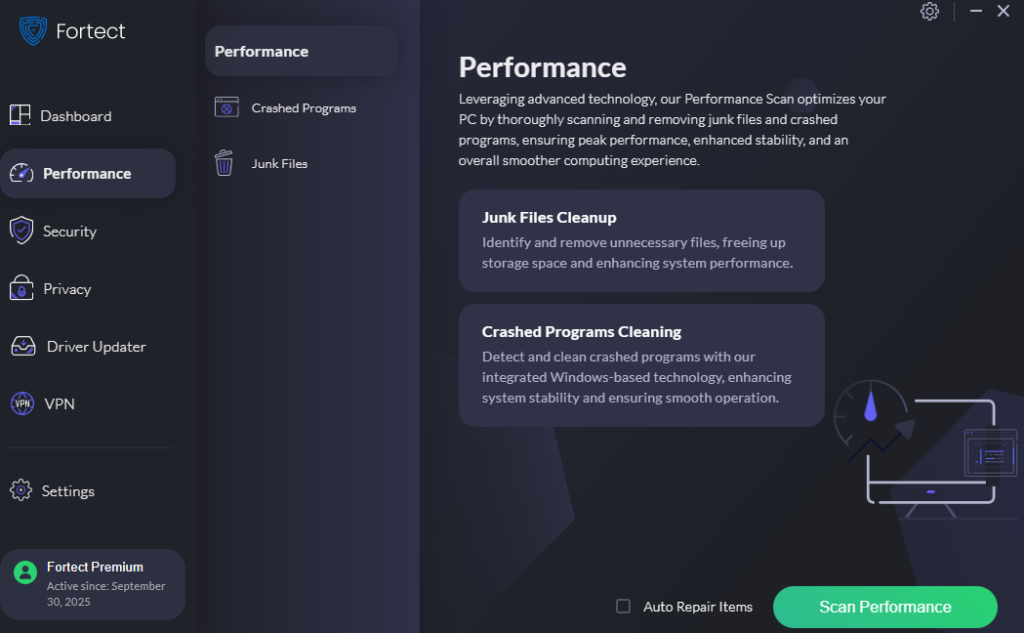
Fortect delivers advanced real-time malware protection specifically designed for Windows users experiencing performance issues. It automatically scans your PC for traditional and emerging threats that cause apps to open slowly in Windows, eliminates them safely, and restores damaged system files for improved performance. Its smart threat-detection engine monitors suspicious activity and alerts you before harmful actions can take place, helping keep your device secure and running efficiently.
The built-in performance scanner optimizes your PC by identifying and removing junk files, temporary data, and crashed programs that consume valuable system resources. This ensures peak performance, enhanced stability, and an overall smoother computing experience when launching applications.
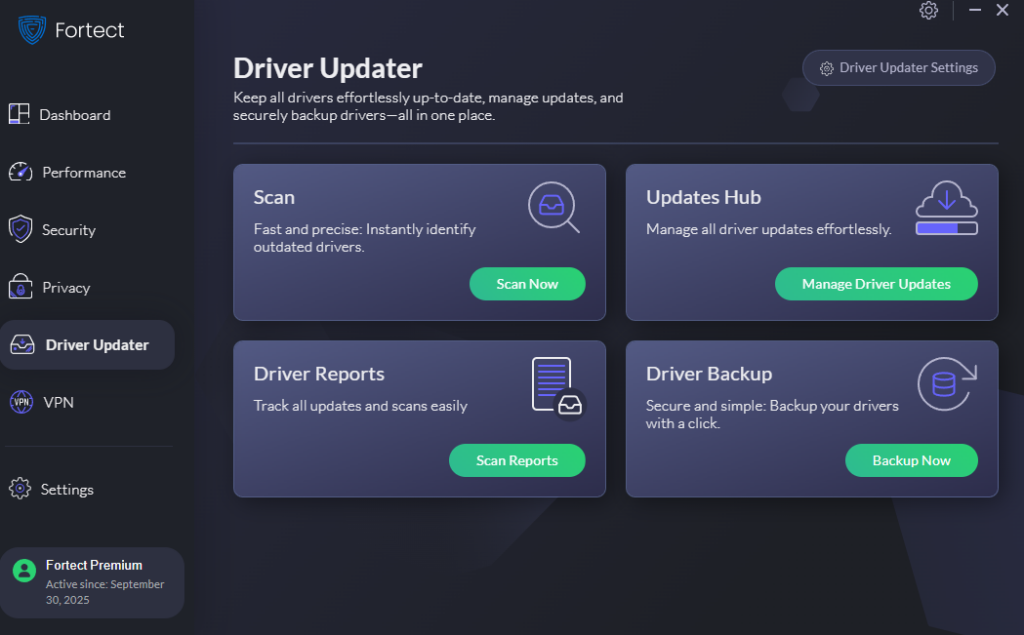
Fortect Premium also features a built-in Driver Updater that identifies and replaces outdated or corrupted drivers with secure, verified versions from trusted sources. This feature is essential because outdated or compromised drivers can expose your computer to cyberattacks while simultaneously slowing down application launch times. By keeping all drivers updated and stable, Fortect effectively closes these security gaps, strengthens your PC’s defenses, and ensures a cleaner, faster, and more reliable system overall.
Download and install Fortect now.
Clean Up Startup Programs
Reducing startup items frees valuable system resources and improves overall responsiveness.
For Windows 10/11:
- Press Ctrl + Shift + Esc to open Task Manager
- Click the Startup tab at the top
- Review the list of programs and their startup impact (High, Medium, Low)
- Select unnecessary programs and click Disable at the bottom right
- Restart your computer to apply changes
Focus on disabling programs you don’t need immediately when Windows starts, such as media players, chat applications, or utilities you rarely use.
Update Windows and Drivers
Keeping your system current ensures optimal compatibility and performance.
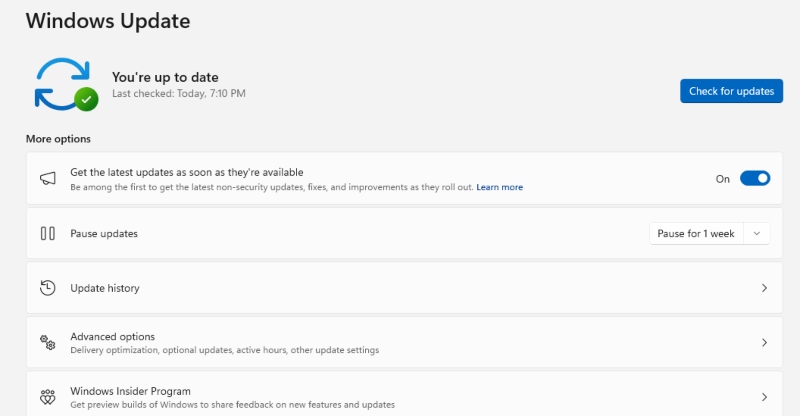
To update Windows 10/11:
- Press Windows + I to open Settings
- Click Windows Update (or Update & Security in Windows 10)
- Click Check for updates
- Allow Windows to download and install available updates
- Restart your PC when prompted
To update drivers:
- Right-click the Start button and select Device Manager
- Expand categories to find your hardware components
- Right-click a device and select Update driver
- Choose Search automatically for drivers
- Repeat for graphics cards, network adapters, and storage controllers
Perform Disk Cleanup and Optimization
Removing temporary files and optimizing storage improves read/write speeds.
For Windows 10/11:
- Type Disk Cleanup in the search bar and open the application
- Select your system drive (usually C:) and click OK
- Check boxes for Temporary files, Recycle Bin, and System files
- Click Clean up system files for additional options
- Select files to delete and click OK
To defragment or optimize drives:
- Search for Defragment and Optimize Drives and open it
- Select your drive and click Analyze (skip this for SSDs)
- Click Optimize to defragment HDDs or trim SSDs
- Enable scheduled optimization by clicking Change settings
Scan for Malware
Eliminating malicious software restores system performance and security.
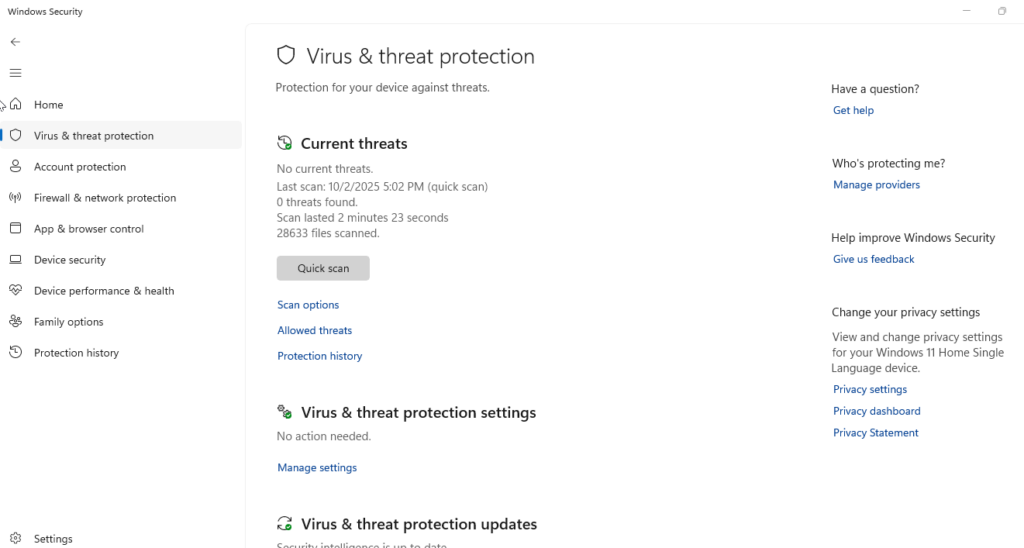
Using Windows Security:
- Press Windows + I and select Privacy & Security (or Update & Security in Windows 10)
- Click Windows Security, then Virus & threat protection
- Select Scan options
- Choose Full scan for comprehensive checking
- Click Scan now and allow the process to complete
Consider using reputable third-party antivirus software for additional protection layers.
Increase Virtual Memory
Expanding virtual memory helps when physical RAM is limited.
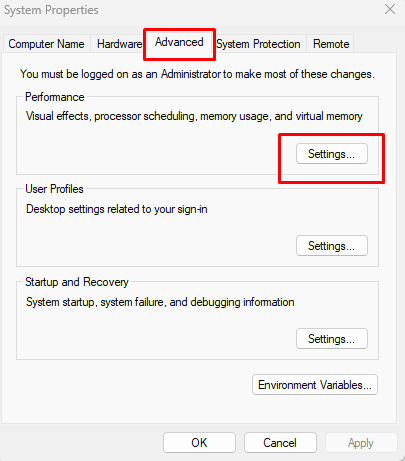
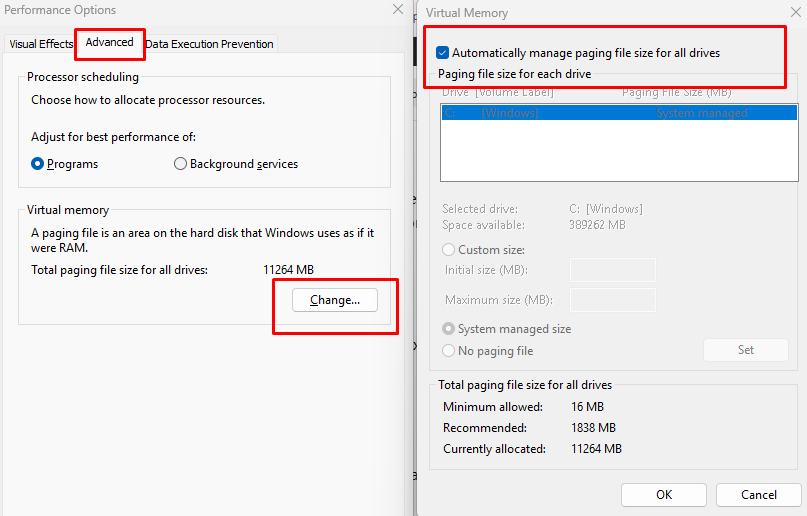
For Windows 10/11:
- Search for View advanced system settings and open it
- Under the Advanced tab, click Settings in the Performance section
- Navigate to the Advanced tab again
- Click Change under Virtual memory
- Uncheck Automatically manage paging file size
- Select your system drive and choose Custom size
- Set initial size to 1.5x your RAM and maximum to 3x (in MB)
- Click Set, then OK, and restart your computer
Disable Visual Effects
Reducing animations and graphical enhancements allocates more resources to applications.
For Windows 10/11:
- Search for Adjust the appearance and performance of Windows
- In the Performance Options window, select Adjust for best performance
- Alternatively, choose Custom and uncheck effects like animations and shadows
- Click Apply and OK
Upgrade Your Hardware
If software solutions don’t suffice, hardware improvements deliver substantial gains. Upgrading to a solid-state drive (SSD) provides the most dramatic improvement in application launch times. Adding more RAM helps if you frequently run multiple programs simultaneously.
Preventing Future Slowdowns
Maintain your system’s speed by regularly updating software, running monthly malware scans, limiting installed programs to essentials, and keeping at least 15% of your hard drive space free. Restart your computer weekly to clear memory and refresh system processes.
When to Seek Professional Help
If apps continue opening slowly after trying these fixes, you may have deeper hardware issues like a failing hard drive or motherboard problems. Professional diagnostics and identify component failures before they cause data loss.
Slow-opening applications don’t have to be permanent frustrations. By systematically addressing resource constraints, outdated software, and system clutter, you can restore your Windows PC to its former responsiveness and enjoy a smoother computing experience.





