
Airport Charging Station Attacks: Risks for Windows Users
Charging your Windows laptop or tablet at airport USB ports might seem convenient, but it exposes you to serious cybersecurity threats. Airport charging station attacks, commonly known as “juice jacking,” allow hackers to steal your data, install malware, or compromise your device through seemingly innocent public charging stations.
What Are Airport Charging Station Attacks?
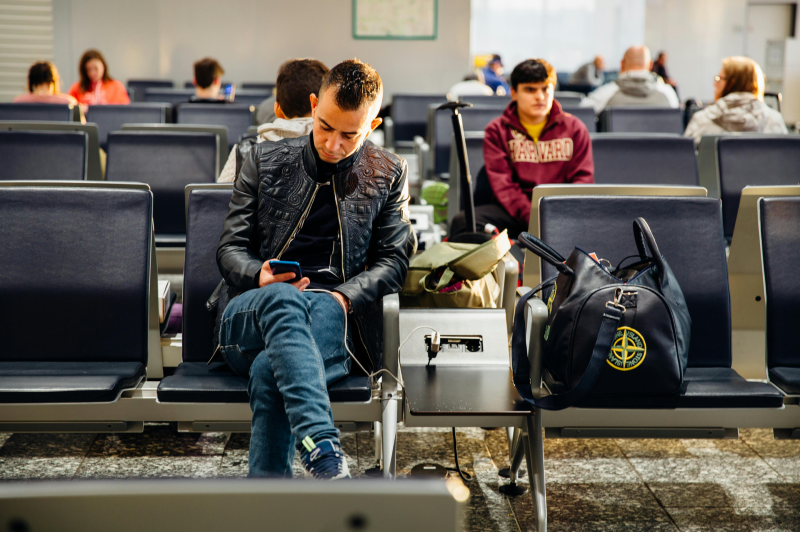
Airport charging station attacks occur when cybercriminals exploit public USB charging ports to gain unauthorized access to your Windows device. When you plug your laptop or tablet into a compromised USB port, malicious actors can transfer harmful software, extract sensitive information, or take control of your system without your knowledge.
How USB Port Attacks Work?
USB connections aren’t just power conduits; they also serve as data transfer channels. Public USB charging stations at airports can be modified with hardware or software that initiates data transfers the moment you connect your device. For Windows users, this vulnerability is particularly concerning because USB connections automatically establish data pathways that hackers can exploit.
Common Types of Juice Jacking Threats
Public charging station security risks include data theft, where attackers copy your files, passwords, and personal information. Malware installation occurs when harmful programs download silently onto your Windows system. Device tracking allows criminals to monitor your activities, while ransomware attacks can lock your entire system until you pay a fee.
Why Windows Users Face Higher Risks
Windows devices are primary targets for airport charging station attacks due to their widespread use in business and travel contexts. Unlike smartphones that now include better USB security protocols, many Windows laptops lack built-in protections against malicious charging ports.
Windows USB Connection Vulnerabilities
Windows automatically recognizes and configures USB devices, which creates security gaps at public charging stations. The operating system’s default settings often prioritize convenience over security, allowing data transfers without explicit user confirmation. Older Windows versions remain particularly vulnerable to USB-based exploits.
Travel-Related Security Concerns
Travelers carrying Windows laptops often store sensitive information like bank details, work documents, and personal credentials. Time pressure and limited charging options at airports make users less cautious about where they plug in their devices, creating perfect conditions for cybercriminals to strike.
Protecting Your Windows Device at Airports
Implementing proper security measures significantly reduces your risk when traveling through airports and other public spaces.
Carry Portable Power Banks
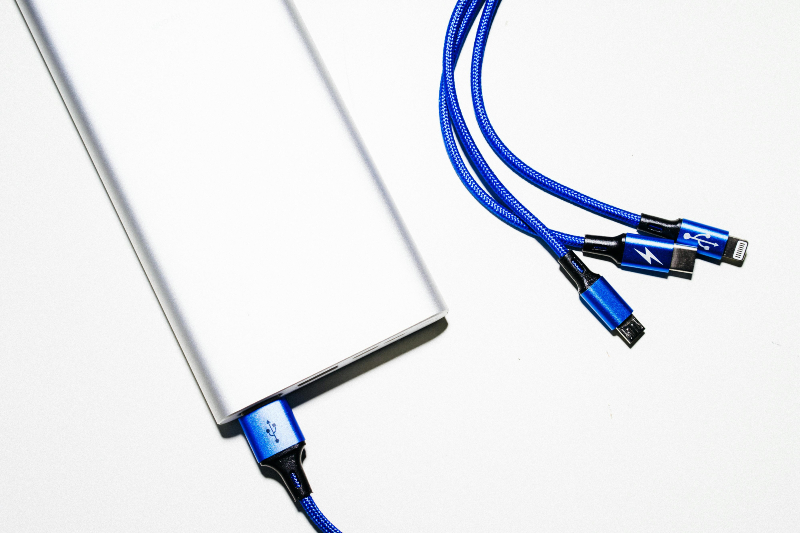
High-capacity power banks provide multiple full charges for your Windows laptop without requiring public charging infrastructure. Modern power banks with sufficient wattage can keep your device running throughout most travel days, eliminating the need for airport charging stations.
Use AC Power Outlets Instead
The safest charging method involves using standard electrical outlets with your original device charger. Wall outlets eliminate USB data transfer risks, making them the preferred choice for security-conscious Windows users at airports.
Invest in USB Data Blockers
USB data blockers, also known as “USB condoms,” are physical adapters that allow power flow while blocking data connections. These affordable devices fit between your USB cable and the charging port, preventing any information exchange while your Windows device charges.
Configuring Windows Security Settings
Strengthening your Windows security settings creates additional defense layers against charging station attacks and other cyber threats.
Strengthen Your PC Security with Fortect
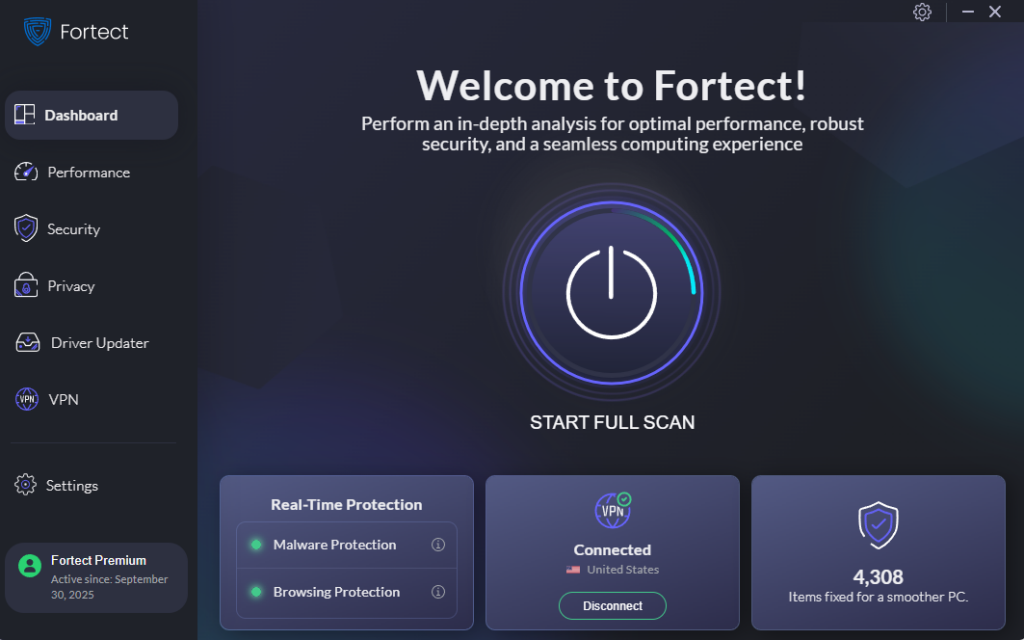
Fortect delivers advanced real-time malware protection for Windows users facing threats from airport charging station attacks and beyond. It automatically scans your PC for traditional and emerging threats, including malware delivered through compromised USB charging ports, eliminates them safely, and restores damaged system files for improved performance. Its smart threat-detection engine monitors suspicious activity and alerts you before harmful actions can take place, helping keep your device secure and running efficiently, whether you’re at home or traveling through airports.
Download and install Fortect for your Windows system now.
How to Disable USB AutoPlay on Windows 10/11
AutoPlay automatically launches programs from USB devices, creating significant security risks at public charging stations.
Step 1: Press the Windows key and type “AutoPlay settings”
Step 2: Click “AutoPlay settings” from the search results
Step 3: Toggle the “Use AutoPlay for all media and devices” switch to Off
Step 4: Verify that all dropdown menus below are set to “Take no action”
Step 5: Close the settings window to save your changes
How to Update Windows Defender on Windows 10/11
Keeping Windows Defender current ensures protection against the latest malware threats from compromised charging stations.
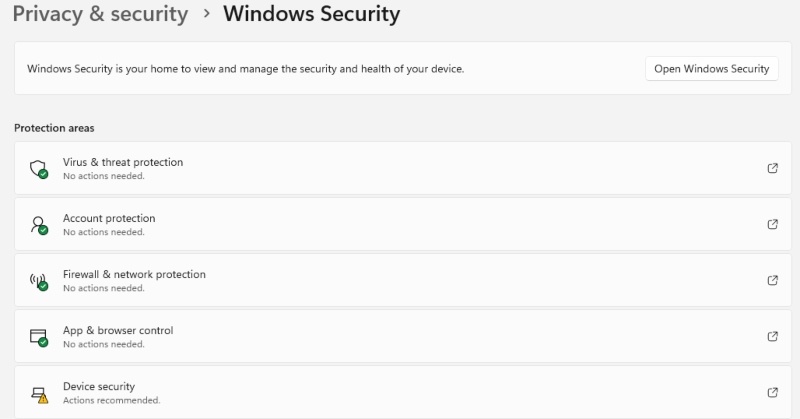
Step 1: Click the Start button and select “Settings” (gear icon)
Step 2: Navigate to “Update & Security”
Step 3: Click “Windows Security” in the left sidebar
Step 4: Select “Virus & threat protection”
Step 5: Click “Check for updates” under “Virus & threat protection updates”
Step 6: Allow Windows to download and install the latest definitions
Step 7: Restart your computer if prompted
Enable BitLocker Encryption
BitLocker encrypts your entire hard drive, protecting your data even if attackers gain physical access through a compromised charging port. This feature is available on Windows 10 Pro and Windows 11 Pro editions.
Airport Charging Best Practices
Beyond technical protections, smart habits minimize your exposure to charging station security risks while traveling.
Inspect Charging Stations Before Use
Examine public charging ports for signs of tampering, such as loose components, unusual attachments, or modified USB connectors. Avoid stations that appear damaged or look different from nearby charging equipment.
Keep Devices Locked During Charging
Never leave your Windows device unattended while charging at airports. Physical access combined with compromised USB ports gives attackers maximum opportunity to compromise your system.
Monitor for Unusual Device Behavior
After using public charging stations, watch for warning signs, including unexpected battery drain, unfamiliar applications, slower performance, or unusual network activity. These symptoms may indicate successful malware installation.
Alternative Charging Solutions for Travelers
Modern technology offers various secure charging alternatives that eliminate public USB port risks.
Airport Lounge Access

Airport lounges provide secure power outlets in controlled environments. Many credit cards include complimentary lounge access, offering safe charging locations alongside other traveler amenities.
Wireless Charging Options
Wireless charging pads eliminate USB connection vulnerabilities. While charging speeds are slower, the security benefits make wireless charging an attractive option for Windows tablets and 2-in-1 devices that support this technology.
What to Do If You’ve Used a Compromised Port
If you suspect you’ve connected to a malicious charging station, taking immediate action can limit potential damage to your Windows device and personal information.
Run a complete Windows Defender scan immediately. Disconnect from all networks and change passwords for critical accounts using a different secure device. Monitor bank statements and credit reports for suspicious activity. Consider performing a full system restore if you notice persistent problems or can’t remove detected threats.
Conclusion
Airport charging station attacks represent serious but preventable threats to Windows users. By understanding USB security risks, using physical security devices, properly configuring your Windows settings, and following safe charging practices, you can protect your device and personal information while traveling. The small inconvenience of carrying your own power solutions far outweighs the potentially devastating consequences of a successful juice jacking attack.





