Warning Signs Your Windows Laptop Has Been Compromised
Your Windows laptop contains personal photos, banking information, passwords, and private conversations. When malware or hackers compromise your system, the consequences can range from annoying pop-ups to devastating identity theft. Recognizing the warning signs early can help you take action before serious damage occurs.
Unusual System Performance Issues
Slow Performance and Freezing
A compromised Windows laptop often exhibits dramatic performance degradation. If your previously responsive system now takes several minutes to boot, programs freeze constantly, or simple tasks like opening folders feel sluggish, malware could be consuming your system resources. Malicious software frequently runs multiple processes in the background, hogging CPU power and memory.
Unexpected Crashes and Blue Screens
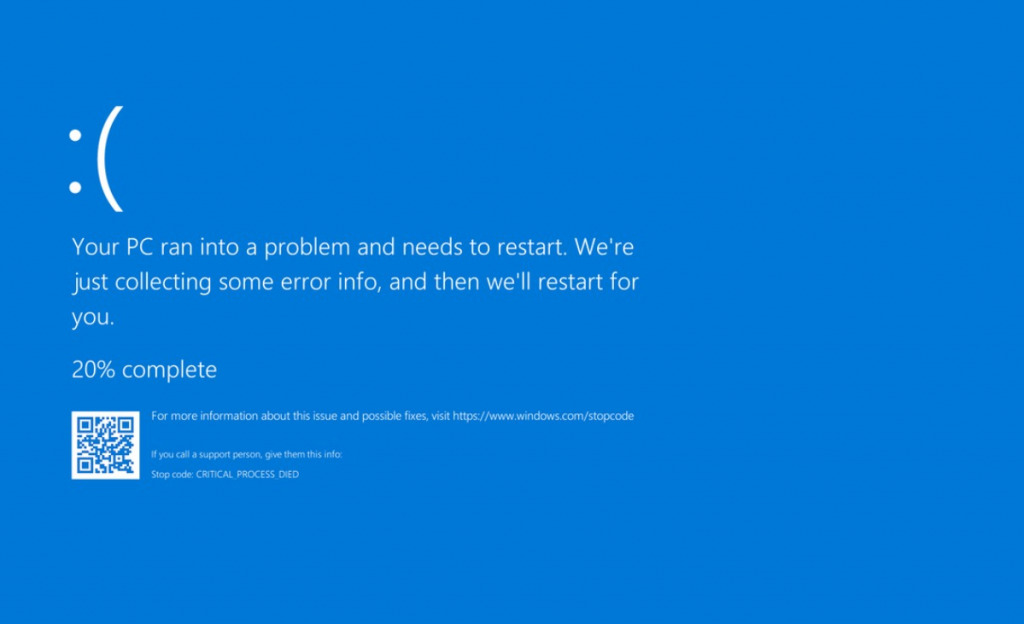
While occasional system errors happen, frequent crashes or Blue Screen of Death (BSOD) errors indicate something is wrong. Malware can corrupt system files or conflict with legitimate programs, causing instability. Pay attention if crashes occur when performing specific actions or at particular times.
Hard Drive Activity When Idle
Notice your hard drive light is constantly blinking even when you’re not using your laptop? This persistent disk activity suggests programs are running without your knowledge. Ransomware, spyware, and cryptocurrency miners all create unusual drive activity as they operate in the background.
Strange Network and Internet Behavior
Unexplained Data Usage
Compromised laptops often communicate with remote servers, sending your personal information or receiving instructions from hackers. Monitor your internet usage for sudden spikes. If you’re not streaming or downloading but your network activity remains high, investigate immediately.
Browser Redirects and New Toolbars
Your browser is often the first target. Warning signs include automatic redirects to suspicious websites, unfamiliar search engines replacing your default, unexpected toolbars appearing, or new browser extensions you didn’t install. These changes indicate that adware or browser hijackers have infected your system.
Disabled Security Software
Sophisticated malware attempts to disable Windows Defender or your antivirus software. If your security programs won’t open, keep turning off automatically, or show as disabled without your action, you’re likely dealing with an infection designed to hide itself.
Suspicious Programs and Files
Unknown Programs in Startup
Malware typically configures itself to run automatically when Windows starts. Check your startup programs for unfamiliar entries with random names or vague descriptions like “System Service” or “Update Manager.”
How to Check Startup Programs (Windows 10/11):
- Right-click the taskbar and select “Task Manager”
- Click the “Startup” tab at the top
- Review the list of programs that launch at startup
- Look for unfamiliar programs or those from unknown publishers
- Right-click suspicious entries and select “Disable”
- Research any questionable programs online before disabling system-critical processes
Mysterious Files and Folders

Finding files you didn’t create, especially with cryptic names or unusual file extensions, signals potential compromise. Ransomware creates ransom notes, while other malware drops executable files in system folders.
Changes to System Settings
If your homepage changed without permission, new programs appear in your Control Panel, or Windows settings keep reverting when you change them, malware is likely manipulating your system configuration.
Security Alerts and Account Issues
Antivirus Warnings and Quarantined Files
Windows Defender or your antivirus detecting threats is actually good news; it means your protection is working. However, repeated detections of the same threat or numerous quarantined items suggest an active infection that requires deeper cleaning.
Locked Out of Accounts
Discovering you can’t access your email, social media, or banking accounts could mean hackers have compromised your laptop and stolen your credentials. They change passwords to maintain control while using your accounts for fraud or spreading malware to your contacts.
Unexpected Password Reset Emails
Receiving password reset notifications for accounts you didn’t request indicates someone is attempting to access your accounts, possibly using information harvested from your compromised laptop.
Pop-ups and Unwanted Messages
Fake Security Warnings
Legitimate security alerts come from Windows Defender or your installed antivirus. Be suspicious of pop-ups claiming you have viruses and demanding immediate payment or software download. These scareware tactics trick users into installing more malware or paying for fake solutions.
Increased Advertisements
Experiencing pop-ups everywhere, even when not browsing? Adware has infected your system. This malware generates revenue for cybercriminals by forcing advertisements onto your screen, often for questionable products or services.
How to Verify and Protect Your Windows Laptop
Strengthen Your Laptop Security with Fortect
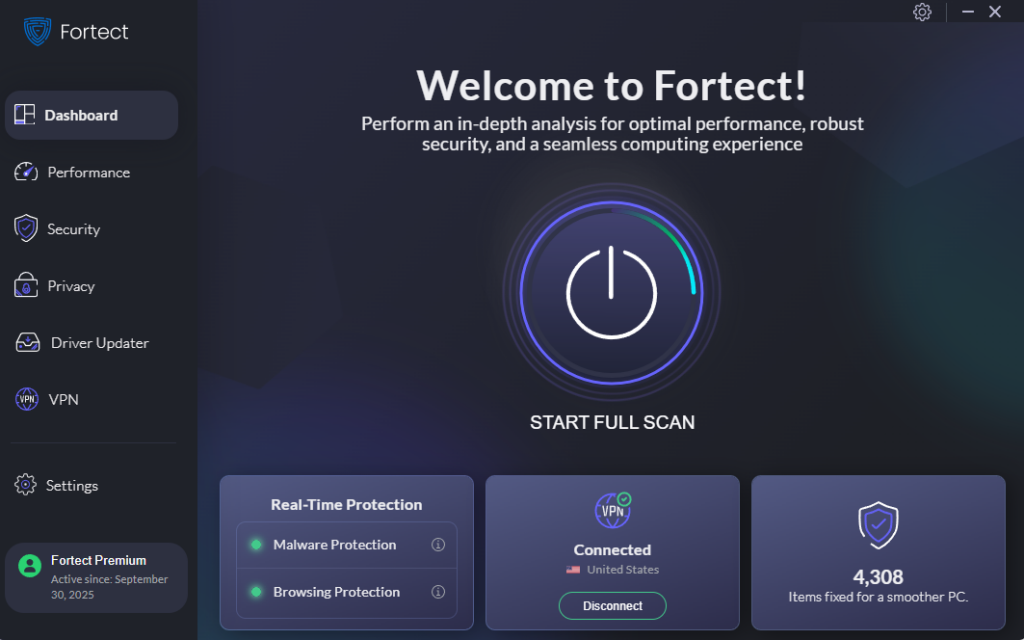
If you’ve noticed warning signs that your Windows laptop has been compromised, acting quickly is essential. Fortect delivers advanced real-time malware protection specifically designed for Windows users like you. It automatically scans your PC for both traditional and emerging threats, including rootkits, spyware, and ransomware that can compromise your laptop’s security. Fortect safely eliminates these threats and restores damaged system files to improve performance and stability.
What sets Fortect apart is its smart threat-detection engine that continuously monitors suspicious activity in the background. It alerts you before harmful actions can take place, helping keep your device secure and running efficiently. This proactive approach means you’re protected even against new threats that traditional antivirus software might miss.
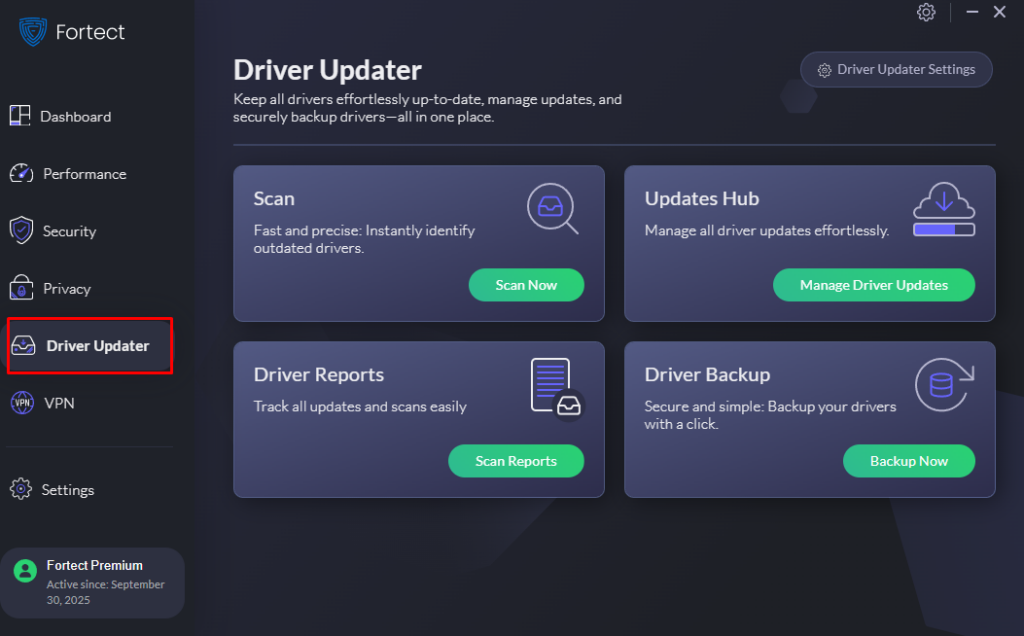
Fortect Premium also features a built-in Driver Updater that identifies and replaces outdated or corrupted drivers with secure, verified versions from trusted sources. This feature is essential because outdated or compromised drivers can expose your computer to cyberattacks and create vulnerabilities that hackers exploit. By keeping all drivers updated and stable, Fortect effectively closes these security gaps, strengthens your PC’s defenses, and ensures a cleaner, faster, and more reliable system overall.
Download and install Fortect now.
Run a Complete System Scan
How to Scan with Windows Defender (Windows 10/11):
- Click the Start button and type “Windows Security”
- Open Windows Security from the search results
- Click “Virus & threat protection”
- Select “Scan options”
- Choose “Full scan” for comprehensive checking
- Click “Scan now” and wait for completion (this may take over an hour)
- Review and remove any detected threats
Update Windows Immediately
Outdated systems have security vulnerabilities that hackers exploit.
How to Update Windows (Windows 10/11):
- Press Windows key + I to open Settings
- Click “Windows Update” (on Windows 11) or “Update & Security” then “Windows Update” (on Windows 10)
- Click “Check for updates”
- Download and install all available updates
- Restart your laptop when prompted
- Repeat until no updates remain
Change All Passwords
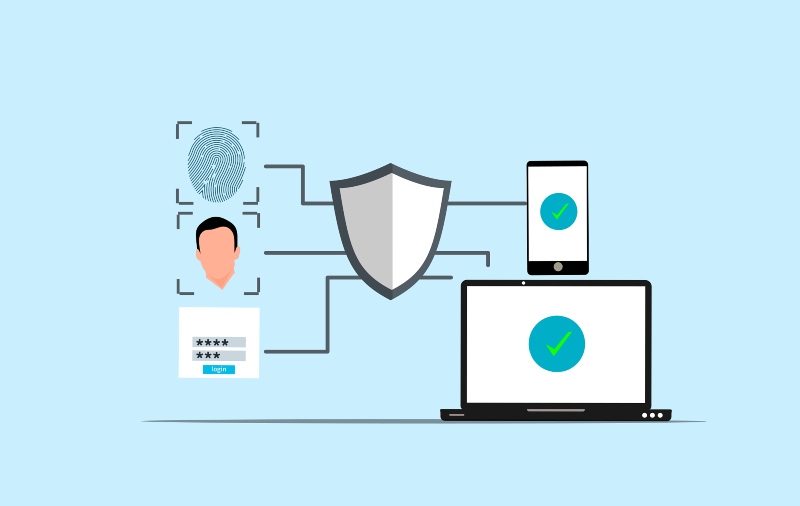
After securing your system, change passwords for all important accounts using a different, clean device. Enable two-factor authentication wherever possible for additional protection.
Consider Professional Help
If your laptop shows multiple warning signs or you’ve confirmed a compromise, consider professional malware removal. Sometimes infections run so deep that only a complete system wipe and reinstallation ensures your laptop is truly clean.
Prevention is Better Than Cure
Staying vigilant prevents most infections. Never download software from untrusted sources, avoid clicking suspicious email links, keep Windows and all programs updated, and maintain active antivirus protection. Your awareness of these warning signs and quick action can protect your personal information from falling into the wrong hands.
Related Reads: