
SOLVED: Outdated Kernel Extensions Causing Slow Boot
Is your Windows PC taking forever to start up? You’re not alone. Outdated kernel extensions are one of the most common culprits behind sluggish boot times; yet, many users are unaware of their existence or how to resolve the issue. This guide will help you identify and resolve kernel extension issues to get your computer running smoothly again.
What Are Kernel Extensions and Why Do They Slow Your Boot?
Kernel extensions, also called kernel-mode drivers in Windows, are low-level software components that interact directly with your operating system’s core. They control hardware devices, manage system resources, and enable communication between software and hardware.
When these extensions become outdated, they can conflict with newer Windows updates, cause compatibility issues, or fail to load properly during startup. This creates bottlenecks that significantly extend your boot time, sometimes adding minutes to what should be a quick startup process.
Common Signs of Outdated Kernel Extensions
- Extended black screen during startup
- Windows logo appearing for unusually long periods
- Frequent “Preparing Windows” messages
- System freezes shortly after boot
- Error messages about driver failures
How to Check for Outdated Kernel Extensions in Windows 10/11
Before fixing the problem, you need to identify which kernel extensions are causing issues. Here’s how:
Step 1: Access Device Manager
- Right-click the Start button
- Select Device Manager from the menu
- Wait for the window to populate with all devices
Step 2: Identify Problematic Drivers
- Look for any devices with a yellow exclamation mark or red X icon
- Right-click on the flagged device
- Select Properties
- Navigate to the Driver tab
- Note the driver version and date; anything older than two years may need updating
Step 3: Check System Event Logs
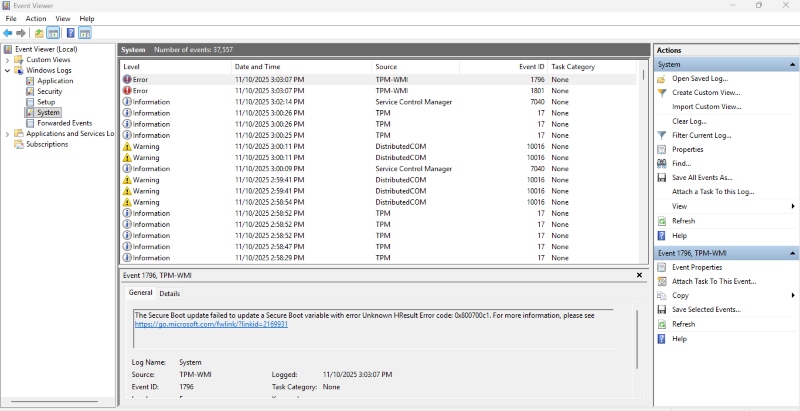
- Press Windows + X and select Event Viewer
- Navigate to Windows Logs > System
- Look for error messages related to drivers or kernel events
- Note any recurring driver names or error codes
How to Update Outdated Kernel Extensions
Once you’ve identified problematic extensions, follow these methods to update them:
Method 1: Update Through Device Manager
- Open Device Manager (right-click Start button)
- Locate the device with outdated drivers
- Right-click the device and select Update driver
- Choose Search automatically for drivers
- Windows will search online and install available updates
- Restart your computer after installation completes
Method 2: Use Windows Update
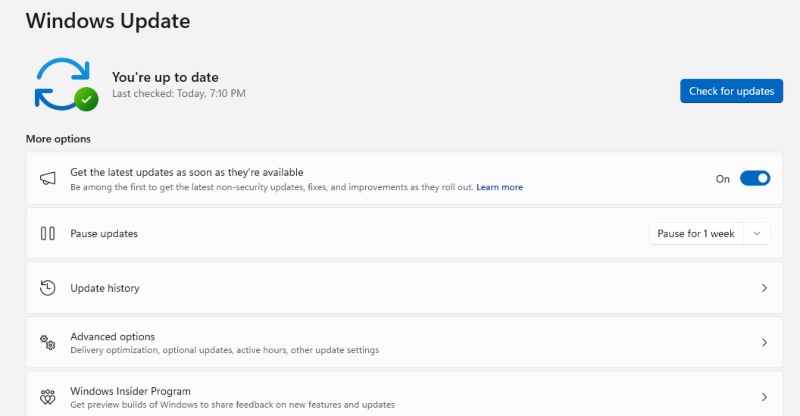
- Press Windows + I to open Settings
- Click Update & Security (Windows 10) or Windows Update (Windows 11)
- Select Check for updates
- Click View optional updates if available
- Expand the Driver updates section
- Check boxes next to drivers you want to install
- Click Download and install
- Restart when prompted
Method 3: Manual Driver Installation from Manufacturer
- Identify your device’s manufacturer and model number
- Visit the manufacturer’s official website
- Navigate to the Support or Downloads section
- Search for your specific device model
- Download the latest driver compatible with your Windows version
- Run the installer file and follow the on-screen instructions
- Restart your PC to complete the installation
Preventing Future Kernel Extension Issues
Keep your system running smoothly with these preventive measures:
Enable Automatic Updates
- Open Settings (Windows + I)
- Go to Update & Security or Windows Update
- Ensure Automatic updates is turned on
- Set active hours to prevent interruptions
Regular Maintenance Schedule
Perform monthly driver checks through Device Manager and keep a list of critical hardware components that require monitoring. Subscribe to manufacturer newsletters for driver update notifications.
Remove Unused Devices
Outdated drivers from disconnected devices can still slow your boot. Uninstall drivers for hardware you no longer use by right-clicking devices in Device Manager and selecting “Uninstall device.”
Automated Solution: Fortect Premium Driver Updater
For users who want a hassle-free approach to managing kernel extensions, Fortect Premium offers a comprehensive solution with its built-in Driver Updater.
How Fortect Premium Protects Your System
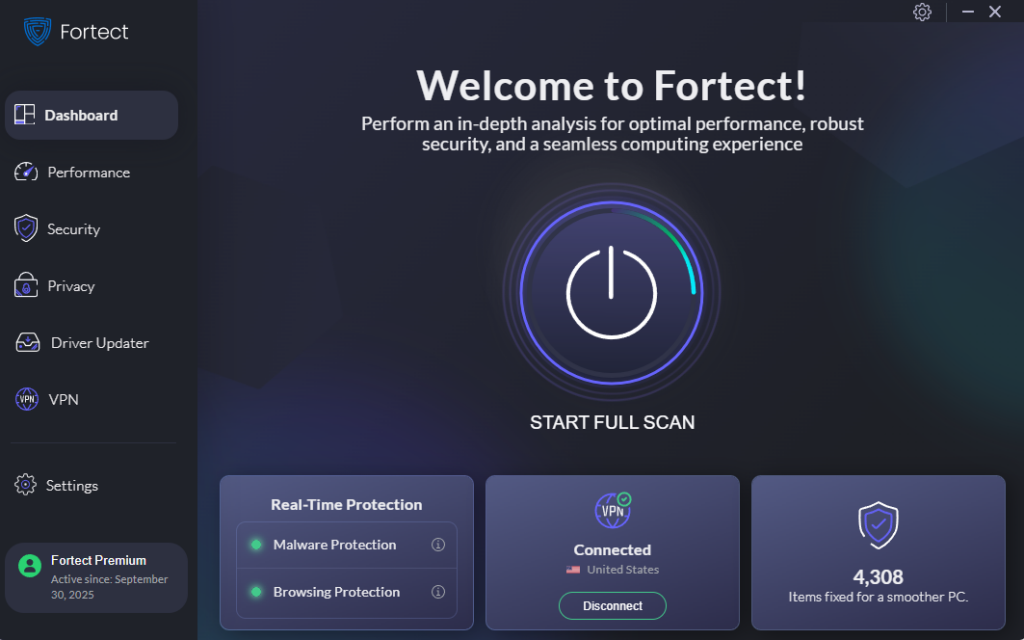
Fortect is a powerful antivirus solution with real-time malware protection that goes beyond basic security. Fortect has a driver updater feature that automatically scans your Windows PC for outdated or corrupted drivers, then updates them safely using trusted sources. This intelligent automation removes the hassle of manual driver searches and ensures your system stays both secure and up to date.
The Security Advantage
Outdated or corrupted drivers aren’t just performance bottlenecks; they can be gateways for hackers to inject malware or gain system-level access. Since drivers directly interact with your system’s kernel, any compromise can result in instability or even a complete system breach. Fortect closes these vulnerabilities by keeping your drivers current while continuously monitoring your PC for malicious activity. Once updates and repairs are applied, your system becomes faster, cleaner, and more reliable, ensuring both optimal performance and strong protection.
Download and install Fortect now.
When to Seek Additional Help
If updating kernel extensions doesn’t improve boot times, you might be dealing with deeper system issues like corrupted Windows files, failing hard drives, or excessive startup programs. Consider using comprehensive system optimization tools or consulting a professional technician.
Remember, maintaining updated kernel extensions isn’t just about speed; it’s also crucial for system stability, security, and hardware compatibility. Regular updates ensure your Windows PC performs optimally and remains protected against vulnerabilities that outdated drivers might expose.



![How Do I Fix Windows Error Recovery Screen [6 Causes]](https://wp-cdn.fortect.com/uploads/2023/04/12105142/windows-recovery-error-425x300.jpg)

