
IAM Abuse: How Hackers Exploit Access Controls
Identity and Access Management (IAM) is supposed to protect your accounts, files, and devices. But when misconfigured or poorly managed, it becomes one of the easiest ways for attackers to gain control. I’ve seen how IAM abuse quietly bypasses traditional defenses, no malware needed, just stolen or misused permissions. We will walk you through how IAM abuse works, the risks for everyday Windows users, and exactly how you can lock things down.
What Is IAM Abuse?
IAM abuse happens when attackers exploit user identities, permissions, or authentication systems to gain unauthorized access. Instead of breaking in, they log in, using stolen credentials or overly permissive accounts.
Common IAM Components Hackers Target
- User accounts (local or Microsoft accounts)
- Passwords and PINs
- Permissions and user roles
- Authentication methods (like MFA)
- Saved credentials in browsers or apps
When any of these are weak, attackers can escalate privileges and take full control of your system.
How Hackers Exploit IAM Weaknesses
Understanding the tactics helps you spot and prevent them early.
- Credential Theft: Attackers steal login details through phishing emails, fake login pages, or malware. Once they have your credentials, they can log in like a legitimate user.
- Privilege Escalation: If your account has more permissions than necessary (like admin rights), attackers can exploit that to install software, disable security, or access sensitive files.
- Token and Session Hijacking: Even without your password, attackers can hijack active sessions (like browser logins) to access your accounts.
- Weak or Missing Multi-Factor Authentication (MFA): Without MFA, a stolen password is often enough to compromise your system.
Signs Your Account or System Is Compromised
IAM abuse doesn’t always trigger obvious warnings. Watch for these subtle signs:
- Unrecognized login attempts or devices
- Password changes you didn’t initiate
- Files or settings are changing unexpectedly
- Security features turned off
- New user accounts appearing on your PC
How to Prevent IAM Abuse on Windows 10/11
This is where you take control. I’ll break this into actionable steps you can follow right now.
Strengthen Your PC Security with Fortect
Fortect delivers advanced real-time malware protection for Windows users. It automatically scans your PC for traditional and emerging threats, including IAM abuse, eliminates them safely, and restores damaged system files for improved performance. Its smart threat-detection engine monitors suspicious activity and alerts you before harmful actions can take place, helping keep your device secure and running efficiently. Fortect, with its built-in performance scanner, also optimizes your PC by scanning and removing junk files and crashed programs, ensuring peak performance, enhanced stability, and an overall smoother computing experience.
Download and install Fortect today.
Restrict User Permissions
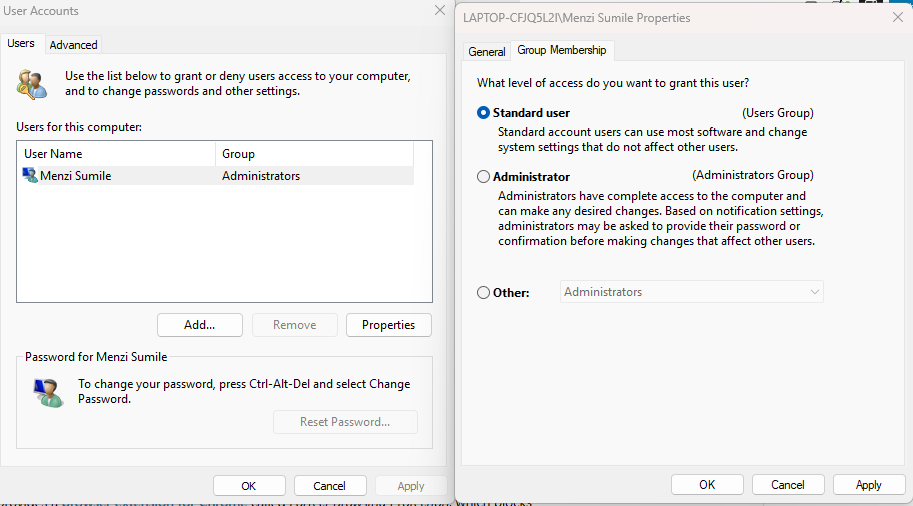
Many users unknowingly operate with admin privileges all the time. That’s risky.
Why it matters
If malware or an attacker gains access to your account, admin rights give them full control of your system.
Steps to change account type:
- Press Windows + I to open Settings
- Go to Accounts > Family & other users
- Select the user account
- Click Change account type
- Set it to Standard User
- Click OK
Use an admin account only when necessary.
Enable Multi-Factor Authentication (MFA)
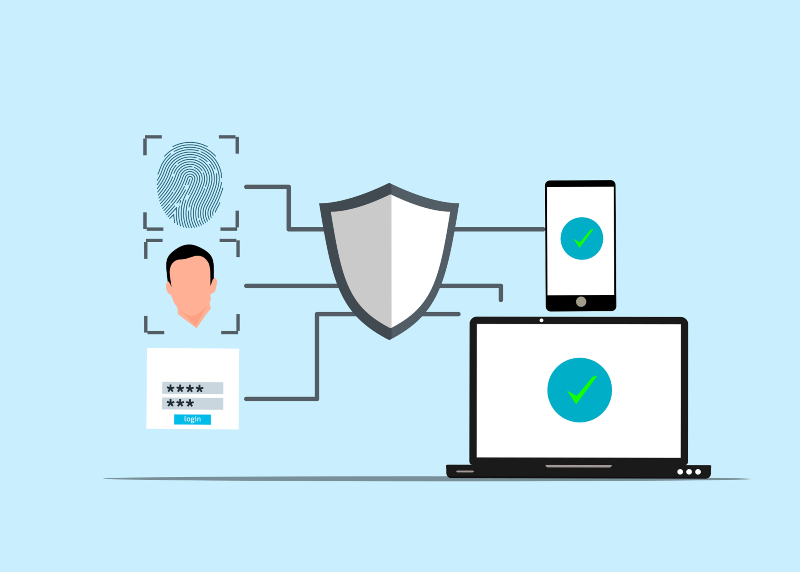
MFA adds a second layer of protection, making it harder for attackers to log in, even with your password.
Why it matters
A stolen password alone won’t be enough to access your account.
Steps to enable MFA (Microsoft account):
- Go to your Microsoft account page
- Navigate to Security > Advanced security options
- Turn on Two-step verification
- Follow the setup using your phone or authenticator app
Use Strong, Unique Passwords
Reusing passwords across multiple sites is a major risk.
Best practices:
- Use at least 12–16 characters
- Mix uppercase, lowercase, numbers, and symbols
- Avoid personal information
- Use a password manager for storage
Remove Unused Accounts and Access
Old or unused accounts are easy entry points for attackers.
Steps to remove accounts:
- Open Settings
- Go to Accounts > Family & other users
- Select unused accounts
- Click Remove
Also, review saved accounts in browsers and apps.
Keep Windows Updated
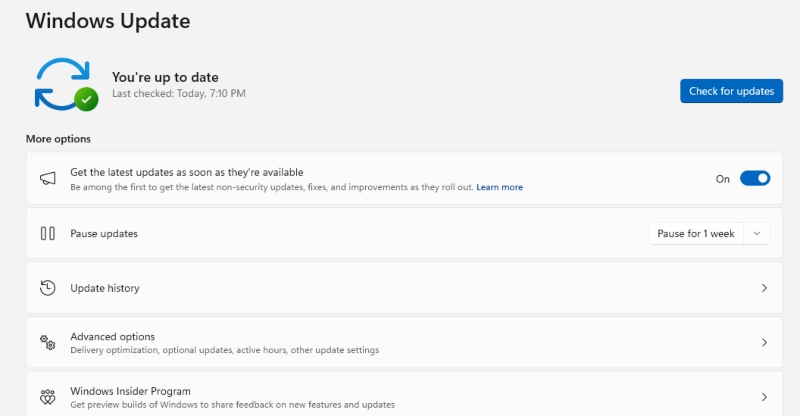
Outdated systems often have vulnerabilities that attackers exploit.
Why it matters
Security patches fix known weaknesses in authentication and access systems.
Steps to update Windows:
- Press Windows + I
- Go to Windows Update
- Click Check for updates
- Install all available updates
- Restart your PC if required
Monitor Login Activity
Regularly checking your login history can help you detect suspicious access early.
What to look for:
- Unknown locations or devices
- Login attempts at unusual times
- Multiple failed login attempts
For Microsoft accounts, you can review activity in the Security dashboard.
Disable Saved Credentials in Browsers
Saved passwords in browsers can be extracted by attackers.
Steps (Microsoft Edge example):
- Open Edge
- Go to Settings > Profiles > Passwords
- Turn off Offer to save passwords
- Remove stored credentials you don’t need
Additional Security Tips for Everyday Users
Beyond IAM-specific controls, these habits strengthen your overall security:
- Avoid clicking suspicious links in emails or messages
- Install only trusted software
- Use an antivirus with real-time protection
- Lock your device when not in use
- Back up important files regularly
Why IAM Abuse Is Hard to Detect
Unlike traditional attacks, IAM abuse often looks like normal activity. There’s no obvious malware or system crash, just legitimate access being misused. That’s why prevention is more important than detection. Tightening access controls and minimizing permissions reduces the attack surface significantly.
Conclusion
IAM abuse isn’t just a corporate issue; it directly affects everyday Windows users. If someone gains access to your account, they don’t need to “hack” anything; they already have the keys. From what I’ve seen, the biggest mistake is assuming basic security is enough. In reality, small changes, like limiting permissions, enabling MFA, and updating your system, can make a huge difference. Take a few minutes to apply these steps. It’s one of the simplest ways to protect your device, your data, and your identity from being silently exploited.





