
Optimizing Windows Background Services for Speed and Security
Windows background services are essential processes that run behind the scenes, keeping your computer functioning smoothly. However, unnecessary services can drain system resources and create security vulnerabilities. Learning to optimize these services will significantly improve your PC’s performance while strengthening your digital defenses.
Understanding Windows Background Services
Background services are programs that run automatically when Windows starts, managing everything from system updates to network connections. While many are critical for your computer’s operation, others consume valuable RAM and CPU cycles without providing noticeable benefits to everyday users.
These services can impact both system performance and security. Unnecessary services create additional attack surfaces for malware, while resource-heavy processes slow down your computer’s responsiveness. Proper optimization strikes a balance between functionality and efficiency.
Identifying Resource-Heavy Services
Before making changes, you need to identify which services are consuming your system resources.
How to Check Service Performance in Windows 10/11
1: Press Ctrl + Shift + Esc to open Task Manager
2: Click the “Services” tab at the top of the window
3: Right-click any column header and select “CPU” and “Memory” to display resource usage
4: Click the column headers to sort services by resource consumption
5: Note services consistently using high CPU or memory percentages
Look for unfamiliar service names consuming significant resources. Common culprits include telemetry services, outdated printer spoolers, and third-party software that launches at startup.
Strengthen Your PC Security with Fortect
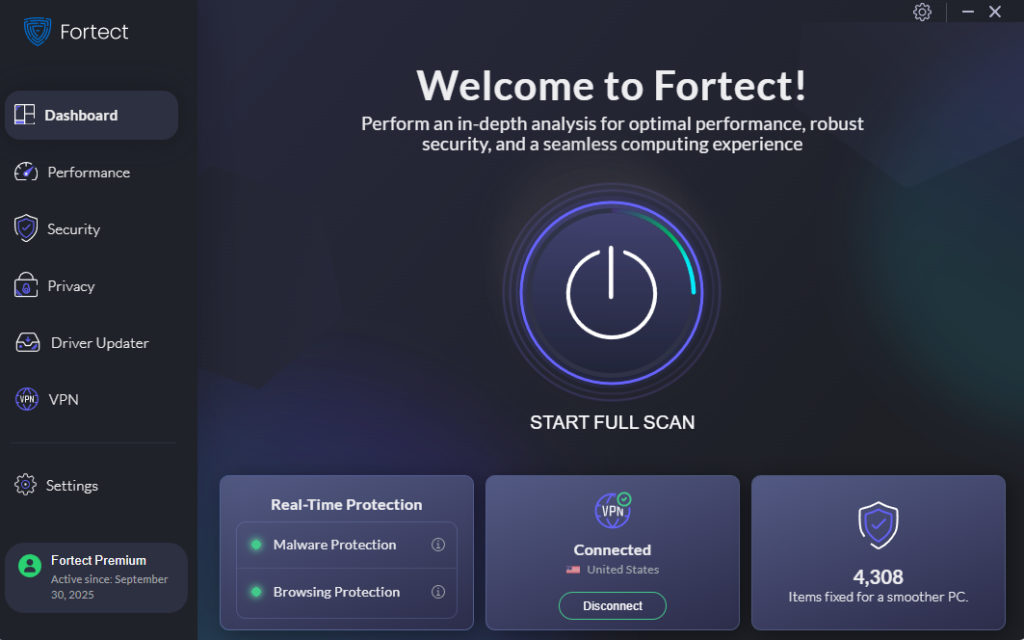
When optimizing Windows background services for speed and security, having the right tools makes all the difference. Fortect delivers advanced real-time malware protection specifically designed for Windows users, automatically scanning your PC for both traditional and emerging threats that may hide within compromised background services.
Fortect’s smart threat-detection engine monitors suspicious activity among Windows background services and alerts you before harmful actions can take place. It safely eliminates threats and restores damaged system files, helping keep your device secure while improving overall performance.
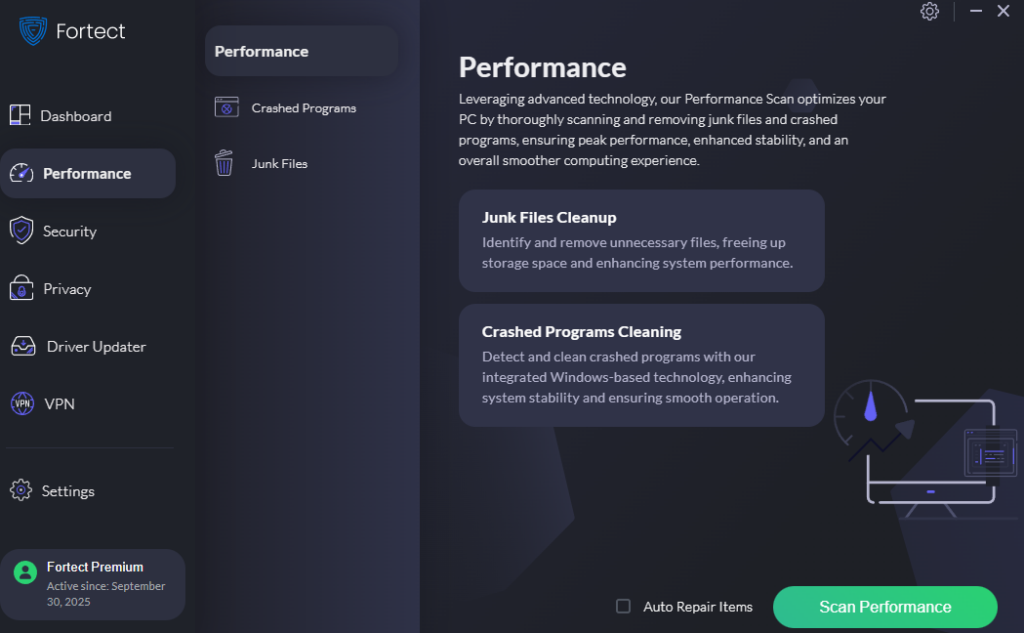
Unnecessary or malfunctioning Windows background services can slow down your system, reduce stability, and consume valuable resources without you noticing. Fortect’s built-in performance scanner identifies resource-heavy background processes, removes junk files, and cleans up crashed programs, delivering a smoother, more reliable Windows experience with enhanced system stability.
Download and install Fortect now.
Disabling Unnecessary Background Services
Not all services are essential for daily computing tasks. Disabling unnecessary ones can free up considerable system resources.
How to Disable Services Safely in Windows 10/11
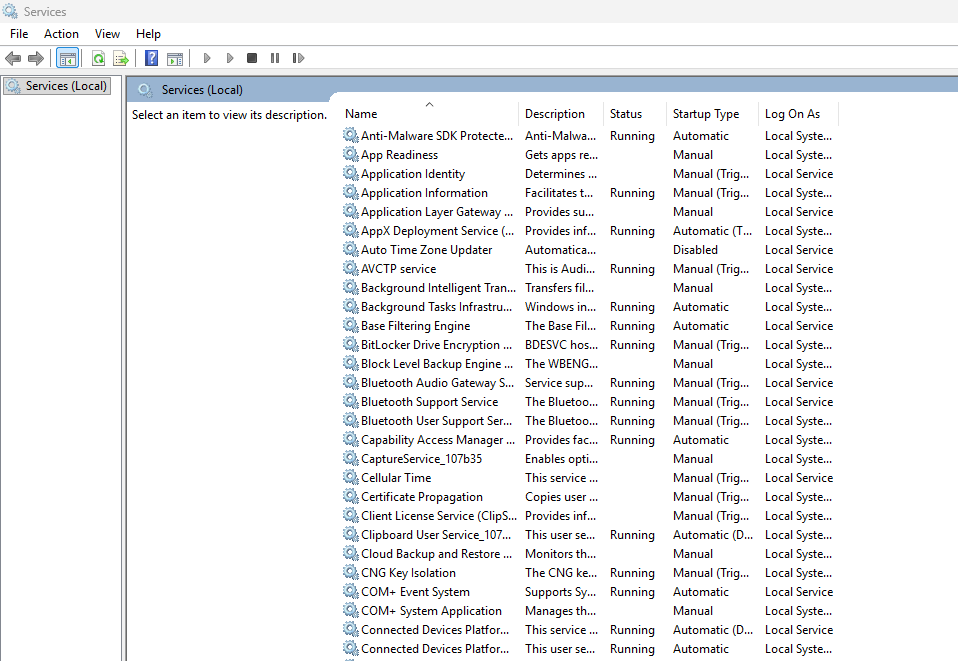
1: Press Windows + R to open the Run dialog
2: Type services.msc and press Enter
3: Scroll through the services list and locate the service you want to disable
4: Double-click the service to open its Properties window
5: Click the “Startup type” dropdown menu and select “Disabled”
6: Click “Stop” to immediately halt the service
7: Click “Apply” then “OK” to save changes
Important: Only disable services you’ve researched. Critical system services like Windows Update, Windows Defender, and Windows Audio should remain enabled.
Services Safe to Disable for Most Users
Several Windows services rarely benefit home users and can be safely disabled:
- Windows Search: If you don’t frequently use the search function, this service consumes considerable resources
- Superfetch/SysMain: Often unnecessary for computers with SSDs
- Print Spooler: Can be disabled if you don’t use a printer
- Bluetooth Support Service: Unnecessary without Bluetooth devices
- Remote Registry: Creates security risks for minimal functionality
Always create a system restore point before modifying services, allowing you to reverse changes if problems occur.
Enhancing Security Through Service Management
Limiting background services reduces your security attack surface significantly.
Security-Focused Service Optimization
Disable remote access services unless you specifically need them. Services like Remote Desktop and Remote Registry provide entry points for attackers. Xbox-related services and telemetry collection services also pose privacy concerns for security-conscious users.
Keep Windows Defender and Windows Update services running at all times. These critical security services protect against malware and ensure your system receives important security patches.
Configuring Automatic Service Startup
Some services don’t need to run constantly but should remain available when needed.
How to Set Services to Manual Startup
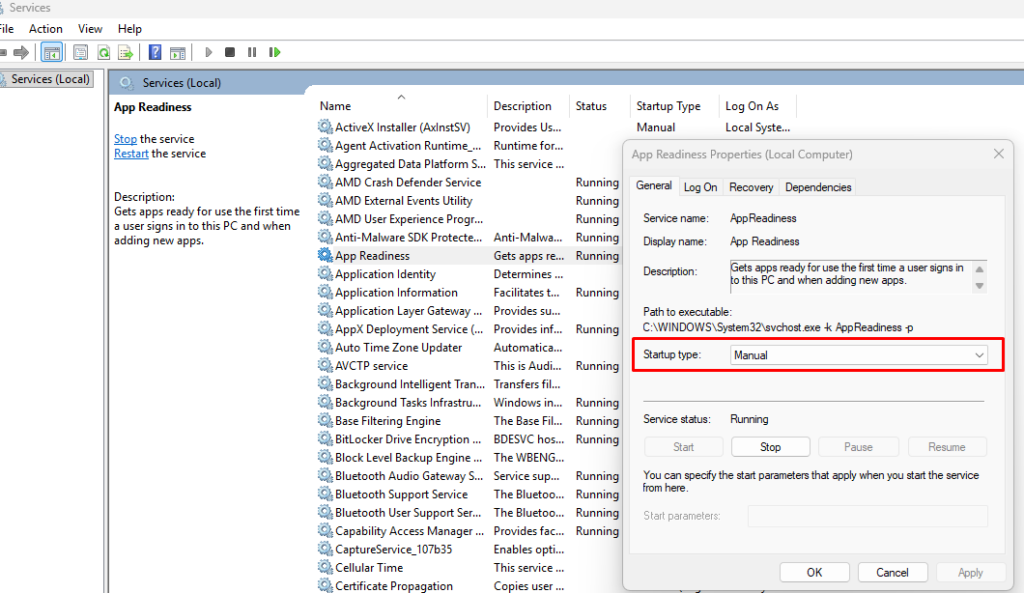
1: Open services.msc ( Windows key + R )
2: Double-click the target service
3: Change “Startup type” to “Manual”
4: Click “Apply” then “OK”
Manual startup allows Windows to launch services when required without having them consume resources continuously.
Monitoring Performance Improvements
After optimizing your services, monitor the results to ensure positive outcomes.
Check Task Manager regularly during the first week after changes. Note improvements in available RAM and CPU usage during idle periods. Most users experience 10-30% resource savings with proper service optimization.
If you notice missing functionality or errors, re-enable recently disabled services one at a time to identify the necessary service.
Maintaining Your Optimized System
Windows updates sometimes reset service configurations. Review your service settings quarterly to maintain optimal performance. Create documentation listing which services you’ve disabled and why, making future maintenance easier.
Regular service audits combined with standard security practices, like keeping Windows updated and running periodic malware scans, create a faster, more secure computing environment.
By strategically managing Windows background services, you’ll enjoy noticeably faster boot times, improved system responsiveness, and enhanced security without sacrificing essential functionality. Start conservatively, monitor results carefully, and adjust based on your specific computing needs.





