
Setting your Scan Preferences in Fortect
Fortect allows users to customize their scan preferences. These settings offer a more granular control over how and what the antivirus scans, ensuring that you’re not trading off performance for protection.
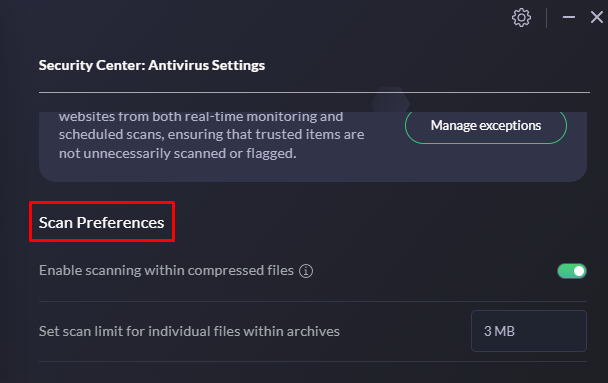
Enable Scanning within Compressed (Archives) Files
Fortect’s default setting enables scanning within compressed files, such as ZIP and RAR, to detect and quarantine hidden threats, ensuring comprehensive protection against malware in archives.
To enable scanning within compressed files
- Navigate to Settings -> Security.
- Go to Scan Preferences
- Enable the toggle switch.
- By default, this feature is enabled for optimal protection.
Setting Scan Limits for Individual Files within Archives
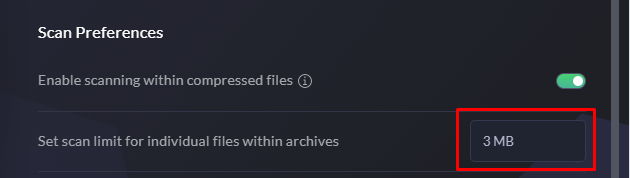
Fortect allows setting scan limits for individual files within archives, balancing thorough scanning and system performance. Users can configure the size limit in megabytes (MB) to ensure efficient scanning of large archives without impacting device speed.
To set the scan limit within archives:
- Navigate to Settings -> Security.
- Go Scan Preferences
- Set scan limit in megabits > Enter new value -> Click Enter/Click anywhere in the settings screen
- By default, this is set on 500 MB
Scan History
Delving deeper into the specifics, the Scan History feature uncovers the details of each scan, including the threats detected and how Fortect handled them. This granular view into the antivirus’s actions allows users to understand the nature of the threats targeting their systems and the effectiveness of Fortect’s response mechanisms.
Auto-Delete Reports After a Set Period
Fortect allows for the automatic deletion of reports after a specified number of days. This feature ensures that only the most recent and relevant security insights are retained, making it easier for users to stay informed about their security posture without manual cleanup.
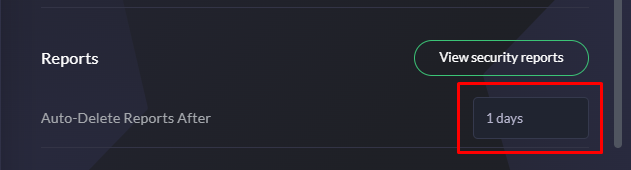
To set the auto-delete report function:
- Navigate to Settings > Security
- Under Reports > Auto – Delete Reports After
- Set the number of days and hit Enter/Click anywhere in the settings screen
- By default, this is set on 7 days
By leveraging advanced technology and providing a user-friendly interface, Fortect empowers you to take control of your digital security with confidence. Explore these features and settings within the Fortect to optimize your protection and keep your digital environment safe. For more information or support, visit our website or contact our customer service team at [email protected]. Stay protected with Fortect, your trusted partner in cybersecurity.