
Getting Started with Fortect Mobile Security on Android & iOS
Protecting your phone is no longer optional. Fortect Mobile Security delivers robust protection for both Android and iOS, safeguarding your data, your connections, and your online activity. This guide walks you through downloading, installing, and configuring the app.

Step 1: Downloading Fortect Mobile Security
Fortect Mobile Security is available for both Android and iOS devices.
- Android: Open the Google Play Store, search for Fortect Mobile Security, and tap Install.
- iOS: Open the App Store, search for Fortect Mobile Security, and tap Get.
You can also use the direct link or scan the QR code on our product page to go straight to the store listing.
Step 2: Logging In
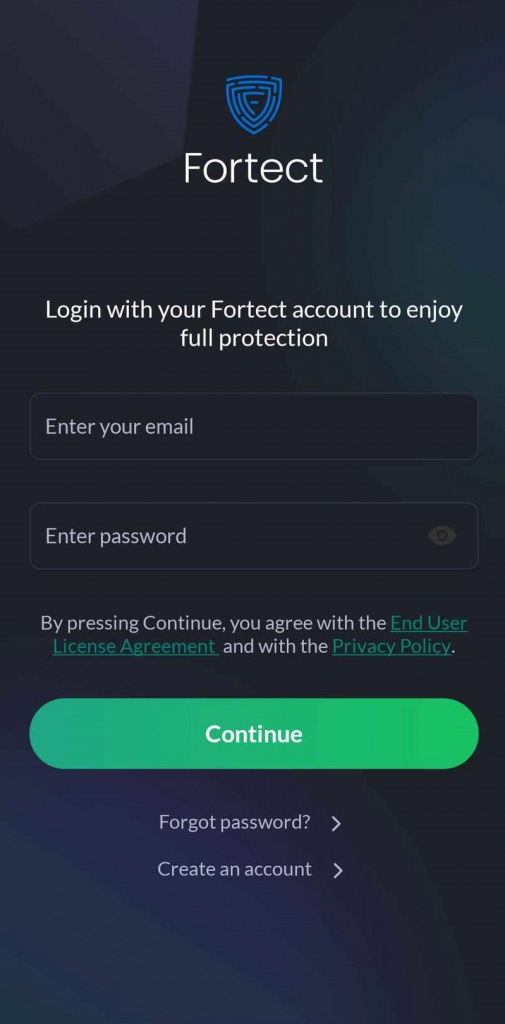
Open the app once installed and sign in using the username and password sent to your email after purchase. If you can’t locate your credentials, contact [email protected].
Step 3: Granting Permissions
Permission requirements differ slightly by platform:
- Android: Approve All Files Access so the app can scan your device, and enable Post Notification Access for real-time threat alerts.
- iOS: Allow Notifications for instant security alerts and grant the requested permissions for Web Protection and Wi-Fi monitoring.
Step 4: Start Protecting Your Device
Once permissions are set, Fortect is ready to defend your device. Tailored protection is delivered per platform:
- iOS & Android: Web Protection (blocks phishing and malicious sites), Network Advisor (flags unsafe Wi-Fi), and Data Breach Alerts (notifies you if your email appears in a leak).
- Android only: Advanced Antivirus with real-time defense and cloud-powered scanning, plus a System Advisor that checks screen lock, biometrics, and app updates.