
Activate Your Fortect Account on Windows
Fortect makes it easy to activate Premium on your Windows PC using your Fortect account.
Your Fortect account is connected to your email address. There is no password to remember. When you need to sign in, Fortect sends a 6-digit code to your email to confirm it’s you.
If you just purchased Fortect for Windows, you may not need to do anything at all—Fortect can automatically detect your purchase and activate Premium for you.
Not sure which Fortect version you have? Check the Fortect menu. If you see I already have a license key, activate with your license key — see Activate Fortect with Your License Key. If you see Already with us? Activate, follow the steps below.
Before you begin
Make sure:
- Fortect is installed on your Windows PC.
- You have access to the email address you used when purchasing Fortect.
- Your computer is connected to the internet.
You do not need to create or remember a Fortect password. When verification is required, we’ll send a sign-in code to your email
Just purchased Fortect?
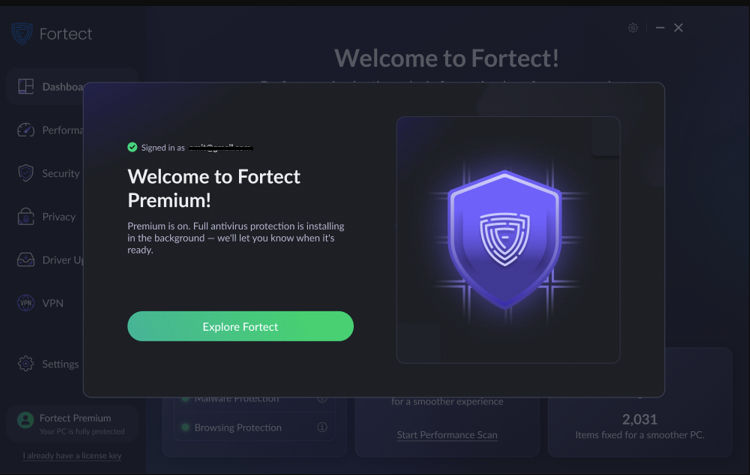
If you recently purchased Fortect for Windows, Premium should activate automatically when Fortect opens.
Once activation is complete, you’ll see Welcome to Fortect Premium! and the email address associated with your account.
What if automatic activation doesn’t work?
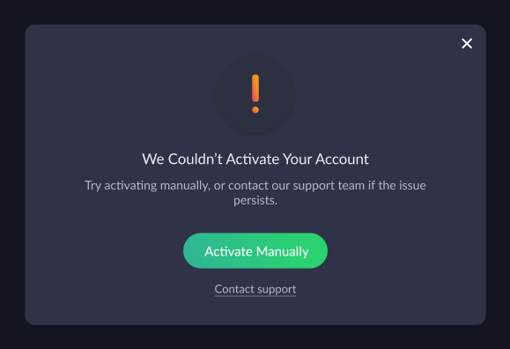
If Fortect cannot automatically activate your account, you may see:
We Couldn’t Activate Your Account
Don’t worry—you can activate manually using the email address associated with your purchase.
Select: Activate Manually
You’ll then be taken to the account sign-in screen. You can also use these steps if you’ve reinstalled Fortect, moved to another PC, or logged out.
- Open Fortect.
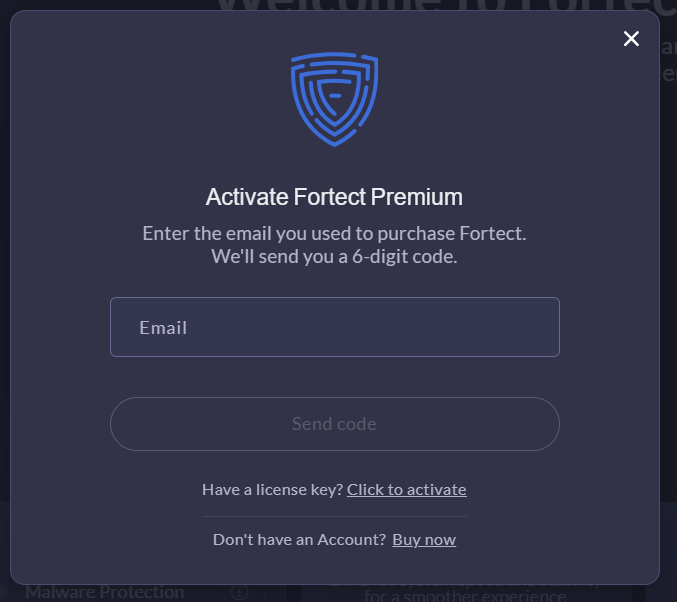
- Select Already with us? Activate
- Enter the email address you used to purchase Fortect.
- Select Send code.
- Check your email for your 6-digit Fortect login code.
- Enter the code in Fortect and select Activate.
That’s it! Once your code is accepted, Premium will be activated and you’ll see Signed in as {your email}.
Didn’t receive your code?
Try these quick checks:
- Check your Spam or Junk folder.
- Make sure you entered the same email address you used to purchase Fortect.
- Wait 30 seconds and select Resend code.
- If you received several codes, always use the newest one.
Codes expire after 10 minutes. After five incorrect attempts, you’ll need to request a new code.
If you still don’t receive a code, contact Fortect Support and we’ll help you sign in.
All your devices are in use?
Your subscription can be used on a set number of devices. If they’re all active, Fortect shows All your devices are in use when you try to activate a new PC.
To free a device slot:
- Select Manage account to open your Fortect account.
- Go to Devices and remove a device you no longer use.
- Return to Fortect on your new PC and activate again.
Not sure which device to remove? Contact Fortect Support and we’ll help.
Have a Fortect license key?
If you see “Already with us? Activate”:
- Select Already with us? Activate.
- On the email screen, select Have a license key? Click to activate or migrate.
- Enter your license key and select Activate. Premium turns on.
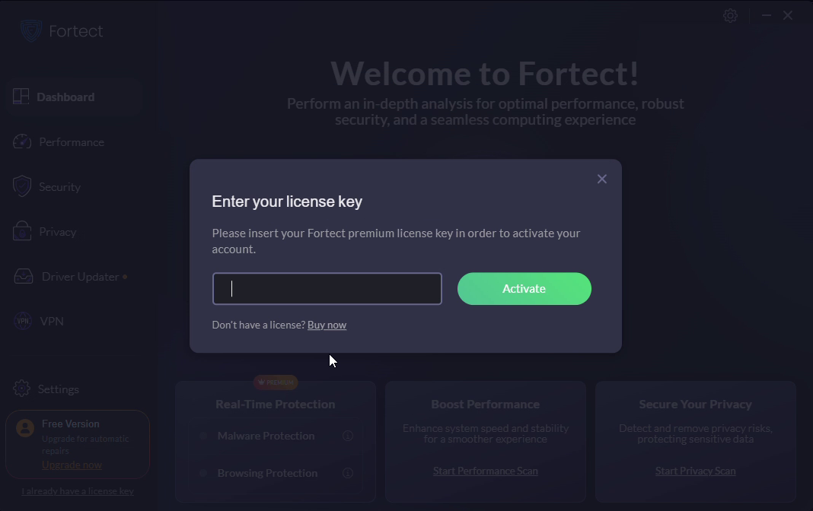
If you see “I already have a license key”:
Select it, enter your license key and select Activate.
Keep your account secure
Never share your 6-digit Fortect login code with anyone.
Still need help?
If you can’t activate Fortect, contact Fortect Support and include:
- Your purchase email address
- The error message you’re seeing
- A screenshot, if possible
Please note that our Fortect Support Team will NEVER ask for your 6-digit verification code.