Wi-Fi Pineapple Hacking: Definition and Prevention
Public Wi-Fi networks at coffee shops, airports, and hotels offer convenience, but they also expose Windows users to serious security threats. One of the most dangerous tools cybercriminals use is the Wi-Fi Pineapple, a device designed to intercept your internet traffic and steal sensitive information. Understanding this wireless attack method and learning how to protect yourself is essential for anyone who connects to public networks.

What is Wi-Fi Pineapple Hacking?
A Wi-Fi Pineapple is a portable penetration testing device that creates fake wireless access points to perform man-in-the-middle attacks. Originally developed for network security professionals, this hardware has become a favorite tool among hackers targeting unsuspecting users on public networks.
How Wi-Fi Pineapple Attacks Work
The device exploits a common feature in Windows and other operating systems: automatic network reconnection. When your laptop searches for familiar networks like “Starbucks WiFi” or “Airport_Free,” the Wi-Fi Pineapple mimics these trusted networks. Your device automatically connects, believing it’s joining a legitimate hotspot.
Once connected, all your internet traffic flows through the attacker’s device. This wireless network exploitation allows hackers to capture passwords, credit card numbers, emails, and personal messages. The attack happens silently; you’ll browse normally while criminals collect your data in the background.
Common Wi-Fi Attack Scenarios
Hackers deploy Wi-Fi Pineapples in crowded locations where people frequently use public networks. A cybercriminal sitting in a coffee shop can intercept data from dozens of devices simultaneously. These rogue access point attacks are particularly effective because most users never suspect anything is wrong until their accounts are compromised.
How to Protect Your Windows Computer from Wi-Fi Pineapple Attacks
Strengthen Your PC Security with Fortect
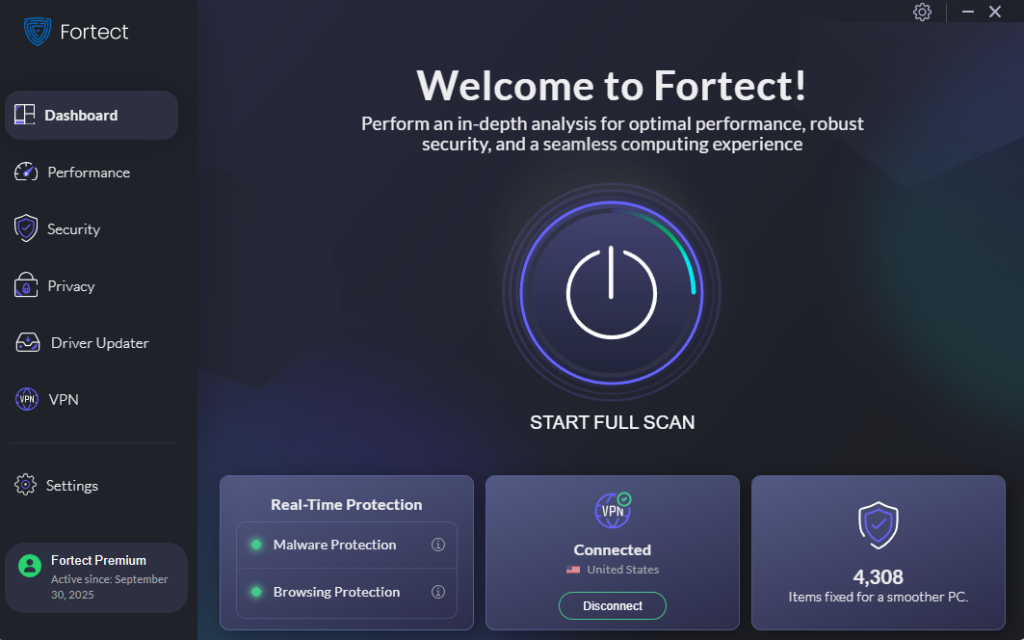
While behavioral precautions are essential, comprehensive protection requires advanced security tools. Fortect delivers real-time threat monitoring specifically designed for Windows users facing sophisticated wireless attacks. It automatically scans your PC for network vulnerabilities that Wi-Fi Pineapple hackers exploit, detects suspicious connection attempts to rogue access points, and monitors unusual data transmission patterns that indicate man-in-the-middle attacks. When threats are identified, Fortect eliminates them safely and repairs any compromised system files to restore secure network functionality.
Its smart detection engine continuously watches for the telltale signs of Wi-Fi Pineapple hacking, including unauthorized network spoofing and abnormal traffic routing, alerting you before sensitive data can be intercepted, helping keep your device secure while using public networks.
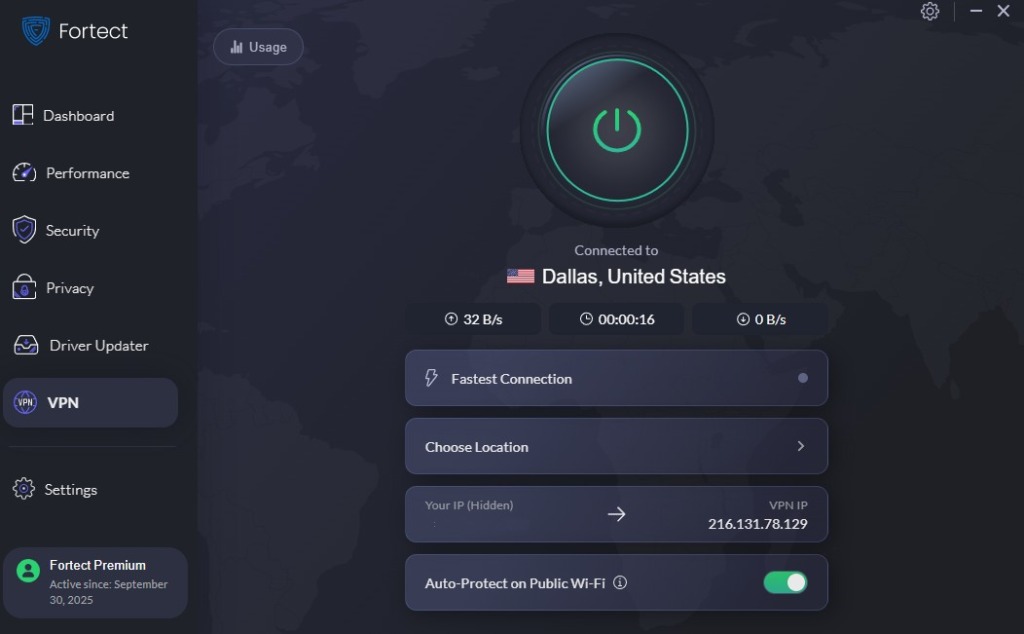
Fortect Premium now includes a built-in VPN with Auto-Protect for public Wi-Fi, helping defend against Wi-Fi Pineapple attacks. It encrypts your traffic on open networks, keeping data private and blocking hackers who exploit unsecured connections to launch network-based and zero-day threats.
Download and install Fortect now.
Disable Automatic Wi-Fi Connection
Preventing your Windows computer from automatically connecting to networks is your first line of defense against fake hotspots.
Steps for Windows 10/11:
- Click the Start button and select Settings (gear icon)
- Navigate to Network & Internet
- Select Wi-Fi from the left sidebar
- Click Manage known networks
- Select each saved network individually
- Uncheck Connect automatically for all public networks
- Click Forget for networks you no longer use
This wireless security measure ensures your device only connects to networks you explicitly approve, preventing automatic connections to malicious access points.
Enable Windows Firewall Protection
Your built-in firewall blocks unauthorized network access and suspicious traffic patterns common in network spoofing attacks.
Steps for Windows 10/11:
- Open Settings and click Privacy & Security (Windows 11) or Update & Security (Windows 10)
- Select Windows Security
- Click Firewall & network protection
- Ensure the firewall is On for Domain, Private, and Public networks
- Click Allow an app through firewall and review permissions
- Remove unnecessary applications from the allowed list
Use a Virtual Private Network (VPN)
A VPN encrypts all internet traffic between your device and the destination server, rendering intercepted data useless to attackers. Even if you connect to a Wi-Fi Pineapple, the hacker only sees encrypted gibberish.
Choose a reputable VPN provider with strong encryption protocols. Install the VPN software on your Windows computer and activate it before connecting to any public network. This cybersecurity protection is essential for safe public Wi-Fi usage.
Verify Network Legitimacy Before Connecting
Never trust network names at face value. Before connecting to public Wi-Fi, ask staff for the exact network name and password. Attackers often create networks with names like “Starbucks_Guest” or “Airport_Free_WiFi” that closely resemble legitimate ones.
Keep Windows Updated
Microsoft regularly releases security patches that fix vulnerabilities exploited in network attacks.
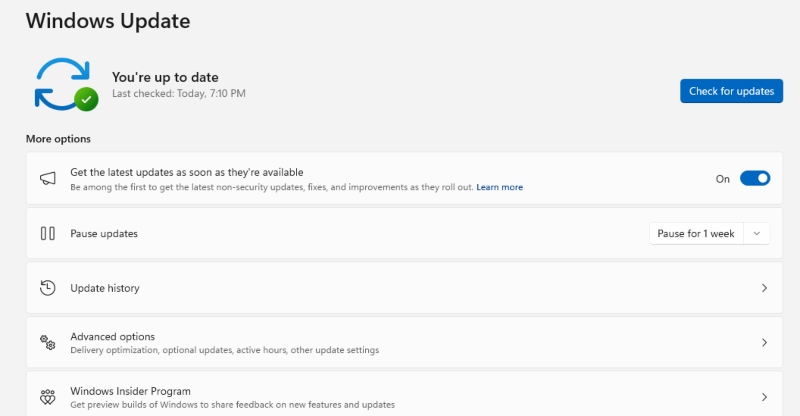
Steps for Windows 10/11:
- Open Settings
- Select Windows Update (Windows 11) or Update & Security (Windows 10)
- Click Check for updates
- Install all available updates
- Enable Automatic updates to stay protected
Use HTTPS Websites Only
Websites using HTTPS encrypt data between your browser and their servers, adding another protection layer against data interception. Look for the padlock icon in your browser’s address bar and avoid entering sensitive information on HTTP sites when using public networks.
Staying Safe on Public Wi-Fi
Wi-Fi Pineapple hacking represents a serious threat to personal privacy and financial security. By disabling automatic connections, using a VPN, maintaining updated security software, and exercising caution when choosing networks, you significantly reduce your vulnerability to these wireless attacks. Remember that convenience should never come at the cost of security. Take these preventive measures seriously every time you connect your Windows device to a public network.
Be sure to also read our Cookie Hijacking Attacks article to stay informed on the latest cyber threats and keep your data protected.