Why Default Passwords on Devices Lead to Malware Exposure
Your router’s admin password is still “admin,” your smart camera uses “12345,” and your Windows account has no password at all. If this sounds familiar, you’re leaving the digital front door wide open for cybercriminals. Default passwords represent one of the easiest entry points for malware, data breaches, and unauthorized access to your personal devices.
Understanding the Default Password Security Risk
Default passwords are pre-configured credentials manufacturers assign to devices during production. These passwords are publicly available in user manuals, online databases, and hacker forums. When you don’t change them, attackers can access your devices using readily available password lists containing thousands of default combinations.
The danger extends beyond individual devices. Once hackers gain access through a weak default password, they can install malware, steal personal information, or use your device as part of a botnet to attack others. Your home network becomes vulnerable when even one device maintains factory settings.
Common Devices That Ship with Default Passwords
Windows computers, routers, IP cameras, smart home devices, and printers typically include default credentials. Hackers specifically target these devices because most people skip the password setup process.
How Malware Exploits Default Credentials
Cybercriminals use automated scanning tools that constantly search the internet for devices with default passwords. These tools test common username-password combinations like admin/admin, root/root, or administrator/password within seconds.
Once they find an unprotected device, attackers deploy various malware types. Ransomware encrypts your files and demands payment, spyware monitors your activities and steals passwords, and cryptominers use your device’s resources to generate cryptocurrency without your knowledge. Remote access trojans give hackers complete control over your system.
Real-World Malware Attacks Targeting Default Passwords
The Mirai botnet infected hundreds of thousands of IoT devices by exploiting default credentials. Modern malware variants continue targeting routers and cameras with unchanged factory passwords, turning home devices into weapons for cyberattacks.
How to Protect Your Devices with Real-Time Antivirus Software
Protecting your Windows computer starts with establishing a strong password. Follow these steps based on your operating system version.
Strengthen Your PC Security with Fortect
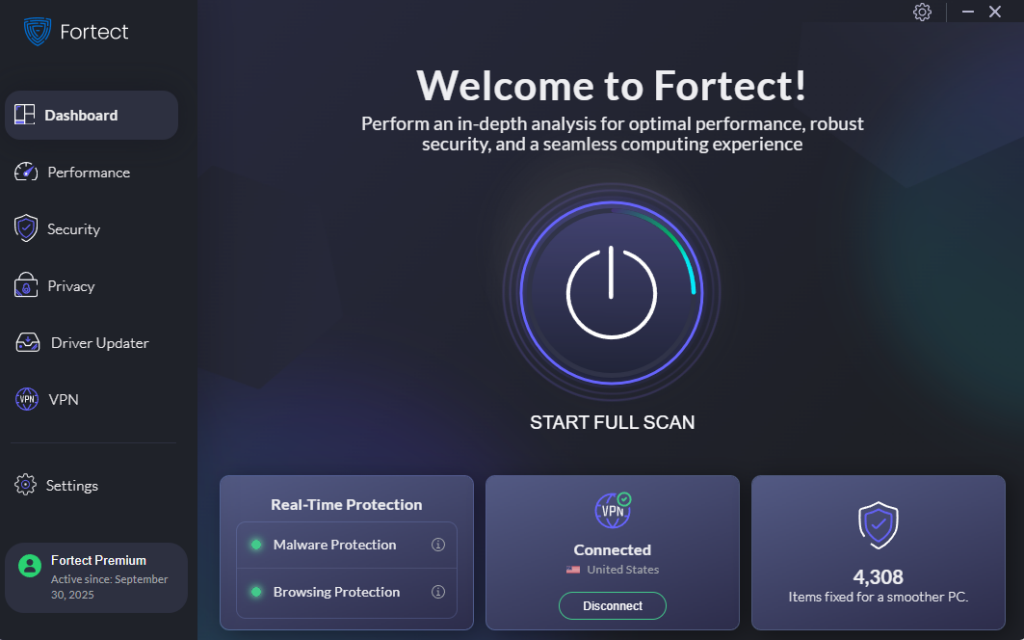
Even after changing your default password, malware that exploited previous vulnerabilities may still lurk on your system. Fortect delivers advanced real-time malware protection specifically designed for Windows users facing threats from default password exploitation. It automatically scans your PC for traditional and emerging threats, including malware that infiltrated through default password vulnerabilities, eliminates them safely, and restores damaged system files for improved performance. I
Its smart threat-detection engine monitors suspicious activity and alerts you before harmful actions can take place, helping keep your device secure and running efficiently after password-related security breaches.
Download and install Fortect today.
Devices that still use default passwords are highly vulnerable to malware and unauthorized access. Cybercriminals often scan networks and internet-connected devices for factory-set login credentials because they are widely known and rarely changed by users. Once attackers gain access through these weak entry points, they can install malware, steal sensitive data, monitor activity, or use the compromised device to spread threats across connected systems.
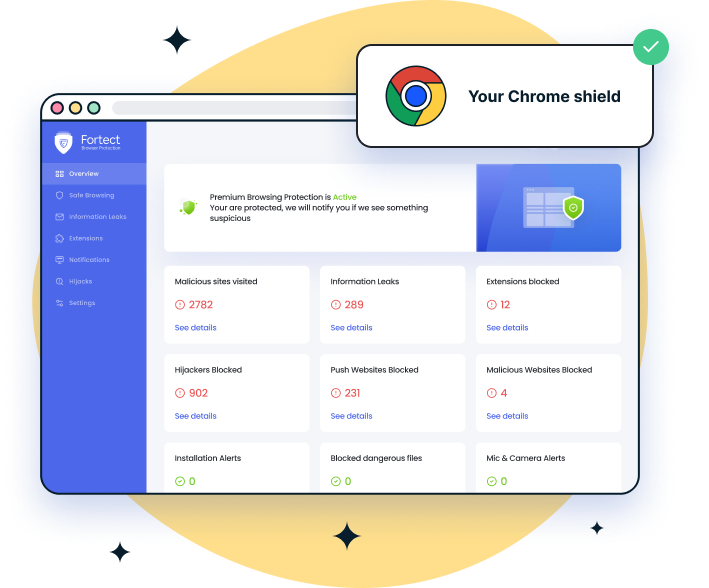
For Chrome users, strengthening browser-level protection can help reduce exposure to these threats. Fortect Browsing Protection is a simple Chrome extension that helps block malicious websites that may attempt to exploit devices using weak or default credentials. It also alerts users about suspicious or phishing pages designed to distribute malware and helps identify and remove harmful browser extensions that could put personal or device data at risk.
How to Change Your Windows Password from Default Settings
Protecting your Windows computer starts with establishing a strong password. Follow these steps based on your operating system version.
Steps for Windows 10
- Click the Start button and select the Settings gear icon
- Navigate to Accounts, then select Sign-in options from the left menu
- Under Password, click Add if you haven’t set one, or Change to update an existing password
- Enter your current password if changing an existing one
- Type your new password in the provided field, then confirm it by typing again
- Add a password hint to help you remember without making it obvious to others
- Click Next, then Finish to complete the process
Steps for Windows 11
- Press the Windows key and click Settings, or use the Windows + I keyboard shortcut
- Select Accounts from the left sidebar
- Click Sign-in options
- Locate the Password section and click Add or Change
- Verify your identity using Windows Hello or your current password
- Enter your new strong password in both required fields
- Create a password hint that’s meaningful to you but cryptic to others
- Click OK to save your new password
Creating Strong Passwords That Resist Attacks
Your new password should be at least 12 characters long, combining uppercase letters, lowercase letters, numbers, and special symbols. Avoid personal information like birthdays or names.
Consider using passphrases like “Coffee&Sunrise@7am!” which are easier to remember than random characters. Never reuse passwords across devices. Password managers can generate and store complex passwords securely, ensuring each device has strong, unique credentials.
Securing Other Devices on Your Home Network
Beyond your Windows PC, every connected device needs attention. Access your router’s admin panel by typing its IP address (commonly 192.168.1.1) into your browser. Change both the admin password and WiFi password immediately.
For smart cameras and IoT devices, use their companion apps to update credentials during setup. Update device firmware regularly to patch security vulnerabilities in default configurations.
Taking Action Today
Default passwords make your devices easy targets for malware and cyberattacks. Changing these credentials takes minutes but provides lasting protection. Start with your Windows computer, then systematically update every connected device in your home.