Two-Factor Authentication: Why It Matters for Security
Your password isn’t enough anymore. Even if you’ve created a strong, unique password for every account, cybercriminals have sophisticated tools that can crack or steal login credentials in seconds. Two-factor authentication (2FA) adds a critical second layer of protection that keeps your personal accounts secure, even when passwords fail.
What Is Two-Factor Authentication?
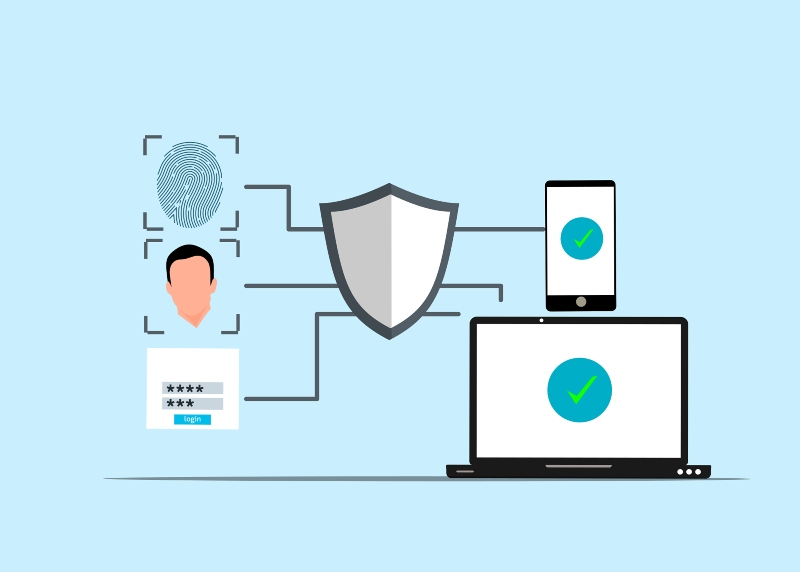
Two-factor authentication is a security method that requires two different forms of verification before granting access to your account. Instead of relying solely on your password (something you know), 2FA adds a second verification step that typically involves something you have, like your smartphone, or something you are, like your fingerprint.
How Authentication Factors Work
Authentication factors fall into three categories. The first is knowledge-based, which includes passwords, PINs, and security questions. The second is possession-based, covering physical items like your phone, security keys, or authentication apps. The third is inherence-based, encompassing biometric data such as fingerprints, face recognition, or voice patterns.
When you enable 2FA, you combine two different factor types. This means that even if someone steals your password, they still can’t access your account without that second verification method.
Why Two-Factor Authentication Is Essential for Your Security
Passwords are vulnerable to numerous threats. Data breaches expose millions of credentials annually, while phishing attacks trick users into revealing login information. Keyloggers can capture everything you type, and many people still reuse passwords across multiple accounts, creating a domino effect when one site gets compromised.
Real Protection Against Common Threats
Two-factor authentication stops unauthorized access in its tracks. When a hacker obtains your password through a data breach or phishing scam, they hit a wall at the 2FA step. Without access to your phone or authentication device, they cannot complete the login process.
Account takeovers drop dramatically when 2FA is enabled. Studies show that multi-factor authentication blocks over 99% of automated attacks. This protection extends to your email, social media, banking apps, and any other accounts containing personal information.
Types of Two-Factor Authentication Methods
Several two-factor authentication (2FA) methods offer varying levels of security and convenience. Understanding each type helps you select the most suitable option for your needs.
SMS Text Message Verification
This common method sends a one-time code to your phone via text message. You enter this code after your password to complete the login. While convenient, SMS authentication has vulnerabilities to SIM swapping attacks, where criminals transfer your phone number to their device.
Authentication Apps
Apps like Microsoft Authenticator, Google Authenticator, and Authy generate time-based codes that refresh every 30 seconds. These codes work without an internet connection and provide stronger security than SMS. Authentication apps are the recommended 2FA method for most users because they’re both secure and user-friendly.
Hardware Security Keys
Physical devices like YubiKey plug into your computer’s USB port or connect via NFC. They offer the highest security level but require carrying the device with you. Hardware keys are ideal for protecting your most sensitive accounts.
Biometric Authentication
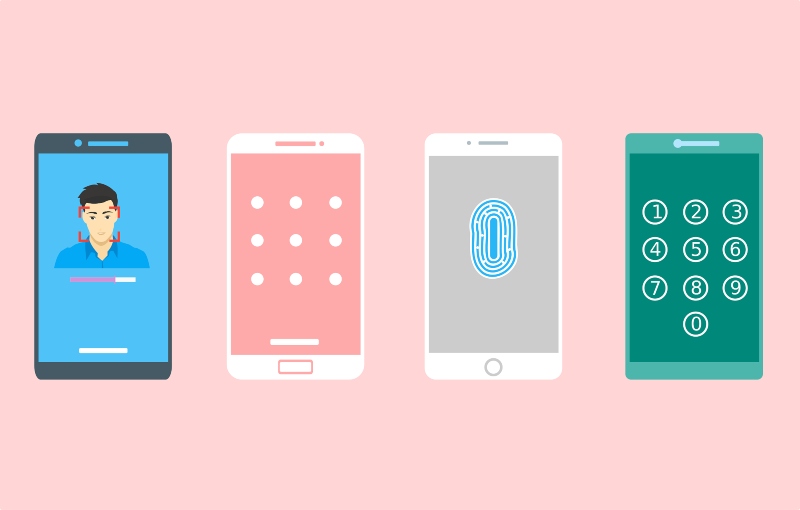
Windows Hello on Windows 10 and 11 uses facial recognition or fingerprint scanning for device access. While technically single-factor authentication on its own, biometrics often combine with passwords for enhanced security.
How to Enable Two-Factor Authentication on Windows 10/11
Protecting your Microsoft account with 2FA secures your Windows device and all connected Microsoft services.
Strengthen Your PC Security Beyond Two-Factor Authentication
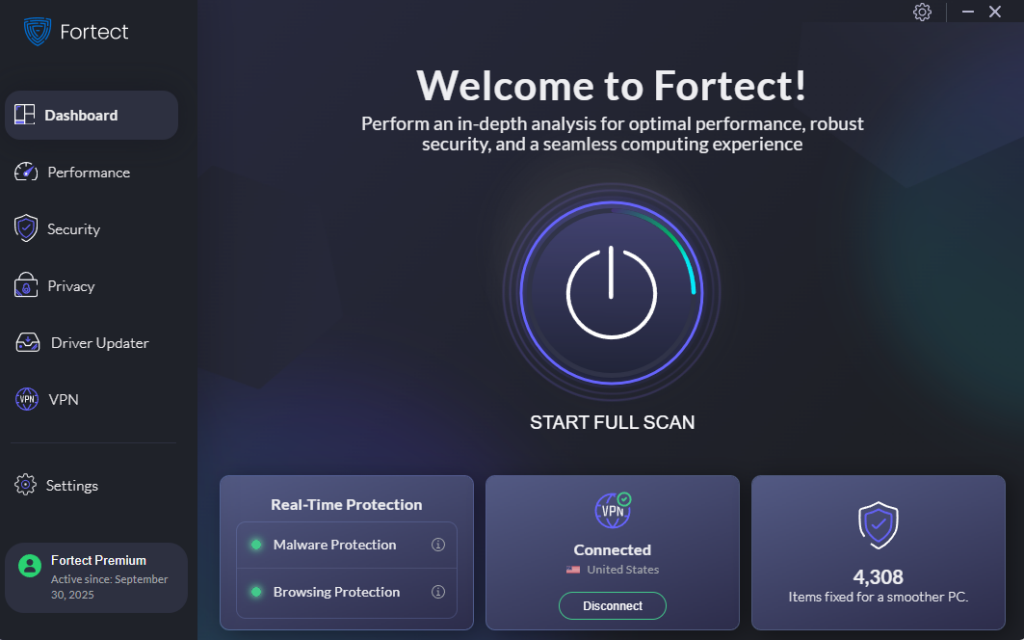
While two-factor authentication protects your accounts from unauthorized access, your Windows PC needs comprehensive security that goes deeper. Fortect delivers advanced real-time protection that works alongside your authentication measures to create multiple layers of defense. It automatically scans your PC for malware that could compromise your login credentials, keyloggers that capture your passwords, and system vulnerabilities that hackers exploit to bypass security features.
Fortect eliminates these threats safely and restores damaged system files that could weaken your two-factor authentication effectiveness. Its smart threat-detection engine monitors suspicious activity and alerts you before harmful actions can compromise your account security, helping keep your device secure while your authentication methods protect your online access.
Download and install Fortect now.
Setting Up 2FA for Your Microsoft Account
1: Press the Windows key and click the Settings gear icon (or press Windows + I).
2: Navigate to “Accounts” and select “Your info” to confirm you’re signed in with your Microsoft account.
3: Click “Sign-in options” in the left sidebar, then select “Additional security options” under the Security section.
4: Under “Two-step verification,” click “Turn on” to begin the setup process.
5: Choose your preferred authentication method. Select “Use an app” for authenticator apps (recommended), “Use a phone number” for SMS codes, or “Use a security key” for hardware devices.
6: Follow the on-screen instructions to complete setup. For authenticator apps, scan the QR code with your Microsoft Authenticator app. For SMS, verify your phone number by entering the code sent to you.
7: Save your backup codes in a secure location. These codes allow account access if you lose your primary 2FA method.
Configuring Windows Hello for Added Security
1: Open Settings (Windows + I) and go to “Accounts.”
2: Select “Sign-in options” from the left menu.
3: Under “Ways to sign in,” choose either “Facial recognition (Windows Hello)” or “Fingerprint recognition (Windows Hello).”
4: Click “Set up” and follow the prompts to register your face or fingerprint. You’ll need a compatible camera for face recognition or a fingerprint reader for fingerprint authentication.
5: Create a PIN as a backup sign-in method when prompted.
Best Practices for Two-Factor Authentication
Using 2FA effectively requires following security best practices. Always store backup codes in a safe place separate from your device, such as a password manager or printed document in a secure location.
Enable 2FA on your most important accounts first. Prioritize email accounts, since they’re used to reset passwords for other services, then secure financial accounts, social media profiles, and cloud storage services.
Avoid SMS-based 2FA when stronger options exist. Choose authenticator apps or hardware keys whenever possible for improved protection against SIM swapping and interception attacks.
Never share your 2FA codes with anyone. Legitimate companies will never ask for these codes. If someone requests your verification code, it’s a scam.
Update your authentication methods when changing phones. Before switching devices, ensure you can transfer your authenticator app or re-register your new phone number to avoid being locked out of accounts.
Taking Control of Your Digital Security
Two-factor authentication represents a simple yet powerful defense against account compromises. By adding just one extra verification step, you exponentially increase your security and protect your personal information from unauthorized access.
The few extra seconds required during login are a small price for the peace of mind that comes with knowing your accounts are protected, even if your password falls into the wrong hands. Enable 2FA today on your Windows device and critical online accounts to build a stronger security foundation for your digital life.