
The Rise of Autonomous Malware: Detection and Prevention
Autonomous malware represents a new generation of self-operating threats that can adapt, evolve, and spread without human intervention. Unlike traditional viruses that require manual commands, these intelligent threats use artificial intelligence and machine learning to identify vulnerabilities, modify their code, and evade detection systems automatically. For Windows users, understanding and protecting against autonomous malware has become crucial as these attacks grow more sophisticated each day.
What Makes Autonomous Malware Different?
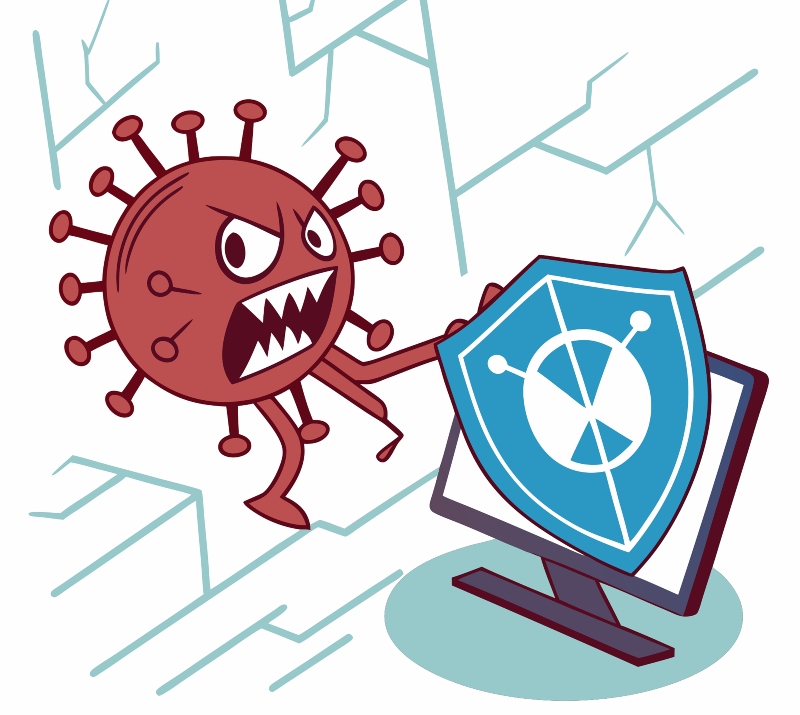
Autonomous malware operates independently once deployed, making real-time decisions about which systems to target and how to penetrate defenses. These threats can analyze your computer’s security measures, change their behavior to avoid antivirus software, and even create new variants of themselves. Self-propagating malware spreads across networks automatically, whereas polymorphic viruses continually modify their code to evade traditional signature-based detection.
The most concerning aspect is how these threats learn from failed attacks. When autonomous malware encounters a security barrier, it remembers the obstacle and tries alternative methods, all without any hacker actively controlling it.
How Autonomous Malware Infects Windows Systems
Common Entry Points
Autonomous malware typically infiltrates Windows computers through phishing emails with malicious attachments, compromised software downloads, infected USB drives, and security vulnerabilities in outdated systems. Once inside, these threats establish persistence mechanisms to survive system reboots and scan for additional targets on your network.
Ransomware variants with autonomous capabilities can encrypt your files while simultaneously searching for backup drives and network shares. Crypto-mining malware automatically allocates system resources to mine cryptocurrency while remaining undetected by monitoring your CPU usage patterns.
Detecting Autonomous Malware on Your Windows PC
Warning Signs to Watch For
Your computer may be infected if you notice unusual system slowdowns, unexpected network activity, programs launching automatically, disabled antivirus software, or mysterious new files and folders. Task Manager might reveal unfamiliar processes consuming significant resources.
How to Check for Suspicious Activity in Windows 10/11
Step 1: Press Ctrl + Shift + Esc to open Task Manager.
Step 2: Click the “Processes” tab and sort by CPU or Memory usage.
Step 3: Look for unfamiliar processes with high resource consumption.
Step 4: Right-click suspicious processes and select “Search online” to verify legitimacy.
Step 5: Navigate to the “Startup” tab to review programs that launch automatically.
Step 6: Disable any suspicious startup items by right-clicking and selecting “Disable.”
Essential Prevention Strategies for Windows Users
Keep Your System Updated
Regular Windows updates patch security vulnerabilities that autonomous malware exploits. Here’s how to ensure automatic updates are enabled:
Step 1: Click the Start button and open “Settings.”
Step 2: Select “Windows Update” (in Windows 11) or “Update & Security” (in Windows 10).
Step 3: Click “Check for updates” to install pending updates immediately.
Step 4: Select “Advanced options” and ensure “Receive updates for other Microsoft products” is enabled.
Step 5: Under “Advanced options,” verify that “Download updates over metered connections” is turned on for critical security patches.
Configure Built-In Windows Security
Windows Defender provides robust protection against autonomous malware when properly configured:
Step 1: Open Windows Security by searching for it in the Start menu.
Step 2: Click “Virus & threat protection.”
Step 3: Select “Manage settings” under “Virus & threat protection settings.”
Step 4: Enable “Real-time protection,” “Cloud-delivered protection,” and “Automatic sample submission.”
Step 5: Turn on “Tamper Protection” to prevent malware from disabling your security features.
Step 6: Under “Virus & threat protection,” click “Manage ransomware protection” and enable “Controlled folder access” to protect important directories.
Implement User Account Control
Restricting user privileges limits autonomous malware’s ability to make system-wide changes:
Step 1: Type “User Accounts” in the Start menu search and open it.
Step 2: Click “Change User Account Control settings.”
Step 3: Move the slider to “Always notify” for maximum protection.
Step 4: Click “OK” and restart your computer.
For shared computers, create separate standard user accounts rather than using administrator accounts for daily activities. This prevents malware from gaining elevated privileges automatically.
Advanced Protection with Comprehensive Security Software
Fortect: Complete Real-Time Malware Defense
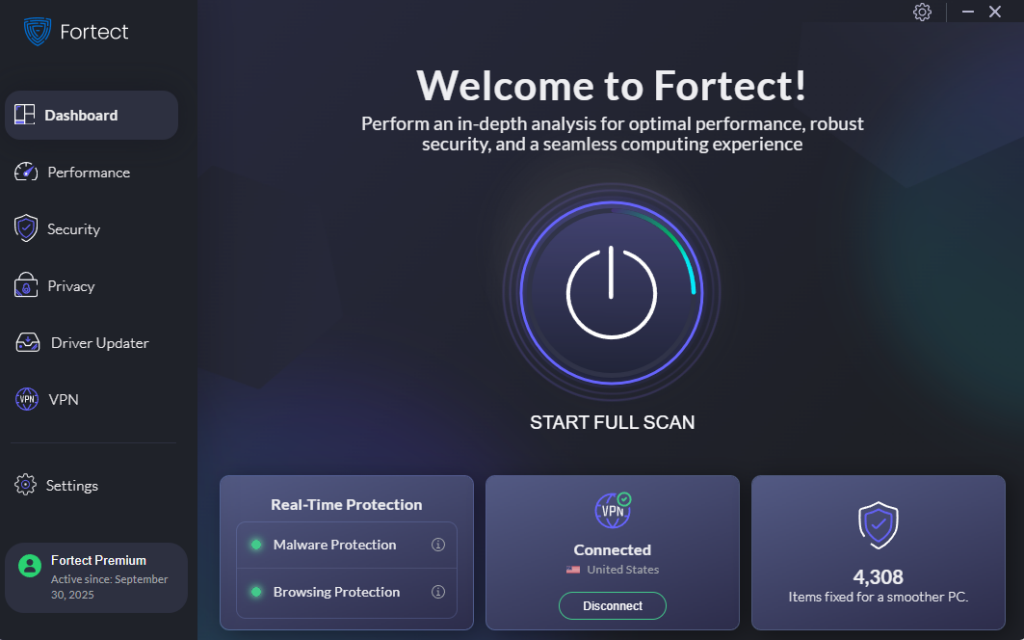
For users seeking comprehensive protection against autonomous malware, Fortect offers powerful advanced antivirus capabilities with real-time threat monitoring. The software automatically scans your Windows PC for autonomous malware and other threats, then fixes them while optimizing your computer’s performance.
What sets Fortect Premium apart is its built-in Driver Updater that automatically identifies outdated or corrupted drivers and updates them safely from trusted sources. This feature is critical because corrupted or outdated drivers create serious security vulnerabilities, and hackers exploit these weaknesses to inject malware directly into your system, including any type of autonomous malware. Since drivers communicate with the system kernel, any compromise can lead to system instability or complete takeover by autonomous threats.
Fortect closes these security gaps while ensuring cleaner, faster, and more reliable PC performance. By maintaining updated drivers alongside real-time malware protection, you create a multi-layered defense that addresses both software threats and hardware-level vulnerabilities.
Download and install Fortect for Windows systems now to be fully protected.
Fortect Mac Suite: Comprehensive macOS Protection
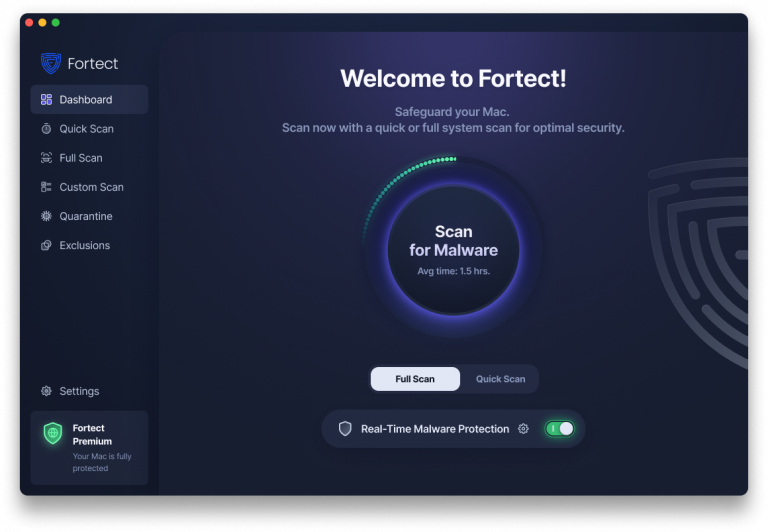
Contrary to popular belief that Macs are immune to malware and viruses, cybercriminals have become increasingly sophisticated in their approach to macOS systems. As Mac devices surge in popularity among consumers and professionals alike, they’ve become lucrative targets for attackers who develop autonomous malware specifically engineered to exploit macOS vulnerabilities.
Fortect Mac Suite delivers next-level protection specifically designed for macOS users facing these evolving autonomous malware threats. Once installed on any supported macOS version, the software activates immediately and runs complete system scans to identify hidden threats that built-in security may miss.
The suite combines real-time monitoring with powerful cloud-based analysis to detect autonomous malware behavior patterns as they occur. This proactive approach stops self-operating threats before they can establish persistence or spread across your network. Beyond security, Fortect Mac Suite optimizes performance by removing malware-related slowdowns, providing Mac users with comprehensive protection and smoother system operation in one solution.
Download Fortect for your Mac computers now.
Additional Security Best Practices
Enable your firewall to monitor incoming and outgoing network traffic, blocking unauthorized connections. Practice safe browsing habits by avoiding suspicious downloads, verifying email sender authenticity before clicking links, and regularly backing up important files to external drives disconnected from your computer. Use strong, unique passwords with multi-factor authentication for all accounts.
Taking Action Today
Autonomous malware continues to evolve, but Windows users who maintain updated systems, configure proper security settings, and practice digital hygiene can significantly reduce their infection risks. Start by checking your Windows Update status, enabling all Windows Security features, and creating regular backups. These simple steps form a strong defense against even the most sophisticated self-operating threats targeting your computer.




![Beware of these 8 PC Tune Up Tools [Malware Risk]](https://wp-cdn.fortect.com/uploads/2023/04/24173257/speeditup-425x300.jpg)