Stop Fake Scholarship & Job Email Scams on Windows/Mac
Fake scholarship and job email scams target students and job seekers with fraudulent offers that steal personal information, money, or both. These phishing emails exploit your hopes for educational opportunities or employment, making them particularly dangerous. This guide shows you how to identify these scams and protect yourself on Windows and Mac computers.
Recognizing Fake Scholarship and Job Offer Emails
Scholarship scams and employment fraud emails share common warning signs. The sender typically requests upfront payment for “processing fees” or “application costs” before you receive promised funds. Legitimate scholarships never ask you to pay to apply or receive money.
Suspicious job offers often arrive unsolicited with promises of high pay for minimal work. The email may contain poor grammar, generic greetings like “Dear Applicant,” or pressure you to act immediately. Scam emails frequently use unofficial email addresses that don’t match the organization’s actual domain.
Fraudulent scholarship emails may impersonate real foundations or create fake organizations with professional-sounding names. They’ll request sensitive details, including your Social Security number, bank account information, or credit card numbers under the guise of “verification” or “direct deposit setup.”
How Scammers Use Email to Target Windows and Mac Users
Phishing scammers send mass emails in the hope of targeting vulnerable individuals. These deceptive messages contain malicious links that download malware, which delivers giveaway scams and other threats onto your Windows or Mac computer when clicked. The malware can log your keystrokes, steal saved passwords, or encrypt your files for ransom.
Some scam emails include infected attachments disguised as application forms or scholarship documents. Opening these files on either operating system can compromise your device security and expose personal data stored on your computer.
Email spoofing techniques make fraudulent messages appear to come from legitimate universities, employers, or scholarship foundations. Without proper verification, these fake sender addresses trick recipients into trusting the content.
Protecting Your Windows Computer from Email Scams
Strengthen Your PC Security with Fortect for Windows
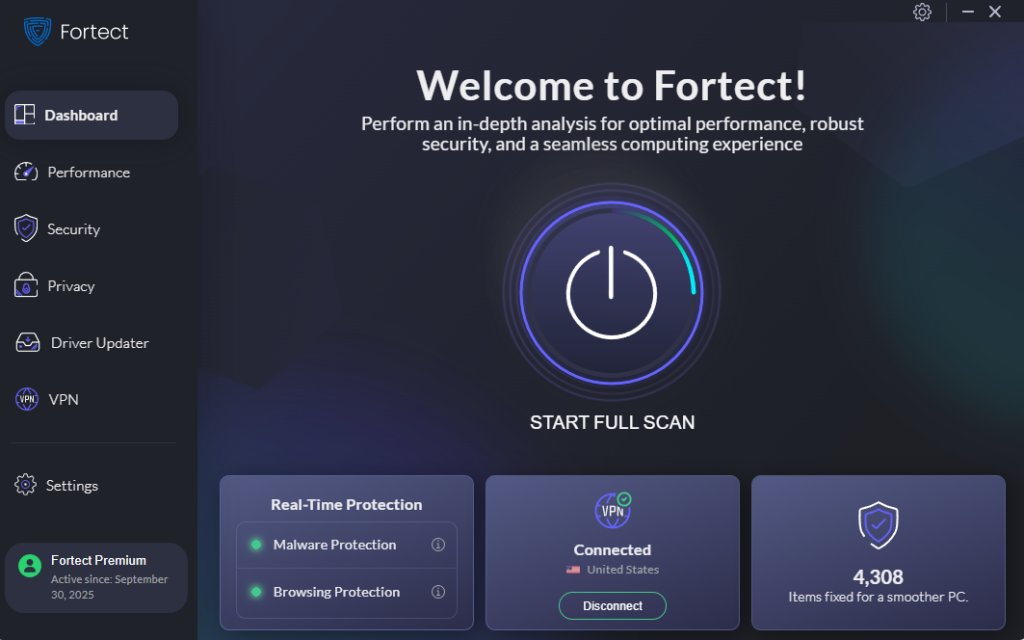
Fake scholarship and job email scams often contain hidden malware that bypasses basic antivirus tools. Fortect delivers advanced real-time malware protection specifically designed for Windows users facing these evolving threats. It automatically scans your PC for traditional and emerging dangers, including phishing malware from fraudulent scholarship and job offer emails, eliminates them safely, and restores damaged system files for improved performance.
The smart threat-detection engine monitors suspicious activity from email attachments and malicious links, alerting you before harmful actions compromise your personal information. When scammers send infected “application forms” or “scholarship documents,” Fortect’s proactive defense helps keep your device secure and running efficiently, providing an essential layer of protection beyond Windows’ built-in security.
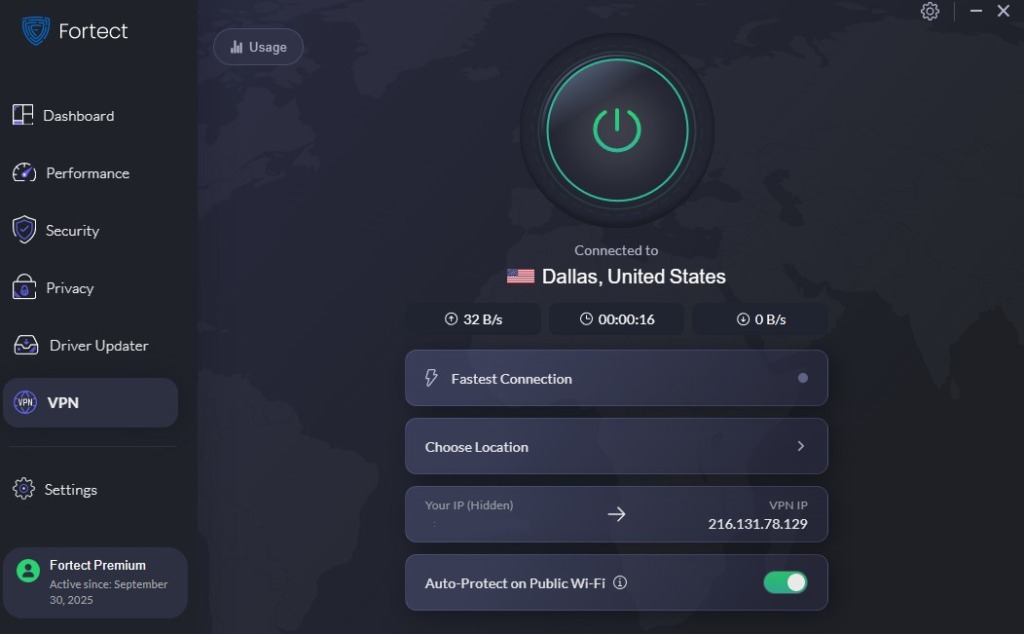
The new Fortect Premium includes a built-in VPN with Auto-Protect on public Wi-Fi, helping keep your connection secure when checking emails on open networks. Encrypting your internet traffic protects personal data from attackers who exploit unsecured connections, often used to intercept credentials or deliver fake scholarship and job email scams.
Download and install Fortect today.
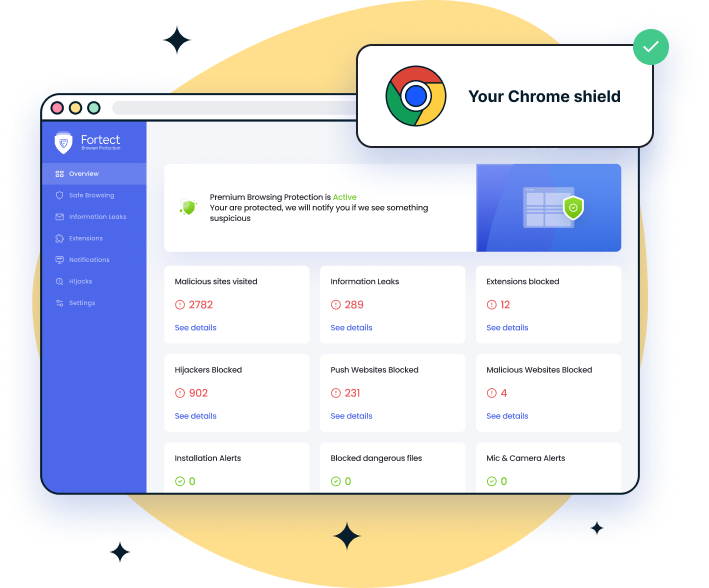
For Windows users browsing with Chrome, Fortect Browsing Protection adds an extra layer of defense against fake scholarship and job email scams by blocking malicious websites before they load, flagging suspicious pages, and removing harmful extensions that could put your data at risk.
Enable Windows Security Features
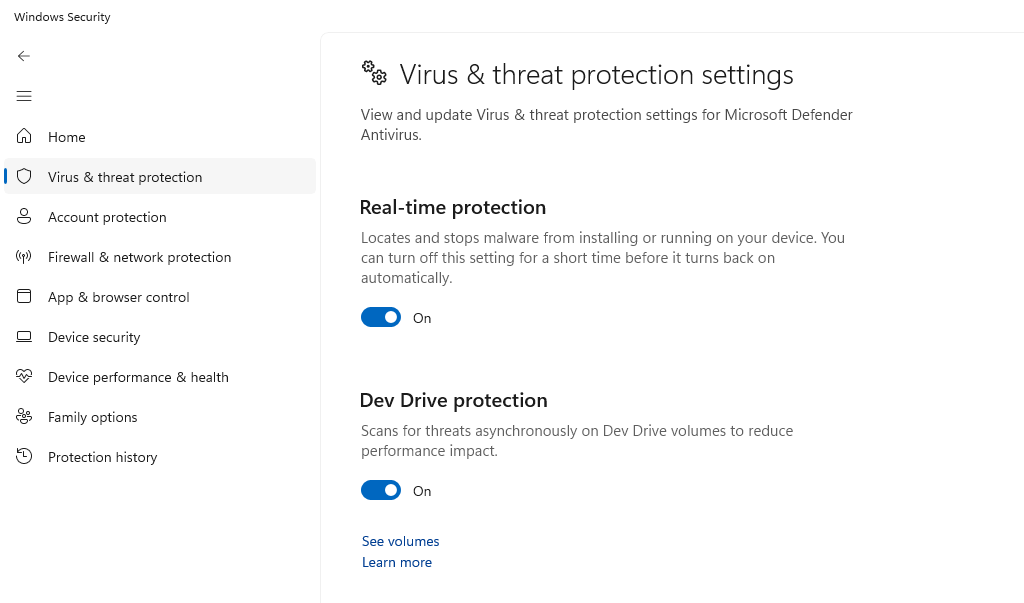
Windows 10 and 11 include built-in protection against phishing attempts and malicious downloads. Ensure Windows Security is active:
- Click the Start button and select Settings (gear icon)
- Navigate to Privacy & Security (Windows 11) or Update & Security (Windows 10)
- Click Windows Security in the left sidebar
- Select Virus & threat protection
- Verify that Real-time protection is turned On
- Click Manage settings under “Virus & threat protection settings”
- Ensure Cloud-delivered protection and Automatic sample submission are enabled
Configure SmartScreen Filter
SmartScreen helps block phishing sites and downloads:
- Open Settings from the Start menu
- Go to Privacy & Security > Windows Security
- Click App & browser control
- Under “Reputation-based protection,” click Reputation-based protection settings
- Turn on Check apps and files, SmartScreen for Microsoft Edge, and Phishing protection
Keep Windows Updated
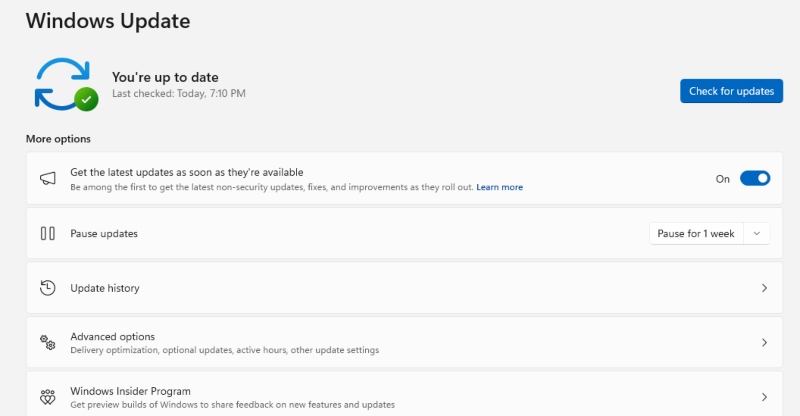
Security patches protect against vulnerabilities scammers exploit:
- Press Windows key + I to open Settings
- Select Windows Update from the left panel
- Click Check for updates
- Install all available updates, including optional ones
- Enable Receive updates for other Microsoft products if available
Safeguarding Your Mac from Scholarship and Job Scams
Fortect for Mac: Strengthen Your Defense Beyond macOS Built-In Security
Cybercriminals targeting students and job seekers are no longer focusing exclusively on Windows users. Fake scholarship and job email scams now threaten Mac users with sophisticated phishing malware designed to bypass traditional macOS defenses. Modern ransomware, spyware, and stealth attacks embedded in fraudulent opportunity emails are increasingly complex, making built-in security alone insufficient protection.
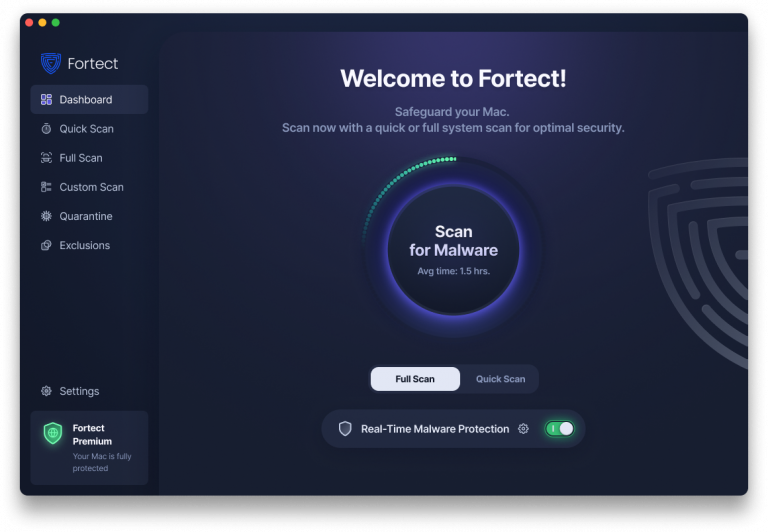
Fortect for Mac delivers intelligent, real-time protection that works alongside Apple’s native security rather than replacing it. It fills critical gaps that scammers exploit when sending malicious scholarship applications or fake employment offer attachments, shielding your system from threats you may not even be aware of.
Key Features:
Real-Time Malware Defense: Always-on threat monitoring that instantly detects and blocks malicious activity from suspicious emails without disrupting your workflow.
Cloud-Based Threat Intelligence: Leverages cloud security analysis for rapid detection of new phishing techniques and emerging attack patterns used in scholarship and job scams.
Quick Smart Scan: Fast and efficient scans to identify email-based threats and resolve issues quickly after receiving suspicious messages.
Full System Scan: Deep scanning across your entire machine for comprehensive protection against hidden malware from fraudulent opportunity emails.
Enable Mac Security Features
Mac users face similar email scam threats and should activate built-in features alongside enhanced protection.
Activate FileVault encryption to secure personal information if your Mac is compromised. Go to System Settings > Privacy & Security > FileVault and turn it on. Keep macOS updated by accessing System Settings > General > Software Update and installing available updates regularly.
Use Safari’s fraudulent website warning feature found in Safari > Settings > Security. Enable “Warn when visiting a fraudulent website” to receive alerts about known phishing sites linked in scam emails.
Verifying Legitimate Scholarship and Employment Opportunities
Before responding to any scholarship or job offer, independently research the organization. Visit their official website by typing the URL directly into your browser rather than clicking email links. Contact the organization through verified phone numbers or email addresses listed on their legitimate website.
Search for the scholarship name or company with terms like “scam” or “fraud” to see if others have reported issues. Check the Better Business Bureau and Federal Trade Commission databases for complaints. Legitimate opportunities will have verifiable online presence, physical addresses, and transparent application processes.
Never send money for scholarships or jobs. Real employers don’t ask new hires to purchase equipment or pay training fees up front. Authentic scholarship providers cover costs themselves or clearly outline free application procedures.
You can also read our article on phishing emails posing as Microsoft Support for more information on similar email scams.
What to Do If You’ve Been Targeted
If you clicked a suspicious link or opened a questionable attachment, disconnect from the internet immediately and run a full system scan using Windows Security or Mac’s built-in malware detection tools. Change passwords for important accounts using a different device.
Report phishing emails to the Anti-Phishing Working Group at [email protected] and forward them to the Federal Trade Commission at [email protected]. If you provided financial information, contact your bank and credit card companies immediately to freeze accounts and dispute fraudulent charges.
File a complaint with the FBI’s Internet Crime Complaint Center at ic3.gov if you’ve lost money to these scams. Consider placing a fraud alert on your credit reports through the major credit bureaus to prevent identity theft.
Building Long-Term Email Security Habits
Create separate email addresses for scholarship applications and job searches. This limits exposure if one account is compromised and makes tracking legitimate correspondence easier.
Enable two-factor authentication on all email accounts to add an extra security layer beyond passwords. Never use the same password across multiple sites, and consider using a password manager to generate and store strong, unique credentials.
Stay skeptical of unsolicited opportunities that seem too good to be true. Taking time to verify authenticity prevents falling victim to emotional manipulation tactics scammers use. Your financial security and personal information are worth the extra verification effort.
You can also check out our article on online dating scams to stay informed if you’re exploring opportunities online