Spyware Disguised as System Optimization Tools
Your Windows PC is running slower than usual, and pop-ups promise to “boost performance” with just one click. Before downloading that system optimizer, stop. That tool might be spyware in disguise, stealing your data while pretending to help.
What Are Fake System Optimization Tools?
Fake system optimization tools are malicious programs that masquerade as legitimate PC cleaners, registry fixers, or performance boosters. These deceptive applications promise to speed up your computer, but instead install spyware that monitors your activities, steals passwords, and compromises your privacy.
These fraudulent optimizers display fake scan results showing hundreds of “critical errors” to scare you into purchasing the full version. Once installed, they consume system resources, display intrusive ads, and potentially harvest sensitive information like credit card numbers and login credentials.
How Spyware-Laden Optimizers Infect Your PC

Common Distribution Methods
Cybercriminals use several tactics to distribute malicious optimization software. Aggressive pop-up ads claim your PC has performance issues. Bundled software installations hide spyware within legitimate program installers. Fake download buttons redirect you to malicious files. Email phishing campaigns disguise threats as system update notifications, while social media ads and sponsored search results spread these dangerous programs.
Warning Signs of Malicious Optimizers
Be suspicious of programs that display alarming messages about critical errors immediately after installation, require payment before showing actual problems, request excessive system permissions, or lack clear company information and user reviews. Other red flags include aggressive advertising, automatic downloads without consent, and requests to disable antivirus software.
How to Protect Your Windows 10/11 PC
Strengthen Your PC Security with Fortect
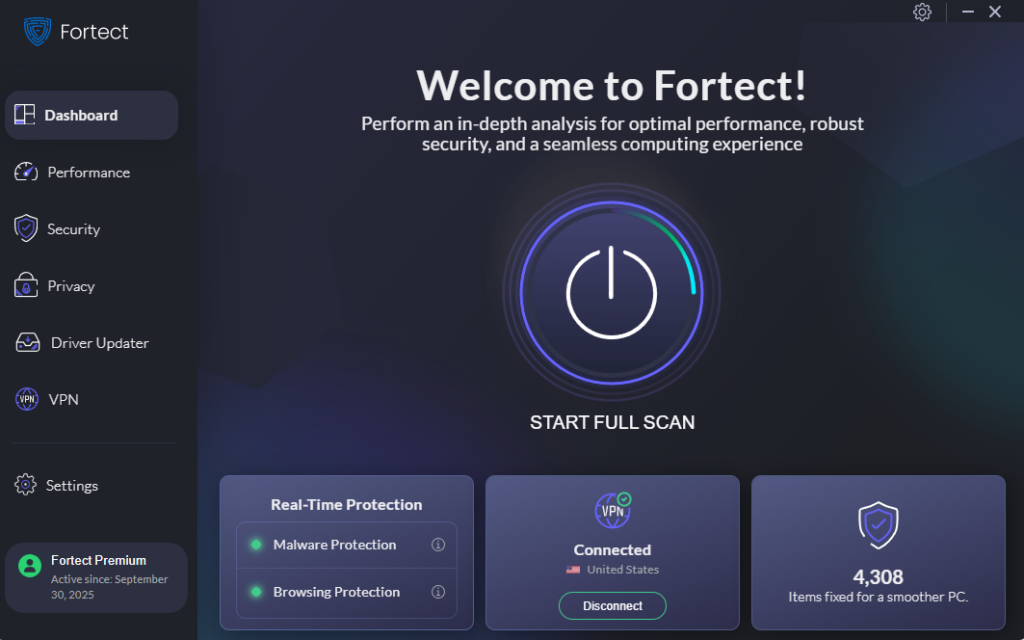
While Windows includes built-in defenses, Fortect provides comprehensive real-time malware protection for evolving security challenges. This tool automatically scans for both traditional malware and threats like spyware disguised as system optimization tools. When it detects malicious software masquerading as a PC cleaner or registry fixer, Fortect eliminates it safely while repairing damaged system files. The smart threat-detection engine monitors for suspicious behavior, alerting you before harmful programs steal your data or compromise your privacy.
Download and install Fortect today.
Configure SmartScreen Protection
SmartScreen Filter blocks suspicious downloads before they reach your system:
- Open Windows Security (Windows key + search “Windows Security”)
- Click “App & browser control”
- Under “Check apps and files,” select “Warn” or “Block”
- Under “SmartScreen for Microsoft Edge,” choose “Warn” or “Block”
- Set “SmartScreen for Microsoft Store apps” to “Warn”
Enable Windows Security Features
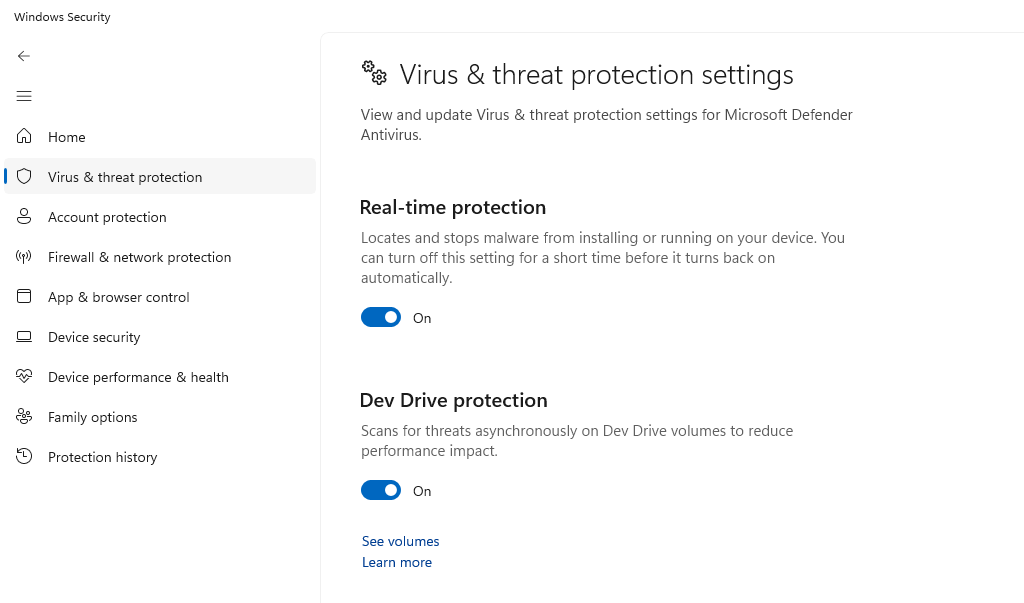
Windows includes built-in protection against spyware and malicious software. Here’s how to ensure it’s active:
- Press the Windows key and type “Windows Security”
- Click on “Windows Security” from the search results
- Select “Virus & threat protection” from the left menu
- Click “Manage settings” under Virus & threat protection settings
- Ensure “Real-time protection” is turned ON
- Verify “Cloud-delivered protection” is enabled
- Turn ON “Automatic sample submission” for enhanced protection
Restrict Unauthorized Software Installation
Prevent malicious programs from installing without your knowledge:
- Press Windows key + I to open Settings
- Navigate to “Privacy & Security”
- Click “For developers” (Windows 11) or “Windows Security” then “App & browser control” (Windows 10)
- Under “Choose where to get apps,” select “The Microsoft Store only” or “Anywhere, but warn me before installing an app not from the Microsoft Store”
Keep Windows Updated
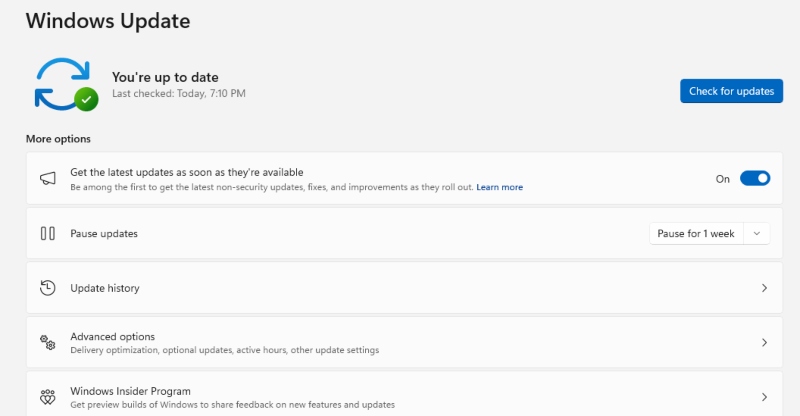
Regular updates patch security vulnerabilities that spyware exploits:
- Press Windows key + I to open Settings
- Click “Windows Update” (bottom left in Windows 11, or “Update & Security” in Windows 10)
- Click “Check for updates”
- If updates are available, click “Download and install”
- Under “Advanced options,” enable “Receive updates for other Microsoft products”
- Restart your computer when prompted
Safe Alternatives to Questionable Optimizers
Windows 10 and 11 include built-in maintenance tools that safely optimize performance. Storage Sense automatically removes temporary files, Disk Cleanup eliminates unnecessary system files, and the built-in defragmenter optimizes file storage. For additional protection, use reputable tools such as Fortect and Windows’ Performance Troubleshooter, accessed through Settings > System > Troubleshoot.
What to Do If You’ve Installed Suspicious Software
If you suspect you’ve downloaded a malicious optimizer, disconnect from the internet immediately. Boot into Safe Mode by holding Shift while clicking Restart, then select Troubleshoot > Advanced options > Startup Settings > Restart > press F4. Run a full scan with Windows Security, uninstall suspicious programs via Settings > Apps > Installed apps, and change passwords on a secure device.
Conclusion
Genuine system optimization happens through Windows’ built-in tools and regular maintenance, not through aggressive pop-ups and scare tactics. Stay vigilant, keep Windows updated, and stick with Microsoft’s native features to protect your personal data from spyware disguised as helpful utilities.