SOLVED: Wiper Cyber Attacks on Windows
Wiper cyber attacks represent one of the most destructive threats facing Windows users today. Unlike ransomware that encrypts your files for money, wiper malware permanently destroys your data with no chance of recovery. Understanding how these attacks work and protecting your Windows PC is crucial for safeguarding your personal files, photos, and documents.
What Are Wiper Cyber Attacks?
Wiper attacks are malicious cyberattacks designed to irreversibly delete or corrupt data on your computer. These destructive malware variants overwrite files, corrupt system partitions, and render your Windows operating system unusable. Recent wiper variants like HermeticWiper, IsaacWiper, and WhisperGate have targeted Windows systems worldwide, causing permanent data loss for thousands of users.
The primary goal of wiper malware is destruction, not financial gain. Attackers deploy these threats to cause maximum damage, often disguising them as system updates or legitimate software. Once activated, wiper malware works quickly to destroy boot records, delete shadow copies, and overwrite your personal files.
How Wiper Malware Infects Windows Computers
Common Infection Methods
Wiper attacks typically infiltrate Windows systems through phishing emails containing malicious attachments, compromised software downloads, fake system updates, and infected USB drives. Users unknowingly execute the malware by opening suspicious email attachments, downloading software from untrusted websites, or clicking on deceptive pop-up warnings.
Signs Your Windows PC May Be Infected
Watch for these warning signs: unexplained file deletions, system crashes or boot failures, disabled security software, unusual disk activity, and error messages when accessing files. If you notice these symptoms, immediately disconnect from the internet and power down your computer.
How to Protect Your Windows PC from Wiper Attacks
Enable Windows Security Features
For Windows 10:
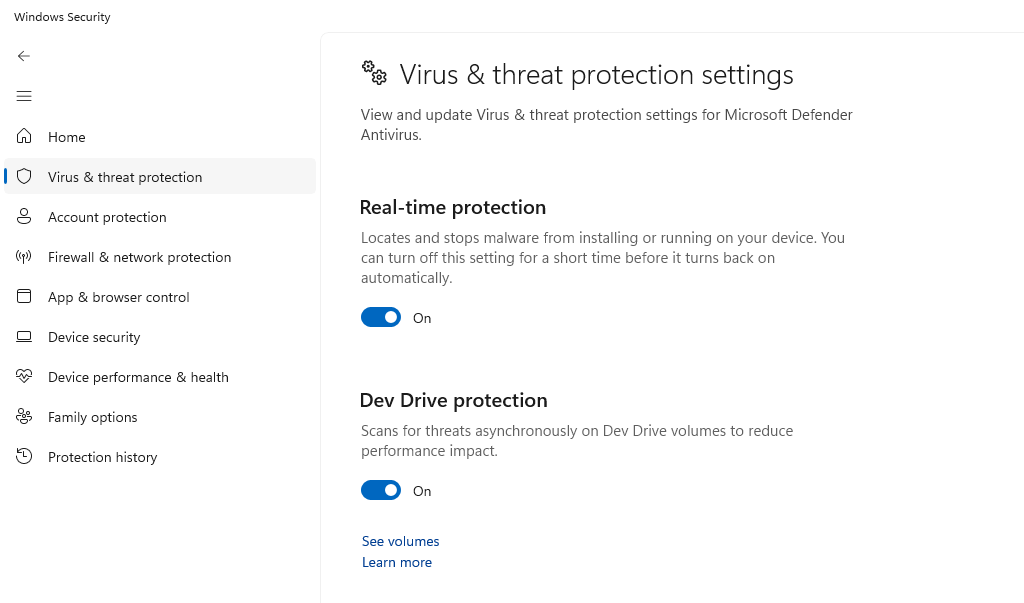
- Press the Windows key and type “Windows Security”
- Click on “Virus & threat protection”
- Select “Manage settings” under Virus & threat protection settings
- Toggle on “Real-time protection” and “Cloud-delivered protection”
- Enable “Tamper Protection” to prevent malware from disabling security features
For Windows 11:
- Open Settings by pressing Windows + I
- Navigate to “Privacy & security” then click “Windows Security”
- Select “Virus & threat protection”
- Click “Manage settings” and enable all protection features
- Activate “Tamper Protection” under the same menu
Keep Windows Updated
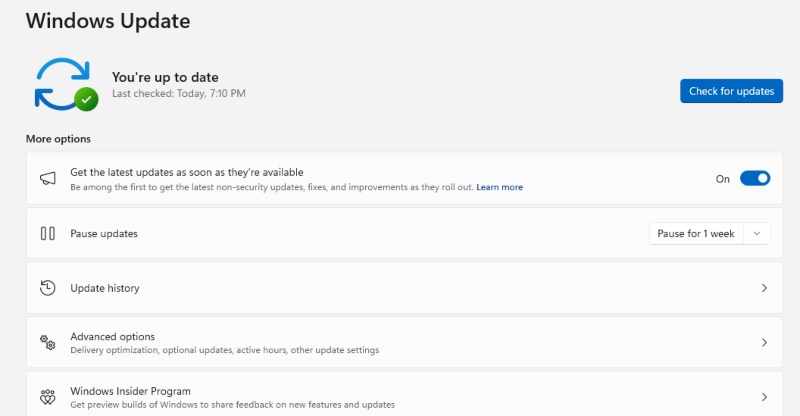
Regular updates patch vulnerabilities that wiper malware exploits.
Update Steps for Windows 10/11:
- Press Windows + I to open Settings
- Click “Update & Security” (Windows 10) or “Windows Update” (Windows 11)
- Select “Check for updates”
- Click “Download and install” for any available updates
- Restart your computer when prompted
- Enable “Automatic updates” to stay protected continuously
Create Regular Backups
Backups are your last line of defense against data-destroying wiper attacks.
How to Set Up File History Backup (Windows 10/11):
- Connect an external hard drive to your computer
- Open Settings and navigate to “Update & Security” > “Backup” (Windows 10) or “System” > “Storage” > “Advanced storage settings” > “Backup options” (Windows 11)
- Click “Add a drive” and select your external drive
- Toggle on “Automatically back up my files”
- Click “More options” to customize backup frequency and folders
- Set backup frequency to “Every hour” for maximum protection
Restrict User Account Permissions
Limiting account privileges prevents malware from making system-wide changes.
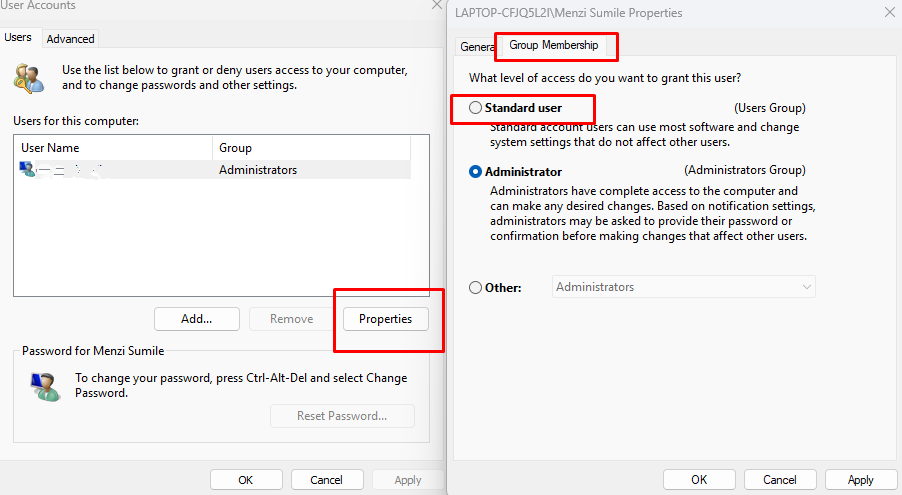
How to Create a Standard User Account (Windows 10/11):
- Press Windows + I to open Settings
- Go to “Accounts” then “Family & other users”
- Click “Add someone else to this PC” (Windows 10) or “Add account” (Windows 11)
- Follow prompts to create a new account
- Select the new account and click “Change account type”
- Choose “Standard User” from the dropdown menu
- Click “OK” to save changes
- Use this standard account for daily activities instead of your administrator account
Get Advanced Protection with Fortect
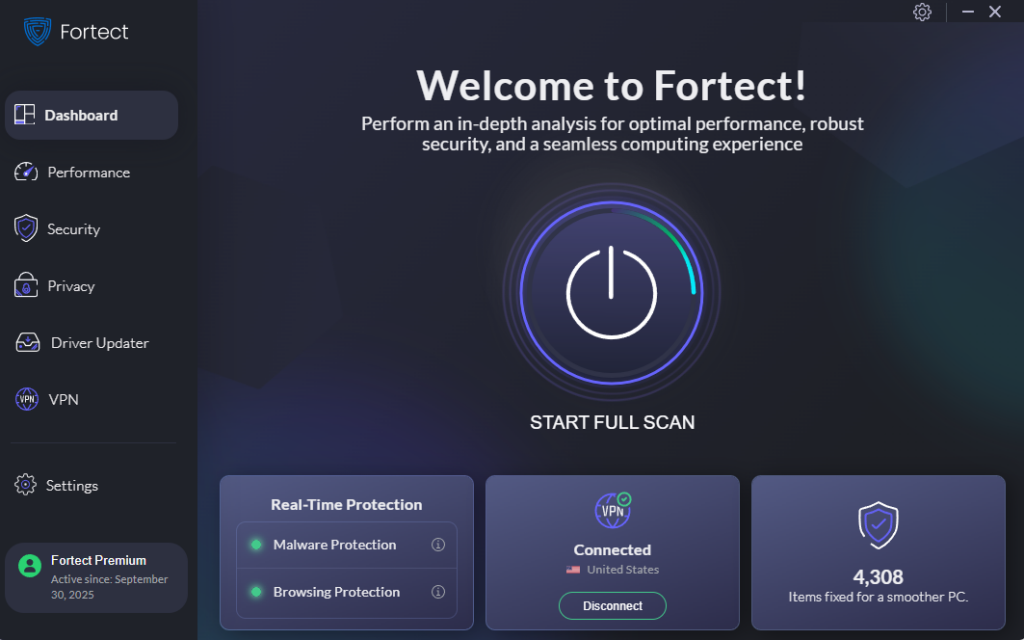
For comprehensive defense against wiper cyber attacks and other sophisticated threats, consider upgrading to Fortect. This powerful, advanced anti-virus solution provides real-time malware protection that automatically scans your Windows PC for threats, including wiper malware, then fixes them and optimizes your computer.
Fortect Premium features a built-in Driver Updater that automatically scans your PC for outdated or corrupted drivers and replaces them with secure updates from trusted sources. This isn’t just about improving performance; it’s also a vital security measure. Outdated or damaged drivers can create vulnerabilities that hackers exploit to install malware or gain unauthorized access. By keeping your drivers up to date, Fortect helps close these security gaps while ensuring your system runs cleaner, faster, and more reliably.
Download and install Fortect today!
What to Do If You’re Attacked
If you suspect a wiper attack, immediately power off your computer to prevent further damage. Do not attempt to restart or access files. Contact a professional data recovery service, as attempting DIY recovery may cause additional harm. Restore your system from a clean backup created before the infection.
Essential Prevention Tips
Install reputable antivirus software beyond Windows Defender for additional protection. Avoid opening email attachments from unknown senders, even if they appear legitimate, and download software only from official websites and verified sources. Use strong, unique passwords and enable multi-factor authentication on all accounts. Regularly educate yourself about emerging cyber threats and phishing tactics to stay informed and protect yourself.
Conclusion
Wiper cyber attacks pose a serious threat to Windows users, but proper preparation significantly reduces your risk. By enabling security features, maintaining updated systems, creating regular backups, and practicing safe browsing habits, you can protect your valuable data from destructive malware. Remember: prevention is always easier than recovery when dealing with wiper attacks.