SOLVED: Supply Chain Malware from Software Updates
Software updates are supposed to keep your Windows PC safe, but what happens when the updates themselves become the threat? Supply chain malware attacks exploit the trust you place in legitimate software vendors, turning routine updates into dangerous security breaches. Understanding this threat and knowing how to protect yourself is crucial for every Windows user.
What Is Supply Chain Malware?
Supply chain malware occurs when cybercriminals infiltrate the software development or distribution process, injecting malicious code into legitimate programs before they reach your computer. Instead of attacking you directly, hackers target the software companies you trust, compromising their update servers or development tools.
When you download what appears to be a legitimate update from a trusted vendor, you unknowingly install malware that can steal your passwords, encrypt your files for ransom, or turn your computer into part of a botnet. The danger lies in the fact that these infected updates bypass your normal security defenses because they appear to come from legitimate sources.
Common Signs Your System May Be Compromised
Watch for unusual system behavior after installing updates: unexpected slowdowns, programs launching on their own, unfamiliar processes running in Task Manager, or your antivirus software being disabled. Your browser might redirect to strange websites, or you may notice unauthorized purchases on your accounts.
How Supply Chain Attacks Target Windows Users

Attackers compromise software supply chains through several methods. They might hack into a vendor’s update servers and replace legitimate files with infected versions. Sometimes, they target third-party components that multiple applications use, multiplying their reach with a single compromise.
Free software and utilities are particularly vulnerable because smaller developers often lack a robust security infrastructure. However, even major software companies have fallen victim to sophisticated supply chain attacks, proving no one is completely immune.
How to Protect Your Windows 10/11 PC from Compromised Updates
Enable Windows Security Features
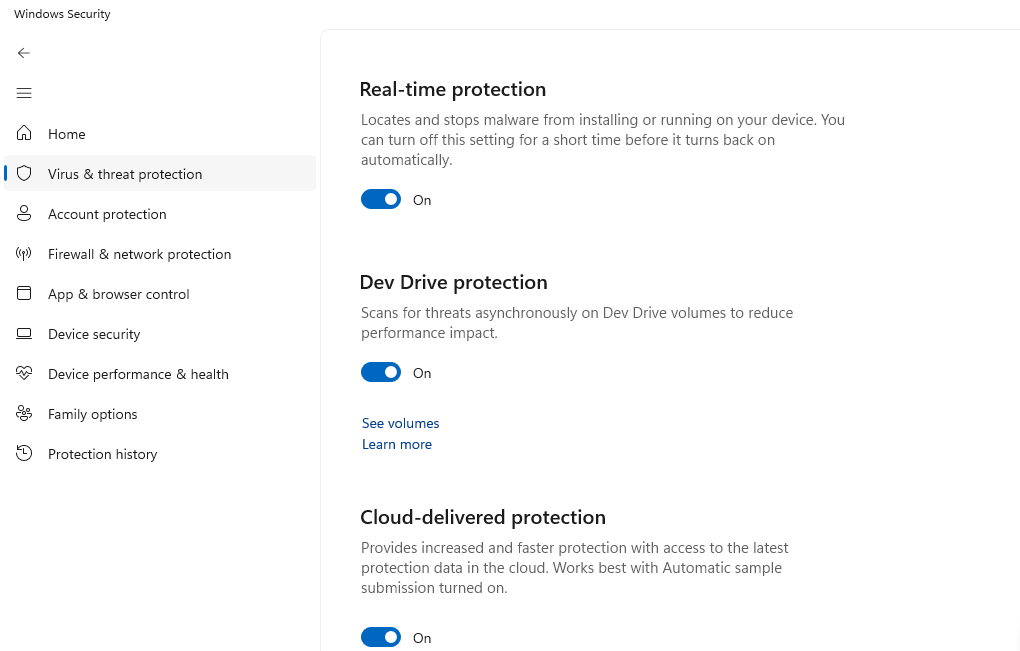
Your first line of defense is activating Windows’ built-in protection:
- Press Windows + I to open Settings
- Click Privacy & Security (Windows 11) or Update & Security (Windows 10)
- Select Windows Security
- Click Virus & threat protection
- Ensure Real-time protection is turned ON
- Click Manage settings under Virus & threat protection settings
- Turn ON Cloud-delivered protection and Automatic sample submission
Create a Standard User Account for Daily Use
Running Windows with administrator privileges increases your vulnerability. Create a standard account for everyday tasks:
- Open Settings and go to Accounts
- Click Family & other users
- Under Other users, click Add account
- Click I don’t have this person’s sign-in information
- Click Add a user without a Microsoft account
- Enter a username and password
- Click Next, then select the new account
- Click Change account type and ensure it’s set to Standard User
Use your administrator account only when installing trusted software or making system changes.
Configure Windows Update Settings Safely
Control how Windows receives updates to minimize risk:
- Press Windows + I to open Settings
- Navigate to Windows Update
- Click Advanced options
- Under Additional options, enable Receive updates for other Microsoft products
- Set Active hours to prevent unexpected restarts during work
- Consider pausing updates for up to 5 weeks if a problematic update is reported in tech news
Verify Software Sources Before Installing
Only download software from official websites and verified sources:
- Type the software name directly into your browser instead of clicking email links
- Check the website URL carefully for misspellings or unusual domain extensions
- Read recent user reviews before downloading any application
- Verify digital signatures by right-clicking downloaded files, selecting Properties, and checking the Digital Signatures tab
Use Microsoft Defender SmartScreen

SmartScreen helps block malicious downloads and websites:
- Open Settings and go to Privacy & Security
- Click Windows Security
- Select App & browser control
- Ensure Check apps and files is set to Warn or Block
- Verify SmartScreen for Microsoft Edge is turned ON
- Enable Potentially Unwanted App blocking
What to Do If You Suspect Compromise
If you believe you’ve installed compromised software, act immediately. Disconnect from the internet to prevent data theft. Boot into Safe Mode by holding Shift while clicking Restart, then selecting Troubleshoot > Advanced options > Startup Settings > Restart and pressing F4.
Run a full system scan with Windows Defender, then use Microsoft’s Safety Scanner for a second opinion. Change all your passwords from a different, clean device. Consider restoring your system to a point before the suspicious update using System Restore.
Advanced Protection with Fortect
For comprehensive defense against supply chain malware and other sophisticated threats, consider using Fortect, a powerful and advanced anti-virus with real-time malware protection. Fortect automatically scans your Windows PC for any threats, including supply chain malware, then fixes them and optimizes your computer for peak performance.

Fortect Premium comes with an integrated Driver Updater that automatically scans your Windows PC for outdated or corrupted drivers and updates them safely using trusted sources. Outdated drivers aren’t just a cause of sluggish performance; they can also serve as entry points for hackers to exploit vulnerabilities and inject malware. A single compromised driver can trigger severe system instability or even allow unauthorized access to your computer. By keeping every driver up to date, Fortect helps seal these security gaps while boosting system performance. After applying the updates, your PC runs cleaner, faster, and more reliably, just as it should.
Download and install Fortect today.
Stay Vigilant and Protected
Supply chain malware represents a growing threat, but informed Windows users can significantly reduce their risk. Keep your system updated, practice cautious downloading habits, use standard user accounts for daily activities, and maintain regular backups. Your vigilance is your strongest defense against these sophisticated attacks that exploit the trust we place in software updates.