SOLVED: Sneaky Crypto-Mining Browser Extensions on Windows
Crypto-mining browser extensions are silently draining your computer’s resources, causing slowdowns, overheating, and skyrocketing electricity bills. These malicious add-ons disguise themselves as legitimate tools while secretly using your CPU and GPU to mine cryptocurrency for cybercriminals. If your Windows PC suddenly runs sluggishly or your browser consumes excessive power, you might be a victim.
What Are Crypto-Mining Browser Extensions?
These are unauthorized programs that install themselves in Chrome, Edge, Firefox, or other browsers. Unlike regular extensions that enhance your browsing experience, these malicious tools hijack your computer’s processing power to mine Bitcoin, Monero, or other digital currencies without your consent.
These extensions often masquerade as ad blockers, VPN services, video downloaders, or productivity tools. Once installed, they run cryptojacking scripts in the background, using up to 80-100% of your CPU resources. The mined cryptocurrency goes directly to the attacker’s wallet, while you’re left with a slow, overheating device and higher energy costs.
Common Signs Your PC Is Infected
Watch for these warning signals that indicate crypto-mining malware on your Windows system:
- Unusually high CPU usage even when idle (check Task Manager)
- The browser is consuming excessive RAM or processing power
- Computer overheating or fans running constantly
- Sudden performance drops and system lag
- Increased electricity bills without explanation
- Browser extensions you don’t remember installing
How to Remove Crypto-Mining Extensions from Windows
Step 1: Check Your Installed Browser Extensions
For Google Chrome and Microsoft Edge:
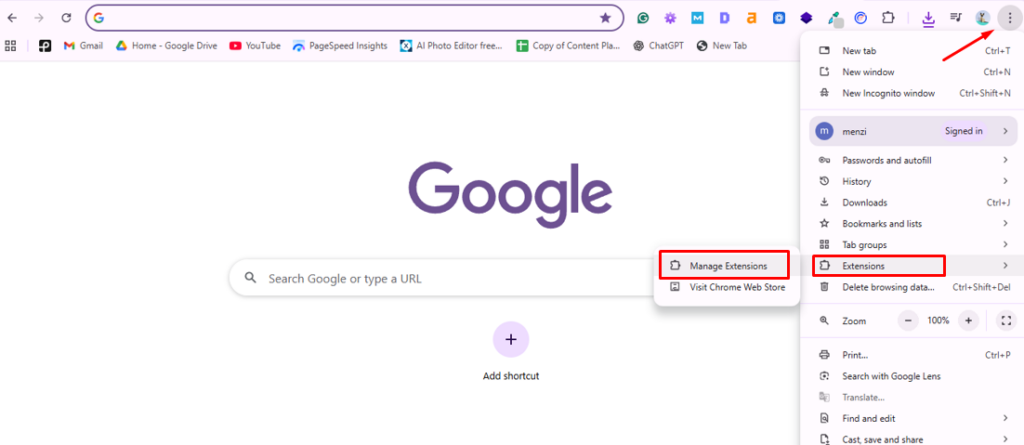
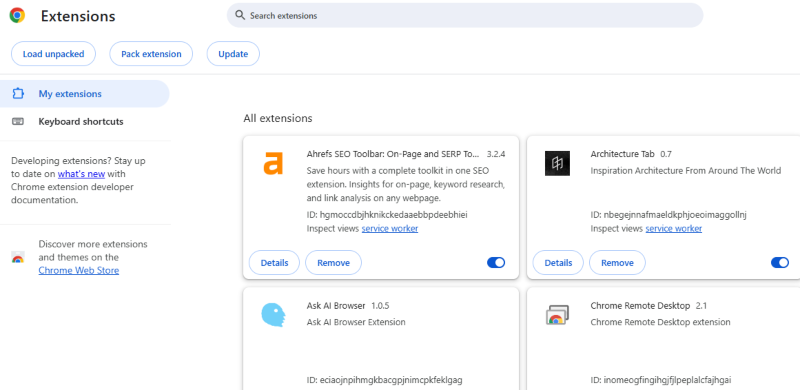
- Open your browser and click the three-dot menu in the top-right corner
- Navigate to Extensions > Manage Extensions
- Review every extension carefully—look for unfamiliar names or those you didn’t install
- Click Remove on suspicious extensions
- Confirm the removal when prompted
For Mozilla Firefox:
- Click the three-line menu icon in the top-right
- Select Add-ons and themes
- Click Extensions in the left sidebar
- Remove any suspicious or unrecognized extensions
Step 2: Run a Full Malware Scan
Windows Defender provides robust protection against crypto-mining threats:
- Press Windows key + I to open Settings
- Go to Privacy & Security > Windows Security
- Click Virus & threat protection
- Select Scan options
- Choose Full scan and click Scan now
- Wait for the scan to complete (this may take 30-60 minutes)
- Follow prompts to remove any detected threats
Step 3: Reset Your Browser Settings
If the malware persists, reset your browser to eliminate hidden scripts:
For Chrome/Edge:
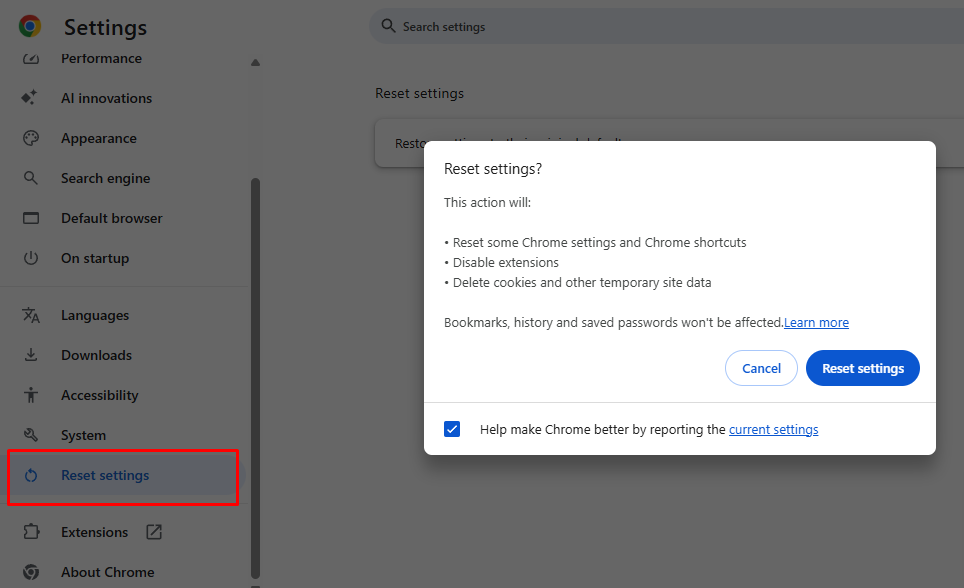
- Open Settings from the three-dot menu
- Search for “reset” in the settings search bar
- Click Reset settings > Restore settings to their original defaults
- Confirm by clicking Reset settings
For Firefox:
- Click the menu icon and select Help > More troubleshooting information
- Click Refresh Firefox in the top-right corner
- Confirm the refresh action
Step 4: Update Windows and Your Browser
Outdated software contains vulnerabilities that crypto-miners exploit:
- Press Windows key + I to open Settings
- Select Windows Update from the left sidebar
- Click Check for updates
- Install all available updates and restart your computer
- Open your browser and update it to the latest version through its settings menu
Use Fortect for Complete Protection
Fortect is a powerful antivirus solution with real-time malware protection designed to safeguard your Windows PC from hidden threats that impact performance and security. It automatically scans your system for issues that may slow it down or make it vulnerable to exploits, then repairs and optimizes it for smoother, more reliable performance.
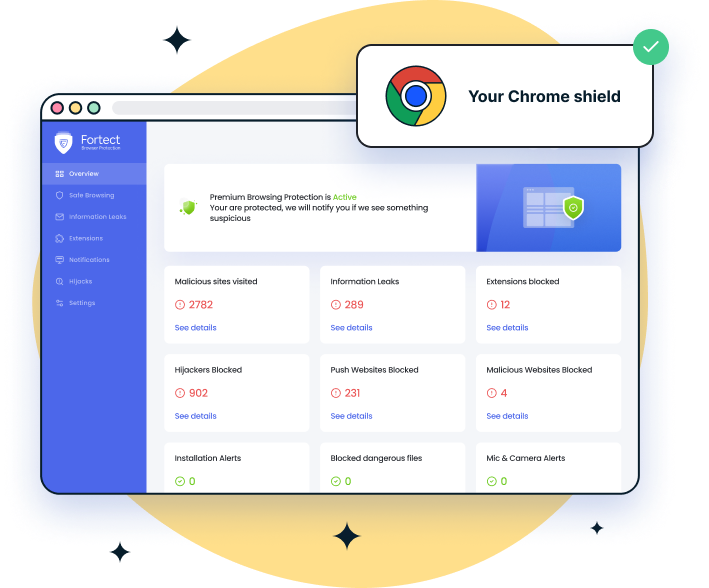
For Chrome users, the Fortect Browsing Protection extension adds another layer of defense. It helps block unsafe or deceptive websites, alerts you about suspicious pages that could host crypto-mining scripts, and prevents harmful browser extensions from compromising your privacy or data. Together, they help maintain a safer and more efficient browsing experience. closes these security gaps, strengthens your PC’s defenses, and ensures a cleaner, faster, and more reliable system overall.
Download and install Fortect today.
Preventing Future Crypto-Mining Infections
Protection is easier than removal. Follow these practices to keep your Windows PC safe:
- Only install extensions from official stores. Download Chrome extensions exclusively from the Chrome Web Store, Edge Add-ons for Edge, and Firefox Add-ons for Firefox. Read user reviews and check the developer’s reputation before installing.
- Review extension permissions carefully. Avoid extensions requesting excessive permissions like “read and change all your data on all websites” unless necessary for their function.
- Keep Windows Defender active and updated. Windows 11 and Windows 10 include built-in protection that blocks many crypto-mining threats automatically.
- Use ad blockers from trusted developers. Popular options like uBlock Origin prevent malicious websites from running in-browser mining scripts.
- Monitor your system performance regularly. Open Task Manager (Ctrl + Shift + Esc) weekly to check for unusual CPU spikes or unfamiliar processes.
Conclusion
Crypto-mining browser extensions represent a growing threat to Windows users, but you’re not helpless. By following the removal steps outlined above and maintaining vigilant browsing habits, you can reclaim your computer’s performance and protect yourself from these resource-stealing parasites. Regular scans, keeping your system updated, and being selective about browser extensions are your best defenses against cryptojacking attacks.