SOLVED: Malware Hiding in Android Accessibility Services
Android accessibility services were designed to help users with disabilities navigate their devices more easily. Unfortunately, cybercriminals have discovered how to exploit these helpful features to hide malware and gain unauthorized control over your phone. If you’ve noticed strange behavior on your Android device, malicious apps may be lurking in your accessibility settings.
What Are Android Accessibility Services?
Accessibility services are powerful Android features that allow apps to interact with your device’s interface on behalf of users with vision, hearing, or mobility challenges. These services can read screen content, simulate touch gestures, and perform actions automatically.
How Malware Exploits Accessibility Features
Hackers abuse accessibility permissions because they grant extensive control over your device. Once malware gains accessibility access, it can:
- Read sensitive information from your screen, including passwords and banking details
- Click buttons and navigate apps without your knowledge
- Install or uninstall applications automatically
- Disable security features and antivirus software
- Grant itself additional dangerous permissions
- Intercept two-factor authentication codes
This makes accessibility services one of the most dangerous permission types a malicious app can obtain.
Signs Your Device May Be Infected
Watch for these warning signs that malware may be hiding in your accessibility services:
- Apps are installing or uninstalling without your permission
- Unexpected pop-ups and advertisements appear constantly
- Battery is draining faster than usual
- Device is running more slowly or overheating
- Unknown apps appearing in your accessibility settings
- Inability to uninstall certain suspicious applications
- Strange behavior, like automatic clicks or navigation
How to Check for Malware in Accessibility Services
Step 1: Access Accessibility Settings
Open your device’s Settings app, then navigate to Accessibility. On some Android versions, you may find it under Settings > System > Accessibility or Settings > Additional settings > Accessibility.
Step 2: Review Enabled Services
Look through the list of apps with accessibility permissions. Any unfamiliar or suspicious apps should raise immediate concern. Legitimate accessibility apps typically have clear names related to their function, like screen readers or voice assistants.
Step 3: Disable Suspicious Services
Tap on any questionable app in the accessibility list and toggle off its access. If you encounter resistance or the app re-enables itself, this confirms malicious behavior.
Complete Removal Guide for Android Malware
Use Fortect for Complete Protection
Fortect is a powerful and advanced antivirus solution with real-time malware protection. It automatically scans your Windows PC for potential threats, such as malware hiding in Android accessibility services, removes them safely, and optimizes your system for smoother performance. It also comes with Fortect Mobile Security for Android phones.
Fortect Mobile Security: Advanced Protection for Android
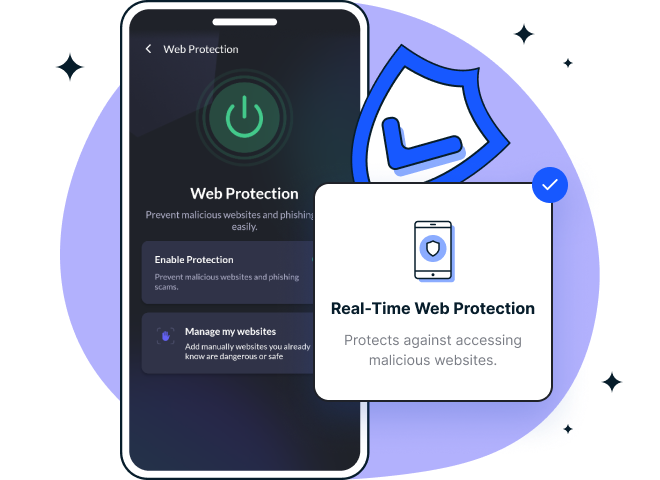
Malware hiding inside Android Accessibility Services is becoming a serious threat, silently gaining permissions to control screens, steal passwords, and access private data. Attackers use these permissions to bypass normal security, which makes strong real-time protection essential.
Fortect Mobile Security provides robust, automated defense without slowing your device or interrupting daily use.
Key Benefits:
- Web Protection that blocks phishing and malicious sites instantly
- Network Advisor that alerts you to unsafe Wi-Fi connections
- Data Breach Alerts when your email appears in a leak
- Advanced Antivirus with smart, cloud-powered detection
- System Advisor that checks biometrics, screen lock, and app updates
What Sets It Apart:
- Fast, cloud-based scanning
- Automated security fixes
- Lightweight engine for smooth performance
Fortect keeps your mobile experience secure and stress-free, especially against hidden threats in Accessibility Services.
Restart in Safe Mode
Safe mode prevents third-party apps from running, making it easier to remove stubborn malware.
- Press and hold your device’s Power button
- Tap and hold the Power off option on your screen
- When prompted, select OK to restart in Safe Mode
- Your device will display “Safe Mode” in the bottom corner
Uninstall Malicious Apps
While in Safe Mode, go to Settings > Apps and review your installed applications. Uninstall any suspicious apps by selecting them and tapping Uninstall. Pay special attention to apps you don’t remember installing.
Remove Administrator Access
Some malware grants itself device administrator privileges to prevent removal.
- Navigate to Settings > Security > Device administrators (or Settings > Biometrics and security > Other security settings > Device admin apps)
- Review the list of apps with administrator access
- Uncheck any suspicious apps to revoke their privileges
- Return to Apps settings and uninstall them
Clear Cache and Data
After removing malicious apps, clear your cache by going to Settings > Storage > Cached data and tapping to clear it. This removes residual malware files.
Preventing Future Infections
Only Download from Official Sources
Install apps exclusively from the Google Play Store, which has security screening processes. Avoid downloading APK files from unknown websites or third-party app stores.
Review Permissions Carefully
Before installing any app, examine the permissions it requests. Question why a flashlight app would need accessibility access or why a game requires access to your contacts.
Keep Your Device Updated
Regular Android security updates patch vulnerabilities that malware exploits. Enable automatic updates in Settings > System > System update.
Install Mobile Security Software
Consider installing reputable antivirus apps like Bitdefender, Malwarebytes, or Norton Mobile Security to provide real-time protection against malware threats.
Be Wary of Phishing
Never click suspicious links in text messages or emails claiming to be from banks, delivery services, or tech companies. These often lead to malware downloads disguised as legitimate apps.
When to Factory Reset
If you cannot remove the malware using the steps above, a factory reset may be necessary. This erases everything on your device, so back up important data first. Go to Settings > System > Reset options > Erase all data (factory reset) to restore your device to its original state.
By understanding how malware hides in Android accessibility services and following these removal steps, you can protect your personal information and restore your device’s security. Stay vigilant about the apps you install and the permissions you grant to keep your Android device malware-free.