SOLVED: Malware Hidden in Signed Drivers on Windows
Discovering malware hiding in signed drivers can be alarming. These malicious programs exploit trusted Windows driver certificates to bypass security measures, making them particularly dangerous. If you’re experiencing system slowdowns, unexpected crashes, or security warnings about driver signatures, your computer may be compromised. This guide shows you how to detect and remove malware from signed drivers on Windows 10 and 11.
What Are Signed Drivers?
Signed drivers are software components verified by digital certificates from Microsoft or trusted publishers. Windows requires driver signatures to ensure that hardware components communicate safely with your operating system. These signatures confirm that drivers haven’t been tampered with and come from legitimate sources.
How Malware Infiltrates Signed Drivers?
Cybercriminals use several tactics to hide malware in signed drivers:
Certificate theft: Hackers steal legitimate certificates from companies to sign malicious drivers that appear authentic to Windows.
Driver vulnerabilities: Attackers exploit security flaws in legitimate signed drivers to load malicious code into your system.
Expired certificates: Some malware uses drivers signed with old, compromised certificates that Windows still trusts.
Signs Your System Has Compromised Drivers
Watch for these warning signs indicating driver-based malware:
- Unexpected Blue Screen of Death (BSOD) errors
- System performance degradation without a clear cause
- Antivirus software is disabled or failing to update
- Unknown processes running with kernel-level privileges
- Security warnings about driver certificate problems
- Unusual network activity from system-level processes
How to Detect Malicious Signed Drivers on Windows 10/11
Step 1: Check Driver Signatures in Device Manager
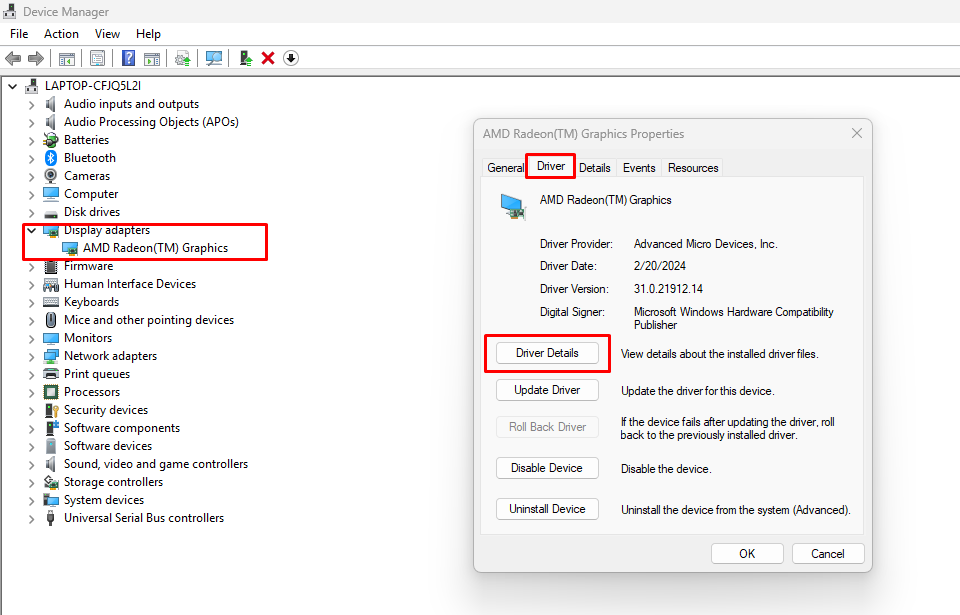
- Press Windows key + X and select Device Manager
- Expand any device category (such as Display adapters or Network adapters)
- Right-click a device and select Properties
- Navigate to the Driver tab
- Click Driver Details to view the driver files
- Click Digital Signer to verify the certificate information
- Repeat this process for suspicious devices, especially those you don’t recognize
Step 2: Use Windows Security to Scan for Threats
- Press Windows key + I to open Settings
- Click Privacy & Security (Windows 11) or Update & Security (Windows 10)
- Select Windows Security
- Click Virus & threat protection
- Select Scan options
- Choose Full scan and click Scan now
- Wait for the complete system scan (this may take 30-60 minutes)
- Review and remove any detected threats
Step 3: Run Sigverif to Verify Driver Signatures
- Press Windows key + R to open Run dialog
- Type sigverif and press Enter
- Click Start in the File Signature Verification window
- Wait for the scan to complete
- Review the list of unsigned files (displayed if any are found)
- Save the log file by clicking Advanced > Log file
- Examine any suspicious unsigned drivers
Removing Malware from Signed Drivers
Use Fortect for Complete Protection

Fortect is a powerful and advanced antivirus with real-time malware protection. It automatically scans your Windows PC for any threats, such as signed driver malware, then removes them safely and optimizes your system for better performance.
Fortect Premium also includes a built-in Driver Updater that automatically scans your PC for outdated or corrupted drivers and replaces them with secure versions from trusted sources. This feature is vital because cybercriminals can exploit compromised or outdated drivers to install signed driver malware. By keeping your drivers up-to-date, Fortect helps close these vulnerabilities and strengthen your system’s defenses.

Once the updates are applied, your computer runs cleaner, faster, and more reliably, fully optimized and protected from deep-rooted threats like signed driver malware.
Update Windows and Security Definitions
- Press Windows key + I to open Settings
- Click Windows Update in the left sidebar
- Click Check for updates
- Install all available updates, including optional quality updates
- Click Advanced options > Optional updates
- Install any pending driver updates from Microsoft
- Restart your computer after updates complete
Uninstall Suspicious Drivers

- Press Windows key + X and select Device Manager
- Locate the device with the suspicious driver
- Right-click the device and select Uninstall device
- Check Delete the driver software for this device
- Click Uninstall to confirm
- Restart your computer
- Windows will automatically reinstall clean drivers if needed
Use System Restore
If malware persists, restore your system to a clean state:
- Press Windows key and type Create a restore point
- Click the result to open System Properties
- Click System Restore
- Select Choose a different restore point and click Next
- Pick a restore point from before you noticed the malware
- Click Scan for affected programs to preview changes
- Click Next > Finish to begin restoration
- Your computer will restart to complete the process
Preventing Future Driver-Based Malware Infections
- Enable memory integrity: Go to Windows Security > Device security > Core isolation > Memory integrity and toggle it on. This prevents malicious code from exploiting kernel drivers.
- Keep Windows updated: Regular updates patch vulnerabilities that malware exploits in driver software.
- Download drivers carefully: Only install drivers from the manufacturer’s website or Windows Update; never from third-party download sites.
- Use trusted security software: Install reputable antivirus software that monitors driver-level activity.
- Enable controlled folder access: In Windows Security, activate ransomware protection to prevent unauthorized driver installations.
When to Seek Professional Help
Consider professional malware removal if you experience persistent system instability, are unable to complete the removal steps, or notice recurring infections after following this guide. Deep-rooted rootkits using signed drivers may require specialized removal tools and expertise beyond standard troubleshooting.