SOLVED: Malware Disguised as Battery & Performance Booster Apps
Your Windows laptop is running slower than usual. The battery drains faster every day. You search for a quick fix and download a “Battery Optimizer Pro” or “PC Performance Booster” app. But instead of improvements, you’ve just installed malware onto your system.
This scenario happens to thousands of Windows users daily. Cybercriminals disguise malicious software as legitimate battery savers and performance optimization tools, exploiting users who simply want their computers to run better.
Understanding the Threat: Fake Optimization Apps
Malware authors create convincing copies of battery management and system optimization software. These fake apps often promise dramatic improvements like “300% battery life increase” or “boost PC speed by 500%.” Once installed, they can steal personal data, display aggressive adware, or worse, encrypt your files for ransomware demands.
Common signs you’ve downloaded malicious optimization software include unexpected pop-ups, browser redirects, new toolbars appearing automatically, disabled antivirus protection, and sudden system slowdowns despite the promised performance boost.
How to Identify Malicious Battery and Performance Apps
Red Flags Before Installation
Legitimate software comes from verified publishers. Before downloading any battery saver or PC optimizer, check the developer’s reputation. Search for reviews from trusted technology websites, not just app store ratings, which can be manipulated.
Suspicious apps often request excessive permissions. A battery monitor doesn’t need access to your contacts, camera, or microphone. Performance tools shouldn’t ask for permission to modify system files unless necessary.
Beware of apps exclusively available through third-party download sites. While some legitimate software exists outside the Microsoft Store, official stores provide an extra security layer through their vetting processes.
Warning Signs After Installation
If your newly installed performance booster immediately demands payment to “unlock full features” or shows constant pop-ups claiming your PC is critically infected, you’re likely dealing with scareware, a type of malware designed to frighten you into purchasing fake solutions.
Removing Malware from Your Windows PC
Strengthen Your PC Security with Fortect
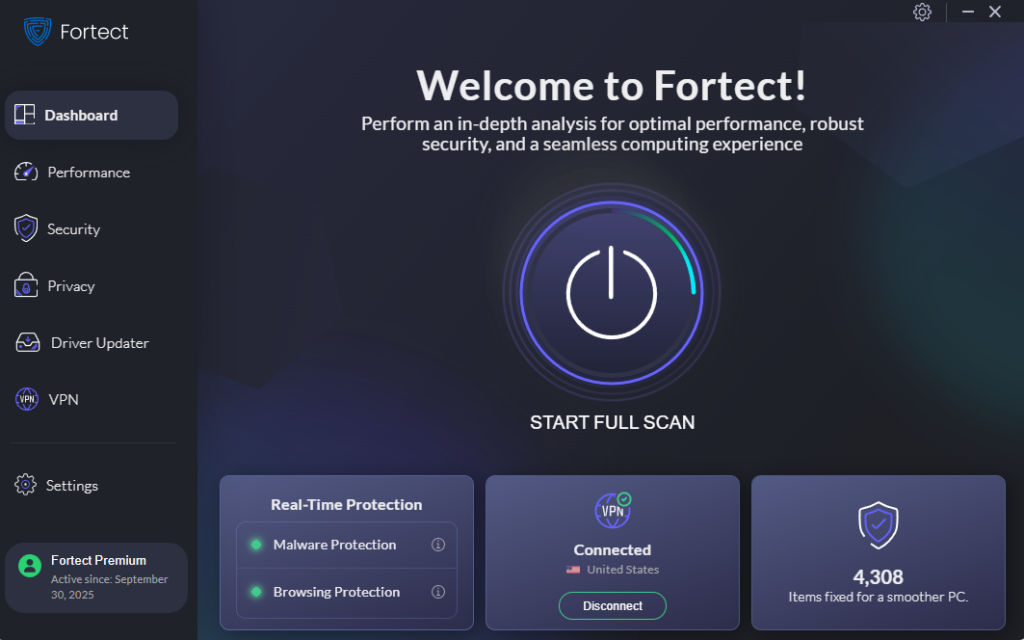
When dealing with threats like malware disguised as battery and performance booster apps, having comprehensive protection makes all the difference. Fortect provides continuous security monitoring specifically designed for Windows systems, actively hunting down both conventional and newly developed malicious software that targets unsuspecting users through fake optimization tools.
The software operates by performing automated system inspections that identify harmful programs pretending to enhance battery life or boost computer speed. Once detected, Fortect removes these threats completely and repairs any system components they’ve corrupted, returning your PC to optimal functioning. Its robust monitoring system tracks unusual behavior patterns and warns you immediately when potentially dangerous operations are attempted, preventing damage before it occurs.
Download and install Fortect today.
Step 1: Boot into Safe Mode
Safe Mode loads Windows with minimal drivers and services, preventing most malware from running.
For Windows 10:
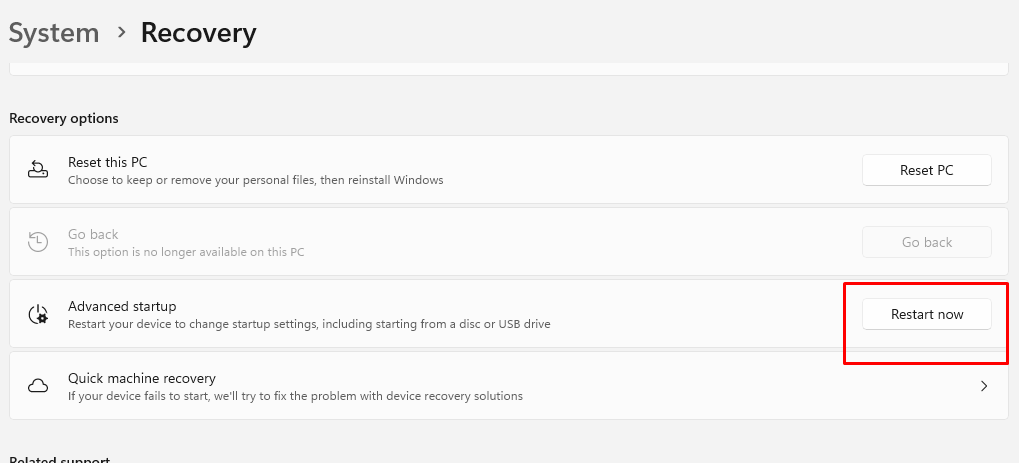
- Press the Windows key + I to open Settings
- Navigate to Update & Security > Recovery
- Under Advanced startup, click “Restart now”
- After restart, select Troubleshoot > Advanced options > Startup Settings
- Click Restart, then press F4 to enable Safe Mode
For Windows 11:
- Press Windows key + I for Settings
- Select System > Recovery
- Next to Advanced startup, click “Restart now”
- Choose Troubleshoot > Advanced options > Startup Settings
- Click Restart and press F4 for Safe Mode
Step 2: Uninstall Suspicious Applications
Once in Safe Mode, remove the malicious app:
- Press Windows key + X and select “Apps and Features” (Windows 10) or “Installed apps” (Windows 11)
- Sort by install date to find recently added programs
- Locate the suspicious battery or performance app
- Click it and select Uninstall
- Follow the removal prompts completely
Step 3: Run Windows Defender Full Scan
Microsoft’s built-in protection can detect most threats:
- Open Windows Security (search for it in the Start menu)
- Click “Virus & threat protection”
- Select “Scan options”
- Choose “Full scan” and click “Scan now”
- Allow the complete scan to finish—this may take 30-60 minutes
Preventing Future Infections
Enable Windows Updates
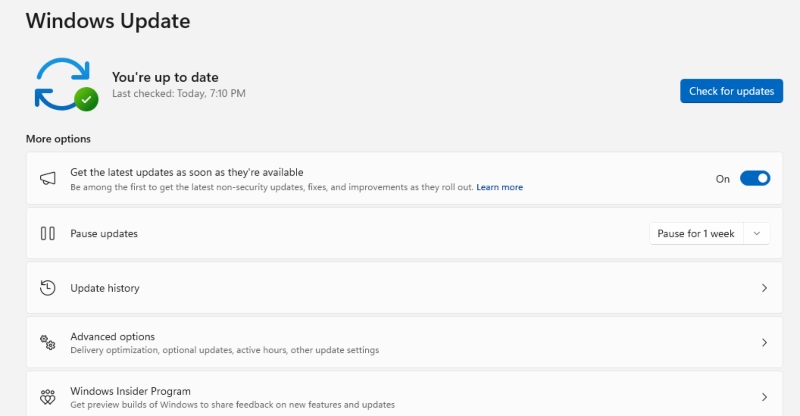
Keeping Windows current patches protects against security vulnerabilities that malware exploits.
To enable automatic updates:
- Open Settings (Windows key + I)
- Go to Update & Security (Windows 10) or Windows Update (Windows 11)
- Click “Check for updates”
- Select “Advanced options”
- Ensure “Receive updates for other Microsoft products” is enabled
Use Microsoft Store for Apps
The Microsoft Store vets applications before listing them, significantly reducing malware risks. When seeking battery or performance tools, prioritize store-verified apps with thousands of reviews and established developers.
Trust Your Built-in Tools
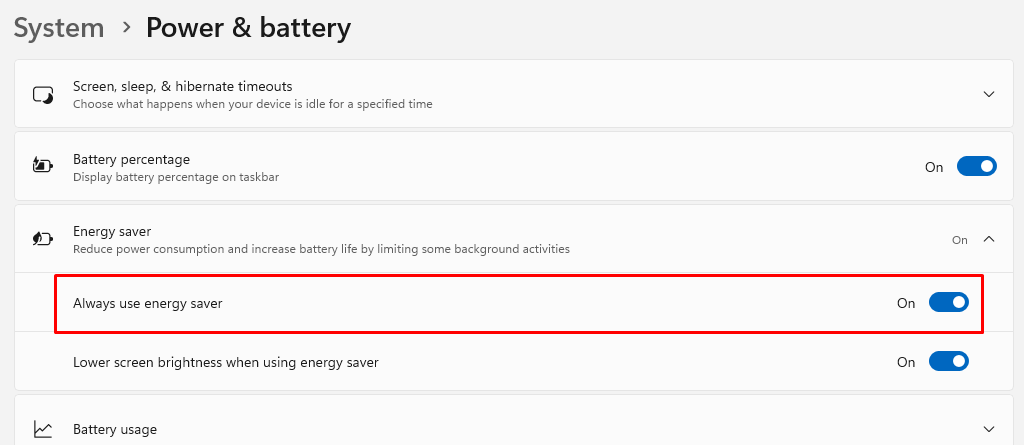
Windows includes native battery management and performance monitoring. Access Battery Saver mode in Settings > System > Battery. Use Task Manager (Ctrl + Shift + Esc) to identify resource-hungry applications without installing third-party software.
The Bottom Line
Most battery boosters and performance optimizer apps are unnecessary. Windows already includes robust power management and maintenance tools. When you do need additional software, download only from official sources, research developers thoroughly, and maintain updated antivirus protection.
Your vigilance is the strongest defense against malware disguised as helpful utilities. By recognizing warning signs and following safe computing practices, you’ll protect your personal data while keeping your Windows PC running smoothly without risking infection from fake optimization apps.