
SOLVED: Kernel-Mode Keyloggers Delivered via Drivers on Windows
Kernel-mode keyloggers represent one of the most dangerous threats to Windows users today. Unlike regular keyloggers that operate at the application level, these malicious programs embed themselves deep within your operating system through device drivers, making them extremely difficult to detect and remove. This guide will help you understand, identify, and eliminate kernel-level keylogging threats from your Windows 10 or Windows 11 computer.
What Are Kernel-Mode Keyloggers?
Kernel-mode keyloggers are sophisticated malware programs that operate at the deepest level of your Windows operating system. They disguise themselves as legitimate device drivers and gain privileged access to your system’s core functions. Once installed, these rootkit keyloggers can record every keystroke you make, including passwords, credit card numbers, and personal messages, without any visible signs of their presence.
The kernel is the heart of Windows, controlling hardware communication and system resources. When malware gains kernel-level access through driver exploitation, it can bypass traditional antivirus software and hide its activities from normal detection methods. This makes kernel keyloggers particularly dangerous for home users who may not notice unusual system behavior until significant damage occurs.
How Kernel-Mode Keyloggers Infect Your Computer
Common Infection Methods

Cybercriminals deliver kernel-mode keyloggers through several deceptive techniques. Malicious drivers often arrive bundled with pirated software, fake system updates, or compromised hardware drivers downloaded from unofficial websites. Phishing emails containing infected attachments and drive-by downloads from compromised websites also serve as common infection vectors.
Some attackers exploit Windows driver vulnerabilities to install keyloggers without requiring administrative privileges. Others use social engineering tactics to trick users into manually installing malicious drivers disguised as performance optimization tools or gaming utilities.
Signs Your Computer May Have a Kernel Keylogger
Detecting kernel-mode keyloggers requires vigilance since they’re designed to remain hidden. Watch for these warning signs: unexplained system slowdowns, unusual network activity when you’re not actively browsing, mysterious driver installations you don’t recognize, disabled security software, or unexpected system crashes. You might also notice increased hard drive activity, suspicious processes in Task Manager, or unauthorized access to your online accounts.
How to Protect Your Windows PC from Kernel Keyloggers
Enable Windows Security Features
Steps to Enable Driver Signature Enforcement:
- Press the Windows key and click the Power button
- Hold Shift and click Restart
- Select Troubleshoot > Advanced options > Startup Settings
- Click Restart
- Press F7 to select “Disable driver signature enforcement” (note: you want this OFF normally, only disable temporarily for legitimate unsigned drivers)
- For permanent protection, keep driver signature enforcement enabled by default
Steps to Update Windows 10/11:
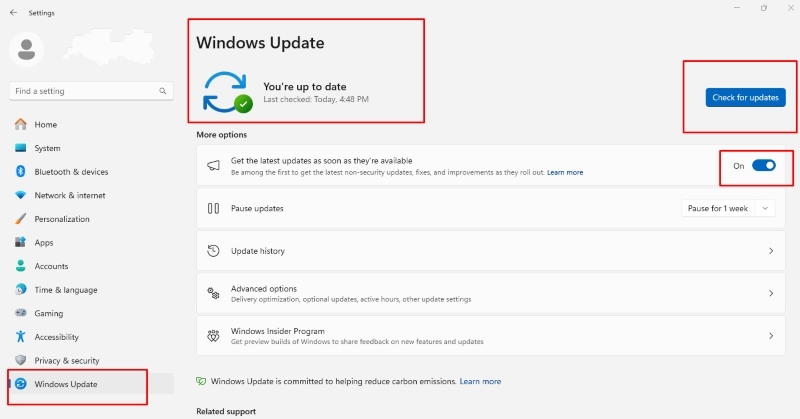
- Press Windows key + I to open Settings
- Click “Windows Update” (or “Update & Security” in Windows 10)
- Click “Check for updates”
- Install all available updates, including optional driver updates
- Restart your computer when prompted
- Repeat monthly to ensure maximum protection
Restrict User Account Privileges
Limiting administrative access significantly reduces keylogger infection risks.
Steps to Create a Standard User Account:
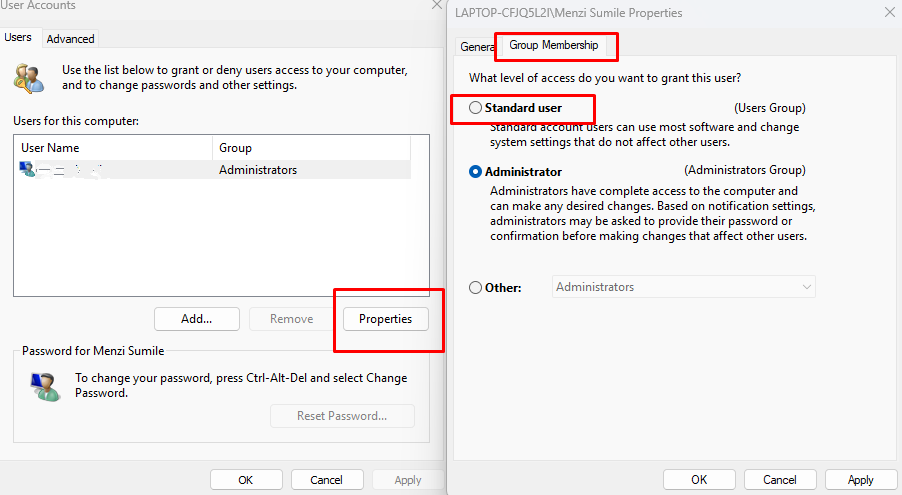
- Open Settings (Windows key + I)
- Navigate to Accounts > Family & other users
- Click “Add account” under “Other users”
- Follow the prompts to create a new Microsoft or local account
- Once created, ensure the account type is set to “Standard user,” not “Administrator.”
- Use this account for daily activities and only switch to your admin account when installing trusted software
Install Robust Security Software
Choose reputable antivirus solutions with anti-rootkit capabilities specifically designed to detect kernel-level threats. Enable real-time protection, schedule regular deep scans, and keep your security software updated automatically.
How to Remove Kernel-Mode Keyloggers
Use Fortect for Complete Protection
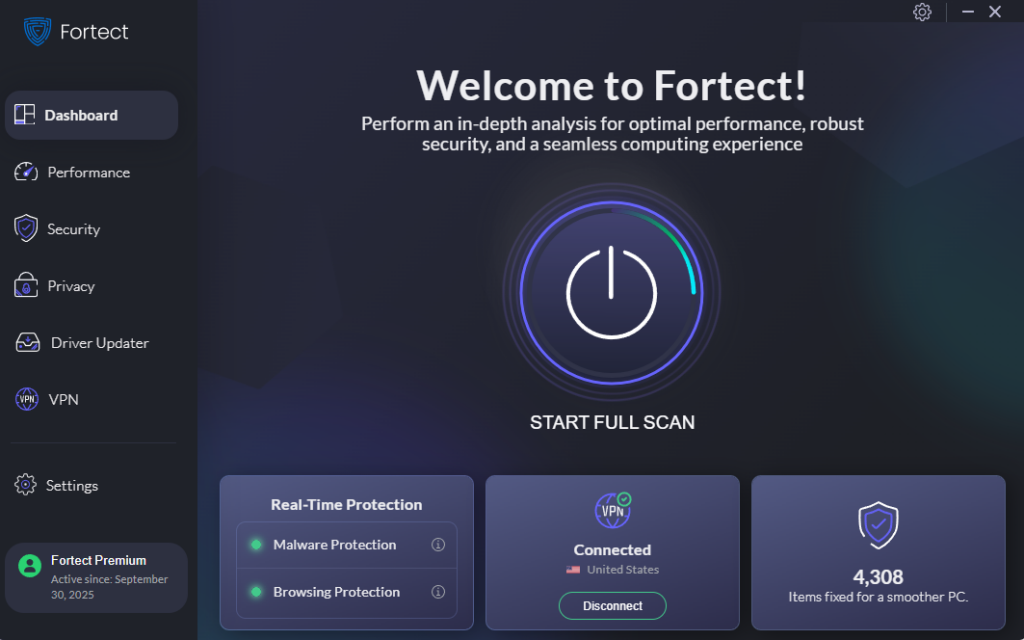
Fortect is a powerful and advanced antivirus with real-time malware protection specifically designed to combat deep-rooted threats. It automatically scans your Windows PC for kernel-mode keyloggers and other malicious software, then removes them safely while optimizing your system for better performance.
What makes Fortect particularly effective against kernel-level threats is its built-in Driver Updater. This feature automatically scans your PC for outdated or corrupted drivers and replaces them with secure versions from trusted sources. Since cybercriminals often exploit compromised or outdated drivers to install signed driver malware, keeping your drivers current is vital for prevention. Once Fortect applies these updates, your computer runs cleaner, faster, and more reliably, fully optimized and protected from kernel-mode keylogger infections.
Download and install Fortect today for complete system protection.
Manual Removal Steps
- Boot into Windows Safe Mode (press F8 during startup or use Advanced Startup options)
- Open Device Manager (right-click Start > Device Manager)
- Expand each category and look for suspicious or unrecognized drivers
- Right-click suspicious entries and select “Uninstall device”
- Check the box to “Delete the driver software for this device.”
- Restart in normal mode and run a full system scan
Advanced Removal Methods
For persistent kernel keyloggers, use specialized anti-rootkit tools like Kaspersky TDSSKiller, Malwarebytes Anti-Rootkit, or GMER. These tools operate at the kernel level to detect and remove deeply embedded malware. Always download these utilities directly from official vendor websites.
If standard removal fails, consider performing a clean Windows installation after backing up your personal files to external storage.
Prevention Best Practices
Maintain your digital security by downloading software only from official sources, avoiding pirated programs entirely, and verifying driver authenticity before installation. Keep Windows Defender or your chosen antivirus active at all times, enable automatic Windows updates, and use strong, unique passwords for all accounts.
Regular backups protect your data if an infection occurs. Stay educated about current malware trends and practice skepticism with unexpected email attachments or download prompts.
By implementing these protective measures and remaining vigilant, you can significantly reduce your risk of kernel-mode keylogger infections and keep your personal information secure on Windows 10 and Windows 11.





