SOLVED: Info-Stealers Malware Hidden in Media Player Updates
Cybercriminals are disguising dangerous info-stealers malware as legitimate media player updates, tricking Windows users into downloading malicious software that steals passwords, banking details, and personal information. If you’ve recently installed a media player update from an unofficial source, your data could be at risk.
What Are Info-Stealers and Why Are They Dangerous?
Info-stealers are a type of malicious software designed to harvest sensitive data from your computer without your knowledge. Unlike ransomware that locks your files, these stealthy programs operate silently in the background, collecting:
- Browser passwords and saved login credentials
- Credit card numbers and banking information
- Cryptocurrency wallet data
- Email account access
- Social media passwords
- Personal documents and files
The fake media player update scam specifically targets users looking to watch videos or listen to audio files. When you attempt to play certain media, a convincing pop-up appears claiming you need to update your media player. Instead of a legitimate code or player update, you’re actually installing credential-stealing malware.
How Info-Stealers Infect Your Windows Computer
Common Distribution Methods
Attackers use several tactics to spread info-stealer malware through fake updates:
- Compromised websites display urgent warnings that your media player is outdated. These pop-ups mimic legitimate update notifications from VLC, Windows Media Player, or other popular applications.
- Phishing emails contain links claiming you need to install a codec pack or player update to view an attached video or important document.
- Torrent sites and file-sharing platforms bundle malware with cracked software, pirated movies, or unofficial media player downloads.
- Malicious advertisements redirect you to fake download pages that look identical to official software websites.
Warning Signs You’ve Been Infected
If your computer exhibits these symptoms, you may have info-stealer malware:
- Unexplained slowdowns or high CPU usage
- Browser settings changing without your permission
- New toolbars or extensions you didn’t install
- Antivirus software being disabled automatically
- Unfamiliar programs running at startup
- Unusual network activity when you’re not browsing
How to Remove Info-Stealers Malware from Windows 10/11
Step 1: Disconnect from the Internet
Immediately disconnect your computer from Wi-Fi or unplug your ethernet cable. This prevents the malware from transmitting stolen data to cybercriminals.
Step 2: Boot into Safe Mode
- Press Windows + I to open Settings
- Click System > Recovery
- Under Advanced startup, click Restart now
- When your PC restarts, select Troubleshoot > Advanced options > Startup Settings > Restart
- Press F5 to select Safe Mode with Networking
Step 3: Run Windows Security Scan
- Press Windows + I to open Settings
- Navigate to Privacy & security > Windows Security
- Click Virus & threat protection
- Select Scan options
- Choose Microsoft Defender Offline scan and click Scan now
- Your computer will restart and perform a thorough scan (this takes about 15 minutes)
Step 4: Use Fortect for Complete Protection
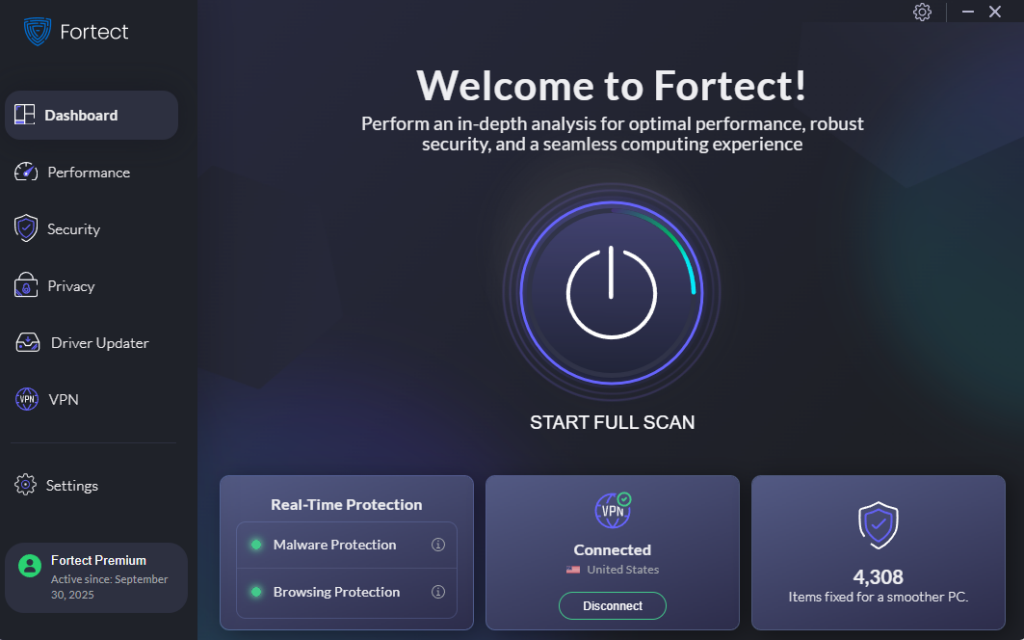
Fortect is a robust antivirus software with real-time protection, targeting all types of malware, including modern threats like Info-Stealers Malware hidden in media player updates. It scans your Windows PC, removes infections safely, and restores optimal system performance.
Fortect Premium also includes a Driver Updater that identifies outdated or vulnerable drivers and replaces them with secure, verified versions. Keeping drivers updated closes potential system-level vulnerabilities, strengthens defenses against malware, and ensures a faster, more stable, and reliable PC.
Download and install Fortect today.
Step 5: Uninstall Suspicious Programs
- Press Windows + I to open Settings
- Click Apps > Installed apps
- Sort by Install date to find recently added programs
- Look for unfamiliar applications, especially those installed around the time you noticed issues
- Click the three dots next to suspicious programs and select Uninstall
Step 6: Reset Your Browser Settings
- Open your browser settings
- Search for “reset” or “restore settings”
- Select the option to reset to default settings
- This removes malicious extensions and restores safe settings
Step 7: Change All Your Passwords
After removing the malware, immediately change passwords for all important accounts using a different, clean device. Enable two-factor authentication wherever possible.
Preventing Future Info-Stealer Infections
- Only download software from official sources. Visit the actual website of media player developers, not third-party download sites.
- Keep Windows updated. Enable automatic updates to patch security vulnerabilities that malware exploits.
- Enable Microsoft Defender real-time protection. Go to Settings > Privacy & security > Windows Security > Virus & threat protection and ensure real-time protection is turned on.
- Be skeptical of update prompts. Legitimate updates come through official app stores or the software’s built-in update mechanism, not browser pop-ups.
- Use a standard user account for daily activities rather than an administrator account, which limits malware’s ability to make system changes.
Info-stealers hidden in fake media player updates represent a serious threat, but by following these removal steps and practicing safe browsing habits, you can protect your personal information and keep your Windows computer secure.