SOLVED: Firmware Rootkits Targeting Modern Windows Chips
Firmware rootkits are one of the most dangerous and persistent types of malware targeting modern Windows devices. Unlike traditional malware that runs within the operating system, firmware rootkits hide inside low-level firmware components, such as UEFI/BIOS, SSD controllers, GPUs, and network cards, making them extremely difficult to detect or remove. Even performing a full system format or clean Windows installation cannot eliminate them, because they operate underneath the OS layer.
As attackers increasingly target hardware-level vulnerabilities, everyday Windows users need to understand how these threats operate and what steps can help protect a system.
What Are Firmware Rootkits?
Firmware rootkits are malicious programs that infect the firmware layer of hardware, gaining deep and persistent control of a device. Because they load before Windows boots, they can tamper with the startup process, disable security tools, and secretly perform tasks without detection.
How Firmware Rootkits Work
- Modify UEFI/BIOS firmware or device firmware.
- Gain persistence across system wipe or drive replacement.
- Monitor system activity or steal credentials.
- Bypass antivirus tools and OS-level detection.
Common Targets in Windows Systems
- UEFI/BIOS firmware
- TPM modules and Secure Boot implementations
- Graphics and network card firmware
- SSD storage controller firmware
Why Firmware Rootkits Are Hard to Detect
- They execute before the operating system loads.
- They remain invisible to standard antivirus scans.
- They survive resets, reformats, and system restore attempts.
How Firmware Rootkits Infect Windows Devices
Most Common Infection Sources
- Compromised or spoofed firmware updates
- USB-based physical access attacks
- Supply chain hardware compromises
- Vulnerable Secure Boot configurations
- Exploited drivers or kernel-level vulnerabilities
When attackers gain access at the firmware level, they can manipulate Windows processes silently and maintain control indefinitely.
Signs Your Windows Device May Be Infected
- Secure Boot or TPM was suddenly disabled without input
- BIOS settings repeatedly reset on their own
- Extremely slow or abnormal boot sequences
- Security tools failing or shutting down unexpectedly
- Reinfection after OS clean installation
These issues are not definitive proof, but they should prompt an immediate security investigation.
Prevention Methods for Windows 10/11 Users
1. Enable Secure Boot
Secure Boot blocks unauthorized boot loaders and prevents tampered firmware from executing.
How to enable Secure Boot (Windows 10/11):
- Restart your PC.
- Press F2, F10, DEL, or ESC to open BIOS/UEFI.
- Navigate to Security or Boot settings.
- Set Secure Boot to Enabled.
- Save and restart.
2. Keep BIOS, Firmware & Chipset Drivers Updated
Firmware updates patch vulnerabilities that rootkits exploit.
How to update BIOS/UEFI safely:
- Press Start, type System Information, and open it.
- Check the BIOS Version/Date.
- Go to your device or motherboard manufacturer’s support page.
- Download the latest version for your exact model.
- Follow the provided flashing instructions carefully.
3. Update Windows Regularly

Windows security patches block exploit paths used by firmware attackers.
How to update Windows 10/11:
- Press Windows + I to open Settings.
- Select Windows Update.
- Click Check for updates.
- Install all available updates, including optional security updates.
4. Restrict USB Access
Malicious USB attacks are commonly used to inject firmware-based malware.
How to disable USB mass storage via Group Policy (Windows Pro editions):
- Press Windows + R, type gpedit.msc, and hit Enter.
- Go to Computer Configuration → Administrative Templates → System → Removable Storage Access.
- Enable Deny read access and Deny write access.
5. Use Trusted Security Tools That Provide Firmware-Level Protection
Advanced security tools can detect suspicious driver behavior and close weak entry points.
6. Use Fortect for Complete Protection
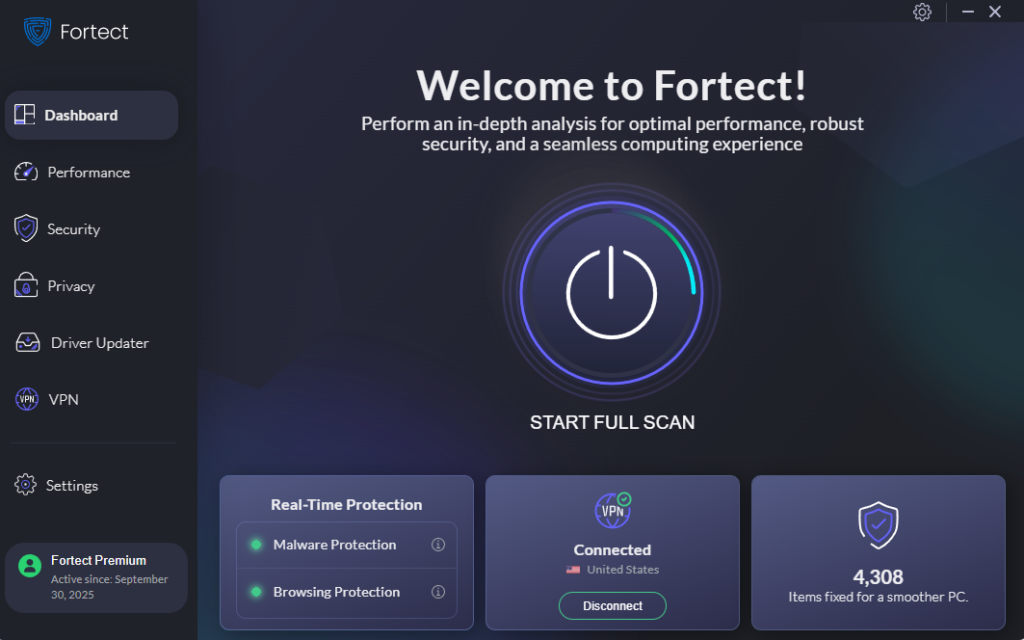
Fortect is a powerful and advanced antivirus solution with real-time malware protection. It automatically scans your Windows PC for potential threats, such as firmware rootkits, removes them safely, and optimizes your system for smoother performance. Fortect Premium also includes a built-in Driver Updater that automatically detects and replaces outdated or compromised drivers with secure, verified versions from trusted sources. This is critical because attackers can exploit vulnerable or unpatched drivers to execute malware through USB devices.

By keeping all drivers up to date and stable, Fortect closes these potential entry points, reinforces your system’s defenses against malicious USB attacks, and ensures your Windows PC runs more securely, smoothly, and reliably.
Download and install Fortect today.
Can Firmware Rootkits Be Removed?
Removal depends on severity. Some infections may be resolved by reflashing firmware from a clean image, but advanced cases require specialized chip programming equipment or motherboard replacement. For most home users, prevention is significantly easier than remediation.
Conclusion
Firmware rootkits pose a severe threat to Windows users because of their ability to hide deep inside hardware components and survive system wipes. With proper security practices, such as enforcing Secure Boot, updating firmware regularly, restricting external device access, and using advanced protection tools like Fortect, users can significantly lower the risk of infection and maintain a secure and stable PC.