SOLVED: Exploits Targeting SSD Controllers
Your computer’s solid-state drive (SSD) is more than just storage; it’s a sophisticated device with its own processor called a controller. Recent security discoveries have revealed that exploits targeting SSD controllers pose serious risks to Windows users. These vulnerabilities can bypass traditional security measures, potentially exposing your personal data, files, and system integrity.
Understanding these threats and knowing how to protect yourself is essential for maintaining your PC’s security in 2025.
What Are SSD Controller Exploits?
SSD controller exploits are security vulnerabilities that target the firmware and processing unit inside your solid-state drive. Unlike traditional malware that operates at the operating system level, these attacks go deeper, directly compromising the hardware that manages your data storage.
How These Attacks Work
The SSD controller acts as the brain of your drive, managing data encryption, wear leveling, and read/write operations. When attackers exploit firmware vulnerabilities in this controller, they can:
- Bypass Windows encryption protections like BitLocker
- Install persistent malware that survives operating system reinstallation
- Access or corrupt stored data without triggering security software
- Monitor your file activity invisibly
These exploits are particularly dangerous because standard antivirus software cannot detect them. The malicious code operates below the operating system layer, making it nearly invisible to conventional security tools.
Common SSD Vulnerabilities
Security researchers have identified several critical vulnerabilities in popular SSD models. These include firmware bugs that allow unauthorized access, weak encryption implementations, and flaws in the secure erase functionality. Major manufacturers like Samsung, Crucial, and Western Digital have released patches, but many users remain unaware they need updates.
How to Protect Your Windows PC from SSD Exploits
Taking proactive steps to secure your SSD can prevent these sophisticated attacks from compromising your system.
Step 1: Update Your SSD Firmware
Keeping your SSD firmware current is your first line of defense.
For Windows 10/11:
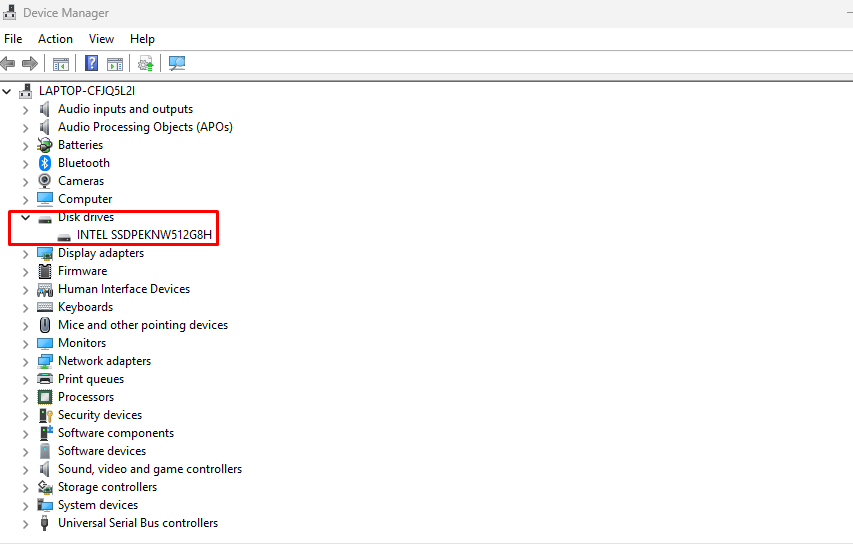
- Press Win + X and select Device Manager
- Expand the Disk drives section
- Right-click your SSD and note the exact model number
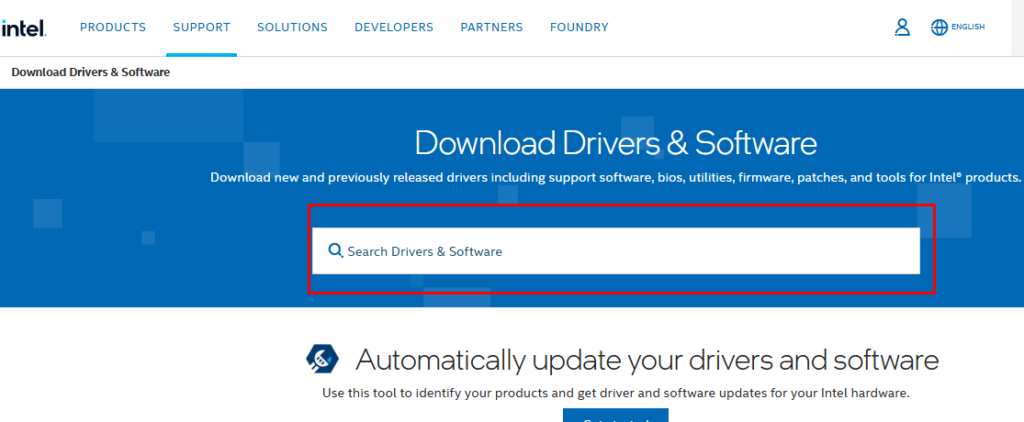
- Visit your SSD manufacturer’s official website (Samsung, Crucial, Western Digital, etc.)
- Navigate to the Support or Downloads section
- Search for your specific SSD model and download the latest firmware update tool
- Run the firmware update utility as Administrator
- Follow the on-screen instructions and restart your computer when prompted
Important: Never interrupt a firmware update. Ensure your laptop is plugged in or your desktop has stable power before beginning.
Step 2: Enable Windows Security Features
Activate BitLocker Encryption:
- Open Settings (Win + I)
- Navigate to Privacy & security > Device encryption (Windows 11) or Update & Security > Device encryption (Windows 10)
- If available, toggle Device encryption to On
- For full BitLocker (Windows Pro/Enterprise), search for BitLocker in the Start menu
- Select Turn on BitLocker for your system drive
- Choose how you want to back up your recovery key (Microsoft account recommended)
- Select Encrypt entire drive for maximum protection
- Restart your computer to begin encryption
Step 3: Keep Windows Updated
Regular Windows updates include security patches that can mitigate SSD-related vulnerabilities.
- Open Settings (Win + I)
- Click Windows Update (left sidebar in Windows 11, or Update & Security in Windows 10)
- Click Check for updates
- Install all available updates, especially those marked as security updates
- Restart your PC when prompted
Enable automatic updates by clicking Advanced options and ensuring Receive updates for other Microsoft products is toggled on.
Step 4: Monitor Your SSD Health
Use built-in Windows tools to watch for suspicious activity.
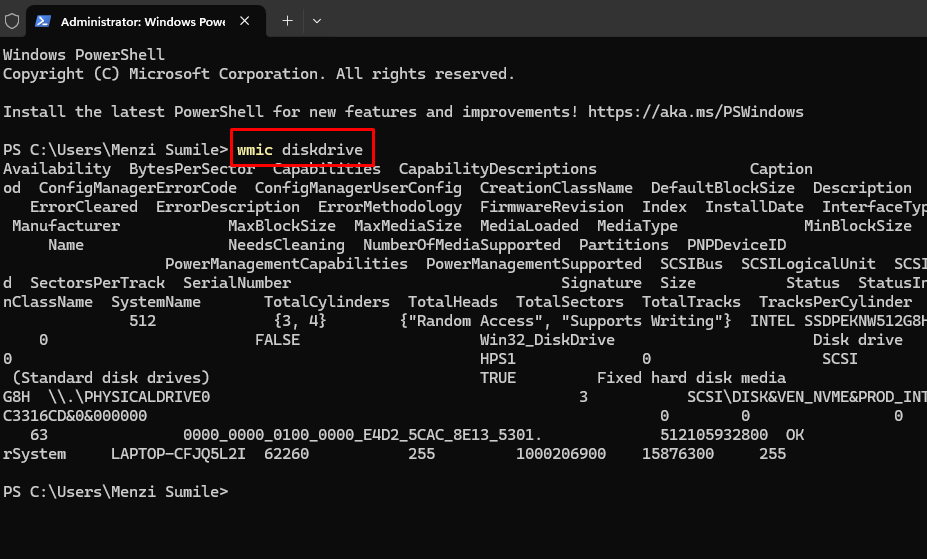
- Press Win + X and select Windows PowerShell (Admin) or Terminal (Admin)
- Type: wmic diskdrive get status and press Enter
- Verify your SSD shows OK status
- For detailed health information, type: Get-PhysicalDisk and press Enter
Consider downloading your manufacturer’s SSD management software (Samsung Magician, Crucial Storage Executive, etc.) for comprehensive monitoring.
Additional Security Best Practices
Beyond firmware updates, implement these habits to minimize your risk:
- Regular backups protect your data even if your SSD is compromised. Use Windows Backup or external drives to maintain current copies of important files.
- Avoid suspicious downloads and only install software from trusted sources. Some exploit tools are distributed through fake software installers.
- Purchase SSDs from reputable retailers to avoid counterfeit drives with compromised firmware pre-installed.
Use Fortect for Complete Protection
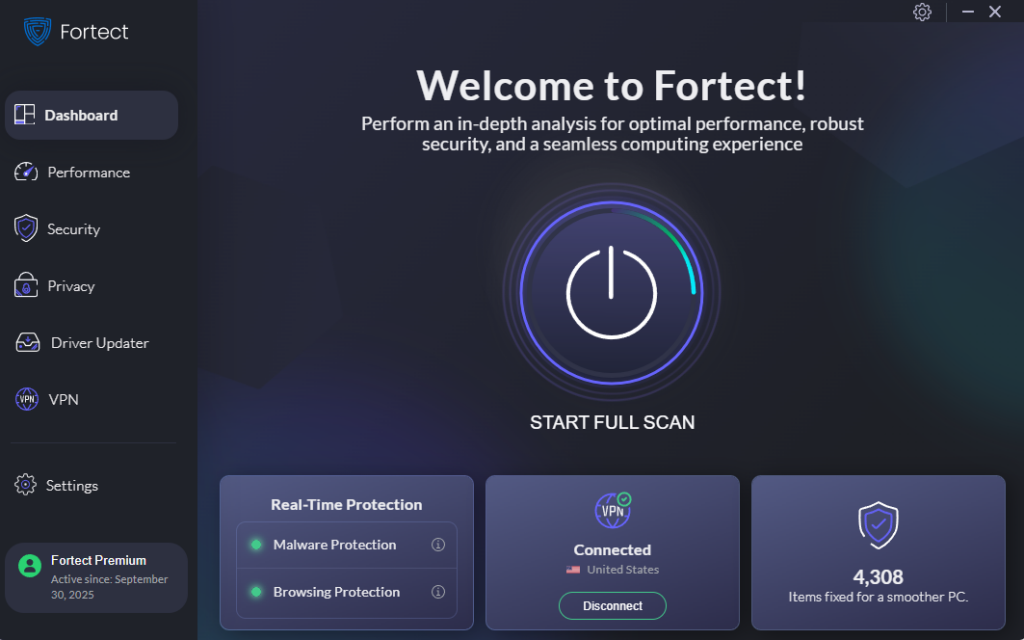
Fortect delivers real-time malware protection and performs deep system scans to detect and remove advanced threats, including malware targeting SSD controllers. By eliminating these risks and repairing affected system components, Fortect helps restore stable and optimized PC performance without manual intervention.
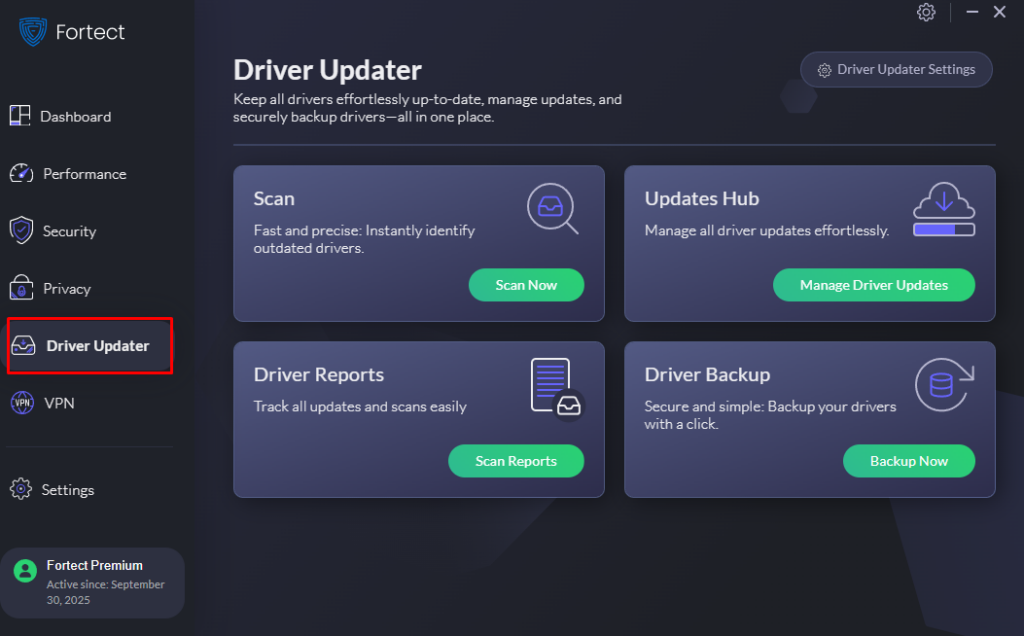
Fortect Premium also features an integrated Driver Updater that identifies outdated, corrupted, or vulnerable drivers and replaces them with verified, secure versions. Security guidance from sources like CISA emphasizes that unpatched drivers can create entry points for low-level attacks, including firmware-based exploits. Keeping drivers updated reduces attack surfaces, strengthens system security, and ensures a more reliable and resilient Windows environment.
Fortect Premium includes a built-in Driver Updater that automatically detects outdated or vulnerable drivers and replaces them with secure, verified versions. This is crucial because compromised storage drivers can enable SSD controller exploits and firmware-level malware to bypass Windows security. By keeping SSD and chipset drivers fully updated, Fortect closes hardware-level attack paths, reinforces system protection, and maintains a faster and more reliable PC.
Download and install Fortect today.
The Bottom Line
Exploits targeting SSD controllers represent a serious but manageable threat to Windows users. By keeping your firmware updated, enabling encryption, maintaining current Windows updates, and following security best practices, you significantly reduce your vulnerability to these advanced attacks.
Don’t wait until it’s too late, take 15 minutes today to secure your SSD and protect your valuable personal data from these hardware-level threats.