SOLVED: AI-Assisted Password Spraying Used for Cyber Attacks
Hackers are now using artificial intelligence to break into personal accounts through a technique called AI-assisted password spraying. This sophisticated attack method targets Windows users by testing common passwords across multiple accounts, and AI makes it faster and more effective than ever before.
What Is AI-Assisted Password Spraying?
AI-assisted password spraying is a cyberattack where criminals use artificial intelligence to systematically test popular passwords against numerous user accounts. Unlike traditional brute force attacks that hammer one account with countless password attempts, password spraying tries a few common passwords across many accounts to avoid triggering security lockouts.
The AI component makes these attacks particularly dangerous. Machine learning algorithms analyze password patterns, predict likely combinations based on user behavior, and adapt their strategies in real-time to bypass security measures. This automated intelligence can test thousands of login attempts across your Windows PC, email, and cloud accounts within minutes.
How Attackers Use AI for Password Attacks
Cybercriminals leverage AI to create smarter password lists by studying leaked databases, social media profiles, and common password trends. The AI learns which passwords people typically use, identifies patterns like “Summer2024!” or “Welcome123”, and generates variations that are more likely to succeed.
These attacks specifically target weak or reused passwords, making your Windows account vulnerable if you’re using simple credentials across multiple services.
Signs Your Windows PC May Be Under Attack
Watch for these warning indicators that suggest password spraying attempts:
- Multiple failed login notifications in your Windows security logs
- Unexpected account lockouts or password reset requests
- Unfamiliar devices showing up in your Microsoft account activity
- Slow system performance or unusual network activity
- Security alerts about login attempts from unknown locations
How to Protect Your Windows 10/11 Computer
Step 1: Use Fortect for Complete Protection
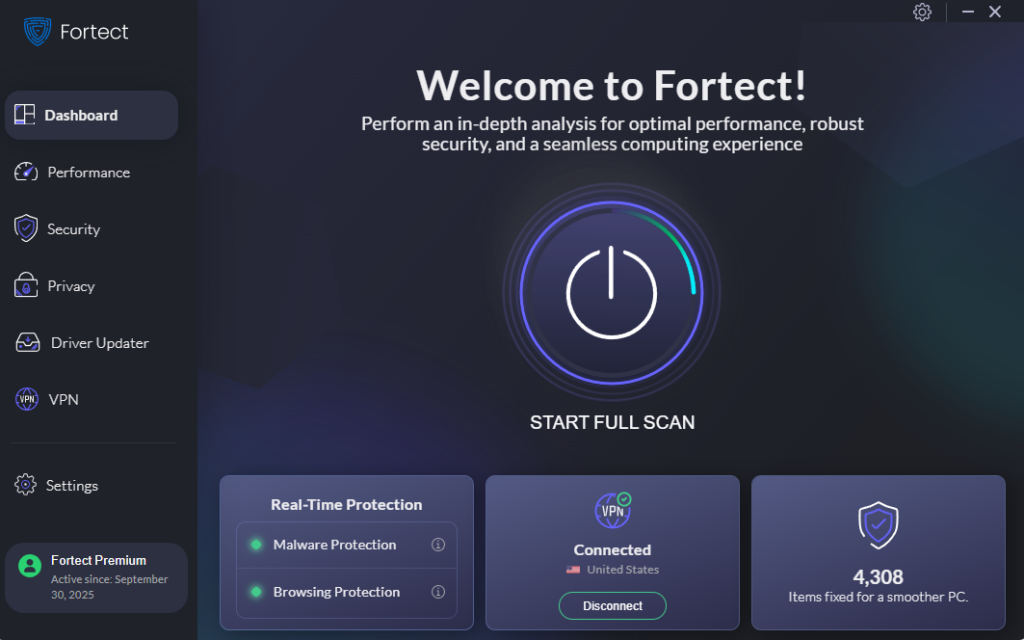
Fortect is an advanced antivirus and PC repair solution that delivers real-time protection against malware. It automatically scans your Windows PC for threats like AI-assisted password spraying, safely removes malicious components, and restores damaged system files to improve performance. Beyond cleaning existing infections, Fortect also helps prevent threats from returning, keeping your device secure and running at its best.
Download and install Fortect today.
Step 2: Enable Windows Hello for Passwordless Sign-In
Windows Hello eliminates password vulnerabilities by using biometric authentication:
- Click the Start button and select Settings (gear icon)
- Navigate to Accounts > Sign-in options
- Under Ways to sign in, choose Facial recognition (Windows Hello) or Fingerprint recognition (Windows Hello)
- Click Set up and follow the on-screen instructions
- Create a backup PIN when prompted
This makes AI-assisted password spraying attacks ineffective against your local Windows account.
Step 3: Create a Strong, Unique Microsoft Account Password
Your Microsoft account password protects your entire Windows ecosystem:
- Go to account.microsoft.com and sign in
- Click Security > Password security
- Select Change password
- Create a password with at least 12 characters using uppercase letters, lowercase letters, numbers, and symbols
- Avoid personal information, dictionary words, or common patterns
- Never reuse this password on other websites
Step 4: Enable Two-Factor Authentication (2FA)
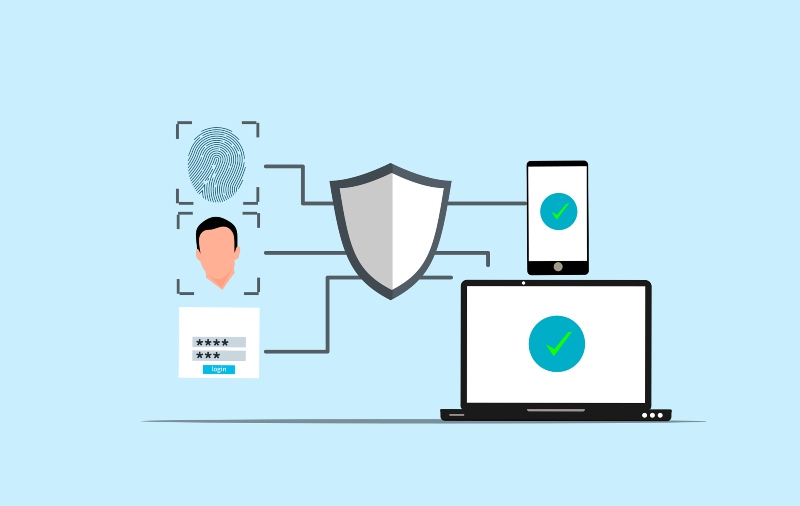
Two-factor authentication adds a critical second layer of defense:
- Visit account.microsoft.com and navigate to Security
- Select Advanced security options
- Under Two-step verification, click Turn on
- Choose your verification method (Microsoft Authenticator app recommended)
- Follow the setup wizard to link your phone
- Save backup codes in a secure location
Even if attackers guess your password through AI-assisted spraying, they cannot access your account without the second authentication factor.
Step 5: Update Windows Regularly
Security patches fix vulnerabilities that attackers exploit:
- Press Windows key + I to open Settings
- Click Windows Update (or Update & Security in Windows 10)
- Select Check for updates
- Click Download and install for any available updates
- Restart your computer when prompted
- Enable Get the latest updates as soon as they’re available under Advanced options
Step 6: Review and Remove Unused Microsoft Account Access
Limit your attack surface by auditing account permissions:
- Go to account.microsoft.com and click Security
- Select Sign-in activity to review recent access attempts
- Navigate to Devices and remove any unrecognized hardware
- Check Apps and services, and revoke permissions for unused applications
Step 7: Use a Password Manager
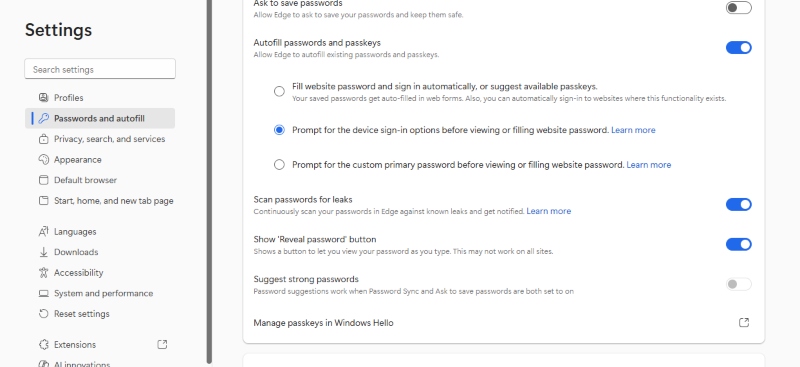
Password managers generate and store complex, unique passwords for every account:
- Windows 11 includes built-in password management through Microsoft Edge
- Access it via Settings > Passwords in the Edge browser
- Consider dedicated solutions like Bitwarden or KeePass for enhanced features
- Never store passwords in plain text files or browsers without master password protection
Additional Security Measures for Home Users
Monitor your Microsoft account activity weekly through the security dashboard. Enable Windows Defender and keep real-time protection active. Be cautious of phishing emails that attempt to steal your credentials before AI-assisted attacks even begin.
Consider using different email addresses for critical accounts, such as banking, versus social media. This compartmentalization limits the damage if a single password is compromised through spray attacks.
Taking Action Today
AI-assisted password spraying represents a serious threat to Windows users, but implementing these protective measures significantly reduces your risk. Start with enabling two-factor authentication and Windows Hello today; these two steps alone eliminate the majority of password-based attacks.
Your digital security depends on staying one step ahead of evolving AI-powered threats. By following these guidelines, you transform your Windows PC from an easy target into a hardened system that cybercriminals will struggle to compromise.