Side-Channel Data Leakage: Risks and Prevention Tips
Side-channel data leakage is a class of security threats that bypasses your software defenses entirely; it exploits the physical behavior of your device instead. If you use a Windows 10 or 11 PC, this guide will explain what it is, why it matters to you, and exactly how to reduce your risk.
What Is Side-Channel Data Leakage?
Side-channel data leakage happens when an attacker extracts sensitive information not by breaking your encryption or hacking your password, but by observing how your computer operates. These observations can come from power consumption, electromagnetic emissions, timing patterns, sound, or even heat.
Think of it this way: a bank vault’s combination might be secret, but if the dial makes a slightly louder click on the right numbers, a careful listener could still crack it. Side-channel attacks work the same way against your PC.
Common Types of Side-Channel Attacks
- Timing attacks — Measure how long a CPU takes to process certain operations to infer secret data like encryption keys.
- Cache-based attacks — Exploit how your processor shares cache memory between tasks (this is what the famous Spectre and Meltdown vulnerabilities did).
- Electromagnetic (EM) attacks — Capture radio signals emitted by your hardware to reconstruct data being processed.
- Acoustic attacks — Use microphones to analyze the sound your CPU or hard drive makes during specific operations.
- Power analysis — Monitor power draw to deduce what computations are happening.
For everyday Windows users, the most realistic threats are software-based side-channel attacks like Spectre, Meltdown, and Rowhammer, which can be exploited remotely through malicious websites or downloaded software.
Why Should Windows Users Care?
Side-channel vulnerabilities are no longer just a concern for government agencies or corporations. They affect consumer hardware directly. The Spectre and Meltdown flaws disclosed in 2018 impacted virtually every Intel and AMD processor made in the past two decades, including the one likely sitting in your laptop right now.
Real Risks to Personal Users
- Password and credential theft — Cache timing attacks can leak data from your browser’s password autofill or login sessions.
- Encryption key exposure — Apps encrypting files or communications can have their keys partially reconstructed through timing observations.
- Browser-based exploits — JavaScript running in a browser tab can mount timing attacks against data in other tabs, potentially exposing banking or email sessions.
- Cross-process spying — Malware exploiting shared CPU resources can read memory from other running programs without needing administrator access.
How to Protect Yourself on Windows 10 and 11
The good news is that Microsoft has released patches, built-in mitigations, and settings that significantly reduce your side-channel attack surface. Here’s what you should do.
Strengthen Your PC Security with Fortect
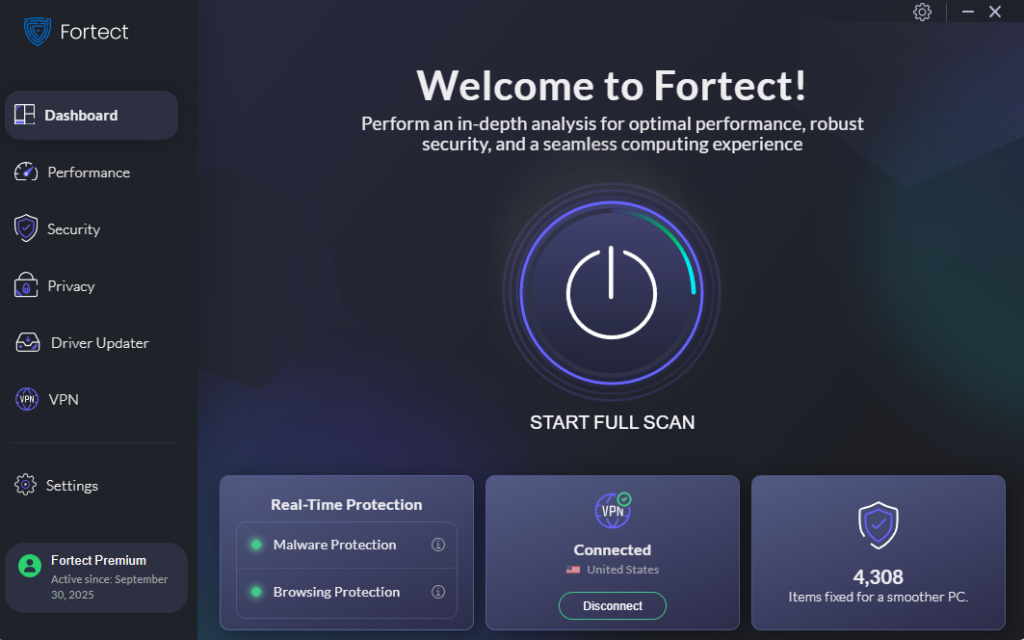
Side-channel data leakage becomes far more dangerous when attackers pair it with malware or corrupted system components, malicious processes that quietly exploit shared CPU resources, tamper with kernel files, or run unauthorized code in the background are exactly what make these attacks possible in the first place. Fortect delivers advanced real-time protection for Windows users by automatically scanning for and removing the malware and compromised system files that attackers rely on to carry out these exploits.
Fortect’s robust threat-detection engine monitors suspicious process behavior and alerts you before harmful actions can take place, while also restoring damaged Windows files that could otherwise leave your system more exposed. Think of it as closing the door that side-channel exploits need to walk through.
Download and install Fortect now.
Fortect for Mac: Strengthen Your Defense Beyond macOS
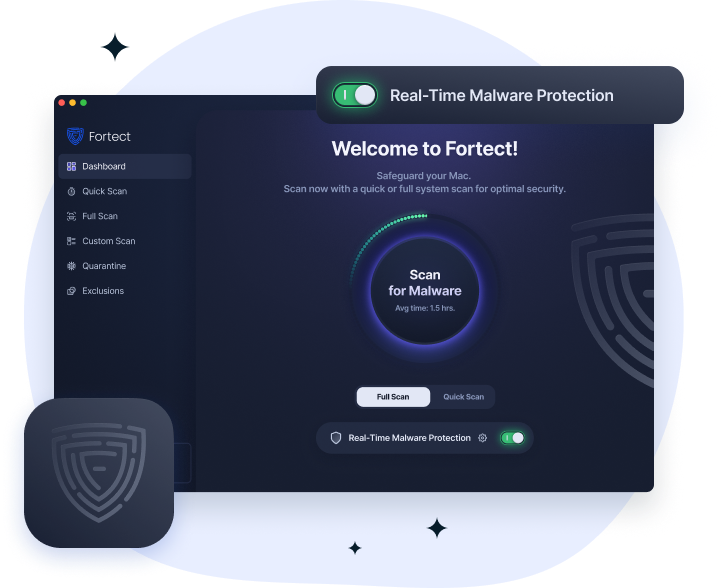
Mac users aren’t immune to the conditions that make side-channel data leakage dangerous. Malware, spyware, and stealth processes that silently exploit shared hardware resources are increasingly targeting macOS, and Apple’s built-in defenses don’t catch everything. Fortect for Mac works alongside native macOS security to detect and eliminate the malicious processes and compromised files that attackers use to stage these exploits. Its real-time threat monitoring and cloud-based detection engine identify suspicious activity before it can be leveraged against your system, giving you a layer of protection that goes beyond what macOS provides on its own.
Keep Windows Fully Updated
Microsoft regularly releases microcode and kernel patches targeting speculative execution vulnerabilities (the root cause of Spectre and Meltdown). Staying updated is the single most important step.
How to update Windows 10/11:
- Click the Start button and open Settings (gear icon).
- Go to Windows Update (on Windows 11) or Update & Security > Windows Update (on Windows 10).
- Click Check for updates.
- Install all available updates, including optional updates; these often include firmware and driver patches.
- Restart your PC when prompted to apply kernel-level mitigations.
- Repeat this check monthly or enable automatic updates by going to Advanced options and toggling Receive updates for other Microsoft products.
Enable Core Isolation and Memory Integrity
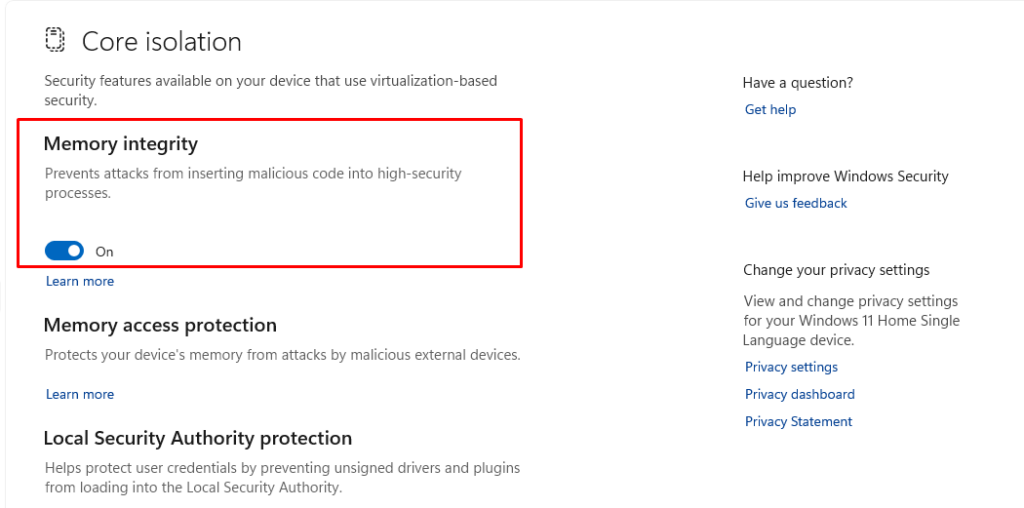
Memory Integrity (also called Hypervisor-Protected Code Integrity or HVCI) prevents malicious code from inserting itself into high-security processes, directly blocking many side-channel exploitation techniques.
How to enable Memory Integrity on Windows 10/11:
- Open Start and search for Windows Security, then open it.
- Click Device Security in the left panel.
- Under Core isolation, click Core isolation details.
- Toggle Memory integrity to On.
- Restart your PC for the change to take effect.
Note: If the toggle is grayed out, your drivers may be incompatible. Go to Device Manager, update all drivers, and try again.
Update Your Browser and Enable Site Isolation
Browsers are a primary vector for JavaScript-based side-channel attacks. Both Chrome and Edge (the default Windows browser) include Site Isolation, which runs each website in a separate process, making cross-site cache attacks much harder.
How to verify Site Isolation is active in Microsoft Edge:
- Open Microsoft Edge.
- In the address bar, type edge://flags and press Enter.
- Search for “Strict site isolation”.
- Set it to Enabled using the dropdown menu.
- Click Restart to apply.
For Google Chrome, type chrome://flags, search for “Strict site isolation”, and follow the same steps.
Additionally, keep your browser updated: in Edge, go to Settings > Help and feedback > About Microsoft Edge to check for updates.
Restrict Unnecessary Hardware Access
Side-channel attacks via electromagnetic or acoustic methods require physical proximity, but they can be assisted by software that unnecessarily accesses hardware sensors, microphones, or webcams. Limiting these permissions reduces your exposure.
How to restrict app permissions on Windows 10/11:
- Open Settings (Win + I).
- Go to Privacy & security (Windows 11) or Privacy (Windows 10).
- Under App permissions, review each category: Microphone, Camera, Location, and Notifications.
- For each one, toggle off access for any app that doesn’t genuinely need it.
- Under Background apps (Windows 10) or Apps > Installed apps (Windows 11), disable background activity for apps you don’t use regularly.
Use a Standard User Account for Daily Tasks
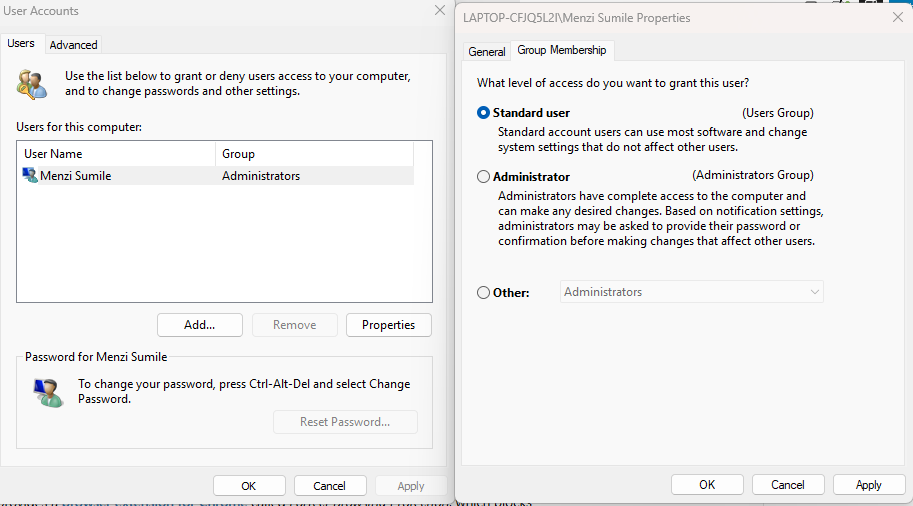
Running as an Administrator by default gives malware elevated privileges to exploit side-channel vulnerabilities more effectively. Using a standard account limits the damage any attack can do.
How to create and switch to a standard user account on Windows 10/11:
- Open Settings > Accounts > Family & other users.
- Click Add account (Windows 11) or Add someone else to this PC (Windows 10).
- Follow the setup wizard to create a new account.
- Once created, click the account name, select Change account type, and set it to Standard User.
- Use this account for everyday browsing and tasks; only log into your Administrator account when installing software.
Additional Best Practices
Beyond the steps above, these habits further harden your system:
Update your BIOS/UEFI firmware. Processor microcode updates that patch Spectre-class vulnerabilities are often delivered through BIOS updates from your PC manufacturer. Visit your laptop or motherboard maker’s support page and install any available firmware updates.
Avoid untrusted browser extensions. Extensions run with elevated browser access and can perform timing-based attacks. Only install extensions from verified publishers with a strong reputation.
Use HTTPS everywhere. Encrypted connections make it significantly harder for network-level side-channel observations to reconstruct your data. Modern browsers enforce this by default, but you can install the HTTPS Everywhere extension as an additional safeguard.
Be cautious on shared or public computers. Side-channel attacks are more feasible when the attacker has local access to the same machine. Avoid logging into sensitive accounts on shared devices.
Conclusion
Side-channel data leakage is a sophisticated but increasingly relevant threat to everyday Windows users. Unlike traditional malware, it doesn’t need to break your passwords or crack your encryption; it watches your computer’s behavior and reads between the lines. The encouraging reality is that staying updated, enabling built-in Windows security features, and practicing basic digital hygiene closes the vast majority of your risk. Start with the steps in this guide, and you’ll be in a far stronger position than most users.