Security Amnesia: When Malware Makes Your PC Forget Its Own Settings
Your computer suddenly doesn’t recognize your security settings. Windows Defender is disabled, firewall rules have vanished, and system preferences reset themselves overnight. You’re experiencing security amnesia, a dangerous malware tactic where malicious software deliberately erases or corrupts your PC’s security configurations to leave you vulnerable.
What Is Security Amnesia and Why Should You Care?
Security amnesia occurs when malware infiltrates your Windows system and systematically disables, modifies, or deletes critical security settings. Unlike traditional viruses that announce their presence through obvious symptoms, these threats work silently in the background, making your computer “forget” its protective measures.
The consequences are severe. With disabled antivirus protection, corrupted firewall settings, and altered system configurations, your personal data becomes an easy target for cybercriminals. Banking credentials, passwords, family photos, and sensitive documents, all exposed because your PC can no longer defend itself.
Common Signs Your PC Has Security Amnesia

Watch for these warning indicators:
- Windows Defender repeatedly turns off without your permission
- Firewall settings revert to the default or disabled status
- User account control (UAC) prompts stop appearing
- System restore points mysteriously disappear
- Security software fails to update or refuses to run
- Registry changes that you didn’t authorize
- Unknown processes running at startup
How Malware Causes Memory Loss in Windows Systems
Registry Manipulation Tactics
Malware targets your Windows registry, the database storing all system and application settings. By modifying specific registry keys, malicious software can disable security features permanently. Trojans often alter keys under HKEY_LOCAL_MACHINE and HKEY_CURRENT_USER to prevent antivirus software from launching or receiving updates.
Group Policy Overrides
Advanced malware exploits Windows Group Policy settings to enforce security restrictions that benefit attackers. These policies can block access to Task Manager, disable Windows Update, or prevent users from changing security configurations, essentially locking you out of your own protection controls.
Service Interruption Attacks
Critical Windows security services like Windows Defender Antivirus Service and Windows Firewall run continuously in the background. Malware can stop these services, change their startup type to “disabled,” or delete service executables entirely, causing permanent security amnesia.
How to Restore Security Settings on Windows 10/11
Step 1: Boot into Safe Mode
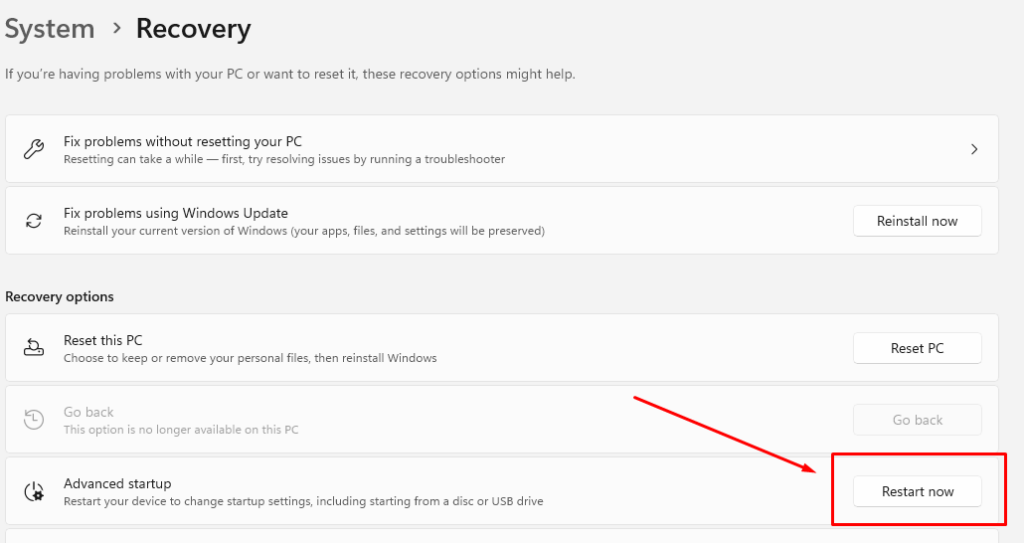
- Press Windows + I to open Settings
- Navigate to System > Recovery
- Under “Advanced startup,” click Restart now
- When your PC restarts, select Troubleshoot > Advanced options > Startup Settings
- Click Restart and press F5 to select “Safe Mode with Networking”
Safe Mode loads Windows with minimal drivers, preventing most malware from running during repairs.
Step 2: Run Windows Defender Offline Scan
- Open Windows Security by searching in the Start menu
- Click Virus & threat protection
- Scroll to “Current threats” and select Scan options
- Choose Microsoft Defender Offline scan
- Click Scan now (your PC will restart automatically)
This powerful scan runs before Windows loads, catching malware that hides from standard scans.
Step 3: Reset Windows Firewall Settings
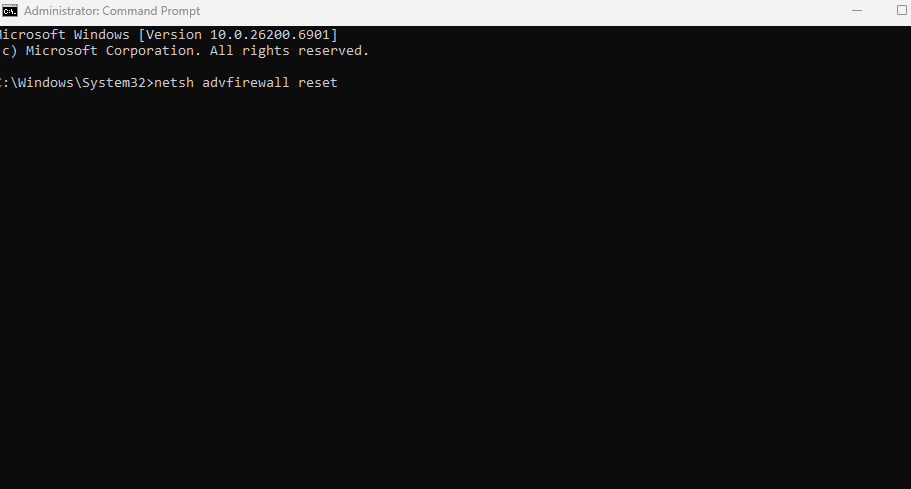
- Type cmd in the Windows search bar
- Right-click Command Prompt and select “Run as administrator”
- Type netsh advfirewall reset and press Enter
- Restart your computer to apply the changes
This command restores firewall settings to their secure default configuration.
Step 4: Repair System Files
- Open Command Prompt as administrator (same as Step 3)
- Type sfc /scannow and press Enter
- Wait for the scan to complete (this may take 20-30 minutes)
- If errors are found, run DISM /Online /Cleanup-Image /RestoreHealth
- Restart your computer
These tools repair corrupted Windows system files that malware may have damaged.
Step 5: Enable Windows Defender Real-Time Protection
- Open Windows Security from the Start menu
- Click Virus & threat protection
- Under “Virus & threat protection settings,” click Manage settings
- Toggle Real-time protection to On
- Ensure Cloud-delivered protection and Automatic sample submission are also enabled
Preventing Future Security Amnesia Attacks
Use Advanced Protection with Fortect

For comprehensive defense against security amnesia and other advanced threats, consider Fortect. It’s a powerful anti-virus solution with real-time malware protection. Fortect automatically scans your Windows PC for threats like security amnesia malware, then fixes them and optimizes your computer for peak performance.
What sets Fortect Premium for Windows users apart is its built-in Driver Updater that automatically identifies and updates outdated or corrupted drivers from trusted sources. This feature is critical because corrupted drivers aren’t just performance issues; hackers actively exploit them to inject malware into your system. Since drivers communicate directly with the system kernel, any compromise can lead to severe instability or complete system takeover. By keeping your drivers current, Fortect closes these security gaps while ensuring your PC runs smoothly with cleaner, faster, and more reliable performance.
Praised by TechRadar for its powerful driver updater and ranked as the #1 real-time malware protection, Fortect stands out as a world-class all-in-one security solution you can trust.
Download and install Fortect on your Windows PC today.
Fortect Mac Suite
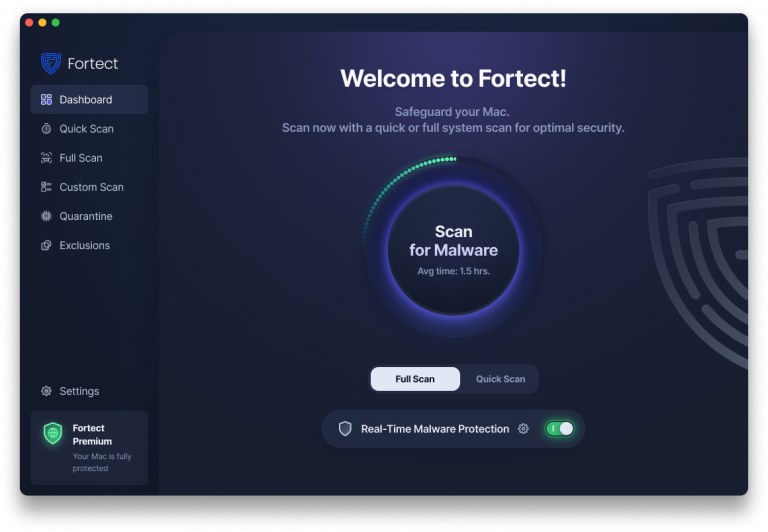
Cybercriminals are getting smarter, and macOS is no longer immune. That’s why Fortect now supports macOS with the new Fortect Mac Suite, designed to protect your device from evolving threats like ransomware and malware that can bypass built-in defenses. With real-time protection, cloud-based intelligence, and an advanced antivirus engine, Fortect ensures your Mac stays secure at all times. You can choose between a Quick Smart Scan for fast issue detection or a Full System Scan for complete, in-depth protection, all working together to keep your system running safely and smoothly.
Download Fortect on your Mac today.
Keep Windows Updated Automatically
Keep your Windows system updated regularly. Enable automatic updates by going to Settings > Windows Update and clicking “Check for updates.” Install updates immediately when available, as they patch vulnerabilities that malware exploits.
Create regular system restore points manually before installing new software. Search for “Create a restore point” in the Start menu, select your drive, and click “Create” to establish a recovery checkpoint.
Use strong, unique passwords and enable two-factor authentication on all accounts. Avoid downloading software from untrusted sources, and never disable Windows Defender unless you have legitimate, reputable third-party antivirus protection.
Your PC’s Memory Needs Protection
Security amnesia transforms your trusted computer into a vulnerable target by erasing the very defenses designed to protect you. By recognizing the symptoms early, following systematic recovery steps, and maintaining preventive habits, you can ensure your Windows PC never forgets how to defend itself. Stay vigilant, keep your system updated, and never ignore sudden changes to your security settings; your digital safety depends on it.