Secure Your Windows PC From Discord Malware Links
Discord has become one of the most popular communication platforms for gamers, communities, and friend groups. However, cybercriminals have exploited this popularity by distributing malicious links that can infect your Windows PC with malware, steal your personal information, or compromise your account security. Understanding how to identify and protect yourself from Discord malware links is essential for every Windows user.
Understanding Discord Malware Threats

What Are Discord Malware Links?
Discord malware links are malicious URLs shared through direct messages, server channels, or profile descriptions that lead to dangerous files or websites. These links often disguise themselves as game cheats, free Nitro subscriptions, image files, or software downloads. When clicked, they can install trojans, spyware, ransomware, or credential-stealing malware on your computer.
Common Types of Discord Malware Attacks
Attackers use several tactics to distribute malware through Discord. Phishing links mimic legitimate Discord login pages to steal your username and password. Fake download links promise free games or software but deliver malicious executables instead. Some malware operates as information stealers, targeting saved passwords, browser cookies, and authentication tokens to hijack your Discord account and spread to your contacts.
Recognizing Suspicious Discord Links
Warning Signs of Malicious Links
Learning to identify dangerous links is your first line of defense. Be wary of unsolicited direct messages from strangers or even compromised friends’ accounts. Suspicious URLs often contain misspellings, unusual character combinations, or domains that don’t match official services. Links promising free Discord Nitro, rare items, or exclusive content typically lead to scams. Any message creating urgency or demanding immediate action should raise red flags.
Safe Link Practices on Discord
Before clicking any link, hover over it to preview the actual URL destination. Verify sender identity by asking through an alternative communication method if a message seems unusual. Never download executable files (.exe, .bat, .scr) from untrusted sources, even if they appear to be images or documents. When in doubt, manually type official website addresses into your browser instead of clicking provided links.
How to Enable Windows Security Features
Strengthen Your PC Security with Fortect
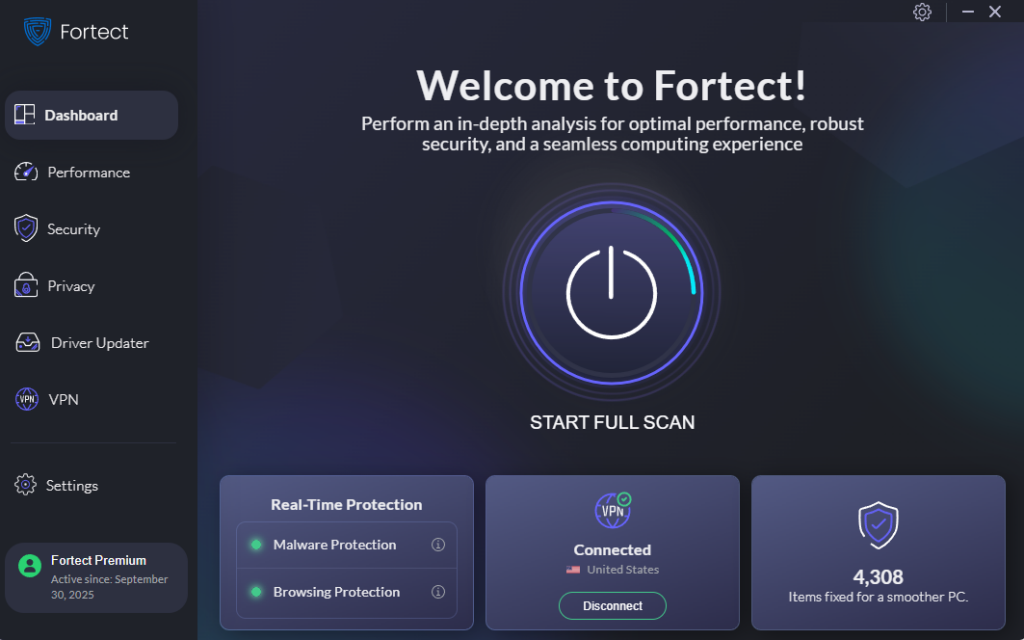
Fortect delivers advanced real-time malware protection specifically designed for Windows users facing threats from Discord malware links. It automatically scans your PC for both traditional and emerging Discord-based threats, including malicious executables hidden in fake Nitro offers, phishing links disguised as game downloads, and credential-stealing malware spread through compromised accounts. Fortect eliminates these threats safely and restores damaged system files that malware may have corrupted, ensuring your PC maintains optimal performance.
Its smart threat-detection engine continuously monitors suspicious activity from Discord downloads and alerts you before harmful actions can compromise your system, helping keep your device secure while you communicate with friends and communities.
Download and install Fortect now.
Step 1: Update Windows Defender
Windows Defender provides robust protection against malware when properly configured and updated. Keep your antivirus definitions current by following these steps:
- Open Windows Settings by pressing Windows key + I
- Click on “Update & Security” (Windows 10) or “Windows Update” (Windows 11)
- Select “Check for updates” and install all available updates
- Navigate to “Windows Security” from the left sidebar
- Click “Virus & threat protection”
- Under “Virus & threat protection updates,” select “Check for updates”
- Allow Windows Defender to download the latest malware definitions
Step 2: Enable Real-Time Protection
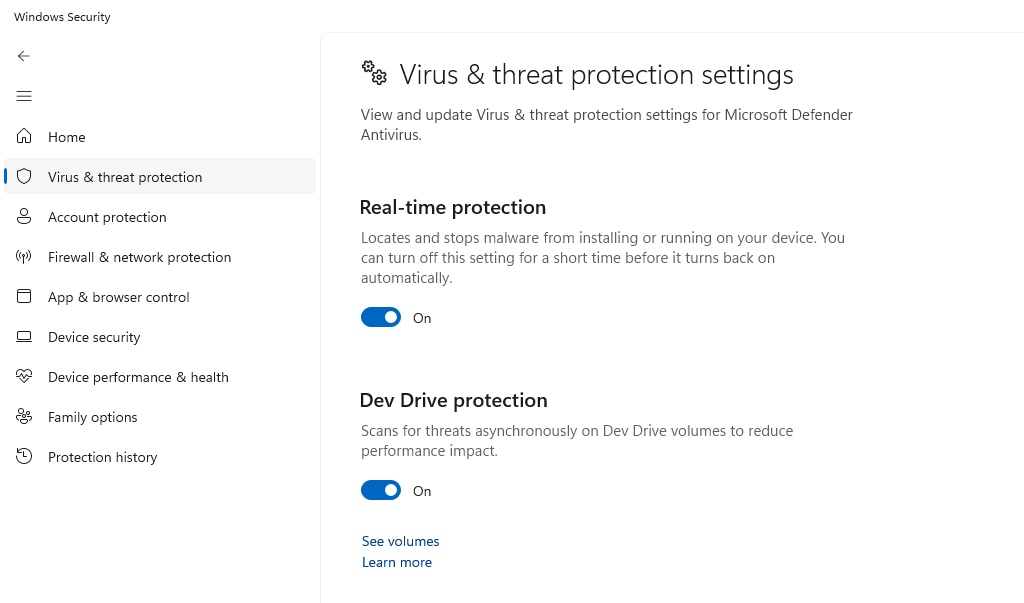
Ensure continuous monitoring with these steps:
- Open Windows Security by searching for it in the Start menu
- Click “Virus & threat protection”
- Select “Manage settings” under “Virus & threat protection settings”
- Toggle on “Real-time protection”
- Enable “Cloud-delivered protection” for enhanced threat detection
- Turn on “Automatic sample submission” to help Microsoft identify new threats
Step 3: Configure Ransomware Protection
Windows includes built-in ransomware protection that prevents unauthorized changes to your files:
- Open Windows Security
- Go to “Virus & threat protection”
- Scroll down and click “Manage ransomware protection”
- Toggle on “Controlled folder access”
- Click “Protected folders” to add important directories
- Add “Allowed apps” for legitimate programs that need folder access
How to Restrict Potentially Dangerous Applications
Configure User Account Control (UAC)
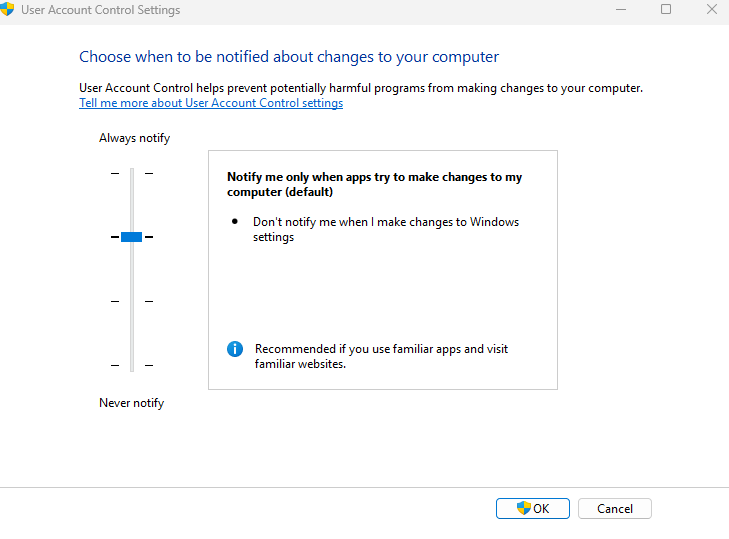
User Account Control prevents unauthorized software installations:
- Type “UAC” in the Windows search bar
- Select “Change User Account Control settings”
- Move the slider to the second-highest level (recommended)
- Click “OK” and restart your computer if prompted
This setting requires administrator approval before programs can make system changes, blocking many malware installations.
Enable SmartScreen Filter
SmartScreen helps block malicious downloads and websites:
- Open Windows Security
- Click “App & browser control”
- Under “Check apps and files,” select “Warn” or “Block”
- Under “SmartScreen for Microsoft Edge,” choose “Warn” or “Block”
- Enable “SmartScreen for Microsoft Store apps”
Additional Security Measures for Discord Users
Secure Your Discord Account Settings
Enable two-factor authentication on your Discord account through Account Settings > My Account > Enable Two-Factor Auth. This prevents account takeover even if your password is compromised. Regularly review authorized apps under User Settings > Authorized Apps and remove any unfamiliar entries.
Use Secure Browser Extensions
Install reputable ad-blockers and anti-tracking extensions that can identify malicious websites before you visit them. Extensions like uBlock Origin or privacy-focused browsers provide additional layers of protection against phishing attempts and malicious redirects.
Keep Your Software Updated
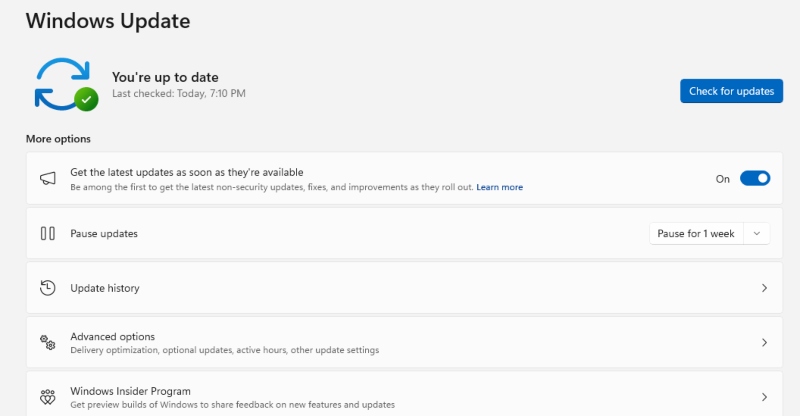
Outdated software contains security vulnerabilities that malware exploits. To update Windows automatically:
- Open Windows Settings (Windows key + I)
- Navigate to “Update & Security” or “Windows Update”
- Click “Advanced options”
- Enable “Receive updates for other Microsoft products”
- Turn on automatic updates for all installed software when possible
What to Do If You’ve Clicked a Malicious Link
If you suspect you’ve been exposed to Discord malware, act immediately. Disconnect your PC from the internet by turning off Wi-Fi or unplugging the Ethernet cable to prevent further data leakage. Run a full Windows Defender scan to detect and remove malicious files. Review installed programs and browser extensions, and uninstall anything unfamiliar or recently added. Check startup apps and scheduled tasks to ensure no suspicious processes are set to run automatically.
Change your Discord password from a different, uncompromised device, enable two-factor authentication, and revoke all active sessions in your account security settings. It’s also recommended to update passwords for other accounts accessed on the affected PC, especially email and financial services. Notify your Discord contacts that your account may have been compromised, and consider performing a system restore to a point before the infection if unusual behavior continues.
Conclusion
Protecting your Windows PC from Discord malware links requires vigilance, proper security configuration, and safe browsing habits. By keeping Windows Defender updated, enabling security features, recognizing suspicious links, and maintaining healthy skepticism toward unsolicited messages, you can enjoy Discord safely without compromising your computer or personal information. Remember that cybersecurity is an ongoing process; stay informed about new threats and regularly review your security settings to maintain robust protection against evolving malware tactics.