Search Engine Phishing: Definition, Identification, and Prevention
Search engine phishing has become one of the most deceptive cyber threats targeting Windows users today. Unlike traditional email phishing, these attacks hide in plain sight, right at the top of your search results. Understanding this threat is your first line of defense against cybercriminals who exploit your trust in search engines.
What is Search Engine Phishing?
Search engine phishing, also known as SEO poisoning or malicious search results, occurs when cybercriminals manipulate search engine rankings to place fraudulent websites at the top of search results. These fake sites mimic legitimate pages, banking portals, software downloads, or customer service numbers to steal your personal information, passwords, or money.
The attack works because users naturally trust the first few results on Google, Bing, or other search platforms. Hackers exploit this trust by creating convincing replicas of real websites and using black-hat SEO techniques to rank them higher than genuine pages.
How Search Engine Poisoning Works
Attackers create fake websites that look identical to legitimate services. They stuff these pages with popular keywords like “Windows 10 support number,” “download antivirus free,” or “reset Microsoft password.” Through aggressive SEO tactics and sometimes paid advertisements, these malicious links appear before authentic results, tricking unsuspecting users into clicking.
How to Identify Search Engine Phishing Attacks
Recognizing fraudulent search results can save you from identity theft and financial loss. Here are the warning signs:
Suspicious URLs and Web Addresses
Always examine the website URL before clicking. Phishing sites often use slight misspellings like “micros0ft.com” instead of “microsoft.com” or add extra words like “microsoft-support-official.com.” Legitimate companies use simple, official domains without unnecessary additions.
Too-Good-to-Be-True Offers
If a search result promises free software, gift cards, or tech support at unbelievably low prices, proceed with extreme caution. Scammers use urgent language like “limited time only” or “act now” to pressure you into making quick decisions.
Poor Website Quality
Once on the site, look for red flags: grammatical errors, pixelated logos, broken links, or unprofessional design. Legitimate companies invest in quality websites. If something feels off, it probably is.
Unsecured Connections
Check if the website uses HTTPS (look for a padlock icon in your browser’s address bar). While not foolproof, legitimate sites handling sensitive information always use encryption. If you see “Not Secure” warnings, leave immediately.
How to Prevent Search Engine Phishing on Windows 10/11
Protecting yourself requires a combination of smart browsing habits and Windows security features. Follow these steps to stay safe:
Step 1: Enable Windows Security Features
For Windows 10:
- Click the Start button and select Settings (gear icon)
- Navigate to Update & Security
- Click Windows Security in the left sidebar
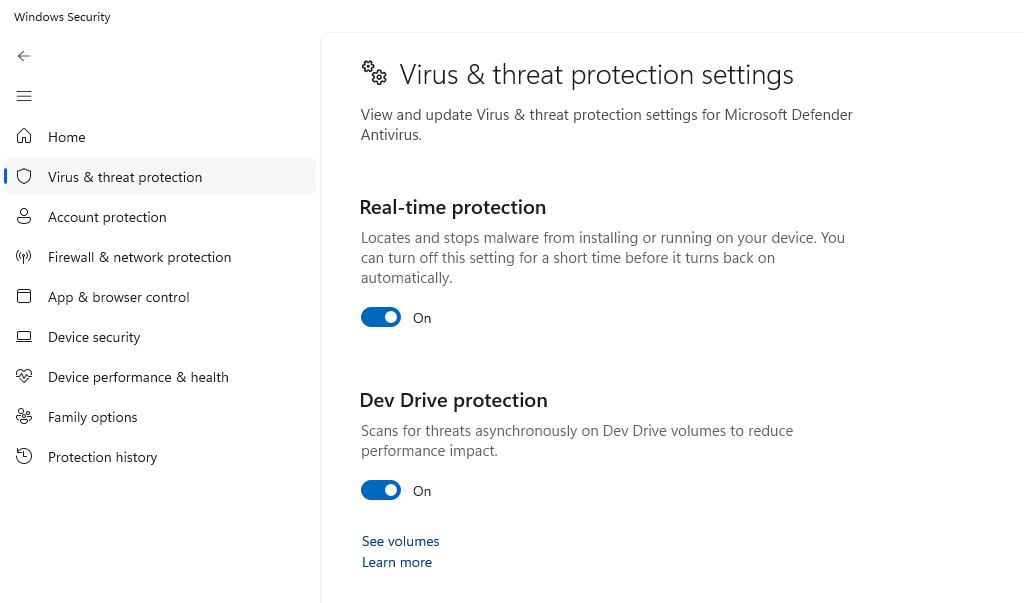
- Select Virus & threat protection
- Click Manage settings under “Virus & threat protection settings”
- Ensure Real-time protection is turned ON
- Scroll down and toggle ON SmartScreen for Microsoft Edge
For Windows 11:
- Press Windows key + I to open Settings
- Click Privacy & security in the left panel
- Select Windows Security
- Click Virus & threat protection
- Under “Virus & threat protection settings,” click Manage settings
- Turn ON Real-time protection and Cloud-delivered protection
- Return to Windows Security and select App & browser control
- Ensure SmartScreen for Microsoft Edge is set to Warn or Block
Step 2: Keep Windows Updated
Regular updates patch security vulnerabilities that hackers exploit:
- Open Settings (Windows key + I)
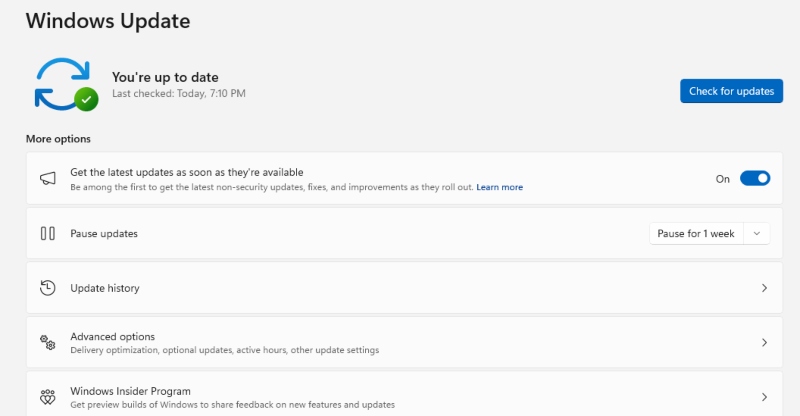
- Click Windows Update (bottom left in Windows 11, or Update & Security in Windows 10)
- Click Check for updates
- Install all available updates and restart if prompted
- Enable Automatic updates to stay protected continuously
Step 3: Use Browser Security Extensions
Install reputable browser extensions like Windows Defender Browser Protection or trusted third-party tools that flag malicious websites. These add an extra layer of verification before you visit potentially dangerous pages.
Step 4: Verify Before You Click
Never click the first result blindly. Cross-reference official websites by typing the company name directly into your browser or checking their verified social media profiles. For customer support, always use contact information from official sources, not search results.
Step 5: Bookmark Trusted Sites
Save frequently visited websites, especially banking, email, and shopping sites, as bookmarks. This eliminates the need to search for them repeatedly and reduces exposure to poisoned results.
Step 6: Use Fortect for Advanced Protection Against Search Engine Phishing on Windows
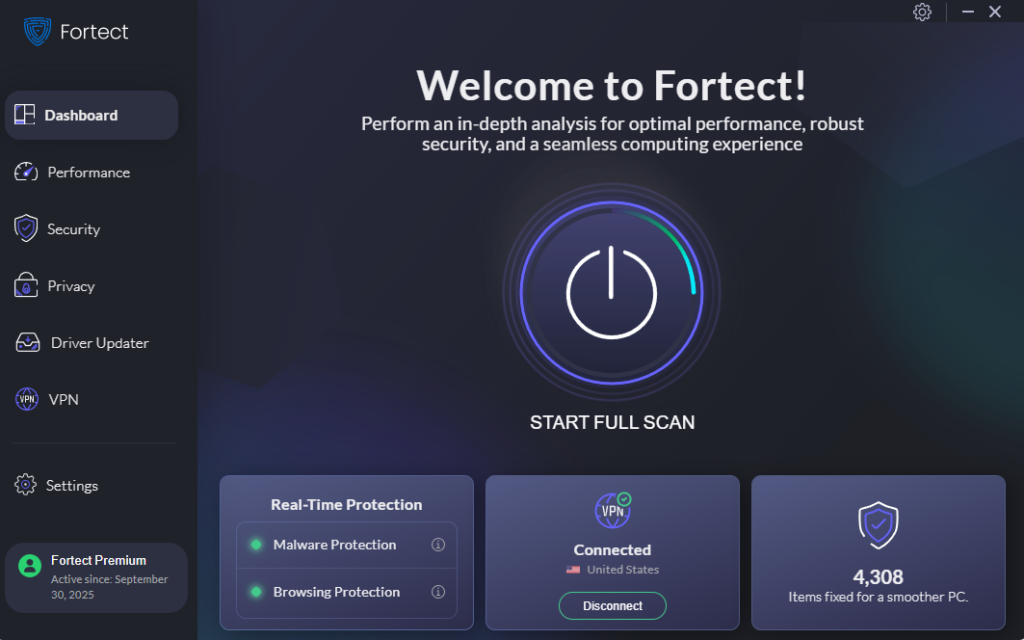
Fortect is a powerful and advanced anti-virus with real-time malware protection. It automatically scans your Windows PC for any threats, such as search engine phishing, then fixes them and optimizes your computer.
Fortect Premium comes with a built-in Driver Updater that automatically scans your Windows PC for outdated or corrupted drivers and updates them safely from a trusted source. Corrupted or outdated drivers are more than just a performance issue; hackers can exploit them to inject malware into your system. Because drivers communicate directly with the system kernel, any compromise can lead to serious instability or even a complete system takeover.
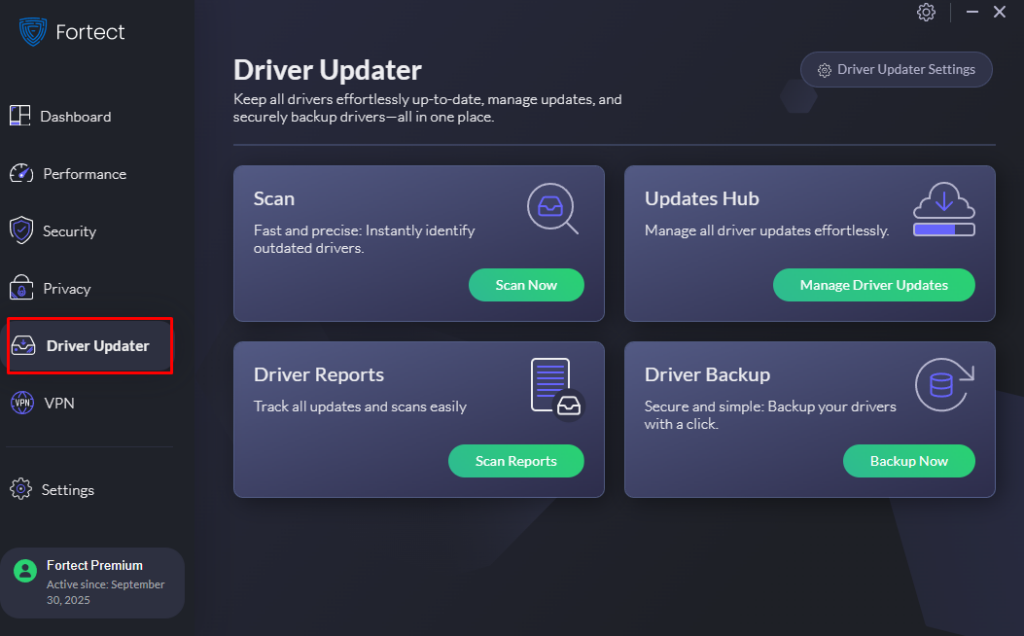
By keeping your drivers updated, Fortect not only closes these security gaps but also ensures your PC runs smoothly. Once the updates are applied, your computer is optimized for cleaner, faster, and more reliable performance.
Fortect also comes with a Fortect Browsing Protection extension that you can take advantage of for an extra layer of defense against search engine phishing. It offers real-time online security to keep your browsing safe and private.
This extension ensures your online safety through its Safe Browsing feature, which scans every website you visit for malicious or suspicious activity. It blocks harmful sites that try to steal data or install malware, alerts you when visiting untrustworthy pages, and monitors your browsing activity to keep you aware of potential security risks.
Download and install Fortect on your Windows system today.
Fortect Mac Suite: Protection Against Search Engine Phishing on macOS
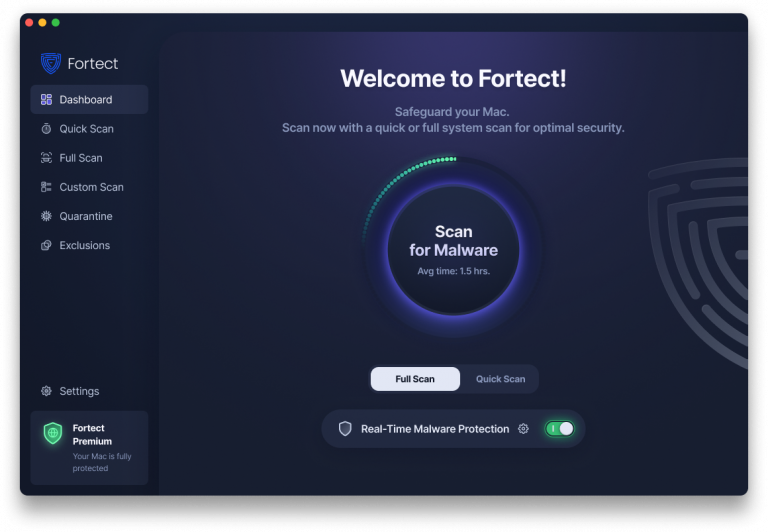
Fortect Mac Suite is now available for macOS, offering advanced protection as Mac devices face rising threats like search engine phishing, ransomware, and malware. With cybercriminals increasingly targeting macOS users, Fortect bridges the gap with real-time defense and cloud-based threat detection to keep your system secure.
Key Features:
- Smart Scan: Instantly detects and fixes performance or security issues.
- Full System Scan: Performs deep scans to uncover and eliminate hidden threats.
- Cloud-Based Defense: Ensures your protection stays current against evolving online attacks.
Stay ahead of cyber threats with Fortect’s all-in-one security suite for macOS, designed to protect your system from phishing sites and deceptive search results.
Download Fortect on your Mac computer now.
How to Prevent Search Engine Phishing on macOS:
- Keep macOS Updated: Go to Apple Menu > System Settings > General > Software Update and install updates to fix vulnerabilities.
- Use Safari’s Fraudulent Website Warning: Make sure this setting is enabled under Safari > Settings > Security to block known phishing sites.
- Avoid Clicking Sponsored Links on Unknown Sites: Stick to official domains, especially when downloading software or logging into accounts.
- Verify Website URLs: Always double-check domain spellings; phishing sites often mimic legitimate ones with small character changes.
- Enable Two-Factor Authentication (2FA): Add an extra layer of protection for your Apple ID and other key online accounts.
- Use a Trusted Security Tool (like Fortect Mac Suite): Detect and block phishing attempts before they can compromise your system.
Stay protected from deceptive search results. Download Fortect Mac Suite today for smart, real-time macOS security.
Protecting Your Personal Information
If you accidentally visit a phishing site, do not enter any personal information. Close the browser immediately and run a full security scan using Windows Security. Change passwords for any accounts you may have accessed recently, and monitor your financial statements for unauthorized activity.
Search engine phishing thrives on user complacency. By staying vigilant, verifying sources, and maintaining updated security settings, you can browse safely and protect your digital life from these sophisticated threats.
You can also check out our article on pop-up phishing attacks to learn about the various phishing threats targeting your browser or any search engine.