Safe Downloading Practices to Prevent Fake Installer Malware
Fake installer malware has become one of the most dangerous threats facing Windows users today. Cybercriminals disguise malicious software as legitimate program installers, tricking unsuspecting users into downloading viruses, spyware, and ransomware. Understanding safe downloading practices is essential to protect your computer and personal data from these sophisticated attacks.
Understanding Fake Installer Threats
Fake installers mimic popular software like Adobe Reader, VLC Media Player, or system utilities. These malicious files often appear on unofficial download sites, torrent platforms, or through deceptive advertisements. Once executed, they can steal passwords, encrypt your files for ransom, or turn your computer into a botnet.
The danger lies in their convincing appearance. Attackers create professional-looking websites and installers that closely resemble legitimate sources, making detection difficult for average users.
Essential Safe Downloading Practices
Verify Official Sources Before Downloading
Always download software directly from the developer’s official website. Avoid third-party download sites that bundle additional programs or modified installers. Search for the software name plus “official website” rather than clicking the first advertisement result.
Check the website’s URL carefully. Legitimate sites use HTTPS encryption and have URLs matching the company name. Be wary of sites with slight misspellings or unusual domain extensions.
Check Digital Signatures and File Authenticity
Before installing any downloaded file, verify its digital signature to confirm authenticity.
How to Check Digital Signatures in Windows 10/11:
- Navigate to your Downloads folder and locate the installer file
- Right-click the file and select “Properties.”
- Click the “Digital Signatures” tab
- Select the signature from the list and click “Detail.s”
- Verify the signer’s name matches the legitimate software developer
- Check that the signature status shows “This digital signature is .OK”
Files without digital signatures or with invalid signatures should not be installed.
Enable Windows Security Features
Windows includes built-in protection against malicious downloads when properly configured.
How to Enable SmartScreen Protection:

- Press Windows key + I to open Settings
- Click “Privacy & security” in the left sidebar
- Select “Windows Security”
- Click “Open Windows Security”
- Navigate to “App & browser control”
- Under “Reputation-based protection,” click “Reputation-based protection settings”
- Ensure all toggles are turned ON, including “Check apps and files” and “SmartScreen for Microsoft Edge”
SmartScreen warns you when downloading potentially dangerous files from the internet.
Keep Windows Updated
Security patches close vulnerabilities that fake installers exploit.
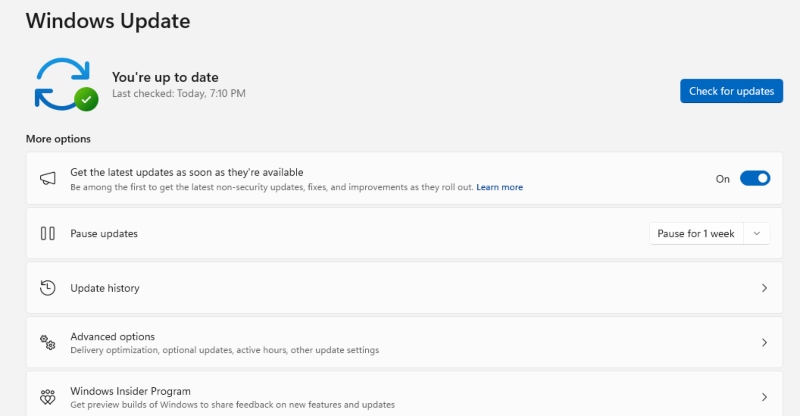
How to Update Windows 10/11:
- Open Settings by pressing Windows key + I
- Select “Windows Update” from the left menu
- Click “Check for updates”
- If updates are available, click “Download & install”
- Restart your computer when prompted to complete installation
Enable automatic updates by clicking “Advanced options” and ensuring “Get the latest updates as soon as they’re available” is toggled ON.
Recognizing Warning Signs
Suspicious Download Prompts
Legitimate software downloads rarely force immediate installation. Be cautious of installers that create urgency, claim your system is infected, or automatically start downloading without your explicit consent.
Unusual File Sizes and Extensions
Research the typical file size for the software you’re downloading. A 500KB file claiming to be Adobe Photoshop is obviously fake. Watch for double extensions, such as “installer.pdf.exe,” which indicate malicious intent.
Bundled Software and Unwanted Programs
Even from legitimate-looking sources, installers may bundle additional software. Always choose “Custom” or “Advanced” installation options to deselect unwanted programs, browser toolbars, or homepage changes.
Additional Protection Strategies
Strengthen Your PC Security with Fortect
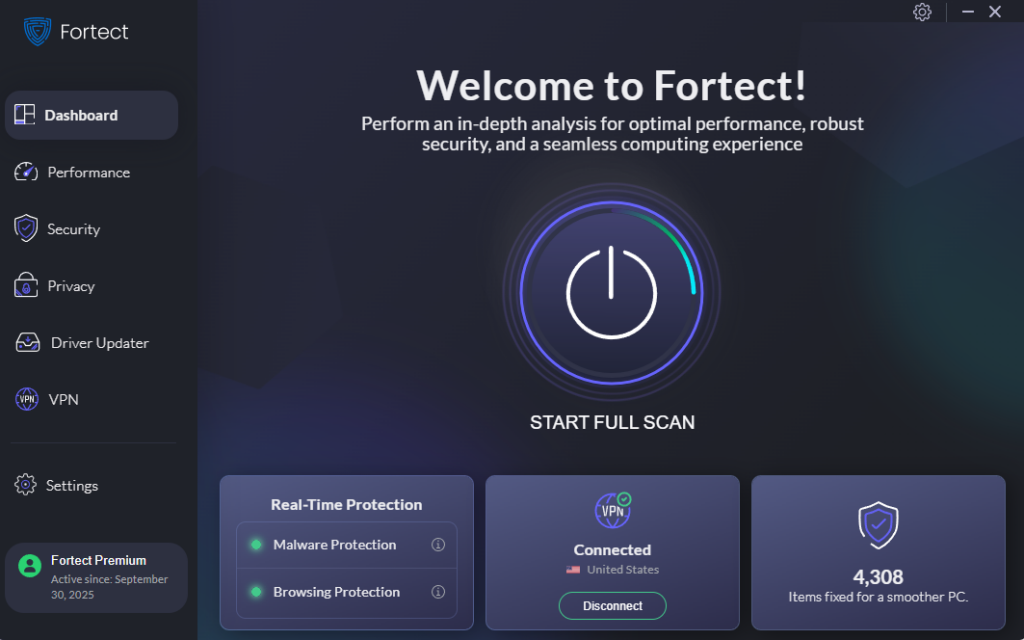
Even with careful, safe downloading practices, sophisticated fake installers can slip through. That’s where comprehensive protection software becomes essential. Fortect delivers advanced real-time malware protection specifically designed for Windows users facing modern installer threats. It automatically scans your PC for both traditional and , including deceptive installer packages that mimic legitimate software.
When threats are detected, Fortect safely eliminates them and restores any damaged system files, ensuring optimal performance. Its intelligent threat-detection engine continuously monitors suspicious download activity and alerts you before harmful installations can execute, providing an extra security layer that complements your safe downloading habits and keeps your device protected around the clock.
Download and install Fortect now.
Use Antivirus Software
Install reputable antivirus software that scans downloads in real-time. Windows Defender provides solid baseline protection, but third-party solutions offer additional layers of security.
Enable User Account Control
User Account Control (UAC) prompts you before programs make changes to your system. Never disable this feature, as it provides critical protection against unauthorized installations.
Create Restore Points
Before installing new software, create a system restore point. This allows you to revert changes if you accidentally install malware.
What to Do If You’ve Downloaded Suspicious Software
If you suspect you’ve downloaded fake installer malware, disconnect from the internet immediately. Run a full system scan with your antivirus software and consider using Windows Defender Offline Scan for stubborn infections. Change your passwords from a different device and monitor your accounts for suspicious activity.
Conclusion
Safe downloading practices are your first line of defense against fake installer malware. By verifying sources, checking digital signatures, keeping Windows updated, and recognizing warning signs, you significantly reduce your risk of infection. Remember that cybercriminals constantly evolve their tactics, so staying informed and cautious protects both your device and personal information from increasingly sophisticated threats.



![Beware of these 8 PC Tune Up Tools [Malware Risk]](https://wp-cdn.fortect.com/uploads/2023/04/24173257/speeditup-425x300.jpg)