Protect Your Windows PC From Free Streaming Download Malware
Free streaming sites and download platforms promise unlimited entertainment without subscription fees, but they come with a hidden cost: malware. Every year, millions of Windows users fall victim to malicious software disguised as movie downloaders, streaming apps, and video players. Understanding these threats and knowing how to protect yourself is essential for keeping your PC safe.
What Is Free Streaming Download Malware?

Free streaming download malware refers to malicious software distributed through unofficial streaming websites, torrent sites, and fake media download platforms. These threats often masquerade as legitimate video players, codec installers, or download managers required to access free content.
Common Types of Streaming-Related Malware
Trojans arrive bundled with video downloader applications, creating backdoors for hackers to access your system remotely. Adware floods your browser with intrusive pop-ups and redirects, tracking your browsing habits while degrading performance. Ransomware can encrypt your personal files, demanding payment for their release. Spyware monitors your keystrokes, stealing passwords, banking information, and personal data. Cryptominers silently use your PC’s resources to mine cryptocurrency, causing overheating and system slowdowns.
How Malware Spreads Through Streaming Sites
Cybercriminals exploit users’ desire for free entertainment through multiple distribution methods. Fake download buttons on streaming sites trick users into downloading malware instead of actual content. Malicious browser extensions promise enhanced streaming capabilities but install trackers and adware. Compromised torrent files contain hidden malware alongside video files. Phishing emails advertise “exclusive” streaming access, leading to infected downloads.
Warning Signs Your PC Is Infected
Your system may be compromised if you notice sudden performance slowdowns, unexpected pop-ups appearing even when browsers are closed, unfamiliar programs running at startup, browser homepage or search engine changes without your permission, disabled antivirus software, or unusual network activity when you’re not actively browsing.
How to Protect Your Windows PC From Streaming Malware
Strengthen Your PC Security with Fortect
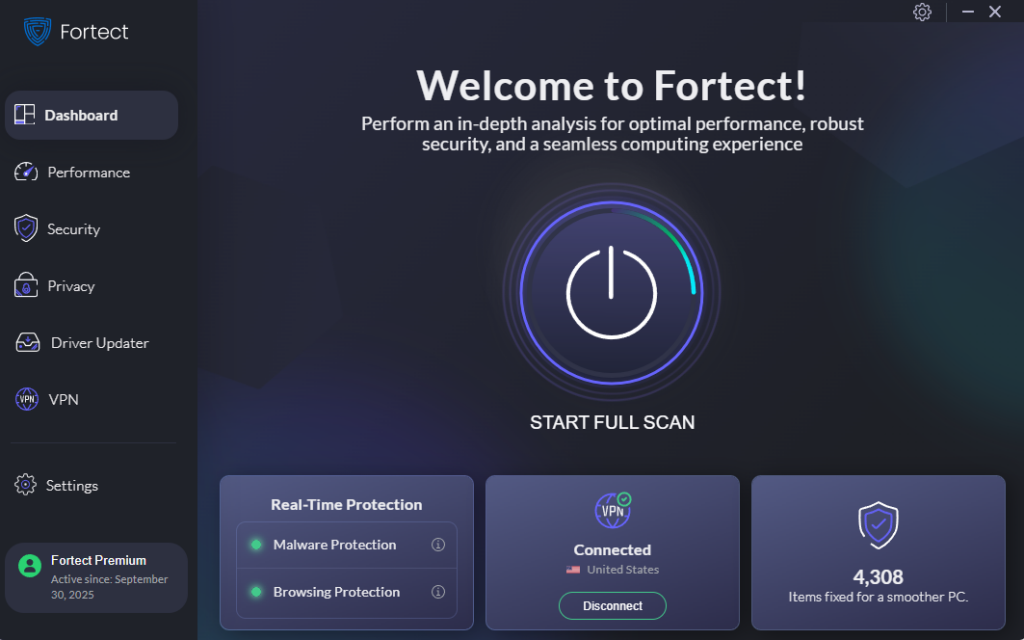
Fortect delivers advanced real-time malware protection specifically designed for Windows users. It automatically scans your PC for both traditional and emerging threats, including malware from free streaming sites that often evades basic security tools. The software eliminates these threats safely while restoring any damaged system files to improve overall performance. Its smart threat-detection engine continuously monitors suspicious activity, alerting you before harmful actions can compromise your device. This proactive approach helps keep your PC secure and running efficiently, especially when browsing streaming sites or downloading media content.
Download and install Fortect now.
Enable Windows Security Features
Windows 10 and 11 include built-in protection tools that defend against malware when properly configured.
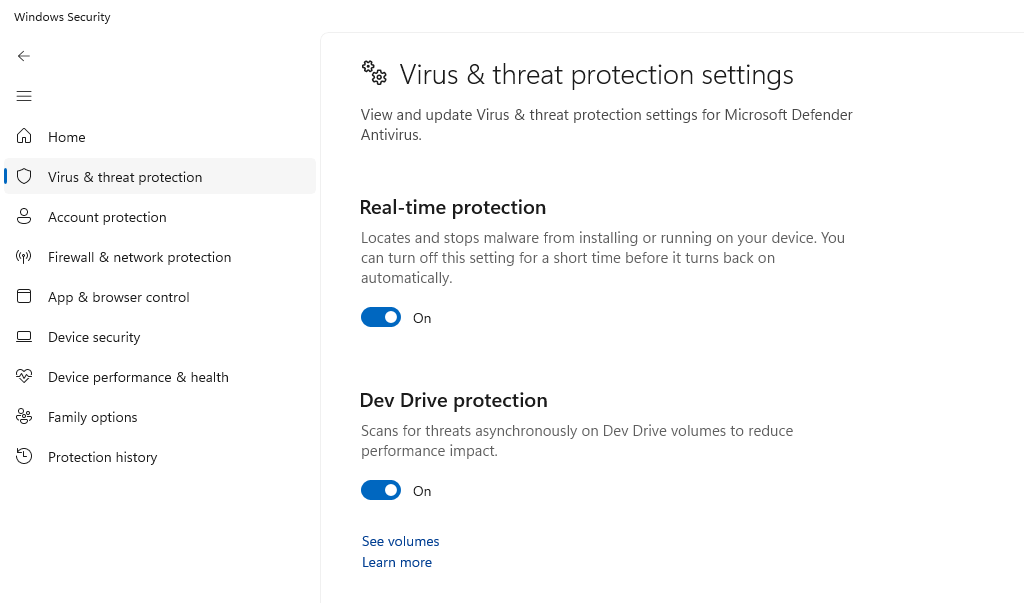
1: Press the Windows key and type “Windows Security,” then press Enter.
2: Click “Virus & threat protection” from the menu.
3: Under “Virus & threat protection settings,” click “Manage settings.”
4: Enable “Real-time protection,” “Cloud-delivered protection,” and “Automatic sample submission.”
5: Click “App & browser control” in the left sidebar.
6: Set “Reputation-based protection” to “Block apps,” “Block downloads,” and “Potentially unwanted app blocking” to On.
Keep Windows Updated
Security patches close vulnerabilities that malware exploits to infect your system.
1: Press Windows key + I to open Settings.
2: Click “Update & Security” (Windows 10) or “Windows Update” (Windows 11).
3: Click “Check for updates” and install all available updates.
4: Under “Advanced options,” enable “Receive updates for other Microsoft products” to keep all software current.
5: Set active hours to prevent interruptions, then enable automatic updates to maintain continuous protection.
Use Standard User Accounts for Daily Activities
Administrator accounts give malware unrestricted system access, making standard accounts safer for everyday use.
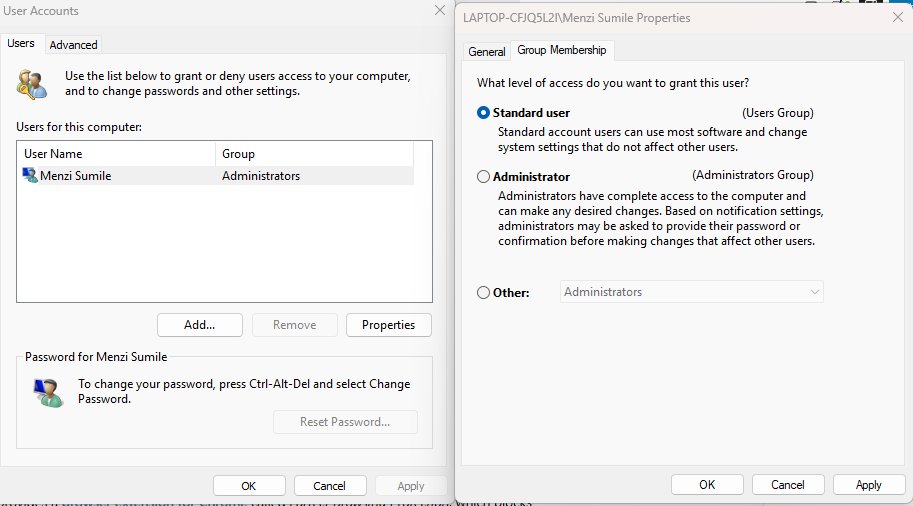
1: Press Windows key + I to open Settings.
2: Navigate to “Accounts” and select “Family & other users.”
3: Click “Add account” and create a new Microsoft account or local account.
4: Select the new account and click “Change account type.”
5: Set the account type to “Standard User” and click OK.
6: Log into your standard account for browsing and streaming, reserving your administrator account for system changes only.
Install a Reputable Browser Extension
Ad-blockers and security extensions prevent malicious pop-ups and fake download buttons from appearing. Install uBlock Origin or similar trusted extensions from official browser stores. Configure them to block pop-ups, suspicious scripts, and third-party trackers. Avoid installing unknown extensions promising “free premium” streaming access.
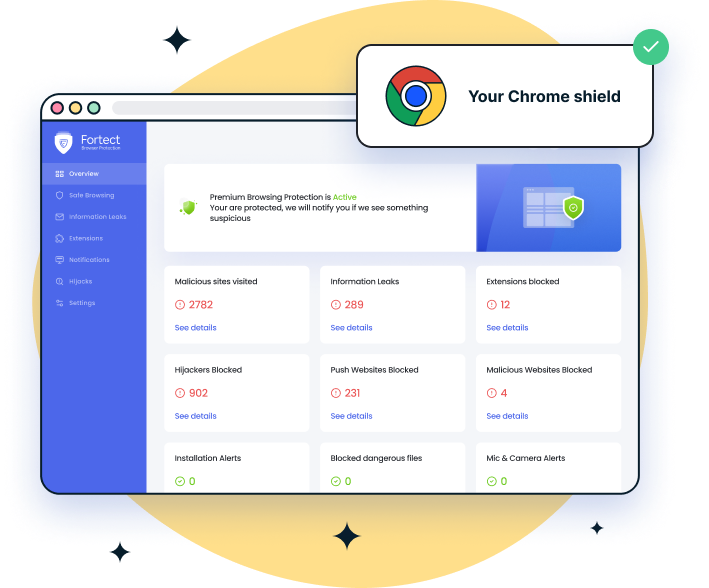
For Chrome users, this easy-to-use extension adds an extra layer of protection. Fortect Browsing Protection blocks dangerous websites before they load, flags suspicious pages to help prevent scams, and removes harmful extensions that could put your data at risk.
Safe Alternatives to Risky Streaming Sites
Legitimate streaming platforms offer affordable options that protect your security. Free, legal services like Tubi, Pluto TV, and Crackle provide ad-supported content without malware risks. Budget-friendly subscriptions from Netflix, Disney+, and Amazon Prime Video cost less than potential PC repairs. Your local library often provides free access to streaming services like Kanopy and Hoopla.
What to Do If You Downloaded Malware
If you suspect infection, disconnect from the internet immediately to prevent data theft. Boot Windows into Safe Mode by holding Shift while clicking Restart, then choosing Troubleshoot > Advanced Options > Startup Settings > Restart > Safe Mode. Run a full system scan using Windows Security or reputable third-party antivirus software. Remove detected threats and uninstall suspicious programs through Settings > Apps > Installed apps. Change all passwords from a secure device after cleaning your PC.
Staying Vigilant While Streaming
Your best defense against free streaming download malware combines security tools with smart browsing habits. Never download software from streaming sites claiming you need special players or codes; legitimate videos play in modern browsers without additional downloads. Verify URLs before clicking, avoiding sites with suspicious domains or excessive ads. Read user reviews before downloading any streaming application. When deals seem too good to be true, they usually are.
Protecting your Windows PC doesn’t mean sacrificing entertainment. By using legitimate platforms, maintaining updated security software, and recognizing red flags, you can enjoy streaming content without exposing your personal information and system to dangerous malware threats.