Protect Windows Users from Gaming Account Hackers
Gaming account hackers are targeting Windows users at an alarming rate. From Steam to Epic Games, Battle.net to Xbox Live, cybercriminals exploit vulnerabilities to steal credentials, in-game items, and personal information. If you’re a Windows gamer, understanding how these attacks happen and implementing strong security measures is essential to protecting your gaming accounts.
How Gaming Account Hackers Target Windows Users
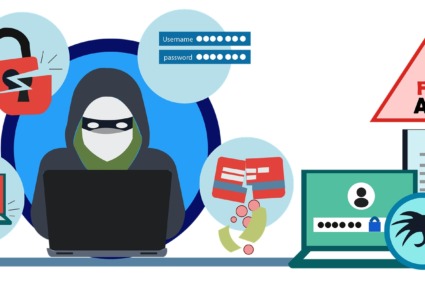
Hackers employ multiple tactics to compromise gaming accounts on Windows systems. Phishing emails that mimic official game platform communications trick users into entering credentials on fake login pages. Keyloggers and malware silently record your keystrokes when you type passwords. Credential stuffing attacks use leaked passwords from other websites to access your gaming accounts if you’ve reused the same login information.
Windows computers are particularly vulnerable because of their popularity. Hackers develop malware specifically designed to target Windows operating systems, knowing the vast majority of gamers use these devices. Outdated software, weak passwords, and missing security updates create easy entry points for cybercriminals looking to steal valuable gaming accounts.
Enable Two-Factor Authentication for Gaming Platforms
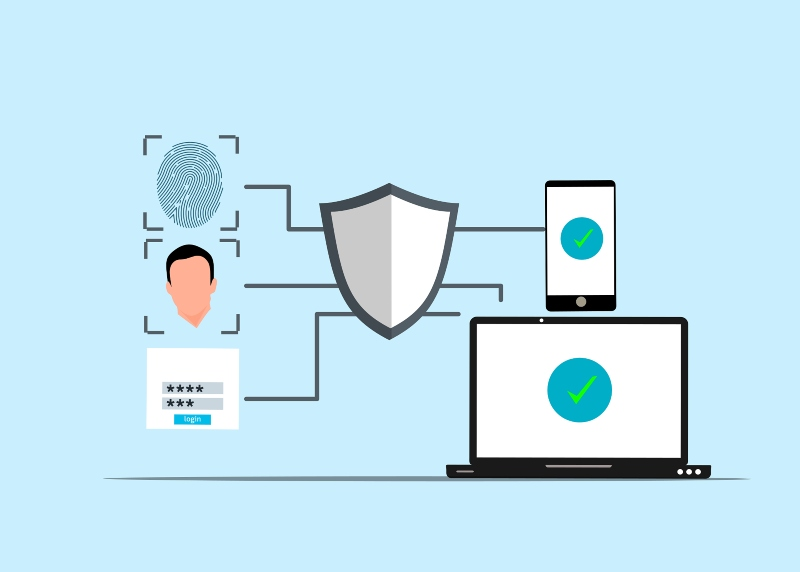
Two-factor authentication (2FA) adds a critical security layer that stops gaming account hackers even if they obtain your password. Every major gaming platform offers this feature, and enabling it takes just minutes.
For Steam, log into your account through a web browser, click your username, select “Account Details,” then “Manage Steam Guard Account Security.” Choose either email or mobile authenticator protection. The Steam Mobile Authenticator app provides the strongest security.
On Epic Games, access your account settings, select the “Password & Security” tab, and scroll to “Two-Factor Authentication.” You can choose between an authenticator app, email, or SMS verification.
Battle.net users should visit their account security page, click “Set up Authenticator,” and download the Battle.net Authenticator app for iOS or Android. Microsoft accounts connected to Xbox follow similar steps through the Microsoft account security page.
Secure Your Windows System Against Malware
Gaming account hackers frequently use malware to steal credentials directly from your Windows PC. Strengthening your system security prevents these attacks before they compromise your accounts.
Strengthen Your PC Security with Fortect
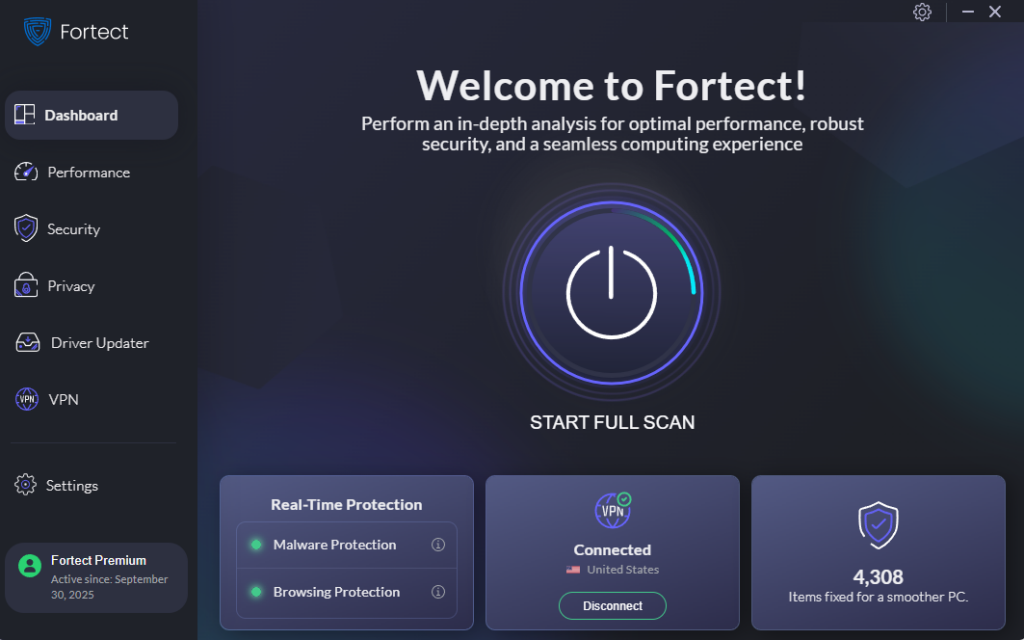
Fortect delivers advanced real-time malware protection specifically designed for Windows users, defending against gaming account hackers. It automatically scans your PC for traditional and emerging threats, including keyloggers, credential stealers, and malicious software used by gaming account hackers to compromise your login information. Fortect eliminates these threats safely and restores damaged system files that could leave vulnerabilities for attackers to exploit. Its smart threat-detection engine monitors suspicious activity in real-time and alerts you before harmful actions can steal your gaming credentials, helping keep your accounts secure while maintaining optimal system performance for gaming.
Download and install Fortect today.
Update Windows Regularly
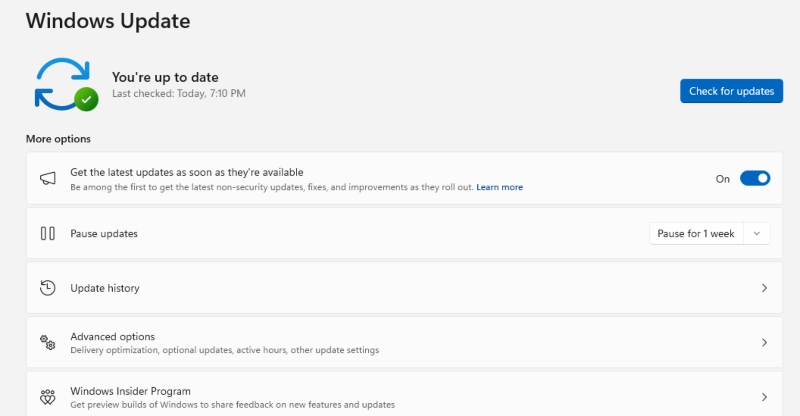
For Windows 11:
- Click the Start button and select “Settings”
- Navigate to “Windows Update” in the left sidebar
- Click “Check for updates”
- Install all available updates and restart when prompted
- Enable “Get the latest updates as soon as they’re available” for advanced protection
For Windows 10:
- Press Windows key + I to open Settings
- Select “Update & Security”
- Click “Windows Update” then “Check for updates”
- Download and install all available updates
- Configure automatic updates under “Advanced options”
Enable Windows Security Features
Windows Defender provides robust protection against gaming malware without requiring third-party software. Open Windows Security by searching for it in the Start menu. Ensure “Real-time protection,” “Cloud-delivered protection,” and “Automatic sample submission” are all enabled under “Virus & threat protection settings.”
Enable ransomware protection to prevent unauthorized changes to protected folders where games store save files. Navigate to “Virus & threat protection,” select “Manage ransomware protection,” and turn on “Controlled folder access.”
Create Strong, Unique Passwords for Each Gaming Account
Password reuse is a gift to gaming account hackers. When one service experiences a data breach, criminals test those credentials across every major gaming platform. Creating unique passwords for Steam, Epic Games, Battle.net, Origin, and other accounts limits damage from any single breach.
Strong passwords contain at least 12 characters mixing uppercase and lowercase letters, numbers, and symbols. Avoid personal information like birthdays, pet names, or favorite games that hackers can guess or find on social media.
Password managers solve the challenge of remembering multiple complex passwords. Windows 11 includes Microsoft Password Manager built into the Edge browser, or you can use dedicated applications like Bitwarden or 1Password to generate and store unique passwords for every gaming account.
Recognize and Avoid Gaming Phishing Scams
Gaming account hackers craft convincing phishing messages that appear to come from legitimate gaming platforms. These scams claim you’ve won exclusive items, violated terms of service, or need to verify your account immediately. The urgent tone pressures you into clicking on malicious links without thinking.
Legitimate gaming companies never ask for passwords via email. They don’t send unsolicited links requiring immediate login. Before clicking any link in gaming-related emails, hover over it to preview the destination URL. Phishing sites use domains that look similar but contain slight misspellings like “steampowered-security.com” instead of “steampowered.com.”
When you receive suspicious messages, visit the gaming platform directly by typing the official URL into your browser rather than clicking email links. Check your account dashboard for legitimate notifications.
Restrict User Accounts on Shared Windows Computers
If multiple people use your Windows PC, standard user accounts prevent others from installing malware that could compromise your gaming credentials.

For Windows 11:
- Open Settings and select “Accounts”
- Click “Family & other users”
- Under “Other users,” click “Add account”
- Follow prompts to create a new local or Microsoft account
- After creating the account, click on it and select “Change account type”
- Set the account type to “Standard User” instead of “Administrator”
For Windows 10:
- Go to Settings > Accounts > Family & other users
- Click “Add someone else to this PC”
- Complete the account creation process
- Select the new account and click “Change account type”
- Choose “Standard User” from the dropdown menu
Standard users can run games and applications, but cannot install software or change system settings without administrator approval. This prevents accidental malware installation that gaming account hackers distribute through fake game mods or cheat programs.
Monitor Your Gaming Accounts for Suspicious Activity
Regular monitoring helps you detect gaming account hackers before significant damage occurs. Check login history on each platform monthly. Steam shows recent login locations under Account Details. Epic Games displays active sessions in account settings, where you can sign out suspicious devices.
Enable email notifications for account changes. When hackers access accounts, they often attempt to change passwords or email addresses. Immediate alerts let you respond quickly by resetting credentials and contacting platform support.
Review connected applications and revoke access to tools you no longer use. Third-party apps with account permissions can become security vulnerabilities if their developers experience breaches.
Protect Your Gaming Investment Today
Gaming account hackers won’t stop targeting Windows users, but implementing these security measures dramatically reduces your risk. Enable two-factor authentication across all gaming platforms, keep Windows updated, use unique passwords, and stay alert for phishing attempts. Your gaming accounts contain hundreds or thousands of dollars in games and items worth protecting. Take action now to secure your digital gaming library before hackers strike.