Policy-as-Code Security: Automating Compliance & Protection
Policy-as-code security is becoming a practical way for Windows users to automate security rules, enforce compliance, and reduce risky system changes. Instead of manually adjusting settings, predefined policies control how the operating system behaves. This approach helps prevent unauthorized access, restrict harmful applications, and ensure consistent protection across Windows 10 and Windows 11 devices.
For everyday users, policy-as-code security works through built-in tools such as Windows Security, Group Policy, Microsoft Defender, and system configuration rules. These policies can automatically block unsafe downloads, restrict account privileges, and enforce updates. When configured properly, policy-based protection reduces human error and strengthens overall system security.
What Is Policy-as-Code Security?
Policy-as-code security involves defining security rules in a structured format, allowing them to be automatically enforced by the system. Instead of manually remembering which settings to enable, policies ensure Windows consistently applies security controls.
This approach focuses on:
- Automated security enforcement
- Continuous compliance protection
- Reduced misconfiguration risks
- Consistent Windows security settings
- Preventing unauthorized system changes
For example, policies can automatically block unknown apps, require antivirus protection, restrict administrator access, and enforce firewall rules. Once configured, Windows applies these protections without requiring repeated manual actions.
Why Policy-as-Code Security Matters for Windows Users
Many threats rely on misconfigured settings, outdated systems, or excessive permissions. Policy-as-code security reduces these risks by standardizing protection.
Key benefits include:
Automated Compliance Protection
Security policies automatically enforce antivirus, firewall, and update requirements. This ensures the system always follows safe configurations.
Reduced Human Error
Manual security changes often lead to mistakes. Policy-based rules prevent accidental disabling of critical protections.
Stronger Malware Defense
Policies can restrict unknown apps, block suspicious scripts, and limit risky downloads.
Consistent Security Across Accounts
Family PCs or shared devices benefit from consistent restrictions applied to all users.
Common Policy-as-Code Security Examples in Windows
Windows already supports policy-based security controls that act like policy-as-code implementations.
Application Control Policies
Restrict which apps are allowed to run. Unknown or malicious programs can be blocked automatically.
User Permission Policies
Standard accounts prevent software installation without approval, reducing malware risk.
Update Enforcement Policies
Windows automatically installs security updates to maintain compliance.
Firewall and Network Policies
Inbound connections can be restricted to prevent unauthorized access.
Defender Antivirus Policies
Real-time protection remains enabled and cannot be easily disabled.
How to Guide: Apply Policy-as-Code Security on Windows 10/11
Windows users can implement policy-as-code security using built-in settings. These steps help automate compliance and strengthen protection.
Restrict Users to Standard Accounts
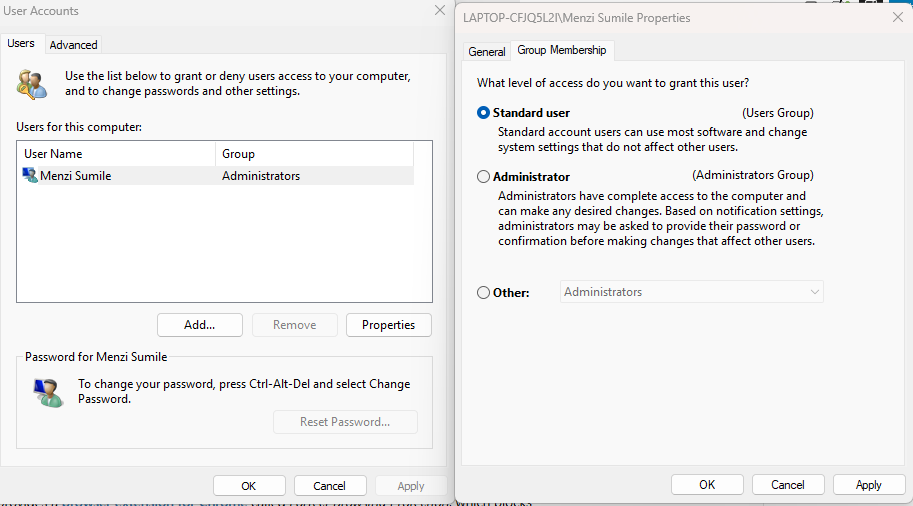
Limiting admin privileges prevents unauthorized changes and enforces policy-based protection.
Steps for Windows 10/11:
- Press Windows + I to open Settings
- Go to Accounts
- Click Family & other users
- Select the account to modify
- Click Change account type
- Choose Standard User
- Click OK
This policy prevents installations or system changes without permission.
Enable Microsoft Defender Real-Time Protection
Real-time protection enforces continuous policy-based malware detection.
Steps:
- Open Settings
- Click Privacy & Security
- Select Windows Security
- Click Virus & threat protection
- Open Manage settings
- Turn on Real-time protection
- Enable Tamper Protection
These settings ensure protection policies remain enforced.
Enforce Windows Updates Automatically
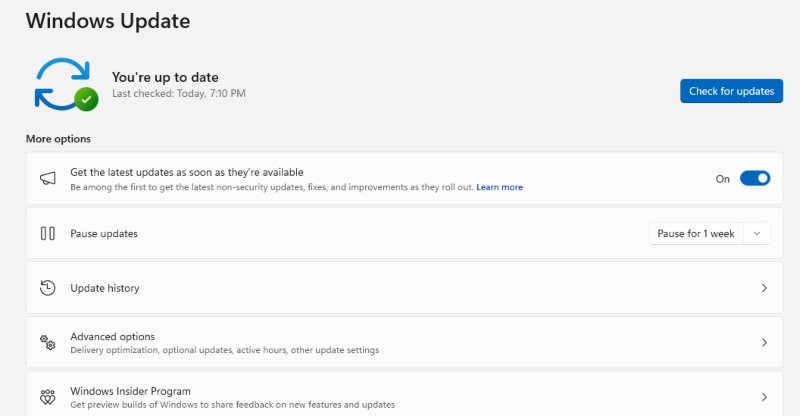
Update policies to keep systems compliant with the latest security patches.
Steps:
- Open Settings
- Click Windows Update
- Select Advanced options
- Enable Receive updates automatically
- Turn on Restart as soon as possible
- Return and click Check for updates
This ensures automatic compliance with security updates.
Turn On Windows Firewall Policy
Firewall policies block unauthorized connections.
Steps:
- Open Control Panel
- Click System and Security
- Select Windows Defender Firewall
- Click Turn Windows Defender Firewall on or off
- Enable Firewall for Private and Public networks
- Click OK
Firewall policies help prevent network-based attacks.
Strengthen Your PC Security with Fortect
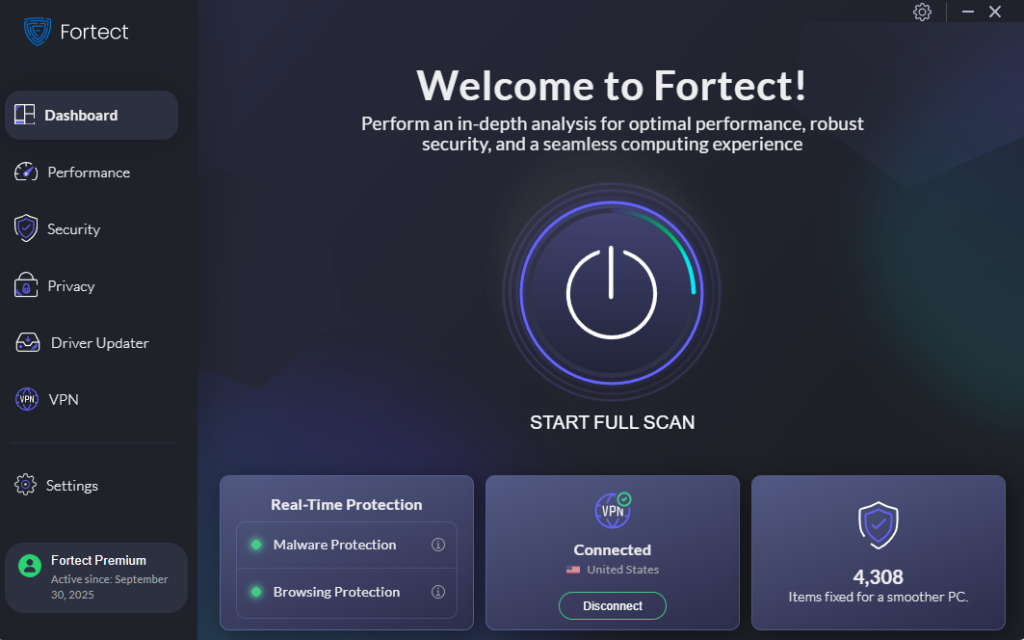
Fortect delivers advanced real-time malware protection for Windows users. It automatically scans your PC for traditional and emerging threats, including misconfigurations in Policy-as-Code security setups. Then, it safely eliminates malicious activity and restores damaged system files to improve overall performance. Its smart detection engine continuously monitors suspicious behavior, enforces security consistency, and alerts users before harmful actions escalate, helping keep the device secure, stable, and running efficiently.
Download and install Fortect now.
Fortect for Mac: Strengthening Policy-as-Code Security
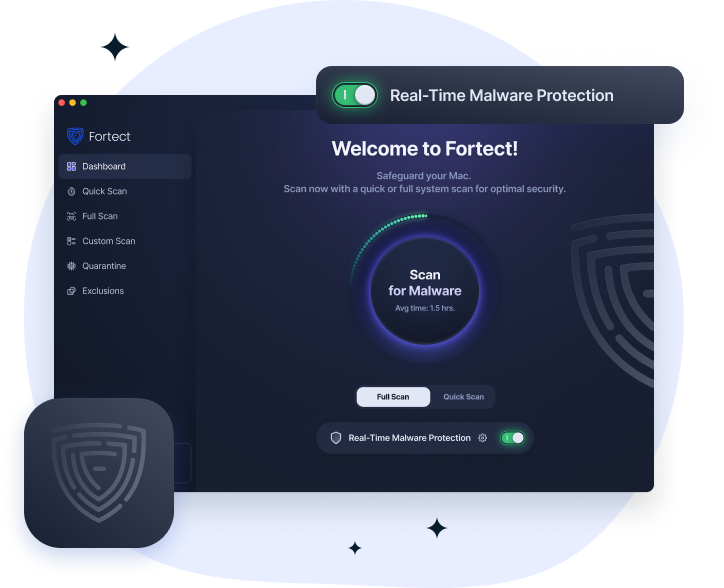
Fortect for Mac helps reinforce Policy-as-Code Security by supporting consistent enforcement of security rules and detecting unauthorized changes that could weaken system policies. It provides real-time malware protection, full system scans, and cloud-based threat intelligence to identify risky applications such as fake VPN tools or trojanized apps that may try to bypass macOS protections like Gatekeeper.
By continuously monitoring system behavior, Fortect helps ensure security policies remain intact, prevents unauthorized modifications, and restores affected system files when needed. This keeps macOS environments more stable, compliant, and protected while maintaining strong, policy-driven security enforcement.
Best Practices for Policy-as-Code Security on Windows
Use Standard Accounts Daily
Avoid using administrator accounts for regular tasks. This enforces security policies.
Keep SmartScreen Enabled
SmartScreen policies block malicious downloads and unsafe apps.
Enable Controlled Folder Access
Protect important files from ransomware by restricting unauthorized changes.
Review Security Settings Regularly
Ensure policies remain active and have not been modified.
Avoid Disabling Security Features
Disabling Defender, firewall, or updates weakens policy-based protection.
Signs Your PC Lacks Policy-Based Security
Systems without policy-as-code security may show:
- Frequent malware infections
- Unknown apps are installing automatically
- Disabled antivirus protection
- Firewall turned off
- Unexpected system changes
- Unauthorized user modifications
These symptoms indicate weak or missing security policies.
How Policy-as-Code Security Improves Protection
Policy-as-code security strengthens Windows protection by automating critical rules. Instead of relying on manual checks, the operating system continuously enforces security requirements. This reduces configuration errors, blocks suspicious activity, and ensures compliance with recommended security settings.
For Windows users, this approach simplifies protection. Once policies are applied, the system maintains security automatically. Combined with regular updates, restricted permissions, and real-time monitoring, policy-based protection helps keep devices secure against evolving threats.