Malware Targeting Freelancers and Remote Workers
The shift to remote work has created unprecedented opportunities for cybercriminals. Freelancers and remote workers have become prime targets for malware attacks, with hackers exploiting home networks, personal devices, and less secure work environments. Understanding these threats and implementing proper security measures is essential for protecting your digital workspace and sensitive client information.
Why Freelancers Are Vulnerable

Freelancers and remote workers face unique cybersecurity risks that traditional office employees often avoid. Without dedicated IT teams to monitor networks, apply security policies, and manage updates, freelancers depend on personal security habits and consumer-grade tools. Cybercriminals are well aware of this gap and increasingly design attacks specifically to exploit remote work environments.
Common attack methods include phishing emails disguised as client messages, malicious files posing as project assets, giveaway scams, and compromised collaboration tools. Fake job postings, social engineering through messaging platforms, unpatched software, and dual-use personal/work devices further increase exposure. The most common threats include ransomware, spyware, remote access trojans (RATs), info-stealers, and macro-based malware, capable of stealing credentials, encrypting critical files, and silently monitoring activity.
Most Common Malware Types
Ransomware encrypts your files and demands payment for restoration. For freelancers, this could mean losing client projects, portfolios, and irreplaceable work.
Spyware silently monitors your activities, capturing passwords, financial information, and confidential client data. This malware often goes undetected for months.
Trojan horses disguise themselves as legitimate software, project management tools, productivity apps, or file converters, while secretly installing malicious code on your system.
Keyloggers record every keystroke, compromising passwords, bank details, and sensitive communications with clients.
How to Protect Your Windows 10/11 System
Strengthen Your PC Security with Fortect
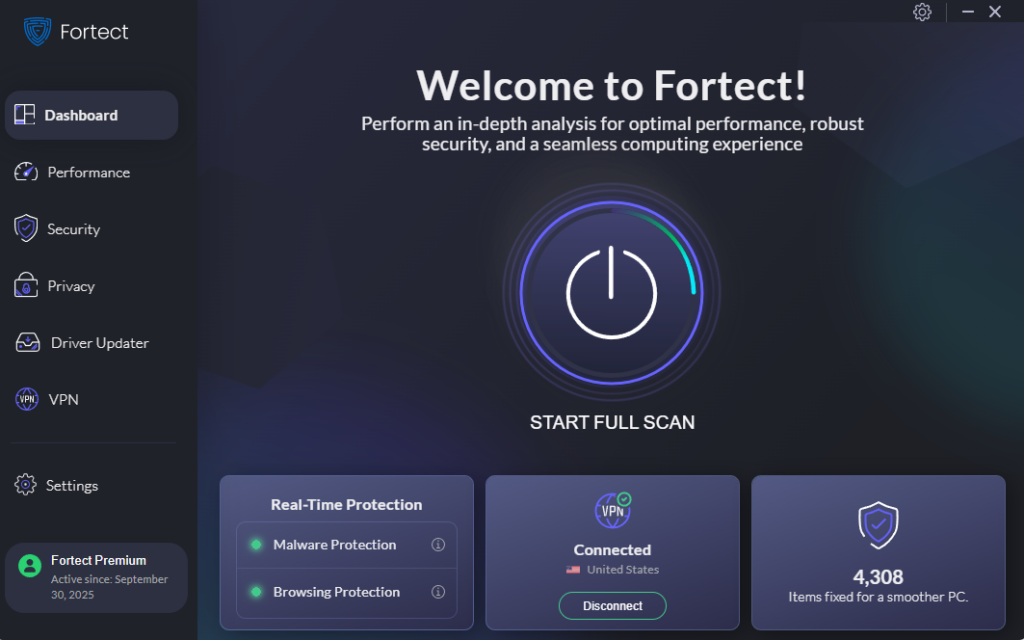
As a freelancer or remote worker, your computer is your livelihood; protecting it from malware targeting freelancers and remote workers should be your top priority. Fortect delivers advanced real-time malware protection specifically designed for independent professionals who can’t afford downtime or data loss. It automatically scans your PC for both traditional and emerging threats, including ransomware, spyware, and keyloggers that specifically target remote workers, eliminates them safely, and restores damaged system files for improved performance.
Its smart threat-detection engine continuously monitors suspicious activity and alerts you before harmful actions can take place, helping keep your freelance business secure and your system running efficiently without interrupting critical client deadlines.
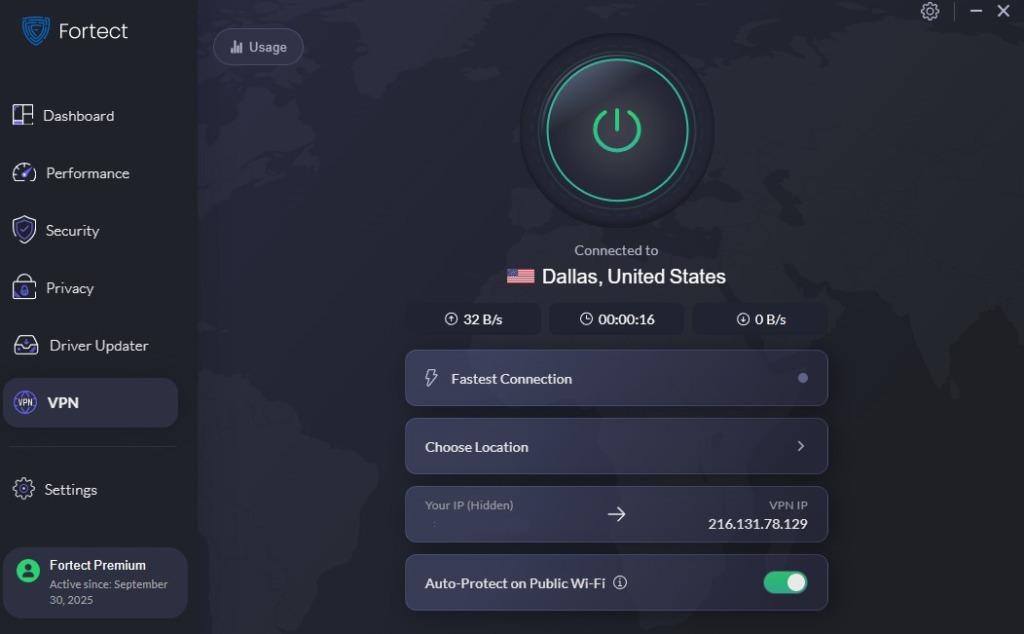
Malware increasingly targets remote workers and freelancers, often exploiting unsecured networks to steal sensitive data or deliver ransomware. Fortect Premium now includes a built-in VPN with Auto-Protect for public Wi-Fi, keeping your connection secure even on open networks. Encrypting your internet traffic, it protects your data from hackers who exploit unprotected connections, a common gateway for zero-day attacks, spyware, and other network-based threats.
With Fortect Premium, you can work confidently from anywhere, knowing your devices and information are shielded from modern cyber risks.
Download and install Fortect on your Windows system today.
Fortect for Mac: Strengthen Your Defense Beyond macOS
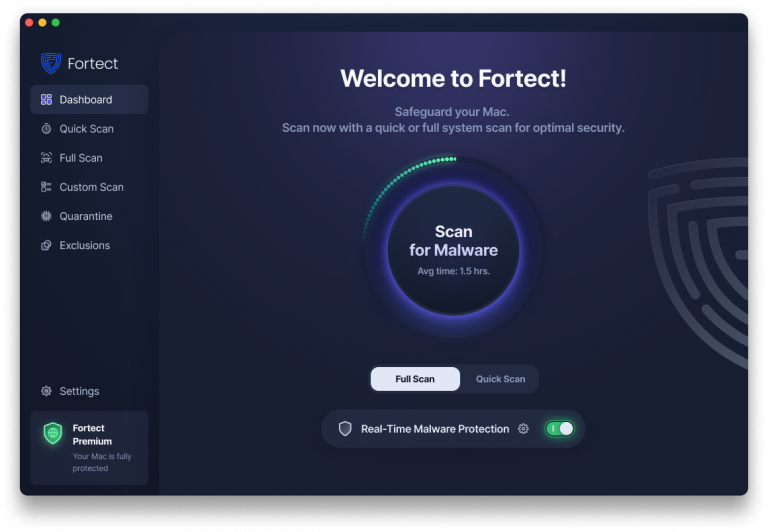
Cybercriminals are evolving fast, and they’re no longer targeting only Windows users. Many freelancers and creative professionals use Macs, making them attractive targets for sophisticated attacks. Fortect doesn’t just protect Windows from advanced cyber threats; Mac users working remotely are now fully supported as well, recognizing that modern ransomware, spyware, and stealth attacks are increasingly designed to bypass traditional macOS defenses. With threats becoming more complex and more frequent, relying solely on built-in security is no longer enough for remote professionals handling sensitive client data.
Fortect for Mac delivers robust, real-time protection that works alongside Apple’s native security rather than replacing it. It fills the critical gaps that attackers often exploit and shields your system from threats you may not even be aware of, especially important when managing multiple client projects and confidential information.
Fortect for Mac delivers always-on real-time malware defense that instantly detects and blocks malicious activity without interrupting your workflow or important client calls. It uses cloud-based threat intelligence to quickly identify new and emerging attack patterns, including those specifically targeting freelancers. When you need a fast check between projects, the Quick Smart Scan efficiently detects and resolves issues in minutes.
For deeper protection, the Full System Scan thoroughly examines your entire machine, ensuring comprehensive security and repair of critical work files.
Enable Windows Security Features
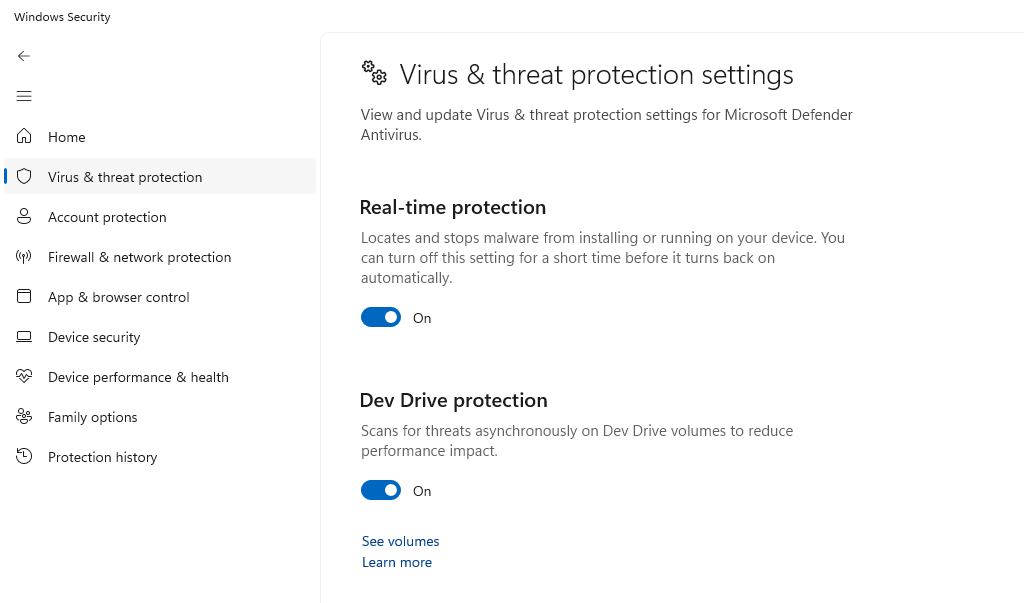
Windows includes built-in protection that many users neglect to fully activate. Here’s how to maximize your security:
1: Press the Windows key and type “Windows Security”
2: Click on “Virus & threat protection”
3: Ensure “Real-time protection” is turned ON
4: Click “Manage settings” and enable “Cloud-delivered protection” and “Automatic sample submission”
5: Under “Virus & threat protection updates,” click “Check for updates” to ensure you have the latest definitions
Keep Windows Updated
Security patches address vulnerabilities that malware exploits. Follow these steps to enable automatic updates:
1: Press Windows key + I to open Settings
2: Click “Windows Update” (Windows 11) or “Update & Security” (Windows 10)
3: Click “Advanced options”
4: Toggle ON “Receive updates for other Microsoft products”
5: Under “Additional options,” ensure automatic updates are enabled
6: Return to Windows Update and click “Check for updates” to install any pending patches
Configure User Account Control
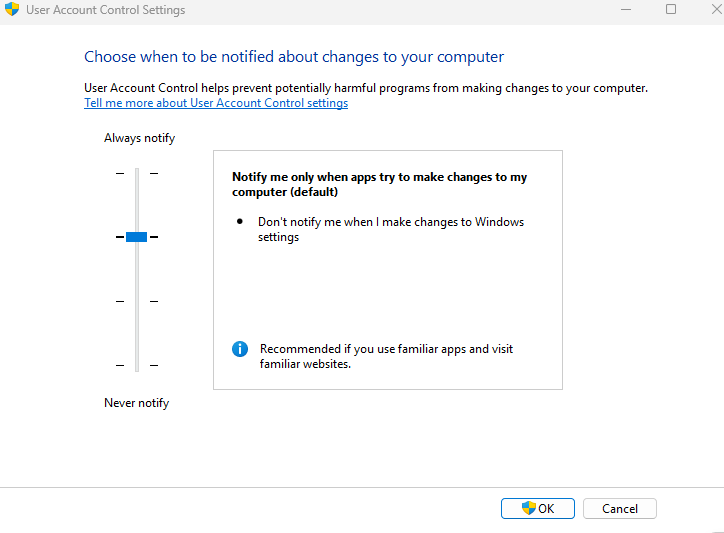
Restricting user permissions prevents malware from making system-level changes without your approval.
1: Type “UAC” in the Windows search bar
2: Select “Change User Account Control settings”
3: Move the slider to “Always notify”
4: Click “OK” and restart your computer
This ensures you receive alerts before any software makes changes to your system.
Essential Security Practices for Remote Workers
Secure Your Network Connection
Never use public Wi-Fi for work without protection. Invest in a reputable VPN service to encrypt your internet traffic. Configure your home router with a strong, unique password and enable WPA3 encryption in router settings.
Practice Email Vigilance
Scrutinize every email before opening attachments or clicking links. Verify sender addresses carefully; cybercriminals often use addresses that differ by a single character from legitimate contacts. Hover over links to preview destinations before clicking.
Use Strong Authentication
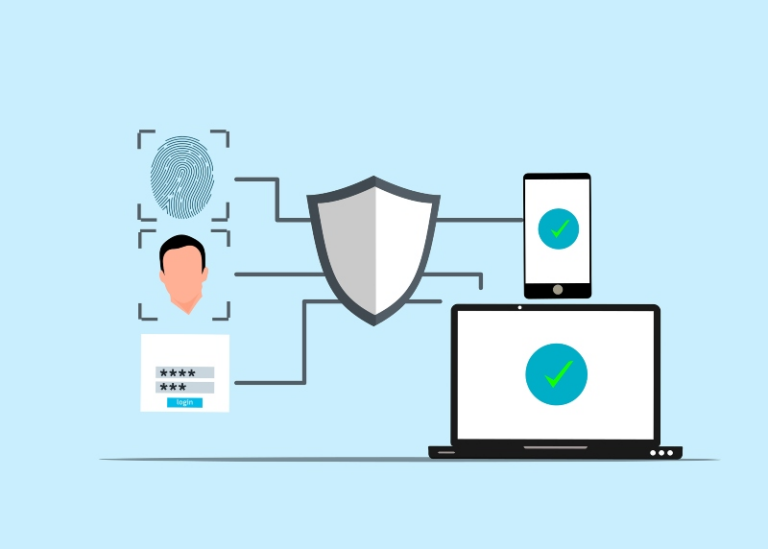
Enable two-factor authentication on all work-related accounts. Use a password manager to generate and store complex, unique passwords for each service. Never reuse passwords across multiple platforms.
Regular Backup Strategy
Implement the 3-2-1 backup rule: maintain three copies of important data, stored on two different media types, with one copy offsite. Windows includes built-in backup tools accessible through Settings > System > Storage > Advanced storage settings > Backup options.
Recognizing Infection Signs
Monitor your system for warning indicators: unexplained slowdowns, unexpected pop-ups, disabled security software, unfamiliar programs in startup, or unusual network activity. If you notice these symptoms, disconnect from the internet immediately and run a full system scan.
Taking Action Today
Cybersecurity isn’t optional for freelancers, essential for long-term success. With rising threats such as fake job opportunities and fake scholarships specifically targeting freelancers, staying protected is more critical than ever. Start by keeping Windows updated, enabling built-in security features, and maintaining reliable backup routines. These foundational steps reduce your risk of malware, phishing scams, and data breaches while safeguarding your income and client trust. Strong digital security isn’t just protection; it’s an investment in the stability and growth of your remote career.