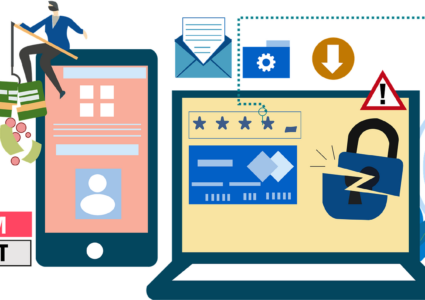
Malware in PNG Images: How Steganography Hides Cyber Threats
Cybercriminals have discovered clever ways to hide malicious code inside innocent-looking image files. Malware embedded in PNG images poses a growing threat by exploiting steganography, the practice of concealing data within other files. Understanding how these hidden threats work and protecting your Windows computer has never been more critical.
What Is Steganography and How Does It Hide Malware?
Steganography is a technique that embeds secret information inside digital files without altering their appearance. Unlike encryption, which scrambles data to make it unreadable, steganography hides the existence of the data altogether.
How Attackers Embed Malware in PNG Files
PNG (Portable Network Graphics) files are ideal targets for steganography because they support lossless compression and contain metadata sections where attackers can hide malicious payloads. Cybercriminals modify pixel values or inject code into unused file segments, making detection extremely difficult.
When you download or open an infected PNG image, the hidden malware can execute automatically or wait for a trigger. The image itself looks completely normal, displaying a meme, photo, or graphic, while secretly carrying ransomware, trojans, or spyware.
Common Attack Methods Using Infected Images
Hackers distribute malware-laden PNG files through phishing emails, compromised websites, social media platforms, and fake download links. Once the infected image reaches your computer, embedded scripts can steal personal information, install backdoors, or encrypt your files for ransom.
Signs Your PNG Files May Contain Hidden Threats
Detecting steganography-based malware is challenging, but certain warning signs can alert you to potential dangers:
- Unusual file sizes: PNG images that are significantly larger than similar images may contain hidden data
- Unexpected behavior: Your system slows down, or programs crash after opening specific images
- Antivirus alerts: Security software flags image files as suspicious
- Strange file properties: Metadata shows inconsistencies or unusual modification dates
How to Protect Your Windows Computer from Image-Based Malware
Taking proactive security measures can significantly reduce your risk of infection from malicious PNG files.
Strengthen Your PC Security with Fortect
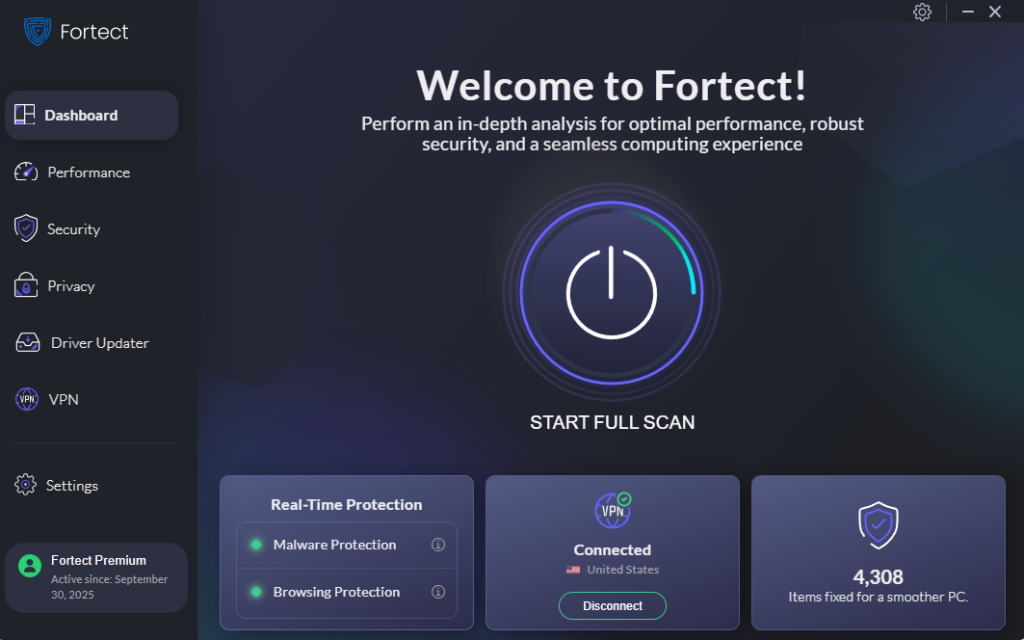
Fortect delivers advanced real-time malware protection for Windows users. It automatically scans your PC for traditional and emerging threats, including malware in PNG images, eliminates them safely, and restores damaged system files for improved performance. Its smart threat-detection engine monitors suspicious activity and alerts you before harmful actions occur, helping keep your device secure and running efficiently.
Download and install Fortect today.
Keep Windows Defender Updated
Windows 10 and 11 include built-in protection through Windows Defender. Here’s how to ensure it’s current:
- Click the Start button and select Settings (gear icon)
- Navigate to Update & Security (Windows 10) or Windows Update (Windows 11)
- Click Check for updates
- Install any available updates, including security definitions
- Restart your computer if prompted
Enable Real-Time Protection and Cloud-Delivered Protection
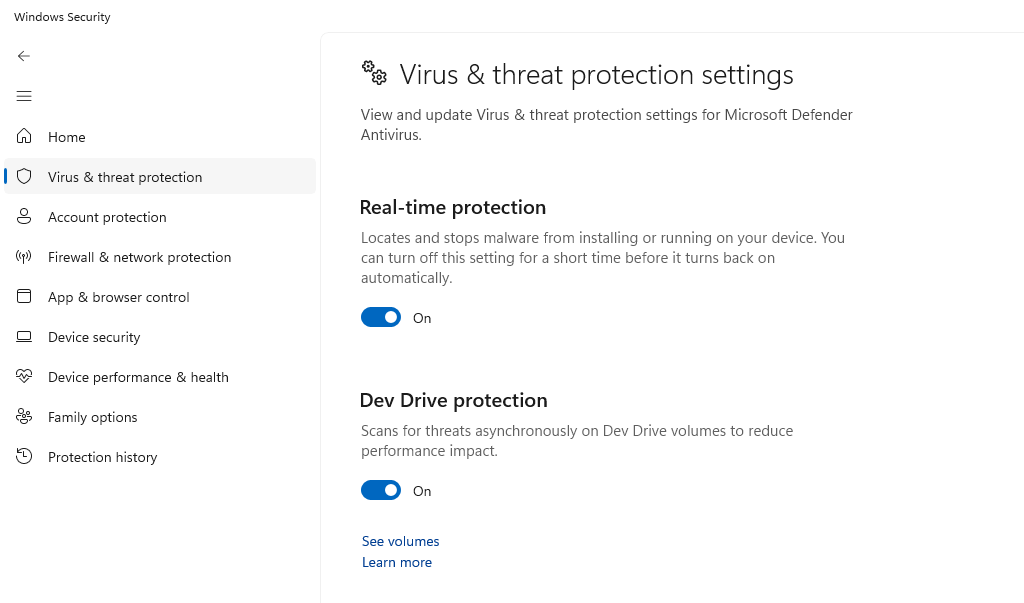
- Open Windows Security by searching for it in the Start menu
- Select Virus & threat protection
- Click Manage settings under “Virus & threat protection settings”
- Toggle ON both “Real-time protection” and “Cloud-delivered protection”
- Enable “Automatic sample submission” for enhanced detection
Scan Downloaded Images Before Opening
- Right-click any downloaded PNG file in File Explorer
- Select Show more options (Windows 11) or go directly to step 3 (Windows 10)
- Choose Scan with Microsoft Defender
- Wait for the scan to complete before opening the file
- Delete the file immediately if threats are detected
Configure SmartScreen Filter
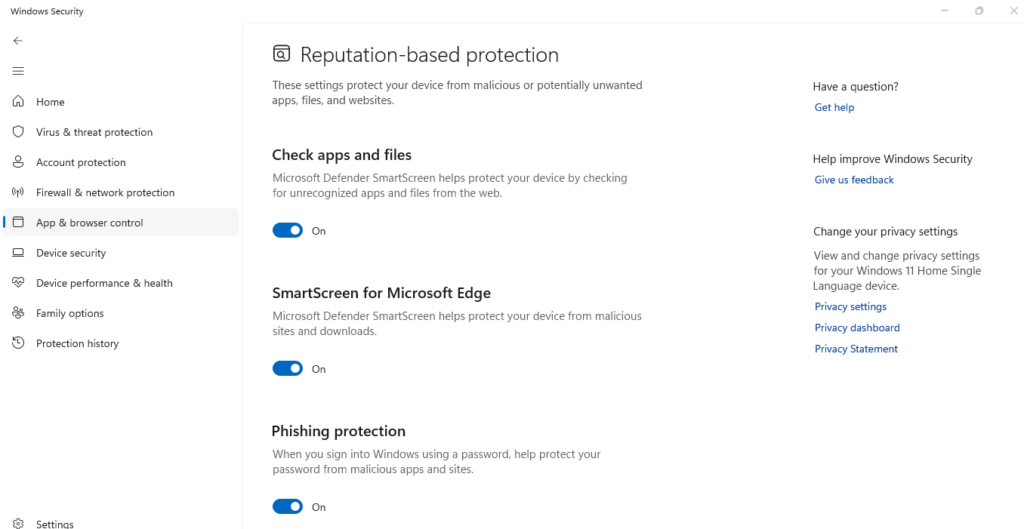
SmartScreen helps block malicious downloads:
- Open Windows Security from the Start menu
- Select App & browser control
- Under “Reputation-based protection,” click Reputation-based protection settings
- Ensure all SmartScreen options are turned ON
- Set “Potentially unwanted app blocking” to ON
Best Practices to Avoid PNG Malware Infections
Beyond Windows security features, following these habits will keep you safer:
Download from trusted sources only: Avoid downloading images from unknown websites, suspicious email attachments, or unverified social media accounts.
Disable automatic image loading: Configure your email client to prevent images from loading automatically, giving you time to assess sender legitimacy.
Use browser extensions: Install reputable security extensions that scan downloads and warn about dangerous websites.
Verify file authenticity: Check file hashes or digital signatures when downloading images from official sources.
Keep all software updated: Regularly update your browser, image viewers, and other applications that handle PNG files.
What to Do If You Suspect Infection
If you believe malware in PNG images has compromised your system:
- Disconnect from the internet immediately
- Run a full system scan using Windows Defender
- Delete any quarantined threats
- Change passwords for important accounts from a clean device
- Consider professional malware removal if problems persist
Conclusion
Malware in PNG images demonstrates how cybercriminals weaponize everyday files through steganography. While these threats are sophisticated, maintaining updated Windows security features, practicing cautious download habits, and scanning files before opening them provides robust protection. Stay vigilant about the images you download, and your Windows computer will remain secure against these hidden cyber threats.