Malicious Loaders: Detect & Stop Installers Early
Malicious loaders are one of the most dangerous and least-discussed cybersecurity threats facing everyday Windows users. These stealthy programs disguise themselves as legitimate software installers, then quietly install malware, spyware, or ransomware in the background, often without a single visible warning sign.
Understanding what malicious loaders are, how they work, and how to stop them before they cause damage is essential for anyone who downloads software online.
What Are Malicious Loaders?
A malicious loader (also called a malware loader, dropper, or installer-based threat) is a type of malicious software designed to deliver and execute additional payloads on a victim’s device. Unlike standalone malware, loaders act as a delivery mechanism; their sole job is to get through your defenses and install something worse.
How Malicious Loaders Work
Malicious loaders typically follow a predictable attack chain:
- Disguise — The loader is bundled inside a fake or tampered installer (e.g., a cracked game, pirated software, or a fake Adobe or driver update).
- Execution — When the user runs the installer, the loader silently executes in the background.
- Payload delivery — The loader connects to a remote server (command-and-control or C2 server) and downloads the actual malware.
- Persistence — It creates registry entries, scheduled tasks, or startup entries to survive reboots.
- Evasion — Many loaders use code obfuscation, process injection, or fileless techniques to avoid antivirus detection.
Common Types of Malware Dropped by Loaders
- Infostealers (e.g., RedLine, Vidar) — steal passwords, browser cookies, and crypto wallets
- RATs (Remote Access Trojans) — give attackers full control of the infected system
- Ransomware — encrypt files and demand payment
- Keyloggers — record every keystroke, including banking credentials
- Cryptominers — silently use CPU/GPU resources to mine cryptocurrency
How Malicious Loaders Reach Your PC
Fake Software Downloads
Fake or unofficial download sites for popular software (VPNs, video editors, game cheats, activators) are the most common distribution method. Users searching for “free” versions of paid tools are primary targets.
Phishing Emails with Malicious Attachments
Emails with urgency-based subject lines often carry infected attachments disguised as invoices, shipping notifications, or software updates. Opening the attachment launches the loader.
Malvertising
Online ads, even on reputable websites, can redirect users to download pages for trojanized installers. This technique is called malvertising (malicious advertising).
Torrent and Warez Sites
Cracked software and game patches downloaded via torrents frequently contain bundled loaders. These are among the highest-risk download sources for Windows users.
Warning Signs Your PC May Have a Malicious Loader
Recognizing early symptoms can prevent a full compromise:
- Unexpected slowdowns — Background payload downloads or cryptomining drain system resources
- Antivirus alerts during or after installation — Even partial detections are serious
- Unknown startup programs — New entries in Task Manager’s Startup tab after installing something
- Unusual network activity — Frequent outbound connections to unfamiliar IP addresses
- Browser behavior changes — New extensions, changed homepage, or redirected searches
- Disabled Windows Defender or firewall — Loaders often disable security tools as a first step
How to Detect Malicious Loaders on Windows 10/11
Check Running Processes in Task Manager
- Press Ctrl + Shift + Esc to open Task Manager.
- Click the Details tab.
- Look for processes with random or unusual names (e.g., svchost32.exe, updater_v2.exe).
- Right-click any suspicious process → Open file location to inspect where it’s running from.
- Processes running from %AppData%, %Temp%, or %LocalAppData% are high-risk locations.
Review Startup Entries
- Open Task Manager → click the Startup tab.
- Disable any unrecognized entries by right-clicking → Disable.
- For a deeper view, press Win + R, type msconfig, hit Enter, then check the Startup tab for hidden entries.
Check Recently Installed Programs
- Press Win + I → go to Apps → Installed Apps.
- Sort by Install Date to find programs installed recently.
- Uninstall anything unfamiliar or that appeared without your knowledge.
Scan with Windows Security
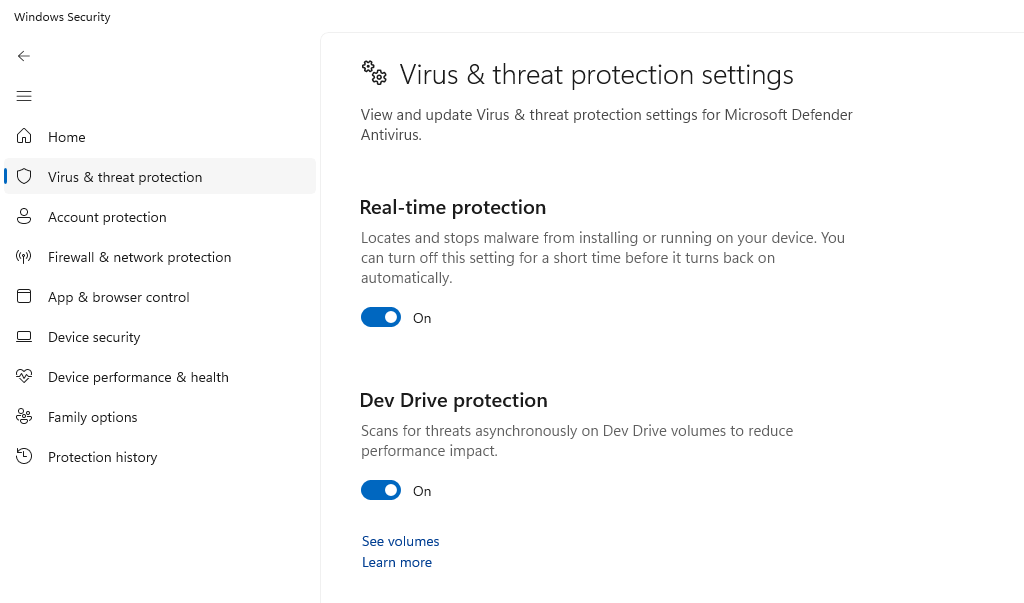
- Press Win + S, type Windows Security, and open it.
- Go to Virus & threat protection → Quick scan or Full scan.
- For persistent threats, choose Windows Defender Offline Scan — this runs before Windows loads, catching loaders that hide during boot.
Use Autoruns (Advanced Detection)
Microsoft’s free Autoruns tool (from Sysinternals) shows every auto-starting location, far more than Task Manager.
- Download Autoruns from the official Microsoft/Sysinternals website.
- Run it as Administrator.
- Look for entries with no publisher, red highlights, or paths pointing to temp folders.
- Right-click suspicious entries → Delete to remove them.
Strengthen Your PC Security with Fortect
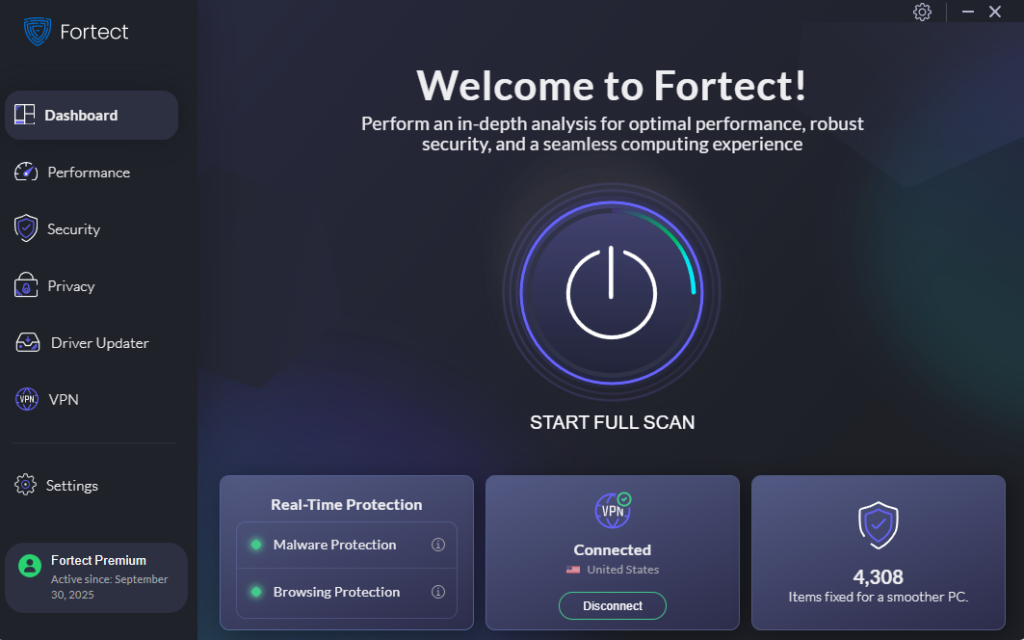
Once a manual scan reveals suspicious activity, the next step is making sure threats are fully removed and your system is restored to a healthy state. Fortect delivers advanced real-time malware protection built specifically for Windows users. It automatically scans your PC for traditional and emerging threats, including malicious loaders, eliminates them safely, and restores damaged system files for improved performance. Its robust threat-detection engine monitors suspicious activity and alerts you before harmful actions can take place, helping keep your device secure and running efficiently even after a close call with an infected installer.
Download and install Fortect now.
How to Stop Malicious Loaders Before They Execute
Enable SmartScreen Protection
Windows SmartScreen blocks known malicious files and unverified publishers before they run.
Steps to enable SmartScreen on Windows 10/11:
- Press Win + I → go to Privacy & security → Windows Security.
- Click App & browser control.
- Under Reputation-based protection, click Reputation-based protection settings.
- Set Check apps and files to Warn or Block.
- Enable SmartScreen for Microsoft Edge and Potentially unwanted app blocking.
Keep Windows Updated
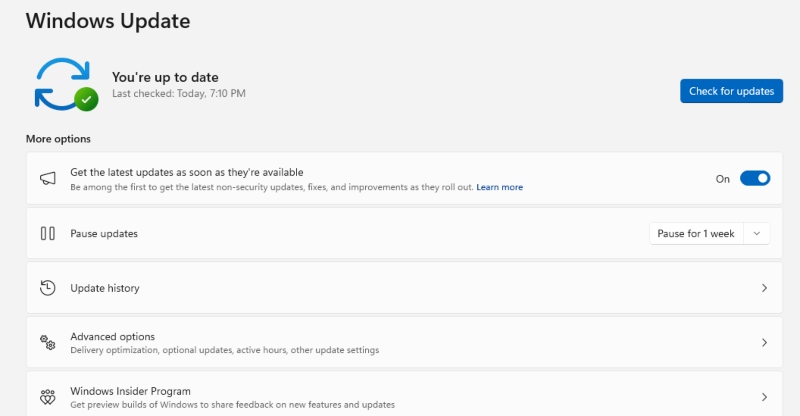
Malicious loaders frequently exploit unpatched Windows vulnerabilities.
Steps to update Windows 10/11:
- Press Win + I to open Settings.
- Go to Windows Update.
- Click Check for updates.
- Install all available updates, including optional driver updates.
- Restart your PC when prompted.
Restrict Installation Privileges (Standard User Account)
Running as a standard user (not Administrator) prevents most loaders from completing their installation.
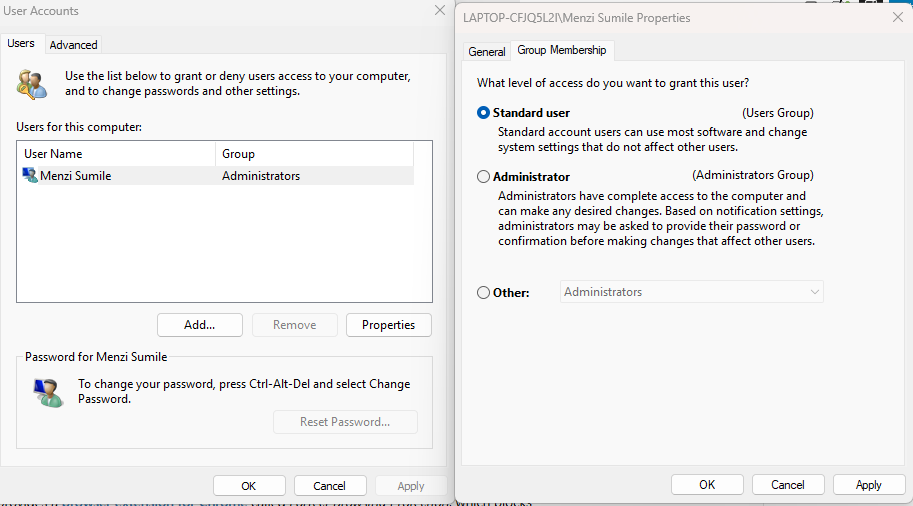
Steps to create and use a standard user account on Windows 10/11:
- Press Win + I → go to Accounts → Family & other users.
- Click Add account (Windows 11) or Add someone else to this PC (Windows 10).
- Select I don’t have this person’s sign-in information → Add a user without a Microsoft account.
- Create the account and assign it Standard User privileges (not Administrator).
- Use this standard account for daily tasks and web browsing.
Only Download from Official Sources
- Always download software directly from the developer’s official website.
- Avoid “download aggregator” sites, even well-known ones.
- Verify the SHA-256 hash of installers when provided by the developer.
- Never run .exe or .msi files received via email from unknown senders.
What to Do If a Loader Has Already Infected Your PC
- Disconnect from the internet immediately to cut off C2 communication.
- Boot into Safe Mode — Press Win + R, type msconfig → Boot tab → check Safe boot → restart.
- Run a full offline scan using Windows Defender Offline or a bootable antivirus rescue disk.
- Change all passwords from a clean, uninfected device after removal.
- Check for data exfiltration — review recent login activity on email, banking, and social accounts.
- If infection persists, consider a clean reinstall of Windows using the official Microsoft Media Creation Tool.
Final Thoughts
Malicious loaders thrive on user trust and momentary inattention. A single click on an unofficial installer can hand attackers complete access to personal files, banking credentials, and private communications. The best defense combines updated software, enabled SmartScreen protections, a limited user account, and a healthy skepticism toward any installer that doesn’t come from a verified, official source.
Staying informed and practicing safe download habits remains the most powerful tool available to everyday Windows users against this growing category of cyber threats.