
How to Block Hidden Screen Recorder Malware
Screen recorder malware represents one of the most invasive cyber threats targeting Windows users today. These hidden programs silently capture everything on your screen, from passwords to banking information, without your knowledge. Understanding how to detect and block these malicious tools is essential for protecting your personal data and privacy.
Understanding Screen Recorder Malware
Screen recorder malware operates stealthily in the background, recording your desktop activity while remaining invisible to the average user. Unlike legitimate screen recording software, these malicious programs run without permission and transmit your sensitive data to cybercriminals. They capture keystrokes, login credentials, credit card numbers, and private conversations, making them particularly dangerous for personal banking and online shopping.
These threats often arrive through phishing emails, fake software downloads, or compromised websites. Once installed, they can monitor your activity for weeks or months before being detected.
Signs Your Computer May Be Infected
Performance Issues
If your computer suddenly runs slower than usual or your CPU usage remains high even when idle, screen recording malware could be consuming system resources. Check Task Manager regularly for unfamiliar processes running in the background.
Unusual Network Activity
Malware transmits recorded data to remote servers, creating unexpected network traffic. Monitor your internet usage for unexplained spikes, especially when you’re not actively browsing or downloading files.
Webcam and Microphone Indicators
Windows 10 and 11 display notification icons when your camera or microphone is active. If these indicators appear without your permission, malware may be recording audio or video.
How to Detect Screen Recording Malware on Windows
Strengthen Your PC Security with Fortect
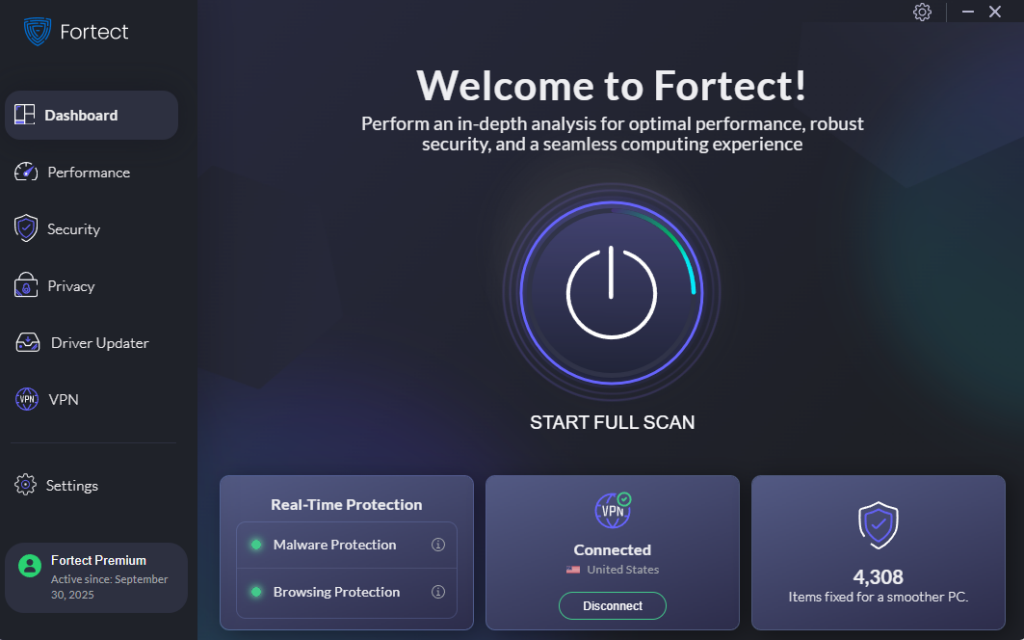
Fortect delivers advanced real-time malware protection specifically designed for Windows users facing screen recorder malware threats. It automatically scans your PC for both traditional and emerging threats, including hidden screen recording malware, eliminates them safely, and restores damaged system files for improved performance. Its smart threat-detection engine continuously monitors suspicious activity and alerts you before screen recorder malware can capture your sensitive information, helping keep your device secure and running efficiently.
Download and install Fortect now.
Manual Detection Methods
1: Review Running Processes
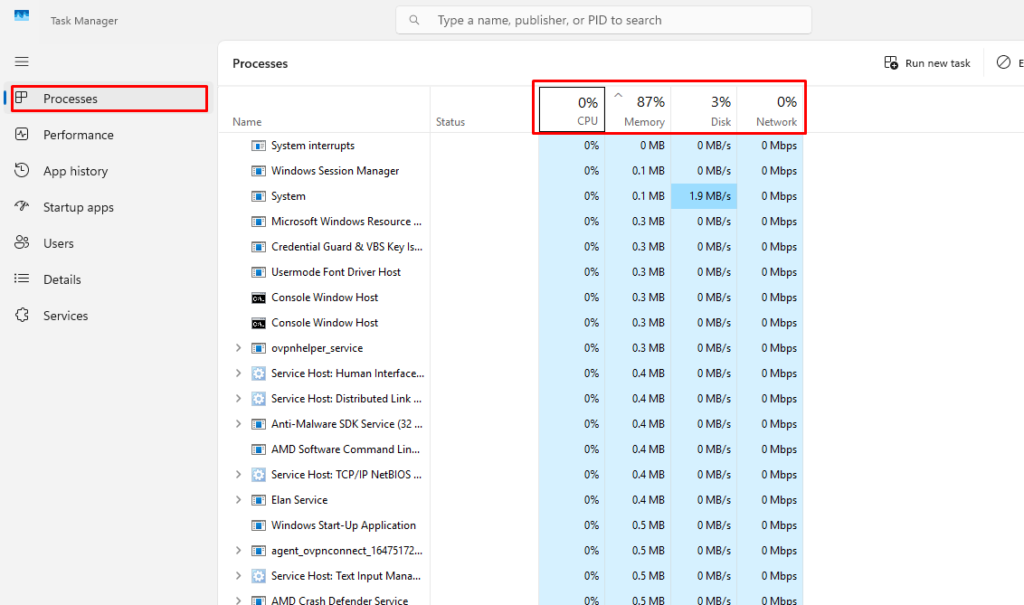
- Press Ctrl + Shift + Esc to open Task Manager
- Click the Processes tab
- Look for unfamiliar applications with high CPU or memory usage
- Right-click suspicious processes and select Search online to verify legitimacy
- End any confirmed malicious processes
2: Check Startup Programs
- Open Task Manager and select the Startup tab
- Review all programs set to launch at startup
- Disable any unrecognized applications by right-clicking and selecting Disable
- Research any suspicious entries before taking action
3: Scan for Malware
- Open Windows Security by searching in the Start menu
- Navigate to Virus & threat protection
- Click Scan options
- Select Full scan and click Scan now
- Allow the scan to complete (this may take over an hour)
- Follow prompts to remove any detected threats
Blocking Screen Recorder Malware
Enable Windows Defender Real-Time Protection
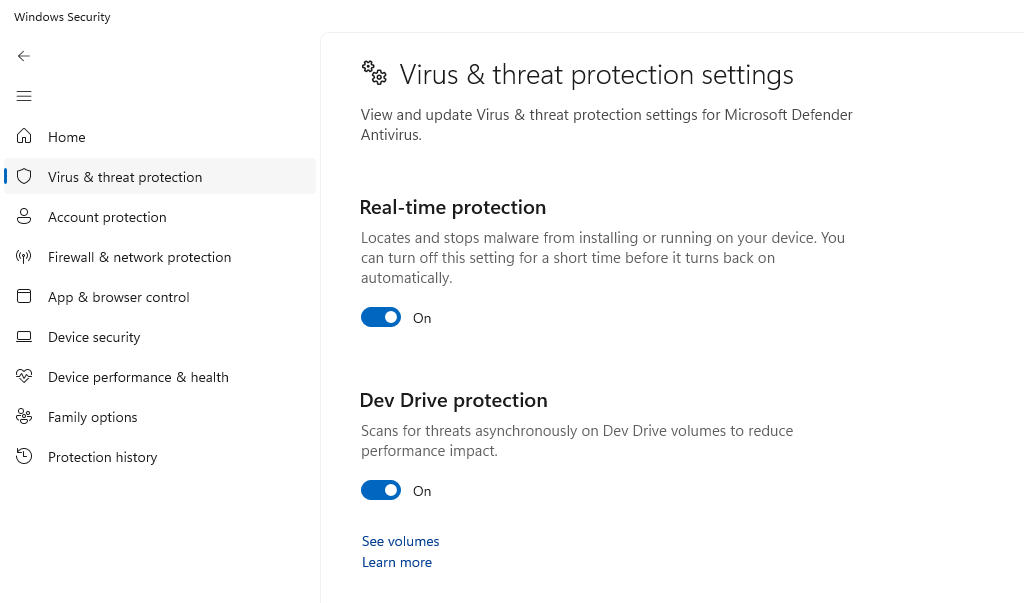
- Open Windows Security from the Start menu
- Select Virus & threat protection
- Click Manage settings under Virus & threat protection settings
- Toggle Real-time protection to On
- Enable Cloud-delivered protection and Automatic sample submission
Keep Windows Updated
- Press Windows key + I to open Settings
- Click Windows Update (or Update & Security in Windows 10)
- Select Check for updates
- Install all available updates
- Restart your computer when prompted
- Enable Automatic updates to receive security patches immediately
Configure Windows Firewall
- Type Windows Defender Firewall in the Start menu
- Click Advanced settings on the left panel
- Review Outbound Rules for suspicious connections
- Block any unrecognized programs from accessing the internet
- Enable firewall notifications for new connection attempts
Use Application Control
- Search for Local Security Policy in the Start menu
- Navigate to Software Restriction Policies
- If no policies exist, right-click and select Create New Policies
- Set the default security level to Disallowed for untrusted locations
- Add trusted programs to the exception list
Additional Protection Measures
Install reputable anti-malware software alongside Windows Defender for layered security. Avoid downloading software from unofficial websites, and always verify the publisher before installation. Use browser extensions that block malicious sites and phishing attempts.
Enable User Account Control (UAC) to receive prompts before programs make system changes. Never grant administrator privileges to unknown applications, and create a standard user account for daily activities instead of using an administrator account.
Taking Action Against Infections
If you confirm screen recorder malware on your system, immediately disconnect from the internet to prevent data transmission. Change all passwords from a clean device, starting with banking and email accounts. Consider performing a complete system restore or fresh Windows installation for severe infections.
Monitor your financial accounts for unauthorized activity and enable two-factor authentication wherever possible. Report the incident to your bank if you entered sensitive information while infected.
Conclusion
Protecting yourself from screen recorder malware requires vigilance and proactive security measures. Regular system scans, timely updates, and careful downloading habits form your first line of defense. By following these steps and remaining alert to warning signs, you can significantly reduce your risk of falling victim to these invasive threats.




