
How Shared Family Files Can Spread Hidden Malware
Sharing photos, documents, and videos with family members seems harmless until hidden malware turns your shared folders into a digital threat.has become a common practice, with parents, siblings, and children exchanging everything from vacation photos to school projects. Unfortunately, cybercriminals exploit this trust, embedding malicious software in seemingly innocent files that can infect every device on your home network.
What Are Shared Family Files?
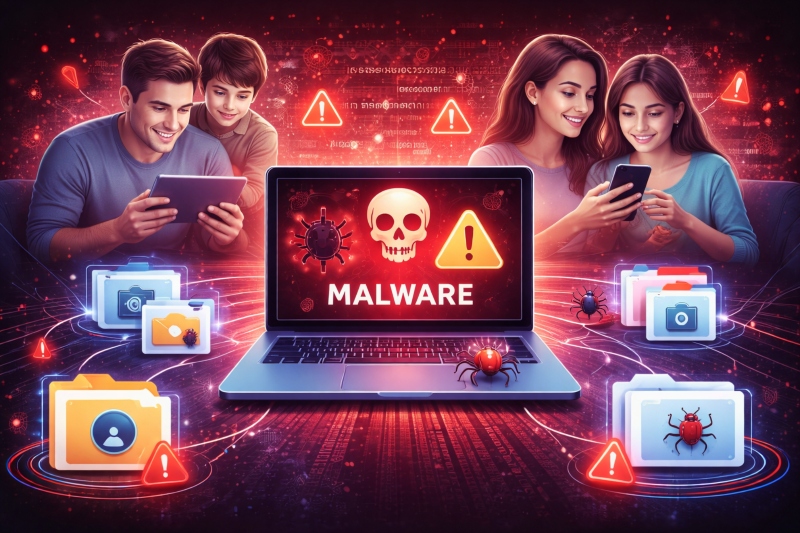
Shared family files are documents, images, videos, or other data that household members exchange through cloud storage services, USB drives, email attachments, or network folders. These files often contain precious memories, important documents, or collaborative projects that multiple family members need to access.
While convenient, this practice creates vulnerabilities. When one infected device shares a file, malware can spread across all connected devices, compromising passwords, financial information, and personal data.
Common File Types That Harbor Malware
Cybercriminals disguise malware in various file formats that families regularly share:
- Microsoft Office documents (.docx, .xlsx, .pptx) with embedded macros
- PDF files containing malicious scripts
- Image files (.jpg, .png) with hidden executable code
- Video files (.mp4, .avi) bundled with trojans
- ZIP or RAR archives containing infected executables
- Shortcut files (.lnk) that download malware when clicked
Infection Methods Through Shared Storage
Cloud storage platforms like Google Drive, Dropbox, or OneDrive become transmission vectors when infected files enter shared family folders. One compromised device uploading malware-laden files can expose everyone with folder access.
External hard drives and USB flash drives pose similar risks. Malware can auto-execute when these devices connect to computers, spreading infections before antivirus software detects the threat.
How Family Trust Enables Malware Spread
Shared family files exploit the inherent trust between household members. Unlike suspicious emails from strangers, files from family members rarely trigger skepticism. When your child shares a school presentation or your spouse uploads vacation photos, you naturally open them without hesitation, exactly what malware creators count on.
This trust-based vulnerability becomes especially dangerous when multiple family members access the same cloud folders. A single infected file uploaded by one person can remain dormant in shared storage for weeks, quietly infecting each family member who downloads or opens it. The malware then spreads laterally across home networks, jumping from device to device through shared folders and network connections.
Warning Signs Your Shared Files Are Infected
Watch for these red flags indicating malware presence in your shared family files:
- Files with double extensions (e.g., “photo.jpg.exe”)
- Unexpected file size changes in previously uploaded documents
- Documents requesting that you enable macros immediately upon opening
- Unfamiliar files appearing in shared folders that no family member recognizes
- Slow system performance after opening shared files
- Antivirus alerts when accessing family folders
- Unexplained network activity or data transfers
- Files that won’t open properly or display corrupted content
- Duplicate files with slightly different names are appearing in shared locations
How to Protect Your Family from File-Based Malware
Enable Windows Security Features
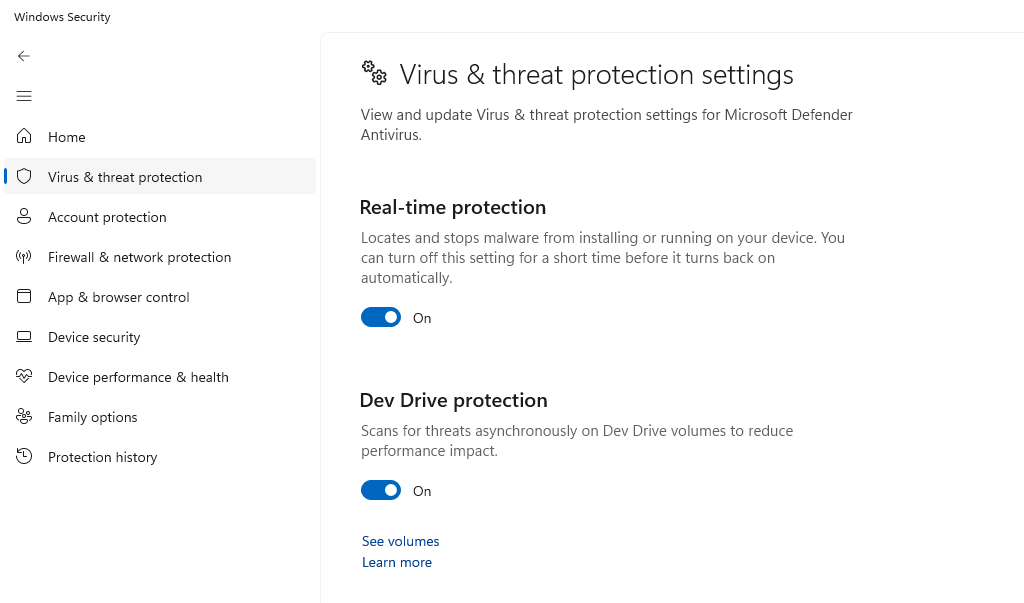
Steps to Turn On Real-Time Protection in Windows 10/11:
- Press Windows key + I to open Settings
- Click Privacy & Security (Windows 11) or Update & Security (Windows 10)
- Select Windows Security from the left panel
- Click Virus & threat protection
- Under “Virus & threat protection settings,” click Manage settings
- Toggle Real-time protection to On
- Enable Cloud-delivered protection and Automatic sample submission
Strengthen Your PC Security with Fortect
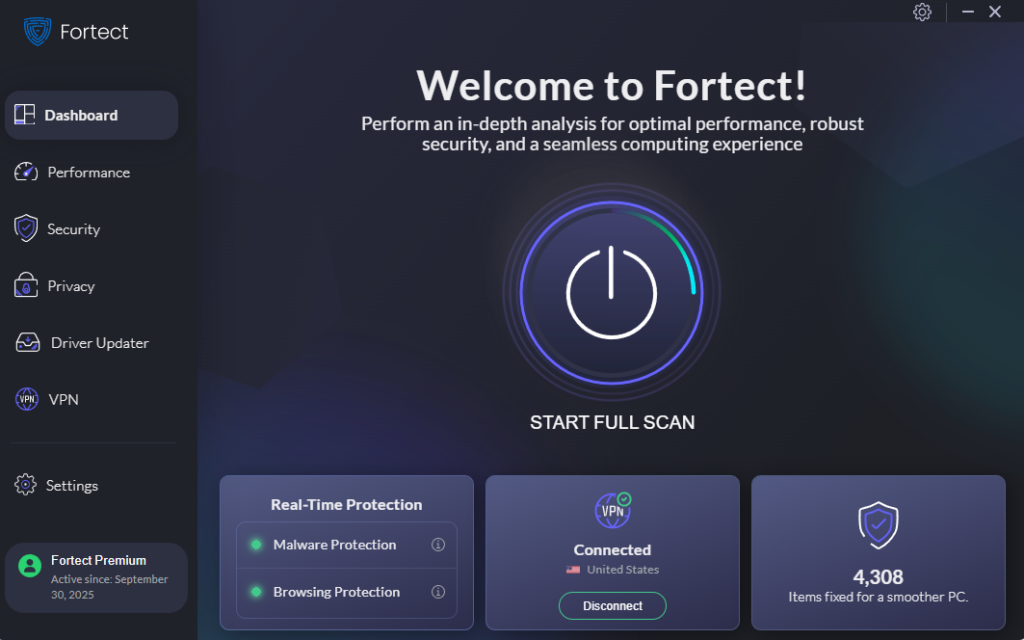
Fortect delivers advanced real-time malware protection specifically designed for Windows users who share files with family members. It automatically scans your PC for traditional and emerging threats, including malware hidden in shared family files, eliminates them safely, and restores damaged system files for improved performance. Its smart threat-detection engine continuously monitors suspicious activity in your shared folders and cloud storage connections, alerting you before harmful actions can take place.
This proactive approach helps keep your device secure and running efficiently, even when family members unknowingly upload infected files to shared locations.
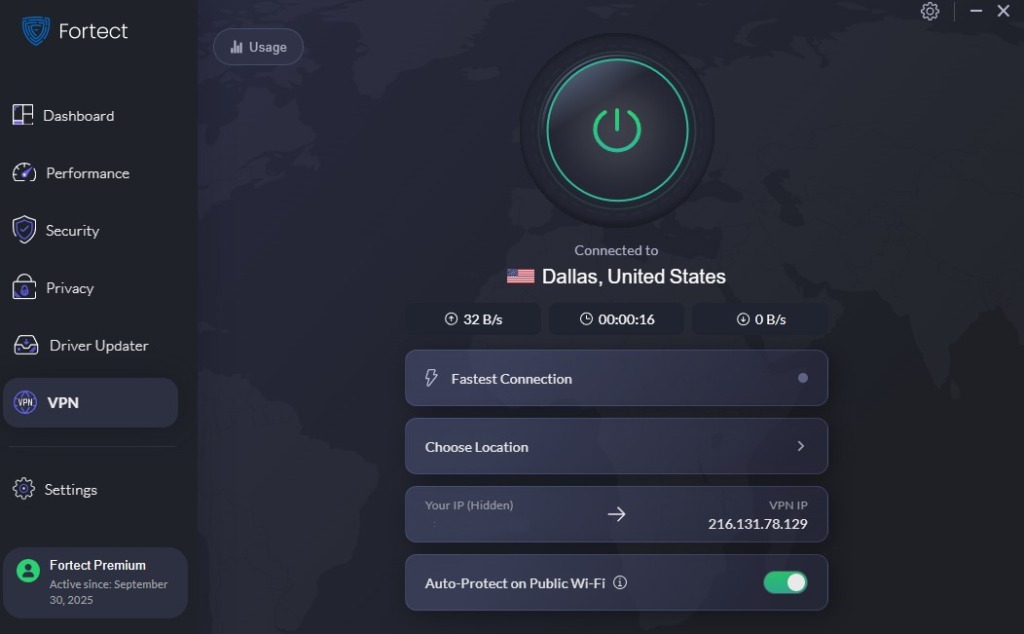
Fortect Premium includes a built-in VPN with Auto-Protect on public Wi-Fi, keeping your connection secure even on open networks. Shared family files, whether on cloud drives or home networks, can sometimes hide malware that spreads unnoticed. By encrypting your internet traffic, the VPN shields your devices from hackers and prevents malware from infiltrating through unsecured connections, a common entry point for zero-day attacks and other network-based threats. This ensures your family’s devices and sensitive data stay safe.
Download and install Fortect today.
Keep Windows Updated
Steps to Update Windows 10/11:
- Open Settings with Windows key + I
- Navigate to Windows Update (Windows 11) or Update & Security then Windows Update (Windows 10)
- Click Check for updates
- Download and install all available updates
- Restart your computer when prompted
- Enable Automatic updates by clicking Advanced options and toggling on Receive updates for other Microsoft products
Configure Controlled Folder Access
Steps to Restrict Unauthorized Access in Windows 10/11:
- Open Windows Security from Settings
- Select Virus & threat protection
- Scroll to Ransomware protection
- Click Manage ransomware protection
- Toggle Controlled folder access to On
- Click Protected folders to add your shared family directories
- Click Allow an app through Controlled folder access to whitelist trusted programs
Scan Files Before Sharing
Always scan files with updated antivirus software before uploading to shared family folders. Right-click files and select your antivirus scan option, or drag files into your security software for manual checks. This simple step prevents you from becoming the source of malware spread within your family network.
Best Practices for Safe Family File Sharing
Use password-protected archives: Compress sensitive files into password-protected ZIP files before sharing, and share passwords through separate communication channels.
Verify file sources: Confirm with family members through phone calls or text messages before opening unexpected shared files, even from known contacts. Account compromises can make it appear that files come from trusted family members.
Disable macros by default: Configure Office applications to disable macros unless from trusted sources, as macro-enabled documents are common carriers of malware in shared family files.
Separate sharing methods: Use dedicated cloud storage for family sharing rather than mixing personal and family files, limiting potential malware exposure.
Implement file version history: Enable version control in your cloud storage to restore clean versions if malware infects shared family files.
Educate family members: Teach children and less tech-savvy relatives about file safety, suspicious attachments, and phishing attempts that might introduce malware into shared folders.
Regular backups: Maintain offline backups of important family files to recover from malware infections without paying ransoms or losing precious memories.
Monitor shared folder activity: Regularly review who has access to your shared family files and remove unnecessary permissions.
Conclusion
Shared family files offer convenience but require vigilance against hidden malware threats that exploit household trust. By implementing Windows security features, maintaining updated systems, using specialized protection like Fortect, and following safe sharing practices, you can protect your household’s digital ecosystem. Remember that cybersecurity is a family responsibility; everyone must understand the risks and contribute to keeping shared files clean and devices secure.



![Beware of these 8 PC Tune Up Tools [Malware Risk]](https://wp-cdn.fortect.com/uploads/2023/04/24173257/speeditup-425x300.jpg)

