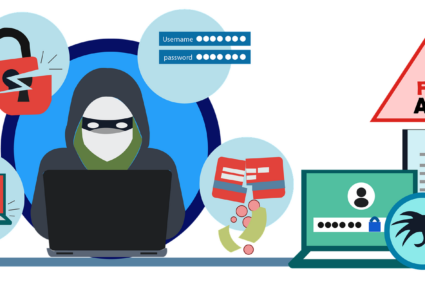
How Cloud Sync Malware Spreads Across Your Devices
Cloud sync malware represents one of the most insidious threats to your digital security. Unlike traditional viruses that infect a single device, cloud sync malware exploits the very convenience features designed to make your life easier, spreading silently across every device connected to your cloud storage accounts.
What Is Cloud Sync Malware?
Cloud sync malware is malicious software that infiltrates cloud storage services like Google Drive, OneDrive, Dropbox, or iCloud to propagate across multiple devices. Once infected files enter your synchronized folders, they automatically replicate to your laptop, desktop, smartphone, and tablet within minutes.
This synchronized infection method transforms your cloud storage from a productivity tool into a distribution network for cybercriminals. The malware disguises itself as legitimate documents, photos, or application files, making detection particularly challenging for average users.
How Cloud Sync Malware Infects Your Devices

Initial Infection Vectors
Cybercriminals employ several tactics to introduce malware into your cloud ecosystem. Phishing emails remain the primary method, with attackers sending convincing messages containing infected attachments that victims unknowingly save to synchronized folders.
Compromised download links, fake software updates, and infected USB drives also serve as entry points. Once you save or move an infected file to a synced folder, the damage begins spreading automatically.
The Synchronization Process
Your cloud service operates continuously in the background, monitoring folders for changes. When malware enters a synced directory, the service treats it like any legitimate file, uploading it to cloud servers and downloading it to all connected devices.
This process happens within seconds or minutes, depending on file size and internet speed. By the time you notice suspicious activity on one device, the infection has likely reached all others.
Cross-Platform Propagation

Cloud sync malware often includes variants designed for different operating systems. A single infected folder might contain Windows executables, macOS applications, and Android APKs, ensuring comprehensive infection across your entire device ecosystem.
Warning Signs Your Cloud Storage Is Compromised
Recognizing cloud sync malware early prevents extensive damage. Watch for unexpected files appearing in synced folders, particularly executable files you don’t remember downloading. Sudden increases in cloud storage usage without adding new content also indicate potential compromise.
Performance issues across multiple devices simultaneously suggest synchronized infection. Unusual network activity, disabled security software, or blocked access to antivirus websites are critical red flags requiring immediate attention.
How to Protect Your Devices from Cloud Sync Malware
Strengthen Your PC Security with Fortect
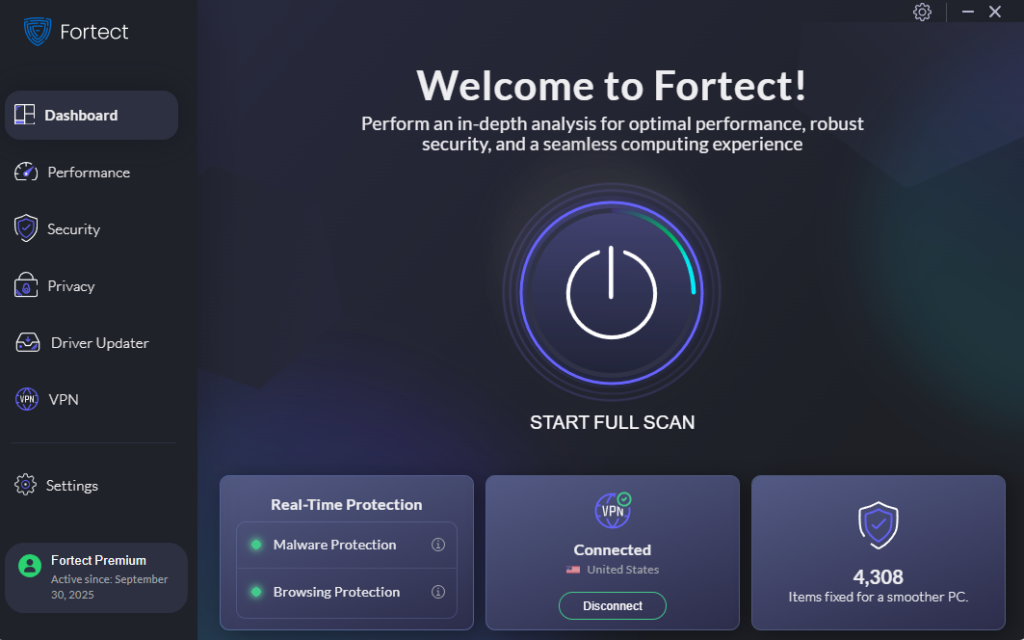
Fortect provides comprehensive real-time protection specifically designed for Windows users facing sophisticated threats. It continuously monitors your system for cloud sync malware and other emerging threats that exploit synchronized storage services, detecting malicious files before they can spread across your devices. The software’s intelligent scanning engine identifies suspicious files attempting to enter your synced folders, eliminates them safely, and repairs any system damage caused by previous infections.
With automatic updates and real-time alerts, Fortect helps maintain a secure environment for your cloud-connected devices, ensuring your productivity tools don’t become security vulnerabilities.
Download and install Fortect today.
Fortect for Mac: Stronger Protection Beyond macOS Security
Cyber threats are no longer just a Windows problem. Today’s attackers actively target macOS users with ransomware, spyware, stealth malware, and increasingly, cloud sync–based infections. A single infected file in iCloud, Google Drive, OneDrive, or other cloud services can automatically spread malware across all your connected devices, turning one small mistake into a multi-device compromise.
As these threats grow more advanced, relying solely on Apple’s built-in security tools may leave critical gaps. Cloud sync malware is especially dangerous because it can bypass traditional protections by using trusted sync services to move malicious files silently between Macs, iPhones, iPads, and even Windows PCs.
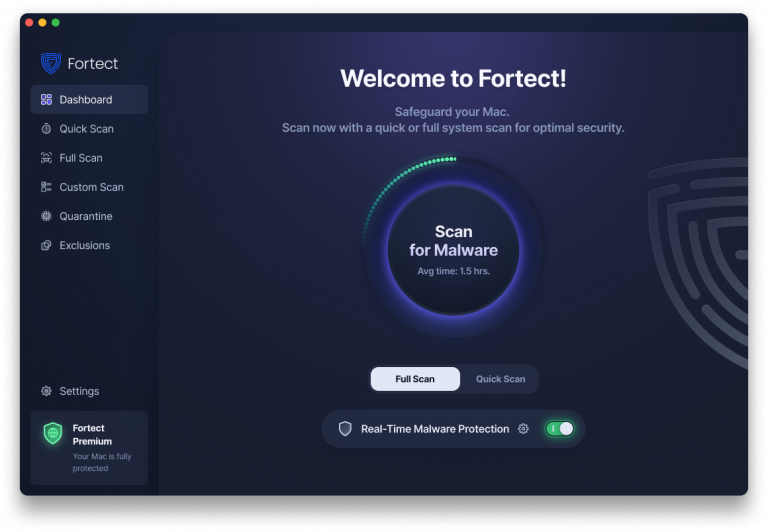
Fortect for Mac strengthens your defenses by working alongside macOS security. It helps detect and block modern threats, including cloud-delivered malware, before they can replicate across your devices. This layered protection reduces the risk of one infected file becoming a widespread security incident.
Key Features
Real-Time Malware Protection
Always-on monitoring helps detect and block malicious activity instantly, including threats introduced through cloud-synced files.
Cloud-Powered Threat Intelligence
Leverages cloud-based analysis to identify new and emerging malware, helping stop zero-day and sync-based attacks faster.
Quick Smart Scan
Fast scans to uncover hidden threats, suspicious files, and cloud-related infection vectors.
Full System Scan
Deep scanning across your entire Mac to detect deeply embedded malware and synced threats that may have already spread.
Disconnect Affected Devices from Cloud Services
For Windows 10:
- Click the Start button and select Settings (gear icon)
- Navigate to Accounts > Email & accounts
- Select your cloud account and click Remove
- Open File Explorer, right-click your cloud folder, and select “Stop syncing”
For Windows 11:
- Press Windows + I to open Settings
- Click Accounts from the left sidebar
- Select Email & accounts
- Choose your cloud service account and click Remove
- Confirm when prompted
Run Comprehensive Malware Scans
Immediately scan all devices using updated antivirus software. Windows Defender provides robust protection for most users:
Running Windows Security Scan:
- Press Windows + I to open Settings
- Click Privacy & Security (Windows 11) or Update & Security (Windows 10)
- Select Windows Security
- Click Virus & threat protection
- Select Scan options
- Choose Full scan and click Scan now
Allow the scan to complete even if it takes several hours. Quarantine or remove all detected threats before reconnecting to cloud services.
Update Your Operating System
Keeping Windows updated patches security vulnerabilities that malware exploits:
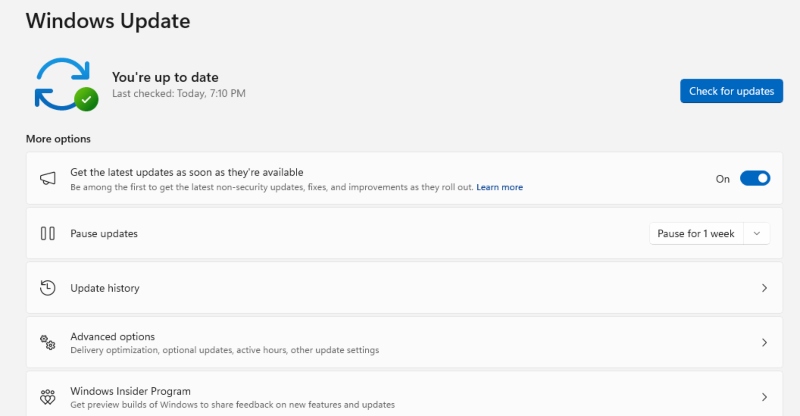
For Windows 10/11:
- Open Settings (Windows + I)
- Select Windows Update (or Update & Security in Windows 10)
- Click Check for updates
- Install all available updates
- Restart your computer when prompted
Review and Clean Cloud Storage
Access your cloud storage through a web browser on a secure device. Carefully review recently modified files, deleting anything suspicious. Check your account’s activity log for unauthorized access or unfamiliar device connections.
Prevention Best Practices
Never save downloaded files directly to synchronized folders until you’ve scanned them. Create a dedicated “quarantine” folder outside your sync directories for new downloads.
Enable two-factor authentication on all cloud accounts and use strong, unique passwords. Regularly audit connected devices, removing access for gadgets you no longer use.
Install reputable antivirus software with real-time protection and keep it updated. Consider selective sync options, limiting which folders synchronize to reduce your attack surface.
Conclusion
Cloud sync malware exploits the interconnected nature of modern computing, but awareness and proactive security measures provide effective defense. By understanding how these threats spread and implementing protective steps, you safeguard your entire digital ecosystem from synchronized infections.