How AI Makes Phishing Scams Harder to Spot
Phishing scams have been around for decades, but they used to be easy to recognize. Misspelled words, awkward grammar, and suspicious sender names were dead giveaways. That era is over. Artificial intelligence has given cybercriminals a powerful upgrade, and today’s phishing emails, texts, and fake websites are more convincing than ever. Here’s what every Windows user needs to know to stay protected.
What Is AI-Phishing?
AI-powered phishing means scammers now use tools like large language models (similar to ChatGPT) to craft their attacks. AI phishing uses highly personalized, grammatically flawless, and eerily convincing fake messages.
How Scammers Use AI to Write Convincing Messages
Traditional phishing emails were obviously written by non-native speakers or copied from templates. AI changes this completely. Cybercriminals can now:
- Generate perfectly written emails that mimic the tone of your bank or employer
- Customize messages using personal details scraped from social media (a tactic known as spear phishing)
- Translate scams into any language with native-level fluency
- Produce hundreds of unique message variations instantly to bypass spam filters
The result is phishing messages that read exactly like legitimate communication, no red flags, no typos, no broken formatting.
Why AI Phishing Scams Are So Hard to Spot?
They Sound Like Real People and Brands
AI can analyze thousands of real emails from a company and mimic its exact writing style, tone, and structure. A fake Microsoft security alert generated by AI will look and sound identical to a real one. Without careful verification, even tech-savvy users can be fooled.
AI Creates Convincing Fake Websites in Minutes
AI tools can now clone an entire website, complete with logos, fonts, and page layouts, in a matter of minutes. These fake sites are used to harvest your login details.
Voice Cloning Makes Phone Scams Terrifying
AI voice cloning can replicate a person’s voice from just a few seconds of audio. Scammers have used this to impersonate family members, coworkers, and even CEOs over the phone.
AI-Generated Images and Deepfakes Add Visual Credibility
Phishing attacks increasingly include fake profile photos, doctored screenshots, or deepfake videos to make the scam seem more legitimate. These visuals are generated by AI and are difficult to distinguish from real images without specialized tools.
Hyper-Personalized Spear Phishing Is Now Scalable
In the past, highly targeted spear phishing required significant manual research, limiting its use to high-value targets like executives. AI can now automate this process. Spear phishing scrapes your name, employer, recent purchases, and online activity to craft a message that feels like it was written specifically for you. This makes every user a potential high-value target.
Common AI Phishing Scenarios Targeting Windows Users
Fake Microsoft Security Alerts
One of the most common attacks targets Windows users with fake Microsoft emails warning of suspicious account activity or an expired subscription. These emails contain links to convincing fake Microsoft login pages designed to steal your credentials.
Fake Windows Defender Notifications
Scammers send browser pop-ups or emails disguised as Windows Defender alerts claiming your PC is infected. They urge you to call a fake support number or download malware disguised as a security tool.
Fake Software Update Requests
AI-crafted emails impersonate Windows Update or popular software vendors, urging you to download a critical update.
How to Protect Yourself on Windows 10 and Windows 11
Strengthen Your PC Security with Fortect
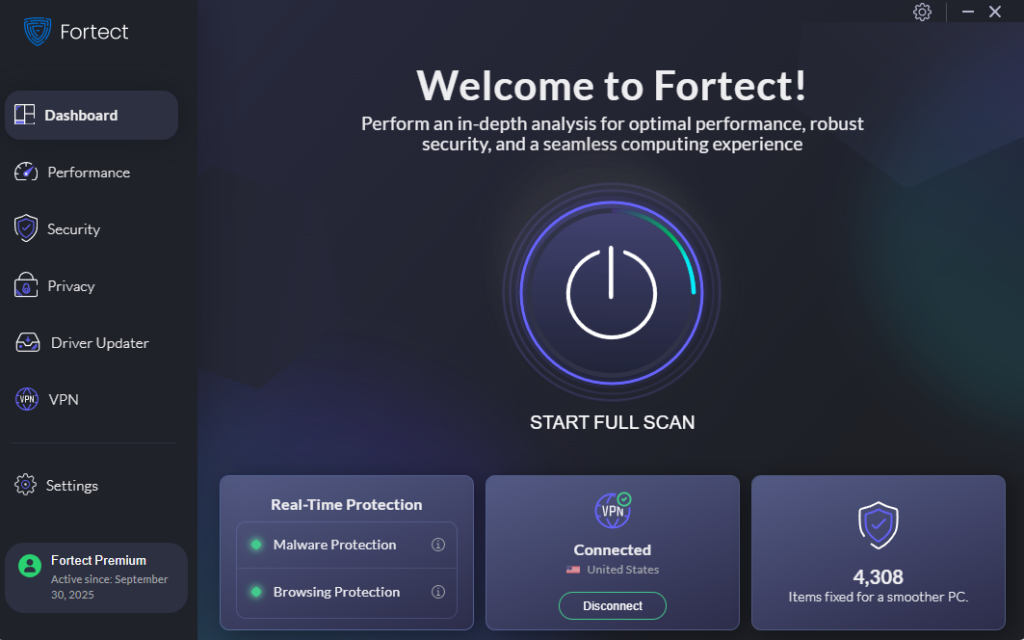
Fortect delivers advanced real-time malware protection for Windows users. Fortect automatically scans your PC for traditional and emerging threats, including AI phishing attacks, eliminates them safely, and restores damaged system files for improved performance. Its smart threat-detection engine monitors suspicious activity and alerts you before harmful actions can take place, helping keep your device secure and running efficiently.
Download and install Fortect now.
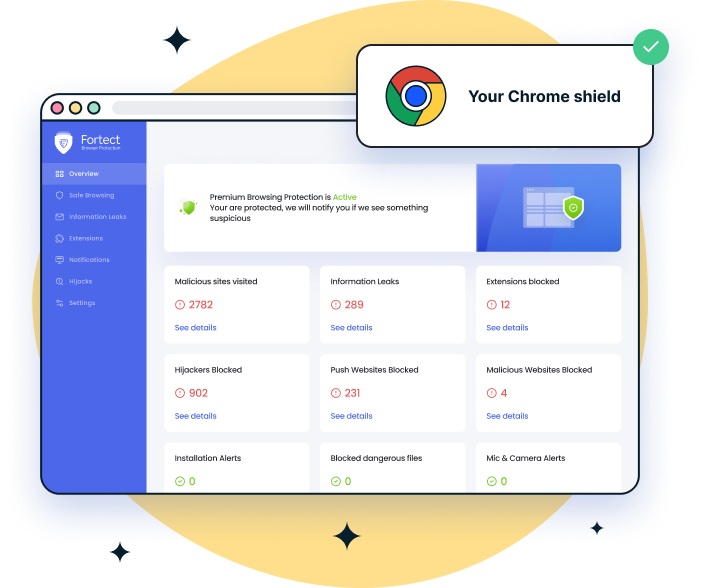
For Chrome users, Fortect Browsing Protection is an easy-to-use extension that adds an extra layer of security. It helps protect against AI-driven phishing scams, which are increasingly sophisticated and hard to detect. The extension blocks dangerous websites before they load, warns you about suspicious pages to prevent scams, and removes malicious extensions that could put your personal data at risk.
Enable and Check Windows Security (Windows Defender)
Windows 10 and 11 come with built-in protection that helps block phishing sites and malicious downloads.
Steps to verify Windows Security is active:
- Click the Start button and type Windows Security, then press Enter.
- Click Virus & threat protection.
- Under “Virus & threat protection settings,” click Manage settings.
- Ensure the Real-time protection is toggled On.
- Go back and click App & browser control.
- Under “Reputation-based protection,” click Reputation-based protection settings.
- Enable SmartScreen for Microsoft Edge, SmartScreen for Microsoft Store apps, and Phishing protection.
Turn On Phishing Protection in Windows 11
Windows 11 includes a dedicated Enhanced Phishing Protection feature.
Steps to enable it:
- Open Settings (Win + I).
- Go to Privacy & Security > Windows Security.
- Click Open Windows Security.
- Select App & browser control.
- Click Reputation-based protection settings.
- Under Phishing protection, toggle on:
- Warn me about malicious apps and sites
- Warn me about password reuse
- Warn me about unsafe password storage
Keep Windows Updated
Microsoft regularly patches security vulnerabilities that phishing attacks exploit. Keeping Windows updated is one of the simplest ways to stay protected.
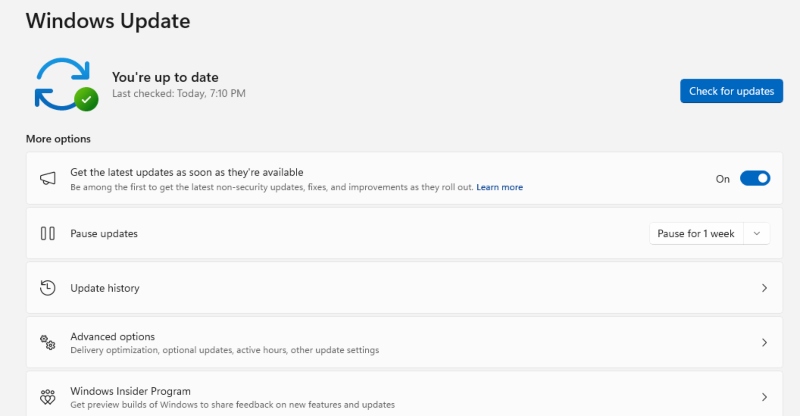
Steps to update Windows 10/11:
- Click Start and open Settings (gear icon).
- Go to Windows Update (Windows 11) or Update & Security > Windows Update (Windows 10).
- Click Check for updates.
- Install any available updates and restart your PC if prompted.
- Click Advanced options and ensure the Receive updates for other Microsoft products is turned on.
Use a Password Manager and Enable Multi-Factor Authentication (MFA)
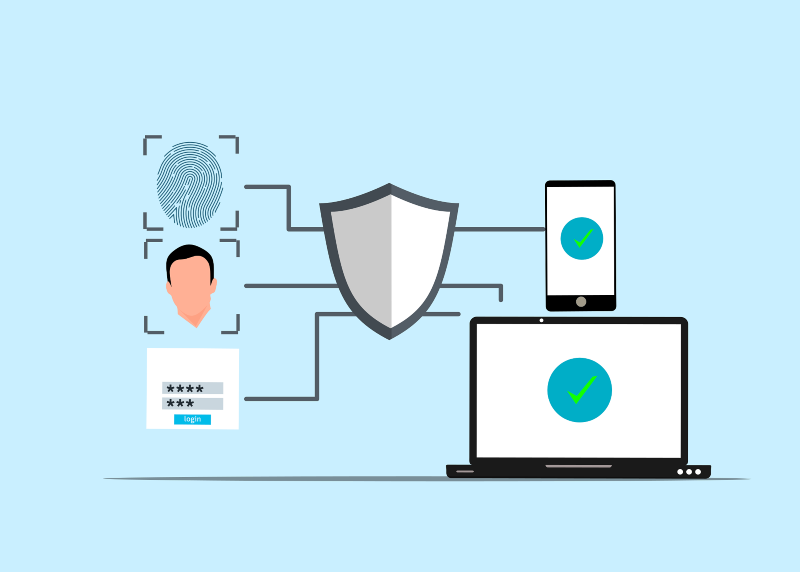
Even if you accidentally enter your credentials on a fake site, MFA adds a second layer of protection that makes the stolen password useless on its own. Use an authenticator app rather than SMS codes for stronger security.
Red Flags to Watch For Even With AI-Polished Scams
While AI makes phishing harder to spot, some warning signs still apply:
- Urgent language: “Your account will be suspended in 24 hours” is a manipulation tactic.
- Unexpected messages: Legitimate companies rarely contact you out of the blue about security issues.
- Mismatched URLs: Hover over links before clicking. The actual URL should match the company’s real domain exactly.
- Requests for sensitive information: Microsoft, your bank, and legitimate companies will never ask for your password via email.
- Too-good-to-be-true offers: AI scams also include fake prize notifications and impersonation of delivery services.
Conclusion
AI hasn’t just improved phishing scams; it has fundamentally changed the threat. Your best defense combines healthy skepticism, strong security habits, and the built-in tools Windows already provides. Stay cautious, keep your system updated, and always verify unexpected messages through official channels before taking any action.