How AI‑Enhanced Evasion Techniques Threaten Your PC and Mac
Cybercriminals no longer rely solely on brute force. Today, they use AI‑enhanced evasion tactics, sophisticated, machine-learning-powered methods that help malware slip past your antivirus, firewall, and even Windows Defender. Whether you’re on a Windows 10/11 PC or a Mac, understanding these threats is the first step to protecting yourself.
What Are AI‑Enhanced Evasion Techniques?
AI-enhanced evasion refers to the use of artificial intelligence and machine learning by attackers to help malicious software avoid detection by traditional security tools. Unlike older malware that used fixed code patterns, AI-driven threats can adapt in real time, rewrite their own signatures, and mimic legitimate software behavior.
How AI Makes Malware Smarter
Traditional malware is static; security software learns its signature and blocks it. AI-enhanced threats work differently:
- Polymorphic code generation: The malware uses AI to constantly mutate its code structure, creating new variants that signature-based antivirus tools have never seen before.
- Behavioral mimicry: AI models train on normal user activity and help malware blend into routine system processes, making it nearly invisible to behavioral detection engines.
- Adversarial attacks on security tools: Attackers use adversarial machine learning to probe and confuse antivirus AI, feeding it manipulated inputs that cause it to misclassify malware as safe.
- Environment fingerprinting: AI-powered malware scans your system before activating. If it detects it’s inside a sandbox or security testing environment, it stays dormant, only launching its payload on real, unprotected machines.
Why Windows 10/11 and Mac Users Are at Risk
Both Windows and macOS are targets. Windows remains the most attacked platform due to its market share, while Macs face a rapidly growing wave of AI-driven adware, spyware, and info-stealers. The misconception that Macs are immune is dangerous and outdated.
Common AI-Driven Threats Targeting Home Users
Fileless malware is one of the most alarming AI-enhanced threats. It runs entirely in memory, never writing files to your disk, making it nearly undetectable by traditional antivirus scans. It often enters through phishing emails or malicious browser scripts.
AI-generated phishing uses large language models to craft highly personalized messages that are free of the spelling errors and awkward phrasing users have been trained to spot. These messages are convincing enough to fool even cautious users.
Deepfake-based social engineering deploys AI-generated audio or video to impersonate tech support or trusted contacts, manipulating users into installing malicious software or sharing credentials.
Ransomware with adaptive delivery uses AI to time its attack for when defenses are weakest, like when your device is idle or when security updates are pending.
How to Protect Your Windows 10/11 PC from AI‑Enhanced Evasion
The good news: you can significantly reduce your risk by hardening your Windows setup. Here’s how.
Strengthen Your PC Security with Fortect

Before diving into manual steps, it’s worth knowing that a dedicated security tool can handle a lot of the heavy lifting for you. Fortect delivers advanced real-time malware protection for Windows users. It automatically scans your PC for traditional and emerging threats, including AI‑enhanced evasion techniques, eliminates them safely, and restores damaged system files for improved performance. Its smart threat-detection engine monitors suspicious activity and alerts you before harmful actions can take place, helping keep your device secure and running efficiently, a strong first line of defense before applying the manual hardening steps below.
Download and install Fortect now.
Keep Windows Fully Updated
AI-enhanced malware frequently exploits known vulnerabilities. Keeping Windows updated closes those gaps.
- Press Windows + I to open Settings.
- Go to Windows Update (Windows 11) or Update & Security > Windows Update (Windows 10).
- Click Check for updates and install all available updates.
- Enable Receive updates for other Microsoft products to keep Office and Edge patched as well.
- Restart your PC when prompted to apply changes.
Set updates to install automatically: in the same menu, ensure Automatic Updates is turned on under Advanced options.
Enable and Configure Windows Defender Properly
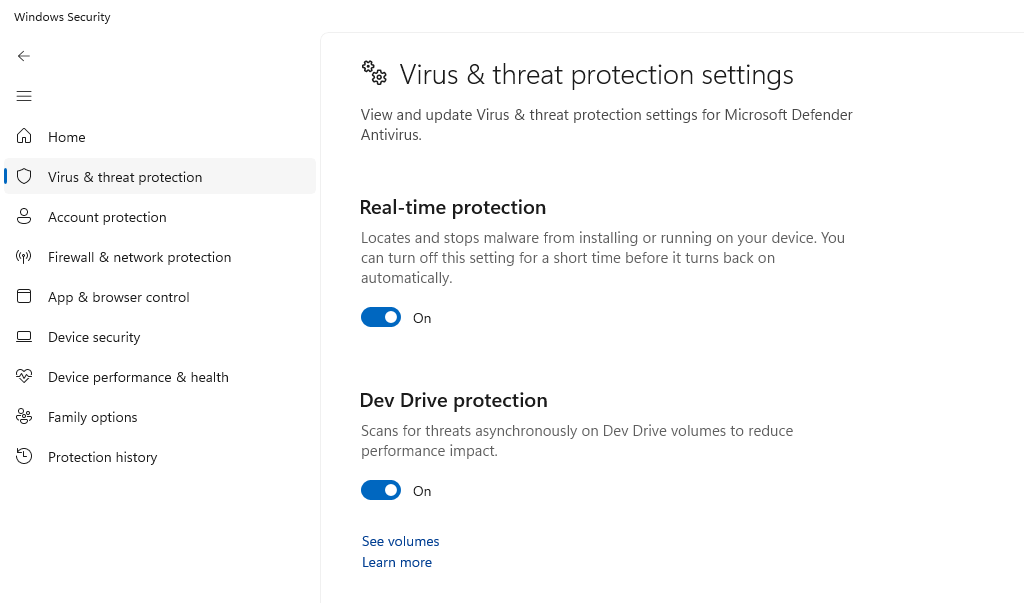
Windows Defender has AI-powered cloud protection built in, but you need to make sure it’s active.
- Open Windows Security from the Start menu.
- Click Virus & threat protection > Manage settings.
- Ensure Real-time protection, Cloud-delivered protection, and Automatic sample submission are all toggled On.
- Under Virus & threat protection, click Scan options and run a Microsoft Defender Offline scan monthly — this can catch fileless threats that evade standard scans.
Enable Core Isolation and Memory Integrity
This feature blocks AI-driven fileless malware from injecting malicious code into core system processes.
- Open Windows Security.
- Click Device Security > Core isolation details.
- Toggle Memory integrity to On.
- Restart your PC.
If you see a driver compatibility warning, check for updated drivers before enabling this feature.
Restrict User Account Privileges

Running as a standard user, not an administrator, prevents most malware from gaining system-level access.
- Press Windows + I and go to Accounts > Family & other users.
- Click your main account and select Change account type.
- Set it to Standard User for daily use.
- Create a separate Administrator account only for installing software.
This single step blocks the majority of AI-driven privilege escalation attacks.
Use a DNS-Level Ad and Malware Blocker
AI-enhanced malware often communicates with command-and-control servers. Blocking malicious domains at the DNS level cuts off that connection.
- Go to Settings > Network & Internet > Wi-Fi (or Ethernet) > DNS server assignment.
- Switch to Manual and enter a security-focused DNS like 1.1.1.2 (Cloudflare for Families) or 9.9.9.9 (Quad9).
- Save your settings.
How to Protect Your Mac from AI-Enhanced Threats
Enable Lockdown Mode (macOS Ventura and Later)
For high-risk users, Apple’s Lockdown Mode drastically reduces the attack surface.
- Open System Settings > Privacy & Security.
- Scroll to Lockdown Mode and click Turn On.
- Confirm and restart.
Note: Lockdown Mode limits some app functionality; it’s best for users who suspect they are actively targeted.
Fortect for Mac: Protect Against AI‑Enhanced Evasion Techniques
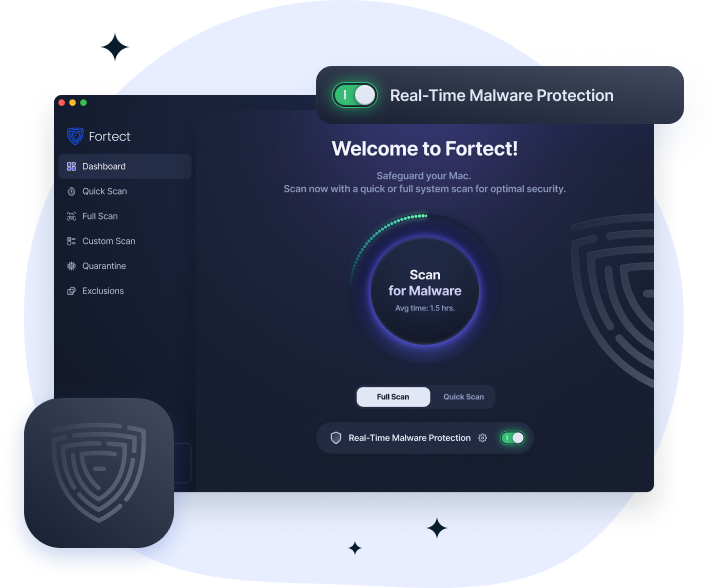
Modern threats are evolving, and cybercriminals now target Mac as well as Windows. AI‑enhanced evasion techniques can bypass standard macOS defenses, but Fortect for Mac provides intelligent, real-time protection that works alongside Apple’s built-in security. It fills critical gaps, blocking malware, ransomware, and stealth attacks you may not even notice.
Key Features:
- Real-Time Malware Defense: Detects and blocks threats instantly.
- Cloud-Based Threat Intelligence: Rapid detection of emerging attacks.
- Quick Smart Scan: Fast, efficient system scans.
- Full System Scan: Deep protection and repair across your Mac.
Keep macOS and Apps Updated
Go to System Settings > General > Software Update and enable Automatic Updates for all categories, including security responses and system files.
Additional Layers of Defense for All Users
Beyond system settings, your habits matter enormously against AI-enhanced evasion.
Use a hardware security key for two-factor authentication wherever possible; AI-generated phishing cannot intercept a physical key. Install a reputable third-party security suite with behavioral AI detection (not just signature scanning). Avoid browser extensions from unknown publishers, as these are a growing vector for AI-driven adware. Finally, back up your data regularly to an offline or cloud backup so ransomware cannot hold your only copy hostage.
Conclusion
AI-enhanced evasion techniques represent a genuine leap forward in the threat online. They are smarter, faster, and harder to detect than anything that came before. But you are not powerless. Keeping your system updated, enabling built-in security features, restricting user privileges, and staying skeptical of unexpected messages puts you well ahead of most targets. Cybersecurity is no longer just for IT professionals; it’s a skill every home user needs today.